Travel connectivity guide
Google Pixel 6 8GB RAM eSIM: compatibility
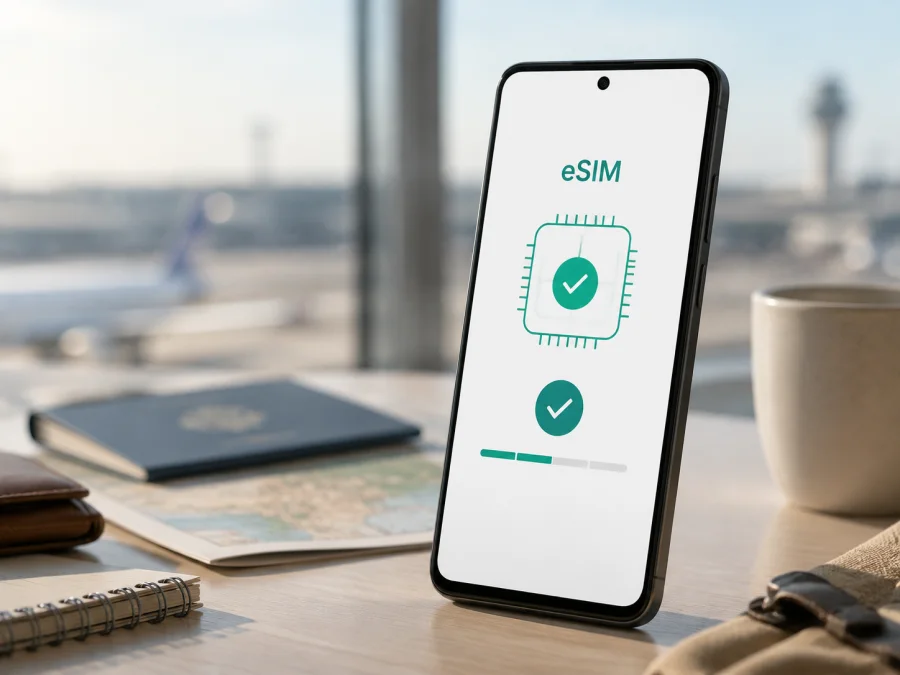
Google Pixel 6 8GB RAM eSIM: compatibility and setup
If you have a Google Pixel 6 8GB RAM, the short answer is yes: the Pixel 6 hardware family supports eSIM. Google describes the usual international configuration as Dual SIM with one physical nano-SIM and one eSIM. Its US specification can differ and supports a dual-eSIM arrangement. Before buying a travel plan, confirm that your own handset shows an EID or an option to add an eSIM.
An eSIM is a digital SIM profile stored in the phone instead of on a removable card. It can be useful abroad because you can keep an everyday SIM in place and use a separate profile for mobile data. Kaspersky eSIM Store is an app and website where you can choose, arrange and activate an eSIM with a suitable mobile-data tariff for an overseas trip. It is not a mobile operator or a network owner; the actual service depends on the selected tariff and the local networks covered by its conditions.
Quick answer for this exact variant
Google’s current Pixel hardware information lists eSIM support for Pixel 6 models. In most markets, the phone can combine one nano-SIM with one eSIM. Google documents dual eSIM behavior for US models, so the number of active digital lines and the available SIM menu may not be identical everywhere. The practical verdict for Google Pixel 6 8GB RAM is: the device family is eSIM-capable, but the exact phone must pass a regional, carrier and settings check.
“8GB RAM” describes the memory configuration; it does not create a separate eSIM edition. Keep it in the page title and compatibility record so this long-tail variant is not merged with another model, but do not use RAM, storage, colour or a seller’s generic photo as proof of eSIM capability. A carrier lock, regional firmware, an imported model or an already-used profile can change the setup experience.
Specification snapshot
| Item | What it means for a travel eSIM |
|---|---|
| Device variant | Google Pixel 6 8GB RAM |
| eSIM status | Supported by the Pixel 6 hardware family; verify the individual handset |
| Typical international layout | One nano-SIM plus one eSIM |
| US layout | Google documents dual eSIM behavior for US models |
| Memory | 8GB RAM; this does not determine eSIM availability |
| Travel data | Select the eSIM as the default mobile-data line |
| Voice and SMS | Not included in a data plan unless its conditions say otherwise |
| Essential checks | EID, Add eSIM menu, carrier unlock, updates and destination coverage |
Regional and operator differences
The Pixel 6 name covers phones sold in several markets. Google separates US and rest-of-world specifications because the SIM arrangement and cellular bands can differ. A US phone may be able to keep two eSIMs active; a typical rest-of-world model normally pairs a nano-SIM with an eSIM. The exact model number and original market therefore matter when a phone was imported.
The carrier can add another limitation. A phone sold with a contract may contain the correct eSIM hardware but reject a profile from another network until it is unlocked. A missing menu can also reflect an older Android build, a temporary settings issue or a regional software state. If your phone was purchased used or abroad, compare About phone with the seller’s model information and do not assume that a new QR code can fix a hardware or carrier restriction.
What to check before you buy
Use this checklist on the exact Google Pixel 6 8GB RAM in your possession:
- Find the EID. Open Settings, go to About phone, then SIM status and look for EID. Google says the EID may also be printed on the original box.
- Find the add-eSIM control. Open Settings > Network & internet > SIMs or Mobile network. Look for Add SIM, Set up an eSIM or Download a SIM instead. Wording varies with Android version and language.
- Check the lock status. A carrier-branded phone can show an EID and still refuse a profile from another provider.
- Update Android. Install available system and Google Play updates, then restart the phone before troubleshooting the menu.
- Check the destination. Match the selected country, region or route to the tariff conditions. Coverage belongs to the plan and its partner networks, not to the Pixel brand alone.
- Prepare Wi-Fi. Keep a reliable connection available for downloading the profile and completing activation.
- Review the plan. Check data volume, validity, activation timing, hotspot rules and whether installation is limited to one device.
<a id="kesim-device-compatibility"></a>
Device compatibility check
Start in Settings > About phone > SIM status. An EID is the identifier for the embedded-SIM function; it is not the same as IMEI 1 or IMEI 2. Then open Settings > Network & internet > SIMs and look for an Add SIM or eSIM setup command. You do not need to complete installation just to confirm that the entry exists.
Check your device before choosing a travel eSIM.
If the EID is visible but the menu is absent, install pending updates, restart and check again. If the menu is present but the profile will not activate, investigate carrier lock and tariff conditions. If neither appears, confirm the market and model number with the seller or carrier. A factory reset or a replacement QR code cannot add eSIM hardware that is not present.
Pixel 6 variants support 5G hardware, but bands, local coverage, congestion and the selected tariff determine whether the phone uses 5G or 4G. A 4G connection can still handle maps, messaging and ordinary travel tasks, and the 5G label is not a promise of 5G in every country.
How to install an eSIM on Google Pixel 6 8GB RAM
Install over stable Wi-Fi while you have the activation details from the app or website. Depending on the plan, the profile may be added through a QR code or a supported in-app flow. Keep the code private and avoid scanning it on several phones: many profiles are intended for one installation on one compatible device.
For a concise walkthrough, see the Android installation instructions. If you are preparing the same trip from an Apple device, the iOS installation instructions cover the corresponding flow.
1. Prepare the phone
Confirm the EID or Add eSIM control, carrier-unlock status, battery level and Wi-Fi connection. Keep the everyday SIM in place until the travel profile is working. Have the order or profile details ready.
2. Open SIM settings
Open Settings. Tap Network & internet. Tap SIMs or Mobile network. Choose Add SIM, then select the option to download or set up an eSIM.
3. Scan or download the profile
Scan the QR code shown by the app or website, or follow the offered installation prompt. Stay on Wi-Fi while Android downloads the profile. Read the confirmation screen so you do not accidentally remove an existing line.
4. Name the line
Give the profile a useful label, such as Travel data or the destination. A clear label makes it easier to select the right line if the phone stores more than one profile. The label does not change the tariff.
5. Select mobile data
When Android asks for the default data SIM, choose the travel eSIM if you want trip traffic to use it. Keep your everyday line enabled only if you understand its roaming conditions. If automatic data switching is offered, turn it off when you want predictable usage.
6. Activate at the right time
If the plan allows it, install before departure and leave the travel line off until needed. After landing, turn it on and select it for mobile data. Enable data roaming for the travel eSIM only when its instructions require it. Do not enable roaming on the everyday SIM unless you accept that operator’s terms.
7. Wait and test
Registration can take several minutes. Toggle Airplane mode once, return to the SIM settings and check the selected data line. Test a simple webpage or map refresh. Installation and first connection are different events, so an installed profile is not necessarily consuming data yet.
Using the eSIM for mobile internet while travelling
A common arrangement is to keep the everyday number available for calls or messages while assigning mobile data to the travel profile. If both lines stay on, verify that Android does not switch data back to the everyday SIM; if the everyday line is disabled, calls or verification messages may be missed.
Before the trip, install over Wi-Fi, label the line and read the plan’s validity rules. Some plans start validity at installation, while others start at first connection to a supported network. Follow the conditions displayed for the chosen plan. Download boarding passes and offline maps in advance, but do not assume that installation alone means the travel data is active.
At the destination, verify that the travel eSIM is on, selected for mobile data and allowed to roam if required. A 4G connection may be normal even on a 5G-capable Pixel. For a short city break, maps and messaging may use little data; remote work, video and hotspot use require more planning. Monitor Android’s data counter and reduce automatic photo backup, streaming and large updates when necessary.
Kaspersky eSIM Store helps you choose, arrange and activate an eSIM with a suitable mobile-data tariff through its app or website. It does not provide a Kaspersky network, replace a local carrier or turn a data-only profile into a regular phone number. Use messaging and calling apps over the travel data connection when the selected plan supports that internet use.
Common problems and fixes
No Add eSIM option
Check About phone > SIM status for an EID. Update Android, restart and reopen Network & internet. If both EID and the add-eSIM control are missing, confirm the exact regional model. Do not assume that a new QR code will repair a missing hardware capability.
QR code does not scan
Increase the brightness of the screen showing the code, clean the camera lens and hold the phone steady. If the code is on the same phone, display it on another screen or use an in-app installation flow. Confirm that the profile has not already been used and keep the activation code private.
Profile will not download
Reconnect to reliable Wi-Fi, complete any sign-in required by the network and retry from SIM settings. Check that date and time are automatic. If the profile is limited to one installation, do not erase it and repeat the process blindly; keep the error details for support.
Installed profile has no service
Confirm that the travel eSIM is on and selected for data. Check whether roaming is required for it, toggle Airplane mode and wait for registration. Review the destination, supported network and validity status. Return network selection to automatic unless the tariff instructions say otherwise.
Data uses the wrong line
Open SIM settings and change the mobile-data choice. Turn off automatic data switching if available. Review hotspot, cloud backup and background-data settings, and keep roaming disabled on the everyday line unless its terms are clear.
Operator restriction appears
An eSIM does not remove a carrier lock. Contact the original carrier or seller and ask whether the Google Pixel 6 8GB RAM is unlocked. Remember that an EID confirms eSIM identity, not permission to use every network.
Connection is slower than expected
Check reception, selected network and plan conditions. 5G is not available in every location and is not required for normal travel data. Move to a better-signal area, reconnect the radio and test again. If the issue continues, check the plan’s APN instructions before contacting support.
FAQ
Does Google Pixel 6 8GB RAM support eSIM?
Yes. Google lists eSIM support for the Pixel 6 hardware family. The usual international arrangement is one nano-SIM plus one eSIM, while US models can have dual-eSIM behavior. Confirm the EID and Add eSIM menu on your own phone.
Does 8GB RAM change compatibility?
No. RAM is a memory specification, not the eSIM identifier. Compatibility depends on hardware, region, software and carrier status. Keep the exact 8GB RAM wording for correct variant matching, then verify the handset itself.
Can I use a physical SIM and travel eSIM together?
Usually, yes, on the standard rest-of-world Pixel 6 configuration. The active combinations can vary by region and software. Choose one line for data and check roaming settings on both.
Does a travel eSIM include a phone number?
Not normally when the plan is for mobile data. Calls and SMS are included only when the plan conditions explicitly say so. Internet calling and messaging apps can use the data connection.
Can I install before flying?
Often yes, and Wi-Fi installation can make arrival easier. Whether validity starts at installation or first network connection depends on the plan. Read its activation conditions and leave the line off until needed only if that is permitted.
Final device check and trip eSIM plan
For the exact Google Pixel 6 8GB RAM, Google’s official specifications support eSIM in the Pixel 6 family. Regional and US configurations can differ, and an operator lock or software state can change the result for an individual phone. Before purchase, find the EID, open the Add eSIM flow, confirm the phone is unlocked, update Android and match the tariff to the destination.
When those checks pass, use Kaspersky eSIM Store as the app and website for choosing, arranging and activating a suitable eSIM tariff for mobile internet during an overseas trip. Install over Wi-Fi, select the travel profile for data after arrival, enable roaming only for that profile when required and monitor usage. The final routine is simple: check Google Pixel 6 8GB RAM, choose an eSIM for the trip, install it carefully and verify the data line before travelling.


