Travel connectivity guide
Google Pixel 6 eSIM: Compatibility & Setup
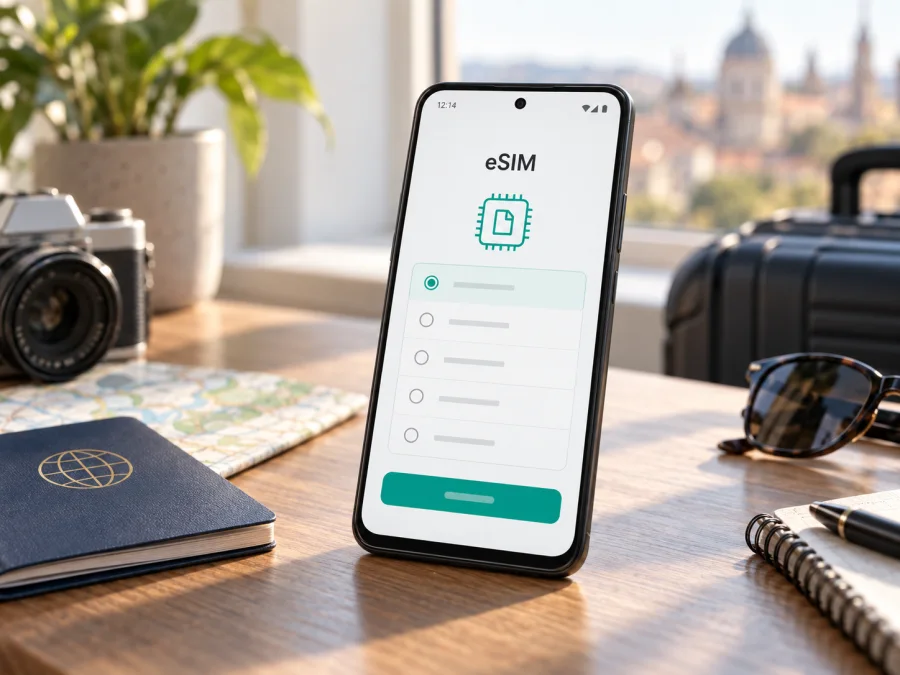
Google Pixel 6 eSIM: compatibility, setup, and travel use
The Google Pixel 6 supports eSIM. Google’s current Pixel help information says that Pixel 4 and later phones work with eSIM, and its Pixel 6 hardware specifications include eSIM for the listed Pixel 6 versions. You can therefore use an eSIM on a standard Google Pixel 6 when the phone’s software, the issuing carrier, and the plan are compatible.
A used or imported handset may still have a carrier lock or regional software difference. Before buying a plan, check its EID or eSIM setup option and confirm that it is unlocked.
Google Pixel 6 eSIM at a glance
| Item | What to expect |
|---|---|
| Device covered | Google Pixel 6, the standard model named in this guide |
| eSIM hardware | Supported according to Google’s Pixel help and Pixel 6 specifications |
| Physical SIM | The Pixel 6 also has a nano-SIM tray; eSIM is a separate digital profile |
| Typical setup path | Settings → Network & internet → SIMs → Add SIM → Set up an eSIM |
| Activation methods | Carrier activation, a QR code, or another method supplied by the carrier or plan provider |
| Travel use | A suitable eSIM plan can provide mobile data abroad, subject to coverage, plan terms, and device unlock status |
| Main checks | EID, Add SIM/eSIM option, Android updates, SIM lock, plan coverage, and activation instructions |
This guide covers the standard Google Pixel 6, not the Pixel 6 Pro or another generation. Storage and color do not establish eSIM capability; model code, market, Android version, and carrier history are more useful if setup differs.
What eSIM support means on this phone
An eSIM is a digital SIM profile stored in the phone. You add a mobile plan without inserting another plastic card. For a traveler, that can mean preparing a data line before departure or adding one after arrival, while keeping a regular physical SIM in the Google Pixel 6 if the carriers and settings allow it.
The phone’s eSIM capability does not include a plan, coverage, or a phone number. Many travel eSIMs provide mobile data only; voice calls and SMS are included only when the plan terms say so. Messaging and calling apps can work over data.
Google’s current Pixel Help guidance says Pixel 4 and later phones work with eSIM, and Google lists eSIM in the Pixel 6 specifications. This confirms the standard model’s capability. Activation still depends on the exact handset, its Android software and unlock status, the provider, the destination, and carrier eligibility. A present EID means the embedded SIM can be identified; it does not guarantee that a particular plan will activate.
Regional versions, carrier locks, and compatibility
Google lists several Pixel 6 hardware variants, including versions for particular US carriers and Japan. Regional differences can affect cellular bands and carrier features. They do not cancel Google’s general eSIM support statement, but they make it sensible to verify the exact handset and destination network. Storage capacity and color are not useful substitutes for checking the model code.
A carrier lock is separate from eSIM hardware. A phone can show an EID and still reject a travel eSIM from another provider. Google notes that lock status depends on where the phone was purchased. Ask the original carrier or seller to confirm that the device is unlocked. Local providers may also limit eSIM activation by plan type, account eligibility, or supported device; confirm those conditions before purchase.
For an imported Google Pixel 6, check the destination’s cellular band compatibility as well as eSIM availability. eSIM describes how a subscription profile is stored; it does not guarantee coverage, 4G/5G access, or service on every network.
Check the Google Pixel 6 before buying a plan
Use Wi-Fi for these checks. Android labels can vary by version or carrier customization.
- Find the EID. Open Settings → About phone and look under SIM status or device identifiers. You can also enter
*#06#in the Phone app; supported software may show the EID. Keep it private. If no EID appears, investigate the model and software rather than treating that alone as a final diagnosis. - Check the eSIM option. Open Settings → Network & internet → SIMs and look for Add SIM or Set up an eSIM. You can confirm the option without scanning a QR code.
- Confirm unlock status. If a carrier sold the phone, ask that carrier whether it is unlocked and can accept the intended eSIM.
- Update Android. Install available updates from Settings → System → Software updates, then restart if prompted.
- Read the plan terms. Confirm destination coverage, supported device requirements, data allowance, validity, activation timing, and installation method.
Compatibility checklist
- [ ] The phone is the Google Pixel 6 and Settings offers Add SIM / Set up an eSIM.
- [ ] An EID is visible in Settings or device information.
- [ ] The phone is unlocked or the carrier confirms the intended eSIM is permitted.
- [ ] The provider supports the handset and covers every destination on the itinerary.
- [ ] The plan’s data, validity, activation rules, and restrictions fit the trip.
- [ ] Wi-Fi and the QR code or activation details will be available during setup.
Check whether your device is compatible before choosing a plan, particularly if the Google Pixel 6 was imported, purchased used, or supplied by a carrier.
Install and activate an eSIM
Read the provider’s instructions before starting. Many profiles are added over Wi-Fi with a QR code, while some providers use an app, carrier activation, or manual details. A QR code may be single-use: if a scan fails or a profile was already added, ask the provider for help instead of repeatedly scanning or deleting the profile. Installation and activation can be separate, and installation does not always start the plan’s validity period.
Before installation
- Connect to reliable Wi-Fi and keep the phone charged.
- Confirm the plan is intended for the Google Pixel 6 and covers your destination.
- Check when validity begins and whether to install before departure or at the destination.
- Decide whether to keep your regular SIM active; review its roaming charges.
- Resolve any SIM lock with the original carrier first.
Add the profile
- Open Settings → Network & internet → SIMs.
- Tap Add SIM or Set up an eSIM; labels may vary slightly.
- Follow Android’s prompts and scan the provider’s QR code, or use its app or manual activation details.
- Wait for the profile to download. Keep Wi-Fi connected.
- Label it “Travel data” or another name you will recognize.
- Review SIM settings and choose the intended line for mobile data.
The plan provider determines when to enable the line. Some plans are installed in advance and switched on at the destination; others have different rules. Follow the instructions for your plan rather than assuming installation immediately starts service.
See the Android eSIM installation instructions. The iOS eSIM installation instructions are for a compatible iPhone and may help a travel companion; they are not the Pixel 6 setup path.
Activate for mobile data
When ready to use the plan, open Settings → Network & internet → SIMs, select the travel eSIM, and switch it on. Set it as the preferred SIM for mobile data. Some international profiles require data roaming on that eSIM; enable it only if the provider instructs you to. Avoid turning on roaming for your home SIM unless you have checked its charges.
At your destination, allow time for network registration. If the provider requires manual network selection, follow its listed network steps. A downloaded profile does not prove that the plan is active: check its validity start, selected data line, and activation status.
Use the Pixel 6 eSIM during a trip
A common arrangement is to keep the regular SIM for calls or verification messages and assign mobile data to the travel eSIM. Whether both lines can remain active depends on carrier support and settings. Check the home carrier’s roaming terms, set the data preference deliberately, and avoid calls on a line with charges you have not reviewed.
For a short trip, download maps and tickets in advance. For a multi-country route, verify that every stop is covered and the plan lasts through your itinerary.
For frequent navigation or work, monitor data in Android settings and the provider’s account. Video, cloud backups, updates, and hotspot use can consume data quickly; speed limits and fair-use rules depend on the plan.
Kaspersky eSIM Store is an app and website where you can choose, arrange, and activate an eSIM with a mobile data plan for an international trip. After confirming compatibility, you can explore eSIM options for your destination and compare the destination, data allowance, and validity that suit your route. Service depends on the selected plan and local network conditions. Kaspersky eSIM Store is not a mobile operator and does not own the networks used by plans. Unless a plan says otherwise, expect data access rather than a conventional phone number, voice service, or SMS.
Troubleshooting: what to check first
“Set up an eSIM” is missing. Search Settings for “SIM,” check Network & internet → SIMs, update Android, and restart. Confirm the model under About phone. If the option or EID is still missing, ask the seller or Google support to check the model and region. Do not rely on a general product listing alone.
The QR code will not scan or download. Use stable Wi-Fi, raise the brightness of the display showing the code, and clean the Pixel 6 camera lens. If the QR code is on the Pixel, show it on another screen or use the provider’s manual method. Check whether the code has already been used and request help if necessary. Keep it private.
The profile is installed but there is no data. Confirm that the eSIM is switched on and selected for mobile data. Toggle airplane mode briefly, then wait for registration. Check that the plan is active, covers the destination, and has any required roaming setting enabled on the correct line. Follow the provider’s network-selection guidance if automatic selection fails.
Activation is rejected. Ask the original carrier about a SIM lock and confirm with the plan provider that the device and account are eligible. An EID does not remove a lock or ensure that a carrier can provision the plan.
The wrong line uses data. Reopen SIM settings and select the travel eSIM for mobile data. Calls, texts, and data may have separate defaults. Disable automatic data switching if it could use the home line unexpectedly.
Data is slow or intermittent. Check signal, local coverage, selected network, remaining data, and plan validity. Restart or move to an area with a clearer signal. Congestion, buildings, outages, and supported bands can affect service; Pixel 6 5G capability does not guarantee 5G in every place.
A verification SMS does not arrive. A data-only travel eSIM normally does not provide an SMS number. Use the home SIM if it remains active and reception is supported, or set up an alternate verification method before travel. Messaging apps need data or Wi-Fi.
If the issue continues, note the error, Android version, EID visibility, and activation state before contacting the carrier or provider. Keep EID and QR code private.
Frequently asked questions
Does the Google Pixel 6 support eSIM?
Yes. Google’s current Pixel Help guidance says Pixel 4 and later phones work with eSIM, and its Pixel 6 specifications list eSIM. A specific handset can still be affected by its market variant, software, SIM lock, or provider restrictions. Check the phone before purchase.
Can I use eSIM and a physical SIM together?
Pixel 3a and later support one physical SIM and one eSIM, subject to carrier support. Set the data line and check roaming charges.
Does eSIM mean 5G will work abroad?
No. eSIM is the profile format. 5G depends on the Pixel 6 variant, local bands and coverage, plan, and carrier support.
Can I install before flying?
Often, but providers differ on installation and activation timing. Check when validity starts before adding the profile.
Can I move the profile to another phone?
Do not assume so. Transfer and reinstallation rules depend on the profile and provider. Check before deleting it or replacing the device.
What if I see an EID but setup fails?
The EID identifies embedded SIM hardware; it does not prove the phone is unlocked or that the plan can be provisioned. Ask the original carrier about the lock and the eSIM provider about eligibility.
Final device check before your trip
Before choosing a travel eSIM for the Google Pixel 6, confirm the device in Settings, check that an EID and Add SIM / Set up an eSIM option are available, and verify that the phone is unlocked. Then compare the plan’s destination coverage, included data, validity period, activation timing, and any roaming or network-selection instructions. Keep the installation details accessible over Wi-Fi, set the intended data line, and leave your home SIM’s roaming disabled unless you have checked its charges.
The manufacturer confirms eSIM capability for the Google Pixel 6, so the model is a suitable candidate for a travel eSIM. The final decision should still be based on the exact handset and the plan you intend to use. Check compatibility before purchase, then choose an eSIM for the countries and length of your trip.


