Travel connectivity guide
Google Pixel 6 Pro eSIM: Compatibility & Setup
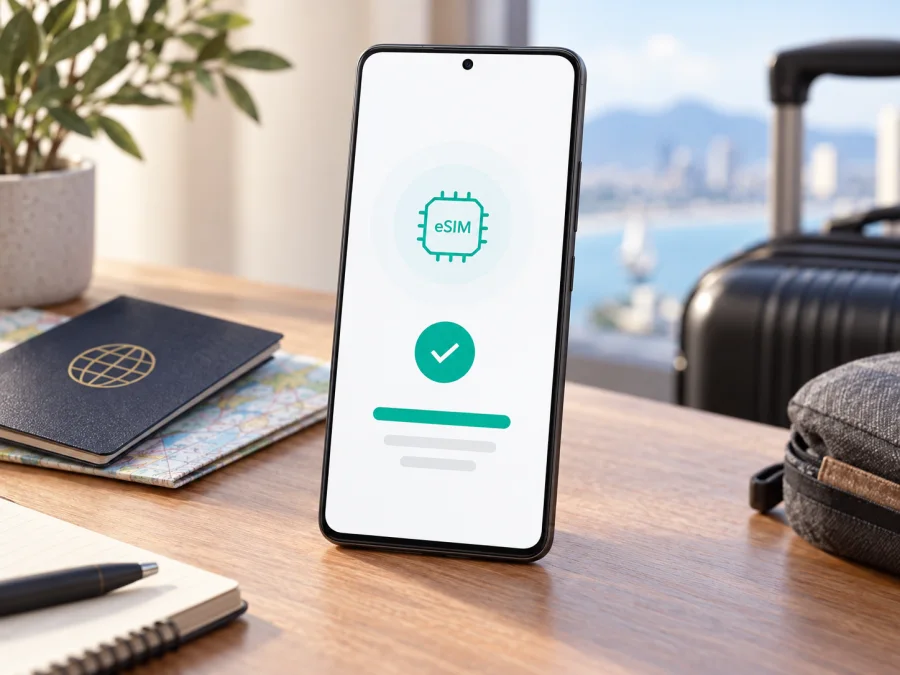
Google Pixel 6 Pro eSIM compatibility and setup guide
The Google Pixel 6 Pro supports eSIM. Google’s current Pixel hardware specifications list this model with one nano-SIM and one eSIM. You can add a digital profile without inserting another physical card.
Support for the phone does not guarantee that every Pixel 6 Pro will activate every eSIM. Model, country of sale, carrier lock, software, and provider network all matter. Check your phone before buying, especially if imported or refurbished.
Google Pixel 6 Pro eSIM at a glance
| Item | What to know |
|---|---|
| eSIM support | Yes. Google lists eSIM for Pixel 6 Pro hardware. |
| SIM arrangement | One physical nano-SIM and one eSIM. |
| 5G | Supported by the phone, but bands and availability depend on model, destination, network, and plan. |
| Activation | Requires a compatible, eligible device and a provider that supports the destination. |
| Before purchase | Check the EID, eSIM setup option, unlock status, and plan coverage. |
Pixel 6 Pro models sold in different markets have different radio configurations and 5G bands. These affect local network access, while carrier-sold versions may add eligibility or unlocking rules. Check the EID and setup menu, then confirm that the provider supports your handset and destination.
What eSIM means on this phone
An eSIM is a digital SIM profile stored in the phone’s built-in SIM hardware. You download it through Android settings or the provider’s installation flow instead of inserting a second card. Pixel 6 Pro can use its nano-SIM alongside an eSIM, and Android lets you choose which line handles data, calls, and messages where supported.
For travel, keep your usual number on the physical SIM and use the travel eSIM for data. Coverage differs by line, and your home carrier may still charge roaming fees. Review settings before you leave.
A travel data eSIM is generally for internet access and does not include a regular number, calls, or SMS unless the plan says otherwise. Messaging apps can use data but do not replace SMS verification. Check terms for calling, texting, or hotspot access.
Check your own Pixel 6 Pro before purchase
Before choosing a plan, confirm the phone itself:
- Model: open Settings → About phone and verify Google Pixel 6 Pro. For an imported or refurbished phone, compare its model number with the seller’s details.
- EID: open Settings → About phone → SIM status and look for EID. The location can differ by Android version. Share this identifier only through a trusted carrier or provider channel if requested.
- Setup option: open Settings → Network & internet → SIMs → Add SIM and look for Set up an eSIM. Wording may vary slightly.
- Unlock status: ask the original carrier or seller whether a network restriction remains. A setup menu does not remove a carrier lock.
- Plan eligibility: check the destination, data amount, duration, activation timing, speed and hotspot terms.
An EID indicates eSIM hardware but does not guarantee a plan will activate. A lock, unsupported destination, provider eligibility rule, or previously used QR code can still prevent setup. If both the EID and setup option are missing, confirm the model and software with the seller or Google support before purchase.
A missing EID or setup entry deserves a pause before purchase. Confirm the exact variant and ask the provider whether it accepts the device’s model number and destination. Also check the phone is not locked to a carrier and that the plan’s country list includes each stop. These checks address different causes: hardware capability, carrier eligibility, and network coverage. An eSIM may pass one check and fail another, so do not use the model name alone as proof that a specific plan can be activated.
Compatibility: regional and carrier versions
Google lists eSIM for Pixel 6 Pro and describes the SIM arrangement as nano-SIM plus eSIM. The phone has different model variants across markets, and their cellular bands and 5G configurations are not identical. An imported device may support eSIM but lack some bands used by a local network, affecting coverage or 5G access.
Carrier sales can add restrictions. An unlocked model can generally be considered for another provider, subject to that provider’s terms. A carrier-locked phone may reject a travel eSIM from another company. Carriers may also apply their own device eligibility checks before issuing an eSIM. These conditions do not mean the Pixel hardware lacks eSIM; they determine whether a particular profile can be activated on that handset.
Install available Android updates over Wi-Fi and restart before troubleshooting. If the EID or setup entry is absent, or you see a lock message, confirm the model and unlock status with the seller or original carrier. Ask the provider to verify destination support before paying.
Use Check your device for eSIM compatibility before selecting a travel plan. It helps distinguish general Pixel 6 Pro support from eligibility of your actual phone and route.
Install an eSIM on Google Pixel 6 Pro
Prepare a reliable Wi-Fi connection, charge the phone, and have your activation details ready. Depending on the plan, the provider may supply a QR code, an app flow, or manual details. Follow the chosen plan’s method; some QR codes are single-use, so do not scan one on another phone or delete the profile unless the provider confirms it can be reissued.
- Review the plan. Check destination, data, duration, activation rule, network, and hotspot terms; confirm the Pixel is unlocked.
- Connect to Wi-Fi. Keep Wi-Fi on for download. Do not rely on the new eSIM for setup.
- Open SIM settings. Go to Settings → Network & internet → SIMs → Add SIM → Set up an eSIM. Labels can vary by Android version.
- Add the profile. Choose the provider if prompted, scan its QR code, or follow its app/manual process. Confirm Android’s prompts and wait for the download to finish.
- Name and assign the line. Use a label such as “Travel.” Choose which SIM handles mobile data, calls, and messages; select the travel eSIM for data when appropriate.
- Follow activation timing. Some plans begin at first supported-network connection; others start earlier. Apply the plan’s rule.
- Test on arrival. Enable the travel line and its mobile data. Enable data roaming on that line only if the provider requires it.
See the Android eSIM instructions for Android setup. The iOS eSIM instructions cover an iPhone you may also take on the trip. Installing on Pixel does not install a profile on an iPhone; each device needs its own eligible profile unless the plan says otherwise.
Keep the profile while using the plan. Deleting it may remove the SIM without restoring a one-time code or refunding the purchase. Ask the provider whether transfer or reinstallation is allowed before resetting the phone.
Activate mobile data for a trip
For one country, choose a plan that explicitly lists that destination. For several stops, compare the coverage list with every country on the itinerary; “regional” does not necessarily include all nearby countries. Check data, validity, network access, speed limits, and tethering conditions.
You can often install over Wi-Fi before leaving if the plan permits it. Read when validity begins so installing at home does not use trip days unexpectedly. Keep your home line enabled for calls or texts if needed, but consider turning off its data roaming to avoid unintended charges. At your destination, open Settings → Network & internet → SIMs, select the travel eSIM for mobile data, and enable that line. Turn on roaming for the travel line only when its instructions require it. A roaming switch may be needed by a prepaid profile; the plan terms determine how that use is charged.
For a city break, mobile data can support maps, transit, bookings, and messaging. Download essential maps and tickets over Wi-Fi as a backup. For work travel, verify hotspot support and test it before relying on it. During a route across borders, confirm coverage at each stop and expect network changes. Reception may vary indoors, in rural areas, and during congestion even where a destination is listed.
Monitor consumption in Android’s SIM settings or in the provider’s app, where available. Android’s counter may not match the plan’s billing period, so use the provider’s account information for remaining data and expiry. Disable automatic updates, cloud uploads, or video streaming over mobile data if you need to conserve a limited allowance.
Common setup problems and checks
No eSIM option appears. Check the model, install Android updates, restart, and look under SIM status for an EID. If both EID and setup entry are missing, confirm the hardware variant with the seller or Google support.
The QR code will not scan. Raise brightness on the screen displaying it, clean the camera, and hold the code steady. If the code is on the Pixel, display it elsewhere or request another supported method. Ask the provider whether a single-use code was already redeemed.
The profile downloads but does not activate. Confirm Wi-Fi worked, the plan is valid, and the code belongs to this purchase. Check that the profile is enabled, restart, and review the plan’s activation rules. Provider support may need to verify or reissue an interrupted profile.
The eSIM is active but there is no data. Make sure the line is enabled and selected for mobile data, the destination is covered, and data or validity remains. Toggle airplane mode, then restart. Follow provider network or APN instructions; enter an APN only when supplied. Enable roaming for this eSIM if required, keeping the home line’s setting separate.
There is signal but apps are offline. Verify mobile data uses the correct SIM and that the plan is not depleted. Try a basic webpage, check another app, and review VPN or private DNS settings. A signal icon alone does not confirm a data session.
5G does not appear. eSIM and 5G are separate capabilities. Model bands, local coverage, partner network, plan, and carrier provisioning all matter; a compatible eSIM may use LTE. Check the provider’s network details and automatic network selection.
The home SIM seems unavailable or the phone reports a lock. Review enabled lines and call, text, and data preferences. Dual-SIM behavior can depend on Android and carrier settings. For a lock or eligibility message, ask the original carrier or seller about unlocking; the travel provider cannot remove another carrier’s restriction.
When seeking help, note the model, Android version, destination, EID availability, and error. Do not post the full EID or QR code publicly.
Travel scenarios to plan for
- One country: match data and validity to the visit; check when activation begins.
- Several countries: compare each stop with the coverage list and validity period.
- Keep your number: use the travel eSIM for data and check home-carrier roaming charges.
- Hotspot: confirm tethering is allowed and budget for its data use.
- Limited Wi-Fi: install in advance when permitted and save essential setup details and tickets offline. Network coverage is still required.
Frequently asked questions
Does the Google Pixel 6 Pro support eSIM?
Yes. Google lists eSIM and a nano-SIM plus eSIM arrangement. Still check your phone’s EID, setup menu, unlock status, and destination eligibility.
Can I use a physical SIM and eSIM together?
The phone supports both. Android provides SIM preferences, but exact dual-SIM behavior can depend on software and carrier support.
Does eSIM mean 5G will work abroad?
No. 5G depends on radio bands, local coverage, partner networks, plan terms, and carrier provisioning. The eSIM may use LTE instead.
Can I install before travelling, and can I transfer later?
Installation in advance is often possible, but check when validity begins. Do not assume a profile can be moved or installed twice; ask the provider before deleting or transferring it.
Does a travel data eSIM include a phone number or SMS?
Usually not unless the plan explicitly says so. Keep your usual line for its number and check that carrier’s roaming terms.
What if I cannot find an EID?
Check Settings → About phone → SIM status, update Android, and verify the model. If the EID and setup entry are both missing, contact the seller or Google support before purchase.
Summary: verify first, connect with confidence
Google lists the Google Pixel 6 Pro as eSIM compatible, with one nano-SIM and one eSIM. Your particular phone must still be eligible for the chosen plan. Check its EID and Set up an eSIM option, confirm that it is unlocked, and verify the route, network, activation timing, data, and validity. Regional radio variants, carrier rules, software, and provider terms can affect coverage and 5G.
Kaspersky eSIM Store is an app and website where you can choose, arrange, and activate an eSIM with a mobile data plan for an international trip. Check compatibility before choosing a plan, install the profile over a reliable connection, and select the travel line for data when appropriate.
Check your device and choose a trip eSIM
- Verify the EID and eSIM setup option on your Google Pixel 6 Pro.
- Confirm the phone is unlocked and the provider supports your destination.
- Match countries, data, duration, activation timing, and hotspot terms to your itinerary.
- Install using the plan instructions and select the travel SIM for data at the right time.
A short check before purchase can prevent a last-minute setup problem and help you arrive prepared for mobile internet.


