Travel connectivity guide
Google Pixel 6a 8GB RAM eSIM: compatibility
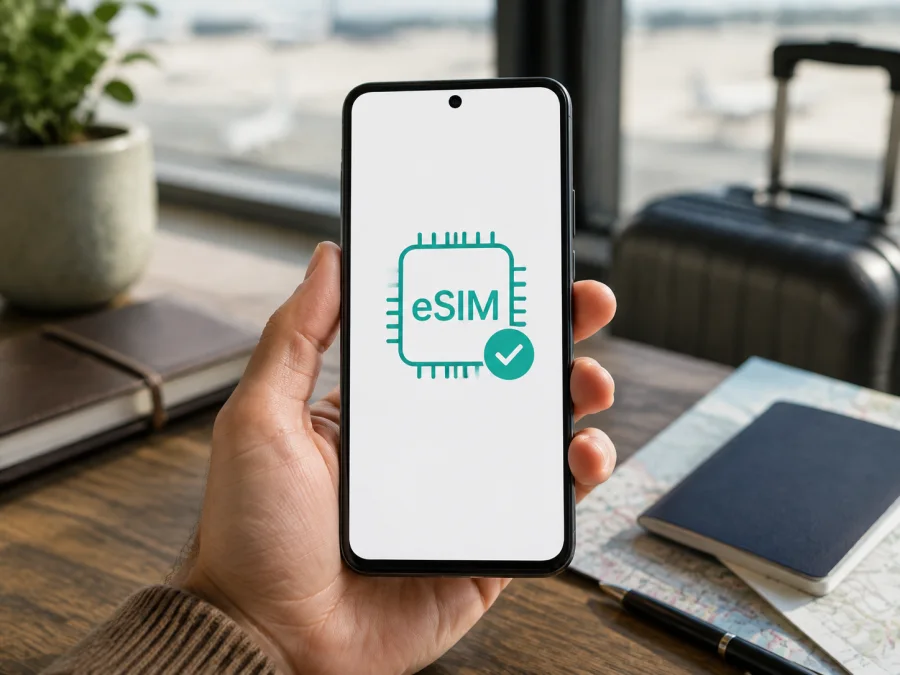
Google Pixel 6a 8GB RAM eSIM: compatibility, setup, and travel use
If you are checking whether the Google Pixel 6a 8GB RAM can use an eSIM for a trip, the short answer is yes: a genuine Pixel 6a supports one physical nano-SIM and one eSIM. Google’s current hardware and Pixel help information confirm this, while carrier, software, and tariff conditions still matter.
The requested name contains “8GB RAM”, so that wording is preserved. Google’s official Pixel 6a specification lists 6 GB of LPDDR5 memory, however. A shop may call a unit Google Pixel 6a 8GB RAM because of a catalog error or grouped listing. RAM does not determine eSIM capability: confirm the actual model and EID before buying.
Quick answer: does Google Pixel 6a 8GB RAM support eSIM?
Yes, a genuine Google Pixel 6a is designed to use an eSIM together with a nano-SIM. This makes the Google Pixel 6a 8GB RAM listing compatible with an eSIM travel setup when the handset is authentic, unlocked, and accepted by the provider. You can normally keep your everyday physical SIM for calls and texts while assigning the travel eSIM to mobile data. Exact dual-SIM behavior depends on Android version and the operators involved.
This is a hardware answer, not a guarantee that every phone sold under the same title will activate every eSIM. Used, refurbished, imported, enterprise-managed, or carrier-sold devices can have restrictions. Network bands and service availability also vary by model, market, local network, and plan. Google notes that carrier support matters, so use the checks below on your own phone before payment.
Official specification in practical terms
| Item | Google Pixel 6a 8GB RAM check | Why it matters |
|---|---|---|
| Device family | Pixel 6a, launched in 2022 | It is within Google’s eSIM-capable Pixel range. |
| SIM arrangement | One nano-SIM and one eSIM | A physical home line can coexist with a digital travel profile. |
| Launch OS | Android 12 | Menu wording may change after updates. |
| Official memory note | Google lists 6 GB LPDDR5 for Pixel 6a | Verify an “8GB RAM” retailer description; it is not an eSIM feature. |
| Travel data | Depends on the selected tariff and supporting network | Check destination, data amount, validity, and activation rules. |
How to verify eSIM compatibility on your own phone
Perform these checks on Wi-Fi before selecting a data package.
1. Find the EID
Open Settings → About phone and look for EID, SIM status, or an identification section. You may also find it while opening Settings → Network & internet → SIMs. An EID is a long numeric identifier and is different from IMEI 1 and IMEI 2.
If the EID is visible, the handset has an embedded-SIM identifier. Record it only for activation or support; do not publish it. If you cannot find it, continue with the settings check instead of guessing.
2. Find the eSIM menu
Open Settings → Network & internet → SIMs. Look for Add SIM, Download a SIM, Set up an eSIM, or similar wording. Google’s current setup path is Network & internet → SIMs → Add SIM → Set up an eSIM. Search Settings for “eSIM” if the item is not visible.
An eSIM option that opens a QR-code scanner or activation flow is a strong sign that the phone can install a profile. If it is missing, restart, update Android, and check again. A missing menu can indicate a carrier or regional restriction, device management, or an inaccurate seller listing.
3. Confirm the actual model and lock status
In About phone, compare the displayed model, IMEI, and serial information with the packaging or purchase record. Keep the exact listing name Google Pixel 6a 8GB RAM, but use the handset’s own identifiers for the decision. Since Google lists 6 GB LPDDR5 for Pixel 6a, an 8GB RAM claim is a reason to verify the unit, not evidence of a different eSIM configuration.
An eSIM-capable phone can still be locked to its original operator. For a used device, confirm that it has been paid off and removed from corporate management, then ask the original carrier about unlocking. Kaspersky eSIM Store can help prepare the eSIM selection and activation flow, but it cannot remove a carrier lock.
4. Confirm the service and destination
Compatibility has two sides: the phone and the service. Check that the chosen eSIM tariff covers every country or region on your itinerary, is intended for mobile data, and is available for this device. A regional plan may cover several countries, while a country plan may suit a single stop. Check the displayed country list and validity terms rather than relying on a general “international” label.
<a id="kesim-device-compatibility"></a>
Compatibility checklist before purchase
Use this list for a new, used, imported, or retailer-described Google Pixel 6a 8GB RAM:
- [ ] About phone identifies the handset as a genuine Pixel 6a.
- [ ] An EID is visible, or Settings offers Add SIM / Set up an eSIM.
- [ ] The phone is not locked to its original operator.
- [ ] The phone is not restricted by work, school, family, or enterprise management.
- [ ] Android is updated and the phone has stable Wi-Fi for installation.
- [ ] The tariff covers every country or region on the route.
- [ ] Data allowance, validity, activation start, and top-up rules fit the trip.
- [ ] You know whether the tariff is data-only and excludes ordinary calls and SMS.
- [ ] The home SIM will not unexpectedly use roaming data.
- [ ] You understand whether the eSIM profile can be installed or transferred once.
Check your device before you choose a tariff. This catches the two common mistakes: buying data for a phone that cannot add the profile, or buying a compatible profile for a destination the tariff does not cover. If an EID or add-eSIM option is absent, pause before payment and ask the seller or carrier to confirm the exact unit.
Choosing an eSIM tariff for travel
Kaspersky eSIM Store is an app and website where you can choose, arrange, and activate an eSIM with a suitable mobile-data tariff for an overseas trip. It helps you review the destination, data amount, duration, and displayed price. The underlying service comes from networks covered by the selected tariff; Kaspersky eSIM Store is not a mobile operator, network owner, or mobile-internet provider.
Choose by itinerary and expected use. Maps, messaging, and occasional searches need less data than video calls, backups, navigation, tethering, and cloud files. Check the destination list, hotspot permission, speed or fair-use rules, validity, and when the plan starts. Unless the tariff says otherwise, a travel eSIM is data-only and does not include an ordinary number, voice calls, or SMS. Keep the regular SIM for your number and check the selected data line before browsing. An eSIM may help reduce roaming costs, but is not automatically cheaper than every alternative.
How to install an eSIM on Google Pixel 6a 8GB RAM
Install over reliable Wi-Fi and keep the QR code or activation details on another screen. Do not scan a publicly shared code or delete a working profile to repeat an installation; some profiles work only once.
1. Prepare the phone
Connect Google Pixel 6a 8GB RAM to Wi-Fi and charge it. Update Android, confirm the phone is unlocked, and verify the EID or Add SIM option.
2. Open the eSIM flow
Open Settings, tap Network & internet, tap SIMs, tap Add SIM, and tap Set up an eSIM or the closest wording shown. Menu names can vary by Android version, language, and operator.
3. Scan or select the profile
Choose the QR-code option when the tariff provides a QR code. Display it on another device and scan it with the Pixel. If the code is on the Pixel itself, use the provider’s manual activation details or in-app installation flow instead. Enter a confirmation code only when it is part of the official activation details.
4. Download and name the profile
Allow Android to download the profile; this may take several minutes. Keep the screen awake if asked and do not use airplane mode. Name it Travel data or with the destination.
5. Select the data line
When Android asks for the mobile-data SIM, select the travel eSIM. You can leave the nano-SIM enabled for calls and texts. Disable automatic data switching if you want to avoid falling back to the home line. Only one SIM is the default data line at a time.
6. Activate at the correct moment
Some plans start on arrival; others begin on installation or first connection. Follow the tariff’s conditions. If it starts on arrival, install it over Wi-Fi before the flight, keep it disabled until appropriate, and enable it after landing. Do not delete a profile because it is not connected at home.
For a visual walkthrough, see the Android eSIM installation instructions. The corresponding guide for another phone is the iOS eSIM installation instructions. Google Pixel 6a 8GB RAM uses Android, so follow the Android path here.
Using the eSIM for mobile internet abroad
Before departure, label the home and travel lines. After landing, open Settings → Network & internet → SIMs, turn on the travel eSIM, and set it as the mobile-data SIM. Check again after a reboot or network change.
Some travel tariffs require Roaming to be enabled for the travel eSIM because it connects through a partner network outside its home market. Enable data roaming only for the intended travel line and only when the tariff instructions require it. Keep roaming data off for the home SIM if you do not want to use that operator’s plan. The signal icon alone does not show which SIM is carrying data.
Wait a few minutes for registration, then test a webpage or messaging app. Watch data usage, limit video playback and backups, download maps over Wi-Fi, and confirm that tethering is permitted before using a hotspot.
Scenario: keep your usual number
Use the physical home SIM for calls and SMS and the travel eSIM for data. Select the travel line under Mobile data. Avoid a roaming call if your home operator charges for it; internet calls and app messages use the selected data connection.
Scenario: cross several countries
Compare the route with the plan’s country or region list. eSIM support does not make one profile valid everywhere. If a country is outside the plan, choose a separate or regional tariff and watch balance and expiry.
Troubleshooting eSIM problems
| Problem | What to check |
|---|---|
| eSIM menu or EID is missing | Restart, update Android, search Settings for “eSIM”, and check for carrier or work management. If both are absent, ask the seller or carrier; do not rely on the Google Pixel 6a 8GB RAM listing. |
| QR code will not scan | Use a bright second screen and the scanner under Add SIM → Set up an eSIM, not the ordinary camera. The code may be too small, used, expired, or intended for manual entry. |
| Profile will not download | Try stable Wi-Fi, complete any network sign-in, check automatic date and time, and confirm the IMEI or EID belongs to this phone. A profile locked to another device may need a new code. |
| Installed profile has no signal | Turn on the eSIM, select it for data, check start condition, destination, and validity, then enable its roaming if required. Toggle airplane mode and restart. |
| Data uses the wrong SIM | Inspect Settings → Network & internet → SIMs → Mobile data. Select the travel eSIM, disable automatic switching if offered, and check the home SIM’s roaming-data setting. |
| Connection is slow or stops | Check data and expiry, move to a better signal, stop downloads, and try LTE if 5G is unstable. Performance depends on model, region, carrier, and local network. |
| Provider rejects the phone | Check the IMEI, destination, plan eligibility, operator lock, and device management. Ask the original carrier about unlocking and the eSIM provider to validate the device. |
| You want to delete or move the profile | Wait until the tariff ends or support advises it. Deletion may prevent reinstallation and does not necessarily cancel a tariff or create a refund; never assume a QR code can be reused. |
If activation still fails, keep the profile installed, note the exact error, and contact the provider’s support team with the requested device details. Avoid a factory reset as a first response.
FAQ
Does Google Pixel 6a 8GB RAM have eSIM?
Yes, a genuine Pixel 6a supports one eSIM alongside one nano-SIM. The handset must show an EID or add-eSIM option, be accepted by the carrier, and be unlocked. Google lists 6 GB LPDDR5, so verify the “8GB RAM” description.
Can I use a physical SIM and eSIM together?
Yes. Pixel 6a is specified for one nano-SIM and one eSIM. Keep the home line for calls or texts and select the travel eSIM for data. Android uses one default data line at a time.
Final check before your trip
The Google Pixel 6a 8GB RAM label can describe an eSIM-compatible Pixel 6a, but the final decision belongs to the phone in your hand. Confirm the model, EID, Network & internet → SIMs → Add SIM, and unlock status. Google lists 6 GB LPDDR5, so validate an 8GB RAM listing rather than treating it as a separate eSIM edition.
Match the trip to the tariff: check countries or region, data allowance, duration, activation start, hotspot rules, and whether service is data-only. Install over Wi-Fi, name the travel line, select it for mobile data after arrival, and enable roaming only for that eSIM when required.
Before you pay, check the device compatibility again and then use Kaspersky eSIM Store to choose and activate an eSIM tariff suited to the journey. This final check helps ensure that Google Pixel 6a 8GB RAM, the selected destination, and the mobile-data plan are compatible before the trip begins.


