Travel connectivity guide
Google Pixel 6a eSIM: Compatibility & Setup
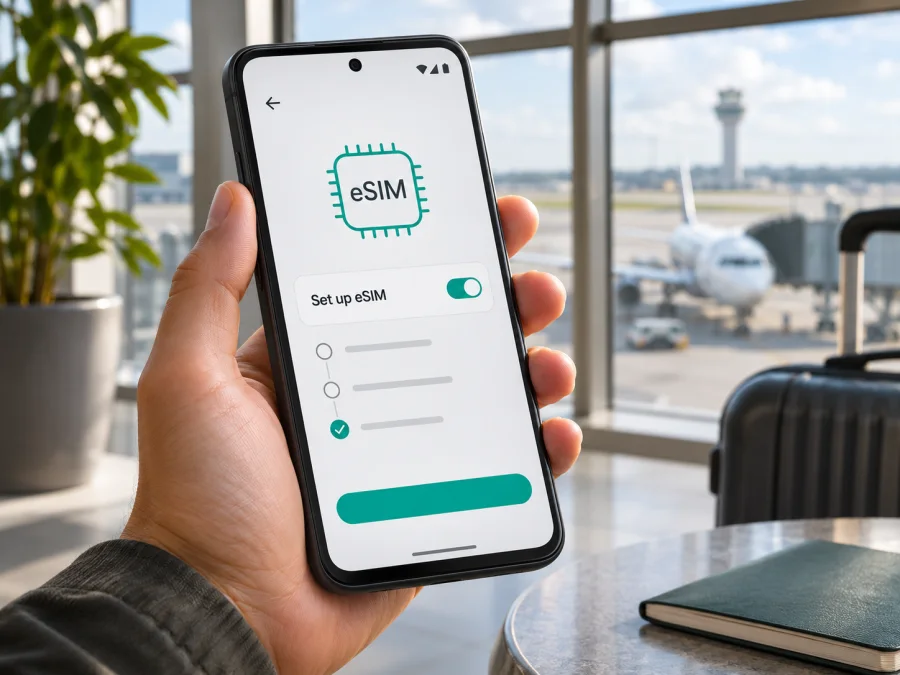
Does Google Pixel 6a support eSIM?
Yes. Google lists the Google Pixel 6a as a dual-SIM phone with one nano-SIM slot and eSIM, and its published hardware specifications mark eSIM support for each listed regional model. That makes the Pixel 6a a suitable candidate for a travel data eSIM. Still, the network must accept the device and the specific eSIM plan: carrier rules, country availability, device lock status, software state and the bands used at your destination can affect whether it works.
The practical answer is therefore: the Google Pixel 6a has eSIM hardware, but check your own handset and the plan before paying. If your phone has no EID or no eSIM setup option, contact the seller or carrier with its exact model number before assuming that an eSIM can be added. The name on the box alone cannot confirm that your particular device is ready for a particular network.
Google Pixel 6a eSIM compatibility at a glance
| Check | What applies to Google Pixel 6a | What you should confirm |
|---|---|---|
| eSIM hardware | Listed by Google alongside one nano-SIM slot | EID is present on your own phone |
| SIM arrangement | One physical nano-SIM and an eSIM | Whether your carrier allows the intended SIM combination |
| Regional models | GX7AS, G1AZG, GB62Z and GB17L are listed | The model code shown in Settings or on the box |
| Carrier conditions | eSIM availability can depend on carrier and country | That the provider supports this device and your plan |
| Travel data | Can be used for mobile data when the destination plan supports it | Coverage, included countries, validity, data allowance and activation terms |
| Network bands | Radio bands differ by model and market | Local LTE/5G compatibility and the plan’s partner network |
| Phone lock | A carrier restriction can limit other networks | Ask the original carrier whether the device is unlocked |
Google’s technical table describes the Pixel 6a as Dual SIM (Single Nano SIM and eSIM). It identifies GX7AS for a group including the US, Canada, Taiwan, Singapore and India; G1AZG for several EMEA markets and Australia; GB62Z for Verizon; and GB17L for Japan. The network band lists differ, although each entry includes eSIM. These are radio and sales variants, not four separate eSIM features. A band mismatch can matter for reception or 5G access even when the eSIM profile installs successfully.
Google notes that eSIM functionality is carrier-dependent and is not supported by every carrier or in every country. That is the key distinction: hardware support answers whether the phone can store and use a digital SIM profile; it does not promise that every mobile provider, plan, country or roaming arrangement will accept it. A travel data plan can also have its own device, identity, activation and usage conditions. Check those separately.
Regional and carrier versions: what changes?
The Pixel 6a was sold in different markets with distinct model codes. The global hardware table lists eSIM for the US/rest-of-world model GX7AS, the EMEA+ model G1AZG, Verizon’s GB62Z and Japan’s GB17L. For the Verizon variant, Google specifies that model GB62Z is only available through Verizon or the Google Store. The Japan model is identified separately and includes FeliCa. The same published table still marks eSIM for each of these models.
A market label does not tell you whether your handset is locked. A phone purchased from a carrier may have a network restriction even though it has eSIM hardware. Contact that original carrier and ask whether the exact IMEI is unlocked for use with another provider and whether eSIM activation is permitted. A phone bought used or imported deserves the same check; a seller’s description such as “global version” is not enough by itself.
The model code matters because the US/rest-of-world, EMEA+, Verizon and Japan versions have different published band combinations. This can affect network access and 5G in a destination. Ask the plan provider which partner networks are used and compare their bands with your exact model; LTE may be available where 5G is not.
An eSIM profile is not itself a service subscription. The provider must activate the plan, and the phone must register on a supported network. An eSIM menu does not prove that a carrier will provision service or that a destination is included.
Check your own Pixel 6a before buying
Use these checks while you still have a reliable internet connection. Menu wording can vary slightly with Android version, language and carrier customization.
- Find the EID. Open Settings → About phone → SIM status and look for EID. Google also says the EID may be printed on the device box. The EID is a useful sign that the handset has an eSIM identity; do not post it publicly or send it to an unverified person.
- Look for the eSIM setup control. Open Settings → Network & internet → SIMs → Add SIM. Depending on the version, the next item may read Set up an eSIM or similar. If offered, continue only far enough to confirm that the setup flow opens; you do not need to begin a purchase or activate a plan during this check.
- Check the model number. Go to Settings → About phone → Regulatory labels or review the original packaging and purchase record. Compare the model code with your carrier’s records if the device is imported or carrier-branded.
- Check the lock status. Ask the original mobile carrier whether this specific handset is unlocked. A SIM lock can prevent activation of a plan from another provider, regardless of the eSIM hardware.
- Ask the plan provider about this exact handset and destination. Confirm that Pixel 6a eSIM activation is accepted, the country is covered, and the intended data service can use the device’s supported bands. Do this for the actual country or regional plan you plan to use; “works abroad” is too broad to be a useful confirmation.
- Review what the plan includes. Confirm data allowance, validity start, coverage area, supported network generation, hotspot rules if relevant, and whether installation requires Wi-Fi or an app. A data-only travel plan usually does not replace your regular number for calls and SMS; check its terms rather than assuming voice service is included.
If any check is inconclusive, pause before buying. Contact the carrier or seller with the model code and ask for a written compatibility confirmation. You can also check your device compatibility before choosing a plan. The check should be based on the device you actually own, rather than on another Pixel 6a listing or a different regional model.
An EID and setup option indicate that the phone can host an eSIM profile, but do not guarantee service. Separately confirm the handset is unlocked, the provider accepts it and the plan covers your destination.
Set up an eSIM on Google Pixel 6a
Follow the activation instructions supplied with your plan. In general, an eSIM is installed by an app flow, a QR code or manual activation details. Use a stable Wi-Fi connection and keep the confirmation email or activation screen available on another device if you need to scan its QR code.
- Prepare the phone. Connect to Wi-Fi, install available Android and Google Play system updates if practical, and make sure the battery is charged. Confirm the phone is unlocked and that you have chosen a plan that supports the Pixel 6a in your destination.
- Open the provider’s installation flow. If the plan is available in an app, sign in and choose the purchased eSIM and its install option. If you received a QR code, keep it on a second screen or printout; a phone generally cannot scan a code displayed on its own screen with its main camera.
- Start Android setup. On the Pixel, open Settings → Network & internet → SIMs → Add SIM → Set up an eSIM. Follow the on-screen prompts. Depending on the provider, Android may download the profile automatically after you confirm the plan or scan the QR code.
- Wait for the profile to install. Keep the connection steady and do not close the setup screen. A profile download is not always the same as the start of the plan’s validity, so read the activation terms before continuing. Some plans start when installed; others start when the phone first connects in the covered destination, while some offer a scheduled start.
- Name the SIM. Give it a recognizable label such as “Travel data” or the destination name. This makes it easier to distinguish from your home SIM in the SIM settings.
- Choose data settings. Set the travel eSIM as the mobile data SIM when you want it to carry internet traffic. Keep your home SIM enabled for its normal number only if you understand its roaming charges and the phone’s dual-SIM behavior. Turn off data switching between SIMs if you want to avoid unexpected data use on the home line.
- Configure roaming only as instructed. Some travel data eSIMs require data roaming to be enabled on that eSIM to connect to a partner network. Enable it only for the travel line when the plan instructions say to do so. Check that the home SIM’s data roaming is disabled if you want to avoid roaming charges there.
- Test at the right time. When the plan is meant to start, select the travel eSIM for data, switch on mobile data and wait for network registration. If the plan is destination-based, testing before arrival may show no service and does not necessarily mean installation failed.
- Confirm the connection. Check that the correct SIM is active for data, the phone shows a mobile network, and a simple webpage loads with Wi-Fi turned off. Review the provider’s app or account to confirm the plan status and remaining data.
Google’s on-device route can be labelled differently by Android version. The menu path above follows Google’s Pixel guidance, but your provider may ask you to install from its own app or activate the plan first. Use the method in the order given by that provider. Avoid scanning the same one-time activation code repeatedly: some codes can only install one profile, and reinstalling may require support to issue a replacement.
For additional device steps, see the Android eSIM installation instructions and iOS eSIM installation instructions. Kaspersky eSIM Store is an app and website where you can choose, arrange and activate an eSIM with a mobile data plan for an overseas trip. Check the destination, plan conditions and device compatibility before selecting an option. The site’s English Store homepage is a general place to browse destinations and current plans; it is not a country-specific tariff page.
Using the Pixel 6a eSIM on a trip
A common arrangement is to keep a home nano-SIM in the tray and use a travel eSIM for data. In Settings → Network & internet → SIMs, choose the travel line for mobile data. If you keep the home SIM active for calls or verification texts, check roaming charges with your carrier. Calls, texts and data can be assigned separately, but only one SIM is the default for mobile data at a time.
For a short city break, a local-country data plan may be enough if it covers the whole stay. For a multi-country itinerary, compare a regional plan’s included countries against every stop, including layovers if you need data in the airport. A regional label alone does not promise that every territory is included. Check the plan’s map or country list, validity and activation rules before departure. If your route crosses a border, confirm whether the same profile continues to work and whether validity counts calendar days or a rolling period.
Estimate your data use before choosing an allowance. Download maps and tickets over Wi-Fi, limit video streaming and cloud backup, and monitor usage. The phone’s data counter and the provider’s balance may update at different times; use the provider account for the plan balance.
If your travel plan is data-only, regular cellular calls and SMS may remain on your home line or may not be included at all. Internet calling and messaging apps can work over the data connection, subject to their own account and network requirements. Keep access to account recovery codes and essential reservations available offline in case you temporarily lose coverage.
Install over Wi-Fi before departure if the provider allows it. Follow any delayed-activation instructions and check when validity starts. If the plan begins on first connection abroad, install beforehand if permitted, then select it for data after landing.
Troubleshooting: eSIM installed but no data
Start with the simplest checks. Open Settings → Network & internet → SIMs and make sure the travel profile appears, is switched on and is selected for mobile data. Check that mobile data is enabled. If the plan instructions require roaming, enable roaming for the travel eSIM only. Turn off Wi-Fi briefly to test cellular data, then check whether the phone has registered on a network.
If the profile will not download, confirm that the phone is online, the activation code has not already been used, and the plan provider supports your exact device and country. Restart the Pixel and try the provider’s official install route again. Do not erase a downloaded profile as a first step: deleting an eSIM may not release its one-time code for reuse. Contact the provider before removing it or resetting network settings.
If the eSIM shows no service after arrival, verify that the plan is active and valid for the place you are in. Check whether the provider requires manual network selection, a specific APN or a roaming toggle. Automatic network selection is normally the first option; if the provider gives different instructions, follow those exactly. A temporary restart or toggling Airplane mode off and on can prompt the phone to register again.
If data is still unavailable, check the following:
- Is the travel profile enabled and selected for mobile data?
- Is the home SIM still selected for data by mistake?
- Does the plan cover the current country or region, and has its validity started?
- Is mobile data enabled, and is data roaming enabled on the correct line if required?
- Does the provider require a particular APN or a supported partner network?
- Is the phone carrier-unlocked, and does the eSIM provider accept this model and its IMEI/EID?
- Have you reached the plan’s data limit or validity end date?
- Can the phone see a supported LTE or 5G network in this location?
Where possible, test the same eSIM in the same location after restarting and compare with the provider’s network status or support guidance. If you contact support, share the device model, software version, country, network shown on screen and error text. Give your EID or activation details only through the provider’s verified support channel; these identifiers and QR codes should be handled as private setup information.
A profile can install successfully while plan activation, roaming or destination eligibility remains unresolved. Menus can vary with software and carrier settings, so ask Google support, the seller or carrier to verify the model if the EID or setup route remains unclear.
Frequently asked questions
Can the Pixel 6a use two eSIMs at once?
Do not assume so. Google’s Pixel guidance describes two eSIM profiles active at the same time for Pixel 7, Pixel 7 Pro or later, subject to carrier support. The Pixel 6a is listed for one nano-SIM plus eSIM. Treat that as the supported arrangement unless your carrier confirms otherwise for your exact software and service.
Where is the EID on the Pixel 6a?
Open Settings → About phone → SIM status and look for EID. Google also says to check the phone’s box. You can review Settings → Network & internet → SIMs → Add SIM to see whether an eSIM setup option is available.
Will a travel data eSIM replace my phone number?
Usually, a travel data plan is for mobile internet and may not include a regular phone number, calls or SMS. Keep your home SIM or use internet calling apps if appropriate, and confirm the actual plan terms. Using your home SIM abroad can incur charges.
What should I do if I cannot see EID or “Set up an eSIM”?
Check the model number and Android software, restart the phone, and review SIM status again. If the EID and eSIM option remain absent, ask the seller, carrier or Google support to confirm that exact handset’s eSIM capability. Do not purchase a plan based only on the Pixel 6a name in an online listing.
Before choosing a travel eSIM
The Google Pixel 6a is listed as eSIM-capable across its published regional models, which makes it a practical option for mobile data on a trip when the provider supports the device and destination. Your next checks are specific: find the handset’s EID, identify its model code, confirm that it is unlocked, and verify the selected plan’s country list, network bands, data allowance and activation terms.
Complete those checks before purchase. Then choose a suitable eSIM plan for your itinerary, install it over Wi-Fi according to the provider’s steps, and set the Pixel 6a to use the travel profile for mobile data when appropriate. Kaspersky eSIM Store’s site and app can help you browse, arrange and activate an eSIM with a mobile data plan for an overseas trip. Review the current plan conditions and your phone’s compatibility before choosing; service depends on the plan’s stated coverage and the local network.


