Travel connectivity guide
Google Pixel 7 128GB eSIM: Compatibility & Setup
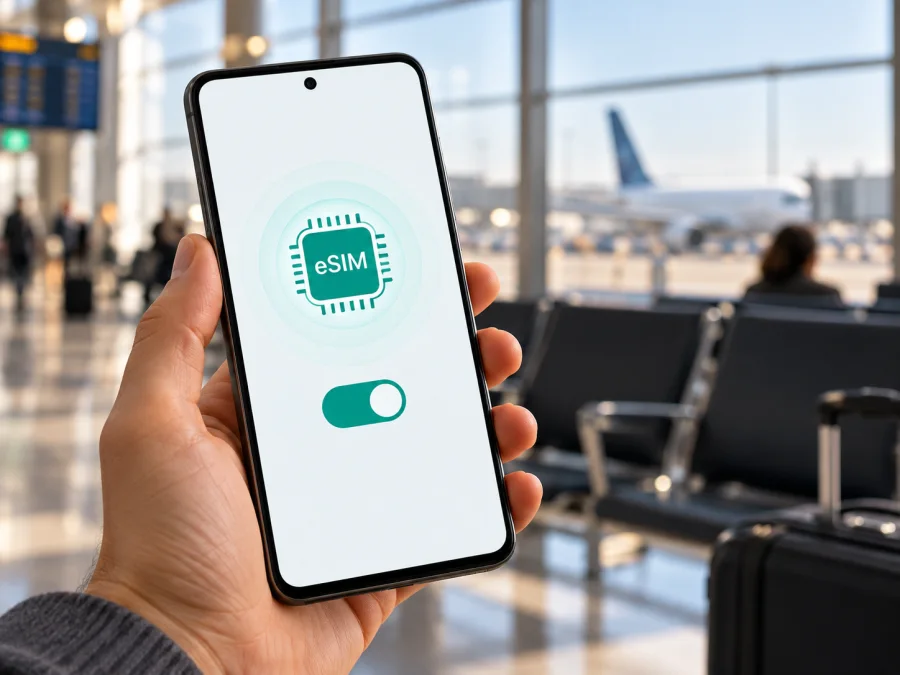
Google Pixel 7 128GB eSIM: compatibility and setup guide
Short answer: yes, Google Pixel 7 128GB supports eSIM. Google lists Pixel 7 among the phones that can use an eSIM alongside a physical SIM, and says a Pixel 7 or later can use two eSIM profiles at once when the carrier supports that arrangement. The 128GB storage configuration does not change eSIM support. What can change the result for you is the phone’s regional model, its carrier lock, its software state, and whether the operator for your destination accepts that device and eSIM profile.
That distinction matters before a trip: a phone can contain eSIM hardware and still fail to add a particular plan if it is locked, the operator does not support eSIM activation on that model, or the plan is unavailable for the destination. This guide shows how to check the handset, install an eSIM, choose it for mobile data, and troubleshoot common setup issues.
Does Google Pixel 7 128GB support eSIM?
Yes. Google’s Pixel guidance identifies Pixel 7 as eSIM-capable. In the usual setup, the phone can use one physical nano-SIM and one eSIM. Google also documents two eSIM profiles active at the same time on Pixel 7 and later, subject to carrier support. A profile being stored on the phone and two profiles being active together are different things: the carrier, device configuration, and local service all affect the available combination.
The 128GB label describes built-in storage. It does not indicate a special radio or SIM edition and is not, by itself, a reason for eSIM to be absent. Still, the retail name alone cannot confirm the exact market variant of a second-hand or imported phone. Check the device settings and identifiers before paying for a plan, especially if the phone was bought through a carrier or imported from another market.
| Item | What to know |
|---|---|
| Exact device in this guide | Google Pixel 7 128GB |
| eSIM support | Supported on Pixel 7; confirm the individual handset in Settings |
| Common SIM arrangement | One nano-SIM plus one eSIM, depending on device and carrier |
| Two eSIMs active together | Possible on Pixel 7 and later when the carrier allows it |
| Storage capacity | 128GB; storage size does not establish SIM compatibility |
| Mobile data while travelling | Select the travel eSIM as the data SIM; follow the plan’s roaming instructions |
| Final compatibility check | EID or eSIM setup menu, carrier unlock status, operator and destination support |
An eSIM is a digital SIM profile stored in the phone rather than a removable card. It can be useful for travel because you can prepare a data plan without swapping out your main SIM. It does not automatically replace your regular number: a travel data plan may provide mobile data only, while calls and SMS on your home number continue to depend on your existing mobile plan and settings.
Regional versions and operator restrictions
“Google Pixel 7 128GB” does not specify the country or operator for which the handset was originally sold. Pixel hardware, supported radio bands, SIM arrangements, and carrier provisioning can vary by market. The same retail storage size can be sold as different regional model variants. Google’s guidance describes eSIM and dual-SIM capabilities, but it also says that the carrier must support the feature. That is why checking a model-family statement is useful but not enough to guarantee that every operator’s activation method will work on every individual phone.
A carrier-sold phone may also be locked to that carrier. A lock is separate from eSIM hardware: a device can show an EID yet reject another provider’s profile. Ask the original seller or carrier whether the phone is unlocked for use with other networks. If you bought the phone second-hand, ask the seller to remove any account or carrier restrictions and test that a different supported SIM can be added before you rely on it abroad.
Geography also has two separate meanings here. The phone’s market variant is the region where that specific handset was designed or sold. The operator market is the country and network where you plan to activate the profile. An imported model may support eSIM, while the local operator may not support that exact variant, or the operator may support eSIM but not offer service for the destination or plan you need. Compatibility is therefore a combination of handset, operator, and destination—not a global guarantee based on the name alone.
The phone may let you save several eSIM profiles, but the number stored is not the same as the number that can operate simultaneously. On Pixel 7, Google documents two active eSIM profiles when the carrier supports it. If your intended combination is a home eSIM plus a travel eSIM, verify it with both providers and check the available SIM controls on your handset. If you use a physical SIM for your home number, you may instead keep it for calls and texts and select the travel eSIM for data.
Check this Google Pixel 7 128GB before buying a plan
Run these checks on the phone itself. A product listing, box label, or seller’s claim can help identify the variant, but Settings is the practical confirmation that the device currently exposes eSIM functions.
- [ ] Connect the phone to Wi-Fi and install available Android and Google Play system updates.
- [ ] Open Settings → About phone → SIM status and look for an EID. Google notes that the EID is the identifier needed for eSIM use.
- [ ] Open Settings → Network & internet → SIMs → Add SIM and check whether an eSIM setup or download option appears. Menu wording may differ slightly by Android release or language.
- [ ] Check Settings → About phone for the IMEI identifiers. An IMEI 2 may be used for the second SIM, while the EID identifies the embedded SIM hardware.
- [ ] Ask the original carrier or seller to confirm that the phone is unlocked for another provider’s eSIM.
- [ ] Confirm with the provider that it supports eSIM activation for your country, destination, and exact device variant.
- [ ] Review whether the plan is data-only, when its validity begins, where it works, and whether the provider requires data roaming to be enabled.
You can also look for the EID on the phone’s packaging or in Google’s device-finding tools, but use the Settings menu when possible so you are checking the handset you will actually travel with. If the EID is missing, that alone does not tell you whether the phone is disabled, misconfigured, or an unusual regional model; check the Add SIM menu, software updates, and the seller or carrier before drawing a conclusion.
A visible Add eSIM or Download a SIM option is a strong practical sign that the software exposes eSIM setup. It still does not prove that every plan is compatible or that the phone is unlocked. If neither EID nor setup options are visible, do not buy a non-refundable travel plan on the assumption that it will work. Confirm the exact model identifier with the seller and provider first.
Check your device compatibility before selecting a travel plan. Confirm both eSIM capability and the destination’s service conditions; those checks answer different questions.
Get ready to install an eSIM
Use a reliable internet connection for installation. Wi-Fi is usually the simplest option if the phone does not yet have mobile data. Keep the activation details available on another screen or printed copy if you plan to scan a QR code with the same phone. If the provider’s app or website offers a direct install flow, you can follow its on-screen steps instead.
Before starting, check the following:
- The plan matches your trip. Confirm the destination or regional coverage, data allowance, validity period, and whether the plan is for data only.
- The phone is unlocked. Contact the original carrier if the device was sold with a contract or restriction.
- The profile is ready. Find the QR code, manual activation details, or in-app installation option supplied with your selected plan.
- You know when data begins. Some plans start their validity or data session at purchase, installation, or first connection in the destination. Read the plan’s conditions rather than assuming all plans start at the same point.
- You have not already used the activation code. Many QR codes are single-use. Do not delete or attempt repeated installation unless the plan provider tells you to.
Kaspersky eSIM Store is an app and website where you can choose, arrange, and activate an eSIM with a plan for mobile data during an international trip. It can help you prepare before departure, but device support, network access, and plan conditions remain dependent on the phone, destination, and relevant mobile provider. For a general overview of currently listed travel options, browse the Kaspersky eSIM Store; check the selected plan’s destination and terms before proceeding.
Install and activate an eSIM on Google Pixel 7 128GB
Android menu names may vary slightly by software version. On a Pixel, start in Settings → Network & internet → SIMs. Keep the phone connected to Wi-Fi while adding a profile, and follow any provider-specific instructions shown during setup.
1. Open SIM settings
Go to Settings → Network & internet → SIMs, tap Add SIM, and choose the eSIM setup or download option. If prompted, select the provider that issued your plan.
2. Add the profile
Scan the provider’s QR code or enter the manual activation details exactly as supplied. If the code is displayed on the Pixel itself, show it on another screen or use the provider’s supported manual process. A phone cannot scan a code shown on its own display.
3. Download and label the eSIM
Confirm the profile details and allow the download to finish. Then return to SIM settings and give the profile a clear label, such as “Travel data.” Avoid rescanning a QR code that has already been used; ask the provider for help if setup reports that it is invalid or expired.
4. Choose the SIM for each use
Select the preferred SIM for calls, texts, and mobile data. You can often keep your personal line for calls and messages while assigning data to the travel eSIM. The options available depend on the phone version and carrier support.
5. Activate mobile data when appropriate
When you are ready to use the travel plan, turn on its profile, enable Mobile data, and choose it as the data SIM. If the plan instructions require data roaming, enable roaming for the travel eSIM only. Check that the phone has not selected your home SIM for data, as roaming on that line may incur charges under your home plan.
6. Wait for network registration
The profile may take a few minutes to register on a supported local network. If the plan starts only in its destination, it may not connect before arrival. Keep the eSIM enabled, wait in an area with coverage, and check the plan’s activation conditions if it remains offline.
For visual walkthroughs, see the Android eSIM installation instructions and the iOS installation instructions. Google Pixel 7 uses Android settings; the iOS guide is relevant when helping someone set up an Apple device.
Use Google Pixel 7 128GB for travel data
In Settings → Network & internet → SIMs, choose the travel profile for mobile data. You can keep your regular SIM active for your home number if needed, but check your home operator’s roaming terms for calls, voicemail, and messages. Recheck the data-SIM selection before opening apps that use mobile data.
| Travel situation | Practical setup |
|---|---|
| Keep your home number | Leave the main SIM enabled as needed and use the travel eSIM for data; check home-line charges. |
| Install before departure | Install on Wi-Fi, then use the plan according to its stated activation and validity rules. |
| Visit several countries | Confirm each destination is included; a country-specific plan may not cover nearby countries. |
| Use calls or messages in apps | Data-only plans can support internet-based apps but do not automatically add a normal phone number or cellular voice service. |
| Share a connection | Check that the phone and selected plan allow hotspot use and review any plan limits. |
Some plans require data roaming on the travel eSIM to connect to a partner network. Follow the plan instructions and verify which SIM is selected for data. Roaming settings for the home SIM are separate, and charges depend on your home operator. If the eSIM connects but data does not flow, check its status and balance in the provider’s app or account.
Google’s Pixel guidance says Pixel 7 can connect to 5G in dual-SIM mode, but the exact model variant, network bands, local operator, plan, and signal determine what is available. eSIM support does not guarantee a particular speed or network generation. Confirm destination coverage with the provider if 5G access is important to your trip.
Common eSIM problems and checks
No EID or Add eSIM option
Install Android updates, restart, then check About phone → SIM status and Network & internet → SIMs again. Confirm the model identifier with the seller. If both the EID and setup option remain absent, ask the seller or Google support about that handset’s specific configuration before buying a plan.
QR code is rejected
Make sure the code is for this plan, has not already been used, and is clearly visible to the camera. Keep the phone online. If the code may have expired or was activated before, contact the provider rather than repeatedly scanning it; activation codes are often single-use.
Profile installs but does not connect
Check that the eSIM is enabled, selected for data, and valid in the country where you are. Confirm that the plan’s activation time has started. Toggle Airplane mode, restart, and wait in an area with coverage. Enable roaming for the travel profile only if the provider requires it.
Connected, but apps have no internet
Confirm that Mobile data is on and the travel eSIM is the selected data SIM. Check the plan’s data balance and temporarily turn Wi-Fi off to test cellular data. If the provider specifies an access-point setting, verify it against its instructions before changing it.
Home SIM is using data, or dual-SIM warnings appear
Recheck the data-SIM selection and disable roaming on the home line if you do not want it used abroad. If you see a dual-SIM voice warning, test with one line temporarily disabled and contact the relevant carrier if the issue persists. Do not erase a working eSIM as a first troubleshooting step; its code may not be reusable.
Moving the profile to another phone
Do not assume an installed eSIM can be transferred or scanned again. Transfer and reinstall rules depend on the plan provider. Ask before deleting the profile or changing phones, and keep the order details until the plan is no longer needed.
Frequently asked questions
Can Google Pixel 7 128GB use a physical SIM and eSIM together?
Usually, Pixel 7 supports one physical SIM and one eSIM, subject to the device version and carrier. Confirm that your providers support the intended setup.
Can it use two eSIMs at once?
Google says Pixel 7 and later can use two eSIM profiles at once when the carrier allows it. This is not guaranteed with every operator or regional configuration.
Does 128GB change eSIM support?
No storage-specific eSIM difference is described in Google’s Pixel guidance. The regional model, software, carrier lock, and operator are more relevant checks.
Does an EID guarantee that my plan will work?
No. It confirms an eSIM identifier is present, but the handset must also be unlocked and supported by the provider for the selected destination and plan.
Will a travel eSIM replace my phone number?
Not necessarily. Many travel plans are data-only. You may keep your home SIM for calls and texts while selecting the travel eSIM for data, subject to your home plan’s settings and charges.
Should I install before travelling, and do I need roaming?
Installation over Wi-Fi may be possible in advance, but start time depends on the plan. Some profiles require data roaming to connect. Follow the specific plan’s directions and ensure the travel eSIM is selected for data.
What if setup still fails?
Check internet access, destination eligibility, profile status, and the selected data SIM. Contact the provider with the phone model, Android version, and error message. Do not share the QR code publicly.
Before your trip: verify the phone and choose the plan
Google Pixel 7 128GB supports eSIM, but the safe decision for an individual phone depends on more than the product name. Confirm that Settings shows an EID or eSIM setup option, check that the handset is unlocked, and verify the plan with the provider for your model variant and destination. Before checkout, compare the included data, validity, eligible countries, activation timing, and any roaming or hotspot requirements.
Once those checks are complete, choose an eSIM plan that matches your route and data needs. Kaspersky eSIM Store’s app and website help you select, arrange, and activate an eSIM with a mobile-data plan for an international trip. Review the conditions of the specific plan, install it on the compatible phone, and select the intended profile for mobile data when you are ready to use it.


