Travel connectivity guide
Google Pixel 7 256GB eSIM compatibility
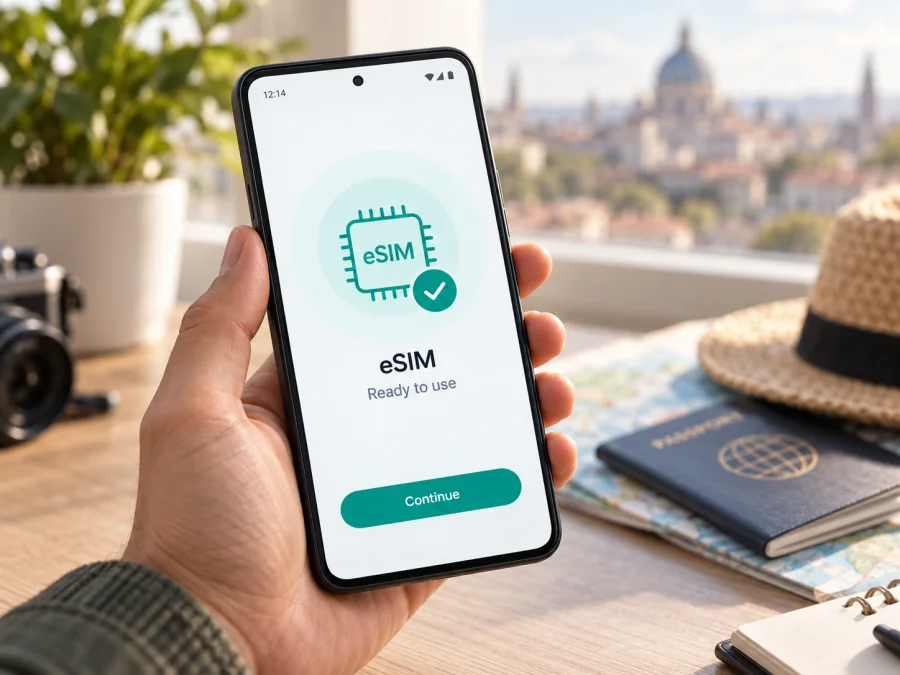
Does Google Pixel 7 256GB support eSIM?
Yes. Google’s current Pixel support information lists Pixel 7 among the phones that can use eSIM. The 256GB storage configuration does not change that capability: it describes internal storage, while eSIM support depends on the phone’s radio hardware, software, sales region, and carrier provisioning. For a specific handset, confirm the EID or eSIM setup option in Settings before choosing a travel plan.
This guide focuses on the exact Google Pixel 7 256GB variant. Google sells Pixel devices in different markets and through carriers, so the menu, available network features, and eligibility of a particular unit can differ. A carrier lock or an unsupported local carrier can also prevent activation even when the phone itself has eSIM hardware.
Google Pixel 7 256GB eSIM at a glance
| Item | What to know |
|---|---|
| Exact device covered | Google Pixel 7 256GB |
| eSIM support | Yes, Pixel 7 supports eSIM according to Google’s Pixel help guidance |
| Does 256GB affect eSIM? | No. Storage capacity is not the eSIM deciding factor |
| SIM setup | Typically one physical SIM and one eSIM; Pixel 7 can use two eSIM profiles at once when the carrier supports it |
| What may vary | Country or region of sale, carrier firmware, software version, device lock status, and carrier support |
| Best check before purchase | Look for an EID and “Add SIM” or “Set up an eSIM” in the phone’s Settings |
What eSIM support means for this Pixel
An eSIM is a digital SIM profile stored in a compatible device. Instead of inserting a second plastic card, you add a profile through the phone’s settings, a QR code, or an activation flow supplied by the carrier or plan provider. A profile can contain the credentials needed to register on a mobile network, but the provider still determines where and how that profile can be used.
Google identifies Pixel 7 as eligible for eSIM functions, including the option to use two eSIM profiles simultaneously when the carrier permits it. The phrase “two profiles” does not mean every plan will connect at the same time or that every carrier offers dual-eSIM service. It means the device and software can support that configuration under eligible conditions. Many travelers instead leave their home SIM enabled for calls or texts and set the travel eSIM as the mobile data line.
Regional and carrier differences to consider
Pixel 7 is sold in multiple markets. Hardware bands, regulatory approvals, software builds, and carrier provisioning can vary by market. Those differences may affect whether a specific carrier can activate an eSIM or which network features are available. The broad Google guidance supports eSIM on Pixel 7, but that does not promise identical behavior for every region, reseller, or carrier.
Carrier-sold phones may be locked to the original network until the carrier’s unlock conditions are met. An eSIM profile from another provider will generally need an unlocked device. A phone can also have an EID yet still fail to activate because the issuing carrier does not support the model, the account is not eligible, or the activation system rejects a device identifier. Ask the seller or carrier for the exact model number, country of sale, and lock status if those details are unclear.
How to check compatibility on your own phone
Compatibility checklist before choosing a travel plan:
- [ ] The Settings app identifies the device as a Google Pixel 7.
- [ ] An EID appears in the device information or SIM status screen.
- [ ] Settings offers Add SIM or Set up an eSIM.
- [ ] The phone is not locked to a carrier that prevents use of another provider.
- [ ] The Android version is current enough for the setup flow shown on the phone.
- [ ] The plan provider confirms that the Pixel 7 and destination are accepted.
- [ ] You have Wi‑Fi or another working internet connection for profile download.
- [ ] You know which SIM will provide mobile data after setup.
Find the EID: Open Settings → About phone and look for the device identifiers, or open Settings → About phone → SIM status. Menu names can vary slightly by Android version and carrier build. The EID is a long identifier associated with the embedded SIM. You can also check Settings → Network & internet → SIMs for an option such as Add SIM or Set up an eSIM.
If an EID is present and the add-eSIM option appears, that is a strong practical indication that the phone is ready to add a profile. It is not a guarantee that a particular plan or carrier will provision it. If neither check is available, restart the phone, install pending system updates, and recheck. Then confirm the exact model and regional configuration with the seller or Google/carrier support before paying for a plan.
Check your device against the requirements before you choose a travel eSIM. This quick step helps separate phone readiness from plan coverage: the handset must accept the profile, and the plan must be valid for your destination.
Install and activate an eSIM
Before starting, keep the Pixel connected to stable Wi‑Fi, charge it, and have the activation details ready. Depending on the service, you may receive a QR code, an in-app installation flow, or manual activation details. Follow the instructions attached to your specific plan; activation procedures and timing are not identical for every provider.
- Check the plan and device first. Confirm the destination, validity period, data allowance, and whether the plan starts at installation or on first network connection. Confirm that the phone is unlocked and that the plan supports Pixel 7.
- Open SIM settings. On the phone, go to Settings → Network & internet → SIMs → Add SIM → Set up an eSIM. The wording can vary slightly by software version. If you are still completing initial phone setup, the eSIM option may also appear during onboarding.
- Choose the provider or scan the code. Follow the on-screen prompts. If the provider gives you a QR code, display it on another screen and scan it with the Pixel. Some plans are installed from their app and do not use a QR code.
- Wait for profile download. Keep Wi‑Fi connected and do not close the setup flow while the profile is being added. A successful download may show the new line in SIM settings. A downloaded profile may not connect until its activation conditions are met.
- Name the line clearly. Label it “Travel” or with the destination so you can distinguish it from your home SIM. This label is only for your own settings; it does not change plan coverage or validity.
- Set the mobile data SIM. In SIM settings, select the new eSIM for mobile data when you want to use the travel plan. Choose separately which SIM handles calls and SMS if the phone offers those preferences. If you need to retain your usual number for incoming calls or messages, check any home-carrier roaming charges first.
- Activate at the right time. Some plans begin when installed; others begin when they first connect in the destination. Read the plan’s stated validity trigger. If the provider says to activate after arrival, leave the eSIM off until then. If the profile should be ready before travel, install it in advance over Wi‑Fi and follow the provider’s activation instructions.
- Test the connection. When activation should be live, turn on mobile data for the travel eSIM and wait for network registration. Open a familiar site or app. If the plan requires data roaming, enable roaming for that eSIM only after confirming the plan terms. Avoid enabling roaming on your home SIM unless you intend to use its service.
For more setup help, see the Android eSIM installation instructions and the iOS eSIM installation instructions. The iOS guide is for travelers using an iPhone; the Android guide is the relevant one for Google Pixel 7. Use the directions supplied for the plan you select if its activation flow differs.
Using Pixel 7 256GB on a trip
A travel eSIM is useful when you want mobile data without swapping out your home SIM card. Before departure, decide what each line should do. The Pixel can keep a home line for calls or SMS while the travel eSIM is selected for data, if both lines are enabled and supported. Check your home plan’s roaming terms so the phone does not quietly use the more expensive line for data.
City break: Match the plan’s destination, data allowance, and validity to the trip. Install over Wi‑Fi if advance installation is allowed, then select the eSIM for data on arrival. Maps, hotel details, ride-hailing, and messaging can use data when Wi‑Fi is unavailable.
Several countries: Verify that every country on the route is explicitly included. Regional plans can have different destination lists and fair-use terms, so do not infer coverage from a plan name. Check the country list and validity before departure.
Long stay or remote work: Estimate data for calls, navigation, file transfers, and hotspot use. Confirm tethering rules, download large files on Wi‑Fi where practical, and monitor usage. Travel data plans may not include a phone number, voice minutes, or SMS; internet calling and messaging apps use data.
Kaspersky eSIM Store is an app and website where travelers can choose, arrange, and activate an eSIM with a mobile-data plan for an overseas trip. It can help you prepare a suitable option for a destination, but the Pixel, the plan terms, and the local network determine whether service is available in a particular place. Review the plan’s data allowance, active period, supported destinations, and activation instructions before travel.
If setup or mobile data does not work
Start by identifying which part failed: profile installation, activation, network registration, or data use. A profile can appear in Settings before it is active; an active profile can also be unable to register if you are outside its supported area.
| Symptom | What to check |
|---|---|
| No “Set up an eSIM” option | Check the EID, Android updates, exact model, carrier configuration, and any work or family management restrictions |
| QR code will not scan | Increase screen brightness on the other device, clean the camera lens, enlarge the QR code, or use the provider’s manual/app method |
| Profile download stops | Reconnect to stable Wi‑Fi, restart the phone, and retry only as the plan instructions permit; avoid repeated attempts if the code is single-use |
| eSIM appears but has no signal | Confirm the plan is active, the destination is included, the eSIM is enabled, and the local network can be selected |
| Signal appears but apps are offline | Check that mobile data is assigned to the travel eSIM, data roaming is enabled if required, and the APN matches provider instructions |
| Home SIM uses data | Revisit the preferred SIM for mobile data and disable data switching if shown; check the home carrier’s roaming settings |
| Activation code is rejected | Confirm the code belongs to this device and has not already been used; contact the plan provider for a new activation method |
| Connection drops or is slow | Toggle airplane mode briefly, restart, check coverage and plan limits, and try a supported network selection if instructed |
Do not delete an installed eSIM just to retry unless the provider instructs you to. QR activations are sometimes single-use, and removing the profile can require a new code or support intervention. If the phone was bought through a carrier, ask that carrier to verify the lock status. If the EID is missing or Settings never exposes eSIM setup after updates, ask the seller or Google support to identify the regional model before purchasing another plan.
Frequently asked questions
Does the Google Pixel 7 256GB have eSIM?
Yes. Google’s Pixel support guidance includes Pixel 7 among eSIM-capable devices. The 256GB storage capacity does not remove or add eSIM support. For a particular phone, verify the EID, setup menu, regional model, and carrier unlock status.
Can Pixel 7 use two eSIMs at once?
Google says Pixel 7 and later phones may use two eSIM profiles simultaneously when the carrier allows it. Availability depends on the device configuration and carrier. Check with both the current carrier and the provider of the new profile before relying on two active eSIMs.
Will a travel eSIM give me a regular phone number?
A travel data plan may not include a phone number, calls, or SMS. Check its terms; internet calling and messaging apps can use data.
When should I install the eSIM?
Follow the plan’s activation terms: validity may start at installation, activation, or first connection. Ask the provider if unclear, and download the profile over stable Wi‑Fi.
Before you choose an eSIM for a trip
First confirm that your exact Google Pixel 7 256GB has an EID and offers Add SIM or Set up an eSIM in Settings. Then check that the handset is unlocked, the destination is included, the plan’s validity and data allowance fit your itinerary, and the activation method is clear. After adding the profile, set the travel eSIM as the data line and follow its roaming instructions.
Check your device and review the trip eSIM options in Kaspersky eSIM Store, the app and website for choosing, arranging, and activating an eSIM plan for mobile data abroad. A few minutes spent confirming device and plan compatibility before purchase can make setup at departure or arrival much easier.


