Travel connectivity guide
Google Pixel 7 Pro 256GB eSIM: Compatibility & Setup
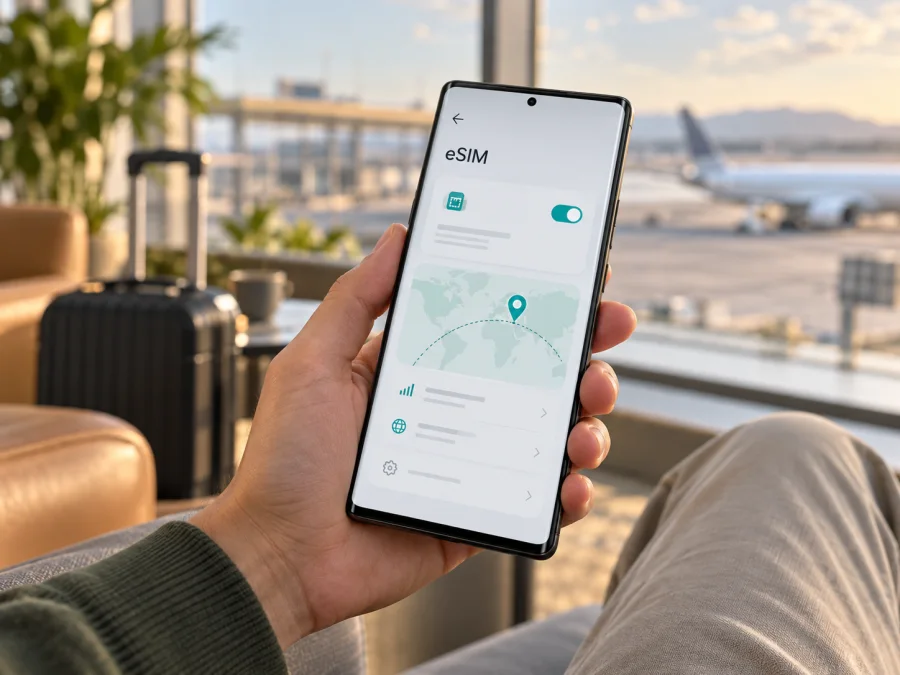
Google Pixel 7 Pro 256GB eSIM: compatibility and setup guide
The Google Pixel 7 Pro 256GB supports eSIM according to Google’s current Pixel hardware specifications. You can add a digital SIM profile in Android and use it for mobile data while travelling, provided that the particular handset is not carrier-locked and the eSIM plan’s network supports your device and destination. The “256GB” in the name refers to storage capacity; it does not identify a special eSIM edition.
eSIM hardware does not guarantee activation of every plan. Check the phone’s EID, unlock status and the plan’s destination and conditions.
Quick compatibility summary
| Item | What to know about Google Pixel 7 Pro 256GB |
|---|---|
| eSIM support | Yes. Google lists eSIM for the Pixel 7 Pro. |
| 256GB variant | Storage size does not change the published eSIM capability. |
| Physical SIM | Google lists dual SIM as one nano-SIM plus eSIM for the Pixel 7 Pro. |
| Two active eSIM profiles | Pixel 7 Pro can use two eSIM profiles at once when the mobile operator permits it. Availability depends on the handset and operator. |
| Unlocked status | A carrier-locked phone may not accept another provider’s profile. Confirm unlock status with the seller or original operator. |
| Travel data | Check that the selected plan covers the actual country or region and supports the phone’s regional version. |
This summary describes the Pixel 7 Pro family, not a guarantee for every second-hand, refurbished, imported or carrier-customized handset. For a phone you already own, the EID and Android’s SIM settings are the most useful checks. The 256GB storage label alone cannot confirm the origin market, model code, lock status or the local operator’s support.
Does Google Pixel 7 Pro 256GB support eSIM?
Yes. Google’s published hardware specifications identify eSIM support for Pixel 7 Pro. Google also documents adding an eSIM through Android settings and notes that Pixel 7 and newer models may use two eSIM profiles simultaneously if the operator supports that arrangement. The standard dual-SIM configuration described for Pixel phones is one physical nano-SIM and one eSIM; the exact combination available to you can depend on the device and carrier.
The answer for the named device is therefore “yes, the model family supports eSIM,” with a handset-level check still recommended before you buy a plan. A device can be sold under the same retail name in different markets, with different radio bands, operator provisioning or software settings. Google’s specification lists regional model codes and distinguishes network capabilities by market. That does not mean eSIM is absent from the Pixel 7 Pro 256GB generally, but it does mean a traveller should not infer local network compatibility from storage size or the name on the box alone.
Think of compatibility as three separate questions:
- Does the phone have eSIM capability? Google lists it for Pixel 7 Pro; check the EID and menu on your individual phone.
- Can this phone add this profile? The phone needs to be unlocked for the intended provider, online during installation, and running software that exposes eSIM setup.
- Will the profile connect at the destination? The eSIM plan must cover the country or region, and its partner network must support the handset’s regional radio configuration and activation method.
A positive answer to the first question does not prove the other two. A plan may be available in one country but not another, and the same device may support different network bands across versions. Confirm the exact destination and terms at the point of selection. This article does not assume a home country, destination, or particular local operator market for your Google Pixel 7 Pro 256GB.
Regional versions and operator markets
Google’s hardware table lists regional Pixel 7 Pro variants, including GP4BC, GE2AE and Japan-only GFE4J, with eSIM in their specifications. Radio-band support differs by market, so an imported phone may not connect to every operator or travel plan.
The original sales channel matters as well. Google notes that a phone bought from an operator can be SIM-locked, while an unlocked phone can be used with other providers. A lock is imposed by the seller or mobile operator, not by the eSIM profile itself. If the phone is locked, the “Add eSIM” menu could still appear, but activation by another provider may be rejected. Ask the original carrier or seller to confirm that the handset is unlocked for use with another provider before travel.
Network availability depends on the operator market and location. A carrier may restrict eSIM activation by account type or require its own app or QR code; its network may also use bands unavailable on an imported phone. Check the plan’s destination and activation requirements. “Works with Pixel” does not promise service everywhere or with every operator.
Check the EID and eSIM settings on your phone
An EID identifies embedded SIM hardware. It and the Android setup menu indicate eSIM capability, but neither confirms provider eligibility or unlock status.
Find the EID
- Open Settings on the Pixel.
- Tap About phone.
- Look for EID in the device identifiers. Depending on the Android release, you may need to open SIM status or a status-information section to see it.
- If it is not shown, search Settings for “EID” or ask the seller or Google support to confirm the model identifiers.
Share the EID only with a provider or verified support team that needs it to check activation.
Look for the add-eSIM option
- Open Settings.
- Tap Network & internet.
- Tap SIMs or Mobile network.
- Look for Add SIM, Download a SIM instead?, or Set up an eSIM. The exact wording can vary with Android version and language.
If you already have a physical SIM, do not remove it just to test this menu. Seeing an eSIM setup option is a useful check; you can stop before scanning a code or downloading a profile. If it is absent, update Android over Wi-Fi, restart and check again. Confirm the model code and ask the seller, Google or original carrier whether eSIM is enabled for that market version.
Before choosing a travel plan
Use this checklist while you still have time to resolve a mismatch:
- [ ] The phone is the Google Pixel 7 Pro 256GB version you intend to use, and its model code and sales region are known if it is imported.
- [ ] The EID is present, or Android offers an eSIM setup option.
- [ ] The phone is SIM-unlocked for the provider whose profile you plan to install.
- [ ] Android is up to date and the phone can connect to Wi-Fi during profile installation.
- [ ] The plan covers the actual destination or all relevant countries on your route.
- [ ] The plan is for mobile data and its validity, data allowance, activation timing and other limits fit your trip.
- [ ] You know whether the provider requires a QR code, an app or another activation method.
- [ ] You have checked whether the eSIM requires data roaming to be enabled after arrival.
For another quick check before you select a destination plan, Check device compatibility. Treat the EID, the Android menu, the lock status and the plan’s own destination details as separate checks.
Choose a travel eSIM for the route
List every country on your route, including stopovers where you need data. A country plan can suit one destination; a regional plan may suit several only if it explicitly includes each. Check the destination list and conditions.
Estimate your usage: maps and browsing differ from streaming, video calls and large uploads. Check the allowance, validity period, start time and top-up rules. Conditions vary by plan; compare with roaming without assuming one is always cheaper.
Kaspersky eSIM Store is an app and website where you can choose, arrange and activate an eSIM with a suitable plan for mobile data on an international trip. It is a practical place to check current destination options, but the plan’s own listed coverage and terms determine whether it fits your route. If you do not yet know which country you will select, you can browse the Kaspersky eSIM Store and check the destinations and current conditions there. This general store link is for browsing; it is not a country-specific tariff.
An eSIM data plan is not automatically a replacement for your usual phone number. Unless the chosen plan explicitly says otherwise, do not expect it to include a standard number for calls or SMS. You can keep your regular line enabled for calls and messages, subject to your home operator’s roaming charges, while selecting the travel eSIM for mobile data. Messaging and voice apps can use the data connection when available.
Install an eSIM on Google Pixel 7 Pro 256GB
Install with reliable Wi-Fi and the provider’s instructions. If the plan should start at your destination, check when validity begins: downloading the profile and starting the plan may be separate events.
Google’s Pixel setup route is through Settings → Network & internet → SIMs → Add SIM → Set up an eSIM. Menu wording can vary with software version. Use the provider’s activation method; do not scan a QR code that was issued for a different device or has already been used if the provider treats it as single-use.
1. Confirm the phone and plan are ready
Confirm eSIM support, unlock status and internet access. Check when to install the plan and how long its activation code remains valid. Keep the QR code on another screen or in print.
2. Open the eSIM setup flow
On the Pixel, open Settings, select Network & internet, then SIMs. Tap Add SIM and choose Set up an eSIM. If Android asks you to choose a provider, select the one associated with the plan or follow the provider’s QR-code instructions. If the labels differ, use Settings search for “SIM” or “eSIM”.
3. Add the profile
Scan the provider’s QR code or follow its supported app activation. Stay on Wi-Fi while the profile downloads. If the code is rejected, check that it is correct, unused and intended for this device.
4. Label the lines
When it appears in SIMs, label it “Travel data” or by destination so you can distinguish it from your home SIM.
5. Choose the data SIM
In Settings → Network & internet → SIMs, enable the profile when needed and set Mobile data to the travel eSIM. Android uses one default data SIM at a time. Check your home operator’s roaming terms before keeping that line active for calls or texts.
6. Enable data roaming if the plan requires it
Some plans require Roaming for the travel eSIM. Enable it only if instructed, and ensure your home SIM is not selected for data to avoid separate roaming charges.
7. Test the connection
When the plan should be active, briefly turn Wi-Fi off and test a webpage. Allow a few minutes for registration. If there is no connection, troubleshoot before deleting or reinstalling the profile.
The Kaspersky eSIM Store Android installation guide currently shows Samsung-specific menu labels, so use the Pixel steps above for this phone. The iOS installation instructions are for travellers setting up an Apple device; they do not describe Pixel settings.
Use the travel eSIM during your trip
Choose the line for each task before departure. A common setup keeps your home SIM for calls or texts and uses the travel eSIM for mobile data. Android has one default data SIM at a time. Check roaming charges on your home line, and turn off data switching on it if your settings offer that option.
At your destination, enable the travel profile, select it for Mobile data, and enable roaming for that profile only if the provider requires it. Allow a few minutes for registration. If you are moving between countries, check that the plan includes each destination before relying on it.
Example: a weekend in one country. Choose a plan that explicitly covers the destination and matches the short stay. Install it on Wi-Fi if its rules allow pre-installation, then select it for data on arrival. Keep your normal number for calls only if your home operator’s roaming terms suit you.
Example: a multi-country trip. Confirm that every country on the route is included in the regional plan. Check allowance and validity against the whole itinerary; a region name alone does not guarantee coverage in each country. Select the eSIM for data when crossing a border and monitor remaining data in the associated account.
Use the provider’s account as the source for remaining allowance because Android’s data counter may differ. Keep the profile installed until the trip ends: some QR codes cannot be reused. Before removing it, check the provider’s transfer and deletion rules. Then switch the data preference back to your usual SIM if needed.
Common problems and checks
The eSIM option is missing
Update Android over Wi-Fi, restart and search Settings for “eSIM” or “Add SIM”. Check the EID and model code. Ask the seller, Google support or original carrier whether eSIM is enabled for this market version and whether a restriction applies.
The QR code will not scan or download
Use stable internet, show the full code on another screen and reduce glare. Check that it is unexpired, unused and intended for this phone. If it is rejected, contact the plan provider before deleting a partial profile or requesting a replacement.
The profile is installed but there is no service
Confirm the profile is enabled, the plan is valid in your location and the travel eSIM is selected for data. Enable data roaming for that profile if instructed. Toggle airplane mode or restart, then allow several minutes for registration. Service depends on local coverage and supported bands.
Mobile data uses the wrong SIM
Open Settings → Network & internet → SIMs, select the travel eSIM under Mobile data, and confirm mobile data is on. Android uses one default data SIM at a time.
Signal appears, but data does not work
Check remaining allowance, plan validity, selected data SIM and any required roaming setting. Leave the access point name (APN) on automatic unless the provider supplies a value. Contact the provider if it persists.
The device is not eligible, or two eSIMs will not work together
Check the EID, model code, updates and SIM-lock status. Ask the provider about this exact Pixel 7 Pro market version. Google says Pixel 7 and later can use two eSIMs simultaneously when the operator permits it; do not assume every pair of plans can be active together. If the plan or destination is incompatible, consider a plan that explicitly covers it, your regular operator’s roaming option or a compatible local SIM. For unresolved errors, contact the plan provider or the carrier that sold the phone through a verified support channel.
Frequently asked questions
Can I use Google Pixel 7 Pro 256GB for a travel eSIM?
Yes, the Pixel 7 Pro family supports eSIM. Check the individual phone’s EID or eSIM menu, confirm it is unlocked and verify that the selected plan supports the exact destination and device variant.
Does the 256GB version have different eSIM support?
Google’s listed eSIM capability is for the Pixel 7 Pro, and storage capacity is not presented as a separate eSIM feature. A 256GB label does not identify the region, model code or carrier lock, so check those details on the handset you will use.
Can I keep my physical SIM active?
Usually, Pixel phones support one nano-SIM and one eSIM, subject to the phone and operator. You can choose a line for calls, texts and data in SIM settings. Check your home operator’s roaming charges before keeping that line active abroad.
Does eSIM provide a normal phone number?
Not necessarily. A travel eSIM plan may be intended for mobile data only. Check the selected plan’s terms for voice calls, SMS and number availability; use internet messaging apps for calls and messages when appropriate.
Should I install the eSIM before departure?
You can install it before departure when the plan’s instructions allow it and you have Wi-Fi. Check when its validity starts. Some plans start on installation, while others start later under their terms. Leave the profile switched off until you need it only if the provider’s instructions permit that setup.
Why does the phone show an EID but reject the plan?
An EID indicates an eSIM identifier is available; it does not confirm carrier unlock, plan eligibility, destination coverage or successful activation. Check all of these separately and contact the plan provider with the exact error message.
Before you go
Google Pixel 7 Pro 256GB is listed as eSIM-capable, and Google documents adding an eSIM through Android’s SIM settings. The remaining checks are specific to your handset and journey: confirm the EID or setup menu, verify that the phone is unlocked, identify its regional model if it was imported, and check that the selected plan covers every destination on your route.
Once compatibility is clear, choose a data plan by destination, length of stay and expected usage. Follow the provider’s installation and activation instructions, select the travel eSIM for mobile data when you need it, and check whether its roaming setting must be enabled. You can browse current destination options in Kaspersky eSIM Store and review the terms for the exact plan before completing your selection.


