Travel connectivity guide
Google Pixel 7 Pro 512GB eSIM: Setup & Compatibility
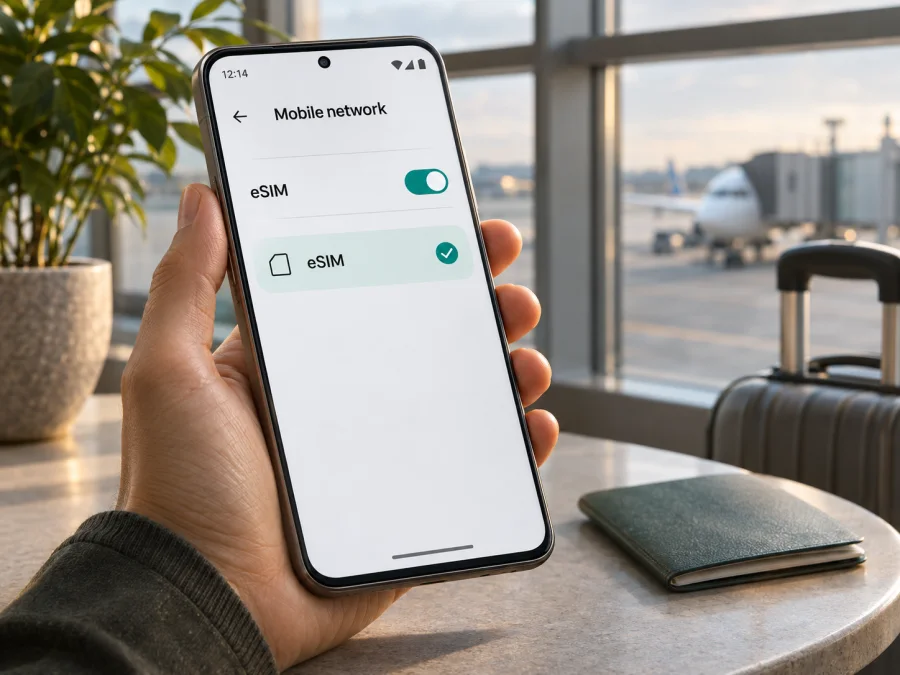
Google Pixel 7 Pro 512GB eSIM: compatibility and setup guide
Short answer: Google Pixel 7 Pro 512GB supports eSIM. Google’s Pixel Phone Help lists Pixel 4 and later phones as eSIM-capable and lists the Pixel 7 Pro with a single nano-SIM plus eSIM. Google also lists 512 GB as a Pixel 7 Pro storage option. The storage capacity does not change the eSIM setup steps. Your individual phone still needs to be unlocked, have eSIM available in its software and be accepted by the provider for the country where you plan to use it. Compatibility information below was checked against Google Pixel Phone Help and Kaspersky eSIM Store’s public setup pages on 4 November 2026.
Google Pixel 7 Pro 512GB at a glance
| Check | What to expect |
|---|---|
| Exact device covered | Google Pixel 7 Pro 512GB |
| eSIM support | Yes, according to Google’s Pixel 7 Pro specifications and Pixel eSIM support guidance |
| SIM arrangement | A nano-SIM plus an eSIM is the standard listed configuration; supported software and carriers may allow two eSIM profiles to be active together |
| Storage relevance | Google lists 128 GB, 256 GB and 512 GB versions; storage does not determine whether the phone has eSIM hardware |
| Main checks before travel | EID or “Add SIM” menu, carrier lock, provider and destination compatibility, plan conditions |
| Typical menu path | Settings → Network & internet → SIMs → Add SIM → Set up an eSIM |
Google’s “Pixel phone hardware tech specs” page identifies the Pixel 7 Pro, lists its storage choices and shows “Dual SIM (Single Nano SIM and eSIM)” in the SIM row. Google’s “Get a SIM or eSIM & add it to your Pixel phone” help page says Pixel 4 and later phones work with eSIM. Google’s “How to use dual SIMs on your Google Pixel phone” explains that two active eSIM profiles are possible on Pixel 7 and later when the carrier supports that arrangement. Those statements confirm the model family’s capability; they do not guarantee that every used or imported handset will be provisioned for every network. The actual device and operator market remain relevant.
Does the 512GB version support eSIM?
Yes. The 512GB label refers to internal storage, not a different SIM system. Google documents 512 GB as one of the Pixel 7 Pro storage capacities, and its Pixel 7 Pro specifications list eSIM alongside a physical nano-SIM. There is no Google documentation indicating that choosing the 512 GB configuration removes eSIM support. The practical verdict for a genuine, working, unlocked Google Pixel 7 Pro 512GB is therefore eSIM-capable.
That answer is about the phone’s built-in capability. It does not mean that every eSIM plan can be installed on every unit, or that mobile service will work in every country. A travel plan must support the handset and the destination network. The device must also be free of a carrier restriction that prevents use of another provider. If the seller, previous carrier or phone settings indicate that the phone is locked, resolve that with the seller or original carrier before buying a plan.
Google’s Pixel 7 Pro specification lists eSIM for its documented model configurations, including GP4BC, GE2AE and the Japan-specific GFE4J. Radio configurations and storage availability vary by sales region, and a model number does not guarantee that a particular operator will accept the handset. Google also notes that storage availability can vary by region and channel. If buying an imported or used unit, check its model number, lock status and SIM settings; the task name alone does not identify its sales market or firmware.
Check the exact phone before buying a plan
Use these checks before purchase, while you have Wi-Fi. They distinguish the phone’s built-in eSIM capability from a provider’s acceptance of the device.
- Look for an EID. Open Settings → About phone → SIM status and look for EID. Google’s “Find your IMEI and other Pixel phone ID numbers” says the EID is the identifier used for eSIM and gives this settings path. Depending on software version, the menu labels may be slightly different. You can also check the original box if it is available.
- Check the setup menu. Open Settings → Network & internet → SIMs → Add SIM. A visible option such as Set up an eSIM or Download a SIM instead? is a useful sign that the eSIM setup flow is available. Menu wording can change after Android updates.
- Confirm the phone is unlocked. Ask the original carrier or seller to confirm that the phone can use another provider’s SIM. Google notes that eSIM availability depends on the phone and mobile carrier. Do not assume that an imported or refurbished device is unlocked just because it has an EID.
- Confirm the specific offer works with this device. Before checkout, read the plan’s destination, validity, activation, network and device conditions. If the provider requires an IMEI or EID check, use the identifier from the phone’s settings and request confirmation from the provider.
- Keep installation internet available. A Wi-Fi connection is useful when downloading the profile, especially if the travel eSIM is not yet active. Keep the QR code or manual activation details accessible on another screen or printed copy if the phone cannot display and scan the same code at once.
Quick compatibility checklist
- [ ] The handset is a genuine Google Pixel 7 Pro, not a similarly named model or a listing with mixed specifications.
- [ ] Settings → About phone → SIM status displays an EID, or Google’s eSIM setup flow is available.
- [ ] The phone is unlocked for the provider you intend to use.
- [ ] The plan explicitly covers the destination or every country on your route.
- [ ] The offer’s activation rules, data allowance, validity period and supported networks suit your trip.
- [ ] You have Wi-Fi and the QR code or installation details ready before leaving.
Check your device before you choose a travel plan. The handset check is only one part of compatibility; also confirm that the plan accepts the specific phone and covers your destination.
Install and activate an eSIM on Google Pixel 7 Pro 512GB
Google’s setup flow uses the Android labels below. Your provider may supply an install button, QR code or manual details. Read the plan’s activation rules: downloading a profile and starting its validity may be separate events.
- Prepare the phone. Connect to reliable Wi-Fi, keep the device charged and make sure the eSIM plan is intended for this handset and destination. If you received a QR code by email, display it on a second device or print it.
- Open the eSIM menu. Go to Settings → Network & internet → SIMs → Add SIM → Set up an eSIM. Google documents this route; labels may vary by Android release or carrier.
- Choose the provider or scan the code. If the screen offers provider selection, select the provider associated with your plan. If the plan gives you a QR code, choose the QR scanning option and scan it. If the code cannot be scanned, use manual entry only when the provider supplied activation details and the phone offers that option.
- Wait for the profile to download. Keep Wi-Fi connected until the new line appears in the SIM list. If a code is reported as used, contact the provider; do not repeatedly scan it.
- Name the line clearly. Use a label such as “Travel data” so you can distinguish it from your home SIM. Naming a profile is only an organizational step; it does not activate a plan or guarantee service.
- Choose when to use it. You may be able to install before travel, but check whether validity starts on installation, first connection or another event. Follow the offer’s timing rules.
- Set mobile data to the travel eSIM. Open Settings → Network & internet → SIMs, select the travel profile and choose it for Mobile data. Keep your regular number as the default for calls and texts if you need it, while checking your home carrier’s roaming conditions.
- Enable data roaming only if the plan instructs you to. Some travel eSIMs need data roaming switched on to connect to a partner network. Turn it on for the travel line only when its instructions require it. Check that data is assigned to the travel profile so the home SIM does not unexpectedly use roaming data.
- Test at the destination. Turn off airplane mode, confirm the eSIM is enabled and try a web page. If there is no connection, troubleshoot before deleting the profile.
For additional visual steps, see the Android eSIM installation guide. Kaspersky eSIM Store’s Android page notes that its illustrated steps are specific to Samsung and that Android menus vary by model and operating-system version; on this Pixel, use the Google menu path above where the wording differs. The iOS installation guide is available for a companion iPhone or a different device. It is not the Pixel setup procedure.
Use the eSIM for mobile data while travelling
A travel eSIM gives you a separate mobile-data profile without removing the home SIM. On Pixel 7 Pro 512GB, select the travel eSIM for mobile data while retaining the nano-SIM if needed. Google says Pixel 7 and later can use two active eSIM profiles when the carrier allows it; supported combinations depend on the device, software and providers.
Before departure, match the plan’s destination, data allowance and validity to your trip. Maps and messaging use less data than video streaming, cloud photo backup or hotspot use. For a multi-country route, confirm every destination is included; a country plan is not automatically valid in nearby countries. Check current offer terms before purchase.
At your destination, select the travel eSIM for mobile data and set roaming as the provider instructs. Registration may take a short time. Follow the provider’s guidance if automatic network selection fails. Signal and speed depend on local networks, bands, congestion and location; eSIM compatibility does not guarantee coverage everywhere.
You may keep the home number available for calls or messages while using the travel line for data. Charges depend on your home carrier’s roaming terms. Turn off the home line if you do not need it and want to avoid accidental roaming use. A data-only plan generally does not add a conventional number or replace calls and SMS unless its terms say so; internet calling apps can use its data.
Kaspersky eSIM Store is an app and website where travellers can choose, arrange and activate an eSIM plan for mobile internet abroad. Check the current offer’s destination, data and validity conditions; compatibility and service are not guaranteed for every device or location.
Common problems and what to check
“Set up an eSIM” is missing
Check that you have the correct device, install the available Android update, restart the phone and look under Settings → Network & internet → SIMs → Add SIM. Also check for an EID under About phone → SIM status. If neither an EID nor an eSIM setup option is present, ask the seller or original carrier to confirm the handset’s exact model, market and eSIM status. A factory reset is not a first troubleshooting step and may erase your data; do not reset the phone merely to make the menu appear.
The QR code will not scan
Increase brightness on the device showing the code and display the full image on another screen. If the code is on the Pixel, open it elsewhere. If expired or already used, ask the provider whether it can be reissued. Keep the QR code private because it may allow profile installation.
The profile downloads but there is no service
Check that the eSIM is enabled and selected for mobile data, airplane mode is off and mobile data is on. Follow the provider’s instructions for roaming, APN or network selection; enter an APN only when supplied. Confirm the plan is active and covers the country, then contact the provider with the error and device details.
Data is still coming from the home SIM
Open Settings → Network & internet → SIMs, select the travel profile for data and check the home line’s roaming setting. Both lines may be enabled, so verify the data assignment. Label multiple profiles for clarity.
The plan appears installed but its validity or data has not started
Installation and plan start may be separate events. Check the order’s activation window and validity rule; do not delete and reinstall the profile to start the plan. Ask the provider to verify unexpected status.
A second eSIM cannot be active at the same time
Google says this feature requires carrier support. Confirm both providers permit the combination and review SIM preferences. If only one eSIM can be active, switch profiles instead of deleting and downloading them.
A network lock or provider rejection appears
An EID does not prove that the phone is unlocked or accepted by a provider. Ask the original carrier about unlocking and the plan provider about device restrictions before buying another plan.
Frequently asked questions
Is eSIM supported on Google Pixel 7 Pro 512GB?
Yes. Google’s current Pixel support pages list Pixel 4 and later as eSIM-capable and show the Pixel 7 Pro with nano-SIM plus eSIM. Google also lists 512 GB as a Pixel 7 Pro storage choice. The answer applies to the model’s documented capability; a particular handset can still be locked, modified or restricted by its carrier or market. Check the EID and add-eSIM menu on the actual phone.
Does 512GB change eSIM compatibility?
No evidence in Google’s specifications links storage capacity to eSIM support. The Pixel 7 Pro specification lists 512 GB among its storage options and separately lists its SIM configuration. Treat storage as a capacity choice, then verify the specific phone’s EID, software and lock status.
Can the Pixel 7 Pro use two eSIMs?
Google says Pixel 7 and later can use two eSIM profiles at once if the carrier allows the feature. It may also support a nano-SIM and eSIM arrangement. Whether both profiles can be active together depends on the handset, software and operator, so confirm with the providers for your particular setup.
Can I install the eSIM before my trip?
Often, yes, if the plan instructions allow installation ahead of travel. Check when the plan’s validity begins and whether there is a deadline to activate it. Installation and activation are separate steps in some offers, so do not assume that downloading the profile starts—or does not start—the validity period.
Will a travel eSIM keep my regular phone number working?
An eSIM data plan usually provides mobile data rather than a new conventional number for calls and SMS, unless the plan says otherwise. Your existing number may remain available through its physical SIM or another profile, but roaming charges and dual-SIM behavior depend on your home carrier. Review its conditions before leaving.
Does eSIM guarantee coverage or 5G abroad?
No. The phone must support the local network bands, the provider must permit the device, and the selected plan must include the destination. Coverage, 5G availability and performance vary by local network and location. Check the plan details and local provider conditions; do not infer service from the phone model alone.
Before you go
The Google Pixel 7 Pro 512GB supports eSIM according to Google’s published Pixel specifications and setup guidance. Confirm the individual handset’s EID, eSIM menu and unlocked status, then verify that the selected plan accepts the device and covers the countries on your itinerary. Install over Wi-Fi, read the activation timing, and set the travel profile as the mobile-data line only when you are ready to use it.
When those checks are complete, browse the current destination options on the Kaspersky eSIM Store website or in its app. Compare the plan’s data allowance, validity and destination coverage with your trip, and follow the provider’s instructions if setup or network registration needs attention. This gives you a clear checklist before choosing an eSIM for travel and helps avoid relying on assumptions about a particular regional or carrier-supplied phone.


