Travel connectivity guide
Google Pixel 7 Pro 8GB RAM eSIM: setup guide
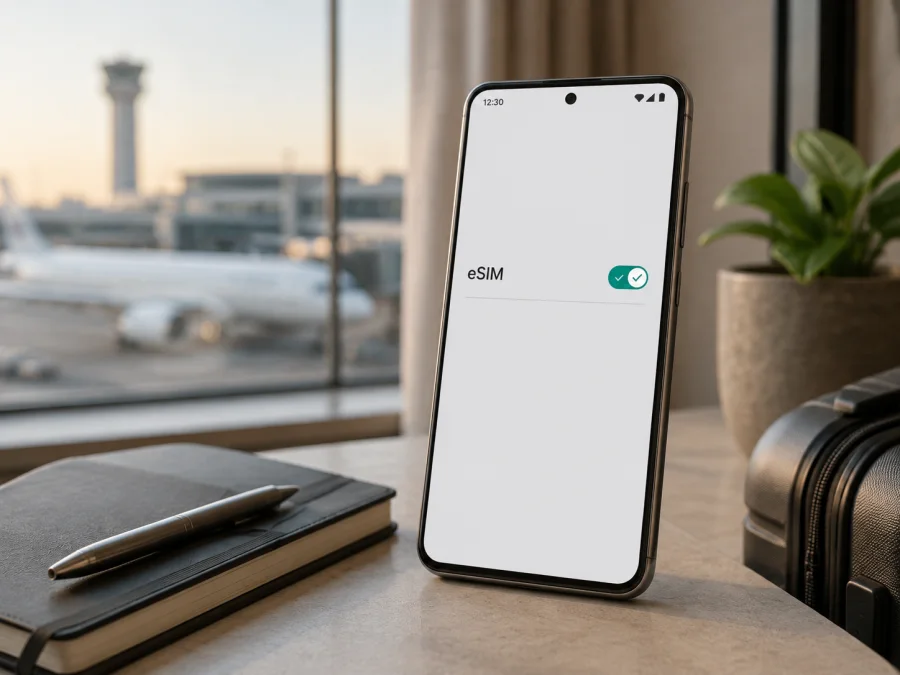
Google Pixel 7 Pro 8GB RAM eSIM: compatibility and setup
If you are checking Google Pixel 7 Pro 8GB RAM before a trip, the short answer is yes: genuine Pixel 7 Pro hardware supports eSIM. Google describes it as a dual-SIM phone with an eSIM. US specifications describe dual eSIM, while many other markets use one nano-SIM plus one eSIM. The result still depends on market, carrier, software, and unlock status.
There is an important identification detail. Google’s official Pixel 7 Pro specification lists 12 GB LPDDR5 RAM, while the requested label says 8GB RAM. RAM does not determine eSIM capability, but the mismatch could indicate a seller description, transcription error, refurbishment, or another device. Verify the model and SIM settings on the handset before buying. This page preserves the exact requested name for comparison.
Quick answer for Google Pixel 7 Pro 8GB RAM
For authentic Pixel 7 Pro hardware, eSIM is supported. A compatible profile can be used for mobile data, including a travel data plan, when the provider and destination network support the phone. Google also documents two active eSIM profiles on Pixel 7 and later when the operator allows that feature; do not assume every regional or carrier version exposes the same choices.
An eSIM is a digital SIM profile stored in the phone. It is not a second physical card or Wi-Fi. A travel eSIM commonly provides mobile data through the networks included in its plan. Unless the conditions say otherwise, it may not include a new number, ordinary voice calls, or SMS. Your home SIM can remain available for calls or messages while the travel eSIM is selected for data, subject to carrier settings and roaming charges.
Official specification summary
| Item | What to know |
|---|---|
| Exact device label | Google Pixel 7 Pro 8GB RAM |
| Generation | Pixel 7 series, Pixel 7 Pro model |
| eSIM | Supported on genuine Pixel 7 Pro hardware |
| Typical non-US arrangement | One nano-SIM plus one eSIM, subject to carrier support |
| US arrangement in Google’s documentation | Dual eSIM; two active eSIMs require operator support |
| RAM warning | Google lists 12 GB LPDDR5 RAM for Pixel 7 Pro; verify an 8GB RAM listing |
| 5G | Supported, but bands, coverage, speed, and service depend on market and carrier |
| Before purchase | Check EID, Add SIM, model/market, carrier lock, coverage, and plan conditions |
“Supports eSIM” has two parts: the handset must expose the capability, and the provider must provision a profile that can register on a supported network. A positive result in one part does not override a failure in the other.
Regional and carrier differences
Pixel 7 Pro phones were sold in multiple markets. Bands, firmware, SIM combinations, regulatory settings, and activation procedures can vary. Google separates the US version from the rest-of-world configuration: US specifications list two active eSIMs, while the rest-of-world description pairs a nano-SIM with an eSIM. An imported handset may therefore show a different SIM screen.
Carrier policy is separate. A carrier may require an IMEI or EID, restrict eSIM to certain plans, or require an unlocked phone. A travel profile may be data-only and use a roaming partner. Add SIM does not guarantee that every plan will activate, and a compatible plan cannot bypass an operator lock.
The 8GB RAM wording should be verified as well. Compare the box, About phone page, model number, storage, and IMEI with the listing. If the handset is actually another Pixel model, its eSIM rules may be different even though the listing contains similar words.
How to check eSIM compatibility before purchase
Use the phone itself as the first check. Menu names can vary by Android version, but the usual Pixel path is:
- Open Settings.
- Tap Network & internet.
- Tap SIMs or Mobile network.
- Look for Add SIM, Set up an eSIM, or Download a SIM instead?.
If the option is visible, open Settings → About phone → SIM status and look for an EID. The EID is the identifier for the embedded SIM system; it is different from IMEI 1 and IMEI 2. A provider may ask for it during activation, so copy it carefully and do not post it publicly.
If the EID or eSIM option is missing, update Android, restart, and check again. If it remains absent, confirm the model, market, and software with the seller or carrier. A missing menu can indicate the wrong model, altered software, restrictions, or incomplete setup. Do not guess an EID.
For this exact label, complete this check before choosing a destination or paying for a time-limited plan before proceeding. Check your device and record the model, EID, unlock status, and provider together.
Compatibility checklist
- [ ] About phone identifies a genuine Pixel 7 Pro, not a nearby Pixel model.
- [ ] The “8GB RAM” label has been checked against the handset and seller documentation; it has not been assumed to be Google’s official specification.
- [ ] Settings → Network & internet → SIMs shows Add SIM or Set up an eSIM.
- [ ] Settings → About phone → SIM status shows an EID.
- [ ] The phone is unlocked, or the operator has confirmed that another eSIM is allowed.
- [ ] The plan covers the destination or region and its network technology.
- [ ] Wi-Fi or another working internet connection is available for installation.
- [ ] Android is updated enough for the activation flow.
- [ ] You know which SIM handles calls and texts and which one handles data.
- [ ] You understand the plan’s start time, validity, allowance, and deletion rules.
If a seller cannot show the eSIM menu or EID, ask for a settings photo with personal identifiers obscured. “All Pixel phones have eSIM” is not a substitute for checking the exact model and market; Google’s Pixel 4-and-later statement does not remove carrier conditions.
Before installing a travel eSIM
Charge the phone, connect it to reliable Wi-Fi, and keep the screen lock available. Display the QR code on another screen if possible; a code shown on the same phone cannot normally be scanned by that phone’s camera. Preserve any manual activation details exactly. Decide which profile will provide data after landing, and check the home line’s roaming setting and charges. A travel eSIM may require roaming for that eSIM because it uses a partner network; this does not mean you should enable roaming on the home line.
Kaspersky eSIM Store is an app and website where you can choose, arrange, and activate an eSIM with a mobile-data plan for an overseas trip. It is not a mobile operator, network owner, or supplier of mobile internet; connection depends on the plan, participating networks, coverage, and phone configuration.
How to install and activate the eSIM
Button names may change slightly with Android updates, but the usual flow is:
- Confirm the plan. Check destination, validity, data, activation conditions, and phone compatibility.
- Open the SIM manager. Go to Settings → Network & internet → SIMs → Add SIM → Set up an eSIM. If asked, choose the provider associated with the profile.
- Add the profile. Scan the QR code from another screen or use the manual option supplied by the provider. Keep the code private.
- Wait for download. Keep Wi-Fi on until the profile is added.
- Name the line. Use “Travel data” or the destination name.
- Choose SIM preferences. In SIMs, select the travel eSIM under Mobile data. Keep the home line for calls and texts if required.
- Set roaming carefully. If the plan requires it, enable data roaming for the travel eSIM. Keep it off for the home SIM if you want to avoid home-carrier roaming charges.
- Activate at the right time. Some plans start on installation; others start when they first connect at the destination. Follow the plan’s rule.
- Test data. Turn Wi-Fi off, confirm the travel eSIM is the data line, and open a simple webpage.
See the Android eSIM installation instructions for a compact walkthrough. For an iPhone companion, the iOS eSIM installation instructions show the Apple flow; do not apply those steps to the Pixel.
Do not erase a profile after a failed connection. Check whether it is enabled, which SIM is selected, and what error appears. A one-time QR code may not be reusable after deletion.
Using eSIM for mobile data while travelling
Home SIM for calls, travel eSIM for data
Set the travel eSIM as the default for Mobile data and leave the home line available only if its roaming rules are understood. This can preserve the home number while data uses the travel plan; read warnings about two active lines.
Travel eSIM only
If you do not need the home line abroad, temporarily turn it off to reduce wrong-line selection and accidental roaming. Re-enable it only after checking the home carrier’s conditions.
Two eSIM profiles
Google documents two active eSIM profiles for Pixel 7 and later when the operator supports the feature. Market, carrier, and software can change the choices, so verify them on the handset and select the intended default data line.
5G is not guaranteed simply because the Pixel 7 Pro supports it. The destination network, plan, supported bands, signal, and local rules determine the result. LTE can still provide usable mobile data when 5G is unavailable; that may be a coverage or plan issue rather than an eSIM compatibility issue.
Troubleshooting eSIM problems
The Add SIM option is missing
Check About phone, the model identifier, and IMEI information to confirm that the handset is really a Pixel 7 Pro. Update Android, restart, and check Network & internet → SIMs again. If the EID is also absent, pause the purchase and ask the seller or carrier to confirm the market version. A RAM label cannot establish eSIM support.
The QR code will not scan
Increase brightness, remove glare, and hold the Pixel steady. Use manual activation only with details from the provider. If the code was already used, request a reset or replacement instead of repeatedly scanning it.
The profile downloads but shows no service
Confirm that the profile is enabled and selected for mobile data. Turn Wi-Fi off briefly, check destination coverage, apply the required roaming setting, and toggle Airplane mode to refresh registration. A carrier lock can prevent a valid profile from working.
Data, calls, or texts use the wrong line
Check Mobile data under SIM preferences; only one SIM is normally the default data line. Review Data Saver, plan start time, allowance, and destination coverage. Also review default call/text SIMs and confirm that the home line was not disabled. A data-only plan should not be expected to provide ordinary calls or SMS.
The connection is slow or remains on LTE
Check signal, supported networks, and local congestion. Pixel 7 Pro 5G hardware cannot force a partner network to provide 5G. Test another location before changing APN values.
The phone was reset or the profile was deleted
Do not assume that the QR code can be used again: some profiles are one-installation or non-transferable. Contact the provider with order details and the EID if requested; never post a full IMEI or EID publicly.
FAQ
Does Google Pixel 7 Pro 8GB RAM support eSIM?
The genuine Pixel 7 Pro platform supports eSIM, so the answer is generally yes. “8GB RAM” does not match Google’s official Pixel 7 Pro specification, which lists 12 GB LPDDR5 RAM, so verify the actual phone, market, EID, eSIM menu, and carrier status.
Can I keep a physical SIM and add a travel eSIM?
Yes, the standard non-US Pixel 7 Pro configuration is documented as one nano-SIM plus one eSIM. The operator must allow the profile, and you must select the data line. The US version may expose two eSIMs instead.
Does eSIM provide a phone number?
Not necessarily. Many travel eSIM plans are for mobile data and do not include ordinary voice calls or SMS. Read the plan’s conditions and consider home-line roaming costs.
Should I install the eSIM before flying?
Installing over reliable Wi-Fi is convenient, but timing depends on the plan: some profiles start on installation and others on first connection. Confirm the activation rule first.
Can I use two eSIMs at the same time?
Google documents this possibility for Pixel 7, Pixel 7 Pro, and later phones when the operator supports it. Market, carrier, and software can vary. Not seeing two eSIMs does not mean one eSIM with a physical SIM is unavailable.
What should I do if a seller calls it 8GB RAM?
Ask for the model identifier, storage, About phone screen, and SIM status showing an EID. Since Google lists 12 GB RAM for Pixel 7 Pro, treat the 8GB RAM wording as something to verify, not proof of a special eSIM edition.
Final device check before your trip
Complete this check on the exact phone you will carry:
- Compare the About phone model with the seller’s Google Pixel 7 Pro 8GB RAM label.
- Confirm that SIM status shows an EID and that Add SIM is available.
- Confirm that the phone is unlocked and that the intended provider accepts its market and carrier profile.
- Choose a plan for the actual country or region, then review data, validity, and activation timing.
- Install over Wi-Fi, name the profile, and select it under Mobile data.
- Decide whether the home SIM stays on for calls and texts, and review roaming for both lines.
- Test mobile data before departure or after arrival, and keep the QR code private.
Kaspersky eSIM Store can help you choose and activate an eSIM with a mobile-data plan for an overseas trip. The final connection depends on the Pixel, plan, partner networks, coverage, and carrier rules. Check the device, then choose the trip eSIM.


