Travel connectivity guide
Google Pixel 7a 128GB eSIM: compatibility & setup
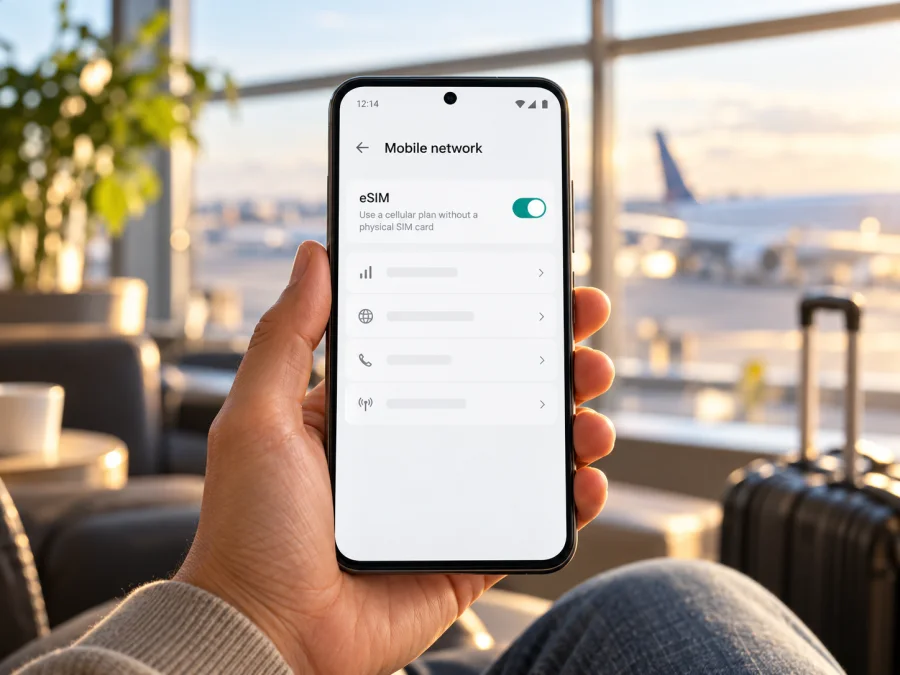
Google Pixel 7a 128GB eSIM: compatibility and setup
Quick answer: Google Pixel 7a 128GB supports eSIM. Google’s current Pixel specifications list the 128GB model with one nano-SIM and one eSIM, and name eSIM for the Pixel 7a regional hardware variants. Storage capacity does not affect eSIM support. Confirm the EID and eSIM setup option on your own phone, and check that it is unlocked and eligible for the plan and destination.
Regional models can differ in cellular bands and operator certification. A model may support eSIM while a carrier or destination plan does not support activation on that handset. Google’s Pixel Phone Help and hardware specifications checked on November 1, 2026 confirm the model-family support; they cannot guarantee every imported, refurbished or operator-sold unit is unlocked or accepted by every network.
Google Pixel 7a 128GB eSIM compatibility at a glance
| Check | What applies to Google Pixel 7a 128GB |
|---|---|
| eSIM support | Yes. Google lists eSIM in the Pixel 7a specifications. |
| Physical SIM | One nano-SIM slot is listed alongside eSIM. |
| Storage variant | 128GB is the storage capacity; it does not determine whether eSIM is available. |
| Regional hardware | Google lists several radio variants, including a Japan-only model. Their cellular bands differ. |
| Two active eSIM profiles | Pixel 7 and later can use two eSIM profiles at once when the carrier supports the feature. |
| Final check | Find the EID and “Set up an eSIM” option on your own phone, then confirm the carrier and plan requirements. |
The information above is based on Google’s Pixel phone hardware specifications and Pixel Phone Help pages checked on November 1, 2026. Google lists Pixel 7a as a 128GB phone and identifies one nano-SIM plus eSIM in the SIM section. The specification names eSIM for the listed Pixel 7a 5G models. This is a verified model-family capability; it does not guarantee that every used, imported, refurbished or operator-sold handset is unlocked or eligible on every network.
Does Google Pixel 7a 128GB support eSIM?
Yes. The Google Pixel 7a 128GB is an eSIM-compatible phone. Google’s technical specification names 128GB storage and states “Dual SIM (Single Nano SIM and eSIM).” It also separately lists eSIM for its Pixel 7a model numbers. Google’s general SIM guidance says Pixel 4 and later phones support eSIM, subject to the phone and mobile operator. Since the Pixel 7a is a Pixel 7-generation phone, both the model-specific specification and the general guidance support this answer.
The “128GB” part of the product name describes the amount of internal storage. It is not a separate cellular configuration and does not tell you whether the phone is carrier-unlocked. Photos, apps and downloaded maps use storage; eSIM activation depends on the built-in eSIM hardware, software, carrier eligibility and the profile being offered. A 128GB Pixel 7a and another storage listing of the same model family should not be treated as different eSIM variants unless the seller identifies a different regional model or the actual device checks show otherwise.
The practical answer is yes for eSIM capability, subject to the individual handset and network conditions. A profile can still fail to install because of an operator lock, unsupported plan, old software or activation issue. Compatibility means both that the phone can store an eSIM profile and that the provider can activate this particular plan on it.
Regional and operator versions
Google’s Pixel 7a specification lists several radio variants: GWKK3 and GHL1X are 5G Sub-6GHz models, G0DZQ adds mmWave support, and G82U8 is identified as Japan-only. Google lists eSIM for each of these named variants. The regional versions can differ in supported LTE/5G bands and operator certification, so confirm the exact model number in Settings → About phone or on the box, especially for an imported or refurbished phone.
The market label on a handset describes its hardware variant; it does not guarantee eSIM activation on every network in that country or elsewhere. The operator serving your travel plan must support eSIM activation for the actual phone, and the plan must cover the destination. Also check for a SIM lock: a carrier-sold Pixel can be locked even though its eSIM hardware is present. Ask the original operator or seller to confirm unlock status before travel. Google notes that network service and band support depend on the carrier and region.
How to check EID and eSIM settings on your Pixel
An EID is a long identification number associated with the phone’s embedded SIM. It is a useful sign that the device has eSIM capability, but the most practical check is to look for both the EID and the option to add a downloaded SIM. Do not post an EID publicly; share it only with a provider that needs it for activation.
- Find the EID. Open Settings → About phone → SIM status and look for EID. Depending on the software version, you may find it under a similarly named status or SIM section. Google also notes that the EID can appear on the phone’s box.
- Check the add-eSIM menu. Open Settings → Network & internet → SIMs → Add SIM → Set up an eSIM. The wording can vary slightly with Android updates and region settings.
- Check the cellular profile list. In Settings → Network & internet → SIMs, see whether the phone recognizes a current eSIM or offers to add one. A menu option is a helpful compatibility signal; the presence of a plan depends on activation.
- Confirm the model and lock status. Check the model number in About phone and ask the original operator whether the phone is unlocked if it was sold under a contract.
- Ask the plan provider to validate the device. If the EID is missing, the add-eSIM item is absent or activation is declined, give the provider the model number and the identifier it requests. Do not assume a 128GB label alone proves compatibility.
If both an EID and an eSIM setup option are present, your Google Pixel 7a 128GB is showing the expected on-device eSIM capability. If only one is visible, update Android, restart the phone and check the Settings path again. If it remains unclear, consult Google or the operator before purchasing. The page’s compatibility checker can also help with a pre-purchase check: Check your device.
Compatibility checklist before you pay
- [ ] Confirm the exact Pixel 7a model number.
- [ ] Find an EID and the Set up an eSIM option.
- [ ] Confirm the phone is unlocked or will be unlocked before travel.
- [ ] Ask the provider to confirm that its profile works with this handset.
- [ ] Check destination coverage, validity dates and activation conditions.
- [ ] Make sure you will have internet access during installation.
A hardware check cannot guarantee local coverage. If any item is uncertain, confirm it with the seller or plan provider before payment. A compatibility checker can help with the pre-purchase step: Check your device.
How to install and activate an eSIM
The Pixel 7a adds an eSIM through Android settings. Use Wi-Fi or another working internet connection and follow the plan’s own instructions: some providers offer in-app installation, others a QR code or manual details. A QR code may be limited to one attempt or one device.
- Prepare the phone. Connect to Wi-Fi, install available Android updates and confirm the phone is unlocked.
- Open SIM settings. Go to Settings → Network & internet → SIMs → Add SIM → Set up an eSIM. Search Settings for “eSIM” if labels differ.
- Install the profile. Follow the provider’s download flow, scan its QR code, or enter the supplied details. If the code is displayed on this same phone, use the provider’s in-app or manual method.
- Confirm and label it. Accept the profile download, wait for Android to finish, then give the line a clear label such as “Travel data.”
- Choose SIM preferences. Select your usual line for calls or texts if needed, and the travel eSIM for mobile data. You can change these preferences later.
- Follow activation instructions. Installing a profile and starting its validity are not always the same event. Check when the plan activates.
- Set data roaming if needed. Some travel eSIMs require roaming on that profile. Follow the provider’s instructions and check the home SIM’s roaming settings separately.
See Android eSIM installation instructions or iPhone eSIM installation instructions. The iPhone guide is a companion resource; the device-specific steps above apply to Google Pixel 7a 128GB. If you will use the profile later, keep it installed and switch the line off when the plan allows. Do not delete it unless the provider confirms it can be reissued.
Install before departure or after arrival
Installing over home Wi-Fi gives you time to resolve setup issues before travel. First check whether the plan’s validity starts at installation, first connection or a selected date; those events can be different. If you install in advance, leave the travel line switched off until needed when the plan’s instructions allow it. Installing after arrival is also possible, but requires a reliable connection. Save activation instructions offline and keep any QR code private. If the provider’s app or email supplied the profile, stay signed in and follow that exact flow.
Use Google Pixel 7a 128GB for travel data
After the eSIM is installed and active, open Settings → Network & internet → SIMs, switch on the travel profile, enable Mobile data, and choose that profile for data. Keep your usual line for calls or texts if the operators allow it. Pixel dual-SIM settings let you choose the data line; only one SIM is the default for mobile data at a time. Consider turning off automatic data switching if you want to avoid using the home SIM for data. Follow the provider’s instructions for roaming, APN or manual network selection rather than guessing settings.
A data-only travel eSIM can support maps, messaging, ride-hailing, email, tickets and web access. It does not necessarily replace your regular phone number. Kaspersky eSIM Store describes its travel eSIM plans as data-only; regular calls and SMS are not included unless the specific plan terms say otherwise. Internet calls and messages can use apps over mobile data.
Kaspersky eSIM Store is an app and website where you can choose, arrange and activate an eSIM with a mobile data plan for an overseas trip. To browse destinations and current conditions, visit the Kaspersky eSIM Store. This is the general English homepage, not a country-specific tariff page. Review destination coverage, data allowance, validity and activation rules before choosing.
Practical travel setups
- Keep a home number available: leave the usual SIM enabled if needed, use the travel eSIM for data, and check roaming charges with your home carrier.
- Cross borders: confirm that the plan covers every country on the route; a regional label may describe a limited list.
- Share or conserve data: check tethering terms, download maps over Wi-Fi and monitor background app usage. Video calls and backups can use more data than messaging.
Troubleshooting: eSIM setup or mobile data is not working
A connection problem does not automatically mean the phone lacks eSIM support. Check the symptom and work through the relevant steps. Record the exact error before contacting support.
| Symptom | What to check |
|---|---|
| eSIM setup is missing | Check EID, update Android, restart, verify model number and ask the seller or Google to confirm the handset. |
| QR code will not scan | Raise screen brightness, use another screen, and confirm that the code is for this device and has not already been used. Ask the provider about manual installation. |
| Profile download stops | Reconnect to stable Wi-Fi, restart and retry. If the code may be single-use, contact the provider before another attempt. |
| Profile installs but has no service | Confirm the plan is active for the current place and date. Turn on the profile, check airplane mode and follow instructions for roaming or network selection. |
| Mobile data does not load | Select the travel eSIM under Mobile data, check that mobile data is on, and verify roaming/APN settings against the plan instructions. |
| Activation is rejected | Check phone lock status, plan eligibility, region and activation window. Give the provider the exact model and requested device ID. |
| Service is intermittent | Move location, briefly toggle airplane mode, restart and check whether another supported network is allowed. Signal and bands vary by carrier and place. |
Do not delete the profile while troubleshooting; some activation codes cannot be reused. If the profile is present but cannot register, contact the plan provider. If the EID or eSIM controls are missing, contact Google or the seller. Never share a QR code publicly, and avoid including the full EID in an unrestricted screenshot.
If data works but calls or SMS do not, this may be normal for a data-only plan. If your home SIM stops receiving messages, check that it remains enabled and selected for texts, then ask your home operator about roaming and account requirements.
Frequently asked questions
Does Google Pixel 7a 128GB have eSIM?
Yes. Google lists one nano-SIM and one eSIM for the Pixel 7a. Verify the EID, eSIM setup menu and lock status on the actual phone.
Does 128GB change eSIM support?
No. 128GB describes storage. Check the regional model number and EID for device compatibility.
Can I use two eSIMs at once?
Google says Pixel 7 and later phones can use two eSIM profiles simultaneously when the carrier supports this. Check your operator’s rules and the options shown in SIM settings.
Can I keep my usual SIM active?
The Pixel 7a supports one nano-SIM and one eSIM. You can choose a default data line and keep a usual line available where the operators allow it. Review home roaming costs before travel.
Does a travel eSIM include a phone number?
Kaspersky eSIM Store describes its travel eSIM plans as data-only. Regular calls and SMS are not included unless the particular plan terms say otherwise; messaging and internet calls can use apps over data.
When does the plan activate?
Check the plan’s own terms. Profile installation and the start of validity may be separate events; activation can depend on installation, first connection or a selected date.
Will eSIM work in every destination?
The phone supports eSIM, but service depends on the device variant, plan, operator and local network. Check each destination and the provider’s activation requirements.
Can I move the eSIM to another phone?
Do not assume so. Some profiles cannot be reinstalled after deletion or are tied to one device. Ask the provider before removing a profile or changing phones.
Final check before choosing a travel eSIM
Google’s published specifications confirm eSIM capability for the Google Pixel 7a 128GB model family, including the listed regional versions. The key remaining checks are specific to your handset and trip: find the EID, confirm that Android offers Set up an eSIM, verify the phone is unlocked, and make sure the plan is valid for the destination and your travel dates.
When those checks pass, install the profile over a reliable connection, choose it for mobile data when you need it, and follow its instructions for activation and data roaming. Review the current plan terms before payment. Kaspersky eSIM Store can help you browse and arrange an eSIM with a data plan for an overseas trip; the destination, activation conditions and available terms are shown on the Store’s site or app. A few minutes spent checking the device and the plan can prevent an avoidable setup problem after you arrive.


