Travel connectivity guide
Google Pixel 7a 8GB RAM eSIM: Setup & Compatibility
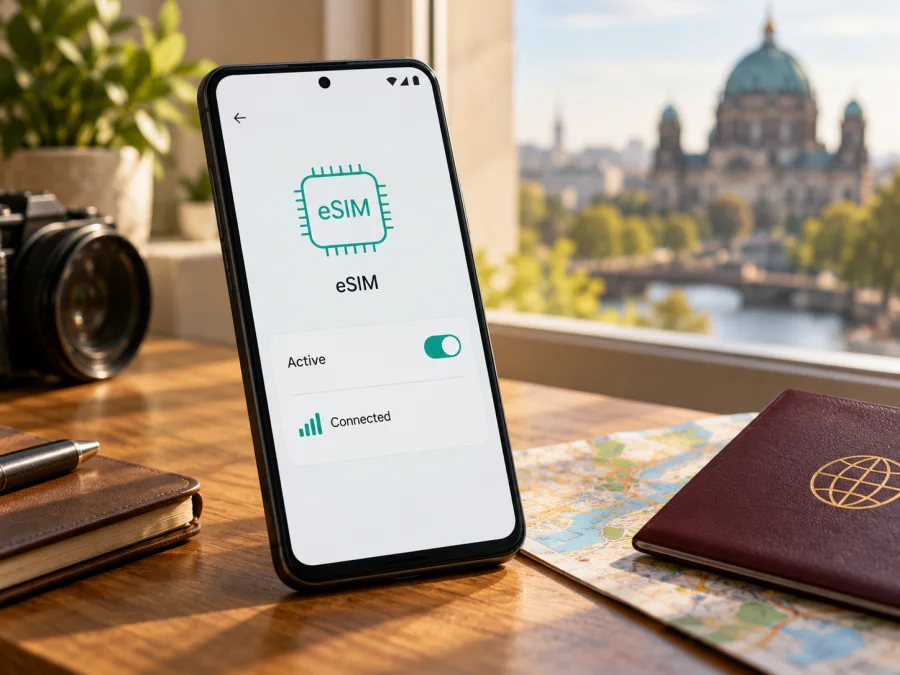
Google Pixel 7a 8GB RAM eSIM: compatibility and setup
Short answer: yes. Google’s published specifications list eSIM for Google Pixel 7a 8GB RAM, and identify the phone’s memory as 8 GB LPDDR5 RAM. The listing covers the documented hardware variants, including the Japan-only model. However, eSIM service still depends on the mobile operator, country, device software and whether the phone is carrier-unlocked. Before choosing a travel data plan, confirm that your individual handset exposes an EID or an eSIM setup option and that the provider accepts its model and IMEI.
This guide focuses on the exact Google Pixel 7a 8GB RAM configuration. It does not assume that a seller’s label, a matching product name or the phone’s 8 GB memory alone proves that every carrier will activate an eSIM. Google's Pixel Phone Help, in “Pixel 7a tech specs,” “Get a SIM or eSIM and add it to your Pixel phone,” “Find your IMEI and other Pixel phone ID numbers,” and “Set up a new eSIM,” confirms the specifications and setup details summarized here; checked November 1, 2026.
Google Pixel 7a 8GB RAM eSIM compatibility at a glance
| Check | What applies to Google Pixel 7a 8GB RAM |
|---|---|
| eSIM hardware | Yes. Google lists eSIM alongside one nano-SIM slot. |
| Memory in this configuration | 8 GB LPDDR5 RAM; RAM is not the eSIM identifier. |
| Physical SIM plus eSIM | The published configuration supports one nano-SIM and one eSIM. |
| Two active eSIM profiles | Pixel 7 and later can use two eSIMs at once when the operator supports it; confirm this for the service you plan to use. |
| Regional hardware | Google lists several model numbers and says carrier bands and service depend on market and operator. |
| Travel data | Possible when the travel eSIM, destination network and this specific handset are all compatible. |
Google’s specification table identifies single nano-SIM plus eSIM and names models GWKK3, GHL1X, G0DZQ and Japan-only G82U8. It also says eSIM features can depend on the carrier and may not be supported by every carrier or in every country. This distinction matters: the manufacturer’s device support answers whether the phone is designed for eSIM; it does not certify every mobile plan, network or geographic market.
The 8 GB configuration and regional differences
The “8GB RAM” modifier is part of the exact device name. Google lists 8 GB LPDDR5 memory for Pixel 7a; RAM is working memory, not SIM capacity or proof that a network will accept the handset.
Google’s specifications list eSIM for hardware models GWKK3, GHL1X, G0DZQ and Japan-only G82U8, alongside one nano-SIM. The Japan-only model is also listed with eSIM. Cellular bands and service depend on the operator and market, and Google cautions that eSIM functions are not supported by all carriers or in all countries. Imported, refurbished or carrier-supplied phones may have different software, band support, provisioning or lock status.
If you bought the phone second-hand or from another region, find its model number under Settings → About phone → Regulatory labels or on its packaging. Ask the intended provider whether it accepts that exact model and IMEI, and ask the original seller or carrier whether the phone is unlocked. A generic product title cannot confirm these details.
Check three things before choosing a plan: the phone has an EID or eSIM setup menu; the provider accepts the exact handset and account; and the plan is valid for your destination and route. Seeing “Set up an eSIM” confirms a device function, but does not prove a specific operator or travel plan will work.
How to check EID and eSIM settings yourself
An EID is the identifier associated with the phone’s embedded SIM hardware. It is different from the IMEI, which identifies the cellular device, and from the Google Pixel 7a 8GB RAM product name. Google’s Pixel Phone Help says that an operator may request an IMEI or EID when setting up a SIM. The EID is a strong sign that the phone has an eSIM component, but the operator still needs to accept the handset and issue or support a profile.
Try these checks while connected to Wi-Fi:
- Open Settings.
- Tap About phone.
- Open SIM status and look for EID. Depending on software version, the EID may appear lower on the page.
- Return to Settings and open Network & internet → SIMs.
- Look for Add SIM or Set up an eSIM. Do not complete activation unless you are ready to install the intended profile.
- If the menu is hard to find, use Settings search for “EID,” “SIM status” or “eSIM.”
You can also check the original packaging for an EID or find the IMEI in Settings → About phone. Google notes that its Pixel devices use a second IMEI for the second SIM slot when both eSIM and physical SIM functions are available. A missing label on the box by itself is inconclusive; inspect the settings screen and confirm with the operator.
If an EID is present and “Set up an eSIM” is available, continue by checking the provider, region, lock status and plan conditions. If neither an EID nor an eSIM setup option appears, restart the phone, install available system updates over Wi-Fi and check again. If it remains absent, contact the seller or Google support with the full model number. Do not purchase a plan solely on the basis of a general Pixel 7a compatibility list.
Before installing an eSIM for a trip
A little preparation reduces the chance of needing to solve setup problems at the airport. Keep the Pixel charged, connect to reliable Wi-Fi, and have the account or QR code information that the plan provider gave you. If an installation QR code is sent to the phone itself, open it on another screen or use the provider’s manual activation details if offered. One QR code generally represents one activation flow; do not assume it can be reused after deleting a profile or moving it to another device.
Check these items before you start:
- Your exact handset has an EID or a visible eSIM setup option.
- The phone is unlocked for the eSIM provider you intend to use.
- The provider supports the specific Pixel 7a model and your destination.
- The plan is for mobile data if that is what you need; voice calls or SMS may not be included.
- You understand whether validity begins at installation, first connection or another stated event.
- You have a stable internet connection for downloading the profile.
- You know which SIM should handle mobile data after the eSIM activates.
- You have recorded any activation or support details somewhere you can access offline.
- Check whether your device is compatible before choosing a plan.
How to install and activate an eSIM on Google Pixel 7a 8GB RAM
Android menu labels can shift with software updates, and operators may have their own activation steps. Google’s current Pixel eSIM setup instructions use Settings → Network & internet → SIMs → Add SIM → Set up an eSIM. Kaspersky eSIM Store’s Android installation guide notes that its illustrated steps are specific to Samsung, so use the Pixel menu path below for this handset. The iOS installation guide is for an iPhone that may be used to display a QR code; it is not an installation guide for the Pixel.
Install with a QR code
- Prepare the plan. Choose the travel data plan for the correct country or region and read its activation instructions. Confirm that this Google Pixel 7a 8GB RAM is unlocked and accepted by the plan provider.
- Connect to Wi-Fi. Keep Wi-Fi on until the profile has downloaded. Installation may need internet access before the new line can connect to a mobile network.
- Open SIM settings. On the Pixel, go to Settings → Network & internet → SIMs → Add SIM → Set up an eSIM. Android version updates may use slightly different wording.
- Choose the installation method. If the phone offers to scan a QR code, display the provider’s QR on another device or printed page. Scan it from the Pixel’s setup screen. If your provider supplies manual activation details, use them only in the provider’s official flow.
- Confirm the profile. Follow the screen prompts and wait for the eSIM download to finish. Keep the Settings screen open until the phone confirms that setup is complete.
- Name the line. Give it a clear label such as “Travel data” so you can distinguish it from your home SIM. Labels are for your convenience and do not change plan conditions.
- Set data preferences. Open the SIM settings and select the travel eSIM for mobile data when you are ready to use it. Keep your home SIM as the default for calls or messages if that suits your needs.
- Activate according to plan terms. Some profiles can be installed before departure and used later; others may start validity on installation or on first network connection. Follow the provider’s stated trigger rather than guessing.
- When you arrive, check network access. Turn on the travel eSIM, enable mobile data for it, and follow the plan’s roaming instructions. Data roaming may be required for some travel profiles. Enable it only for the intended eSIM and only when the plan instructions call for it.
- Test a simple connection. Turn off Wi-Fi briefly, open a basic webpage or messaging app, then check that mobile data is using the travel profile. Turn Wi-Fi back on after the test if you want to conserve data.
If the screen offers automatic eSIM setup through an operator, the provider may need to activate or assign the profile first. Google notes that processes can differ by operator. A QR code, manual code or app-based activation is not interchangeable unless the plan instructions say it is.
Keep the home SIM available if useful
Google says Pixel 7 and later may use two eSIMs at once when the operator permits it; combinations depend on the handset and provider. In a common travel setup, keep the home line for calls or texts and select the travel eSIM for data. In Settings → Network & internet → SIMs, check that the correct profile is on and selected for mobile data. Only one SIM is the default for data at a time. Review home-line roaming charges, and keep it active if you need verification messages. A downloaded profile and an active travel plan are separate things.
Using a travel eSIM for mobile internet
Before departure, compare the plan’s destination and validity to your itinerary. A country plan may be a fit for a single-country visit; a regional plan may be useful when crossing borders, if every stop is listed in its terms. Do not infer coverage from the plan name alone. Confirm where it is designed to work, which mobile networks it can use and whether any local restrictions apply.
Estimate your data needs from what you expect to do. Maps, messaging, email and browsing usually consume less data than long video calls, streaming or uploading large files. Use offline maps where practical, download media over Wi-Fi and disable automatic cloud uploads if your allowance is limited. Android’s data usage screen can help you monitor usage, but it may not match the provider’s accounting exactly, so use the plan account or app as the final reference when available.
When you land, follow the activation instructions supplied with the plan. Turn the travel SIM on, choose it for mobile data and check whether data roaming is required. If the phone remains on your home SIM for mobile data, it may use the wrong line. Confirm the selected line before browsing. If the eSIM connects but data does not flow, check the provider’s access point name (APN) guidance and enter details only when instructed by the provider.
Kaspersky eSIM Store’s website and app help travellers choose, arrange and activate an eSIM plan for mobile data abroad. First confirm the Pixel accepts eSIM, then review the destination plan and its terms. For a current overview of available destinations and plans, visit the Kaspersky eSIM Store. This is the Store homepage for browsing current options, not a country-specific tariff page.
Common problems and what to check
“Set up an eSIM” is missing
Check About phone → SIM status for an EID and search Settings for eSIM. Restart the phone and install available Android updates over Wi-Fi. If neither an EID nor a setup option appears, confirm the full model number with the seller or Google support; a generic listing is not enough.
The QR code will not scan
Increase the brightness of the screen showing the code, avoid glare and make sure it is not cropped. If the code is displayed on the Pixel itself, show it on another device or use manual activation details supplied by the provider. Confirm the code is intended for this plan and has not already been used.
The profile will not download
Keep the Pixel on stable Wi-Fi and complete any network sign-in page first. Retry the provider’s official installation flow. If Android says the code is invalid or unavailable, ask the provider whether it has expired or been used. Do not delete an installed profile unless the provider confirms it can be restored.
eSIM installed, but no service
Check that the profile is switched on and that the destination is included in the plan. Ask the provider whether the plan has reached its activation point and whether it accepts your model and IMEI. Toggle airplane mode briefly or restart the phone. Network registration also depends on local service and supported bands.
Signal bars appear, but data does not work
In Settings → Network & internet → SIMs, select the travel eSIM for mobile data and confirm mobile data is on. Enable data roaming for that profile only if the plan instructions require it. Check APN guidance, data balance and validity with the provider, then test briefly with Wi-Fi off. Avoid a network reset unless support recommends it.
The home line or activation still fails
Check which SIM is enabled and selected for calls, texts and data. If another provider’s eSIM cannot activate, ask the original carrier to verify the phone is unlocked. For continued installation problems, keep the error message and contact the plan provider; for a missing EID, contact the seller or Google. Do not remove an active profile until the provider confirms it can be downloaded again.
Frequently asked questions
Does Google Pixel 7a 8GB RAM support eSIM?
Yes. Google’s “Pixel 7a tech specs” lists eSIM for the 8 GB LPDDR5 configuration and lists eSIM on its documented hardware variants. The phone also supports one nano-SIM. Whether a particular operator will activate an eSIM remains dependent on the operator, country, device state and plan.
Does the Japanese Pixel 7a lack eSIM?
Google’s published Pixel 7a specifications list eSIM for Japan-only model G82U8. That confirms the feature in Google’s stated specification, but the operator serving the phone still needs to support eSIM for that model and the intended service. Check the EID and setup menu on the unit in hand.
Can two eSIMs be active at the same time?
Google says Pixel 7 and later phones may use two eSIM profiles simultaneously if the mobile operator allows the feature. Provider support and the phone’s current software matter, so confirm with both operators before relying on dual eSIM service. You can also use a physical nano-SIM and an eSIM where supported.
Is an EID enough to prove that a travel plan will work?
No. An EID helps identify eSIM-capable hardware. You must also confirm the phone is unlocked, that the eSIM provider accepts its model and that the plan applies to your destination. Review current plan terms and ask the provider if any device or account checks are required.
Can I install the plan before travelling?
Often, but follow the plan’s instructions. Installation and activation are different events: a profile can be on the phone before it connects, while the validity period may begin on installation, first network connection or another stated trigger. Check the exact plan conditions before scanning the code.
Will this eSIM replace my phone number or include voice calls?
A travel data eSIM is commonly intended for mobile internet and may not include a local phone number, standard voice calls or SMS. Check the specific plan’s terms. Internet calling and messaging apps can work over data, but they are not the same as cellular voice or SMS service.
What should I do if activation still fails?
Keep the installation details and any error message, confirm the EID and model number, and contact the eSIM plan provider. For an absent EID or missing eSIM menu, contact the seller or Google support. Do not remove an active profile until the provider confirms that it can be downloaded again.
Final check before your trip
Google Pixel 7a 8GB RAM is listed by Google as eSIM-capable, with 8 GB LPDDR5 RAM and a nano-SIM plus eSIM configuration. Its regional model numbers include eSIM in Google’s specifications, including the Japan-only variant. Actual activation still depends on the exact handset, its carrier lock and software, the operator’s support and the destination plan’s conditions.
Before you choose a travel plan, look for the EID and Set up an eSIM option, confirm the phone is unlocked, and ask the plan provider to accept the exact model if anything is unclear. Then compare the destination, data amount, validity and activation terms with your route. When the checks line up, use Kaspersky eSIM Store’s app or website to choose and arrange a suitable eSIM plan for mobile data on your trip.


