Travel connectivity guide
Google Pixel 8 Pro 128GB eSIM Guide
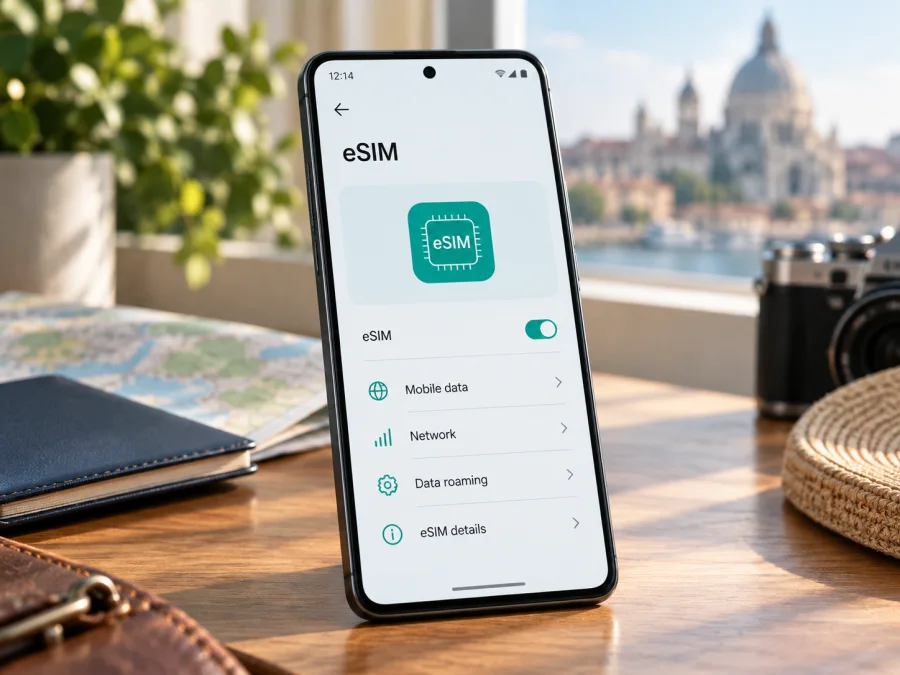
Google Pixel 8 Pro 128GB eSIM compatibility and setup guide
The Google Pixel 8 Pro 128GB supports eSIM. Google lists eSIM in the Pixel 8 Pro specifications and says Pixel 4 and later phones work with eSIM. That confirms the phone hardware and software family are capable of using a digital SIM. It does not guarantee that every carrier, country version, or service plan will activate on every individual phone. Check the handset’s EID, the eSIM option in Settings, carrier support, and any SIM lock before choosing a plan.
The 128GB designation identifies this phone’s built-in storage capacity. It does not indicate a different eSIM radio or a separate compatibility class. Google’s published Pixel 8 Pro specifications cover the model family; availability of storage configurations, network bands, and services can vary by country and seller. The exact phone in your hand and the operator or travel plan you intend to use are the final checks.
Google Pixel 8 Pro 128GB at a glance
| Item | What to know |
|---|---|
| Device variant | Google Pixel 8 Pro 128GB |
| eSIM capability | Supported on Pixel 8 Pro according to Google’s specifications |
| Physical SIM | Nano-SIM tray is also available on Pixel 8 Pro models |
| Dual SIM | A physical SIM and eSIM can be used together; two active eSIMs may be available on eligible Pixel 7 and later phones when the carrier supports it |
| Storage in this variant | 128GB internal storage; storage size does not determine eSIM support |
| Network access | 4G LTE and 5G depend on the specific model, local bands, carrier, plan, and coverage |
| Main limitation | Carrier acceptance, device lock, country-specific version, and software settings can affect activation |
Does the Google Pixel 8 Pro 128GB support eSIM?
Yes. Google’s official Pixel technical specifications list eSIM for Pixel 8 Pro. Google’s Pixel Help also states that Pixel 4 and later phones work with eSIM. The Google Pixel 8 Pro 128GB is within that supported family, and 128GB storage does not remove the eSIM feature.
Google’s current dual-SIM guidance says Pixel 7 and later devices can use two eSIM profiles at once if the carrier permits it. Treat that as a capability subject to the carrier and the phone’s configuration, not a guarantee that every pair of profiles or every region will work simultaneously. Many travelers instead keep a home line on a nano-SIM or eSIM and add a travel data profile. The phone lets you choose which SIM is the default for mobile data, calls, and messages; the available choices depend on the active lines.
There are regional and carrier qualifications. Google’s specifications list different radio bands and 5G capabilities by market, and its support pages caution that not all Pixel variants work on all 5G networks. Carrier-sold phones may be SIM-locked, and an operator may require eligibility checks or a supported plan before issuing an eSIM. Google’s general support statement for Pixel 4 and later does not mean that every imported or refurbished unit is unlocked, approved by every carrier, or able to connect to every local network. Confirm the precise model and status with the seller or current operator when the origin of the phone is uncertain.
Check the phone before buying a travel eSIM
- Look for an EID. Open Settings → About phone → SIM status (on some software versions, open Settings → About phone and check the device identifiers). An EID is the identifier associated with the embedded SIM. You can also search Settings for “EID”. Menu names can differ after software updates or by region.
- Look for the add-eSIM control. Open Settings → Network & internet → SIMs → Add SIM. A compatible, configured Pixel should offer a way to set up an eSIM. You may not see the exact same wording on every Android release or carrier build.
- Confirm carrier compatibility. Ask the provider whether it supports eSIM activation on the Pixel 8 Pro and whether your phone’s IMEI or EID can be accepted. For a travel plan, confirm the country or countries covered and the supported network access.
- Check for a SIM lock. A device bought from an operator may be restricted to that operator until it is unlocked. Ask the seller or original carrier to confirm the lock status before travel.
- Update and connect. Install available Android system updates and use stable Wi-Fi for installation. A software update cannot add missing hardware, but current software can resolve setup issues.
- Keep the exact model details. If Settings or the box shows a model number, share it with the carrier when asking about band or activation compatibility. Do not assume that a different regional SKU has identical radio bands.
If neither EID nor an eSIM setup option appears, do not purchase a plan on the assumption that the device name alone proves eligibility. Restart and update the phone, check that you are looking at the correct Settings menus, and contact Google support or the seller with the model number and IMEI. A missing menu can be a software or carrier configuration issue, but the carrier or manufacturer should help establish the reason.
Compatibility checklist
Before checkout, make sure each statement below is true:
- [ ] The phone is the Google Pixel 8 Pro 128GB or another confirmed eSIM-capable unit in that family.
- [ ] Settings shows an EID or an option to add an eSIM.
- [ ] The phone is not SIM-locked, or the operator has confirmed that the travel profile can be used while locked.
- [ ] The eSIM provider accepts the Pixel 8 Pro and can issue a profile for your destination.
- [ ] The travel plan’s coverage, data allowance, validity, activation conditions, and hotspot rules suit the trip.
- [ ] You have reliable Wi-Fi and access to the QR code or installation details when you are ready to add the profile.
Check whether your device is eSIM compatible.
Install and activate an eSIM on Pixel 8 Pro
- Prepare the phone. Connect the Google Pixel 8 Pro 128GB to stable Wi-Fi, charge it, and install available system updates. Confirm that airplane mode is off and that you can unlock the device.
- Get the activation details. Find the QR code or manual activation information in the provider’s app or account. Use the profile assigned to this phone and keep its code private.
- Open SIM settings. On the phone, go to Settings → Network & internet → SIMs → Add SIM → Set up an eSIM. If the wording differs, search Settings for “SIM” or follow the provider’s Pixel instructions.
- Add the profile. Follow the prompts to scan the QR code or select the supported manual setup option. Keep the screen open and the internet connection stable while Android downloads the profile.
- Choose line preferences. Select the travel profile for mobile data when needed. Keep your home line for calls or texts only if desired and permitted by its operator.
- Activate at the right time. Installation and plan activation are not always the same event. Check the plan’s conditions to learn whether validity starts when the profile is installed, when it first connects to a supported network, or at another specified point. If the plan should start on arrival, do not enable or select it earlier unless its instructions say to.
- Check the connection. At the destination, turn on the travel eSIM, select it for mobile data, and wait for network registration. Enable data roaming for that eSIM only if the provider’s instructions require it. Test a web page or map while Wi-Fi is off.
For step-by-step help, see the Android eSIM installation instructions and iOS eSIM installation instructions. The iOS guide is for a different operating system; this device uses the Android guide. Kaspersky eSIM Store is an app and website where you can choose, arrange, and activate an eSIM plan for mobile data on an international trip. Plan availability and device acceptance should be checked before completing your choice.
Use a travel eSIM without losing track of your home line
Android lets you choose a default for mobile data and separate preferences for calls and texts; only one SIM handles default mobile data at a time. If the home line stays enabled, check its roaming terms. Turn off mobile data switching if you do not want data to move to that line automatically.
Common travel situations:
- Install before leaving, connect after landing. Add the eSIM while on home Wi-Fi, then follow the plan’s timing instructions. On arrival, select it for data and allow it to register. This avoids searching for a connection just to download the profile.
- Keep your usual number reachable. Leave the home line enabled for calls or verification messages if needed, and set the travel profile as the data SIM. Check roaming charges with your home operator first. Receiving texts may be treated differently from mobile data, but charges and service rules are operator-specific.
- Cross several countries. Confirm every stop is covered; regional labels may exclude territories or border areas.
- Use maps or bookings offline when possible. Download maps and travel documents in advance as a backup. The eSIM gives access only when the phone can register on a supported network and the plan has usable data remaining.
- Share a connection. If you plan to use hotspot or tethering, check the plan terms and the carrier’s settings. Availability can depend on the plan, network, and local rules.
Troubleshooting: eSIM will not install or connect
First identify whether the issue is adding the profile, activating it, or reaching a network. Check Wi-Fi, airplane mode, the selected data SIM, and the plan’s start conditions before making changes.
- No “Add eSIM” option: Search Settings for “SIM”, check About phone for an EID, restart, and install Android updates. If still missing, confirm the exact model number with the seller or Google support; imported versions can differ.
- QR code fails: Make the code fully visible and screen brightness high. If supported, enter the activation details manually. The code may be expired or already used; ask the plan provider before deleting a profile.
- Profile installed but no service: Check destination coverage, validity, and whether the line is enabled and selected for data under Settings → Network & internet → SIMs. Turn Wi-Fi off to test. Enable data roaming on the travel line only when the provider instructs you to.
- Data does not work: Confirm mobile data is on, the travel eSIM is the selected data SIM, and any required APN matches the provider’s instructions. Restart, then use automatic network selection unless the provider advises otherwise.
- Wrong line for calls or texts: Set defaults for calls, SMS, and data separately. A data-only plan may not support ordinary calls or texts; verification codes may need the home line, subject to its roaming terms.
- Profile rejected: The eSIM may be tied to another device, the phone may be locked, or the issuer may not support the model. Confirm IMEI/EID with the provider before resetting the phone or erasing profiles.
- LTE works but 5G does not: eSIM may be functioning normally. 5G depends on regional bands, plan, provisioning, and local coverage.
If the issue persists, note the error, Android version, model number, and whether an EID appears. Contact Google or the seller about missing device options, the plan provider about its QR code or plan, and the carrier about SIM lock or provisioning. Do not post EID, IMEI, QR codes, or activation codes publicly.
Frequently asked questions
Is eSIM supported on the Google Pixel 8 Pro 128GB?
Yes. Google lists eSIM for Pixel 8 Pro and says Pixel 4 and later phones work with eSIM. Carrier, lock, and regional details still matter.
Does 128GB storage change compatibility?
No. Storage identifies the phone configuration; eSIM support applies to Pixel 8 Pro. Verify the exact model if imported or refurbished.
Can I use a physical SIM and travel eSIM together?
The phone supports nano-SIM and eSIM, with preferences for data, calls, and texts. The combination depends on software and carrier support. Check roaming terms before leaving the home line active.
Do I need 5G?
No. eSIM and 5G are separate. LTE may work where 5G does not; 5G needs compatible regional bands, plan, carrier, and coverage.
When should I install a travel profile?
Installing over Wi-Fi before departure is convenient, but check when validity starts: installation, first network connection, or another event.
Does a travel eSIM include a phone number?
Not necessarily. Many are data-only; calls and SMS are included only when plan conditions say so. Internet messaging uses data, while verification may require your home line.
Final device check and eSIM for your trip
The Google Pixel 8 Pro 128GB is eSIM-capable according to Google’s published Pixel information. Before choosing a travel plan, check that your own phone shows an EID or an eSIM setup option, confirm that it is unlocked or accepted by the provider, and verify destination coverage and activation timing. Then choose a plan with conditions that fit your itinerary, install it over Wi-Fi, and set the correct SIM for mobile data when you arrive. Kaspersky eSIM Store’s app and website can help you choose, arrange, and activate an eSIM plan for mobile data on an international trip; the availability and performance of service depend on the plan, device, and local network.


