Travel connectivity guide
Google Pixel 8 Pro 12GB RAM eSIM: Setup Guide
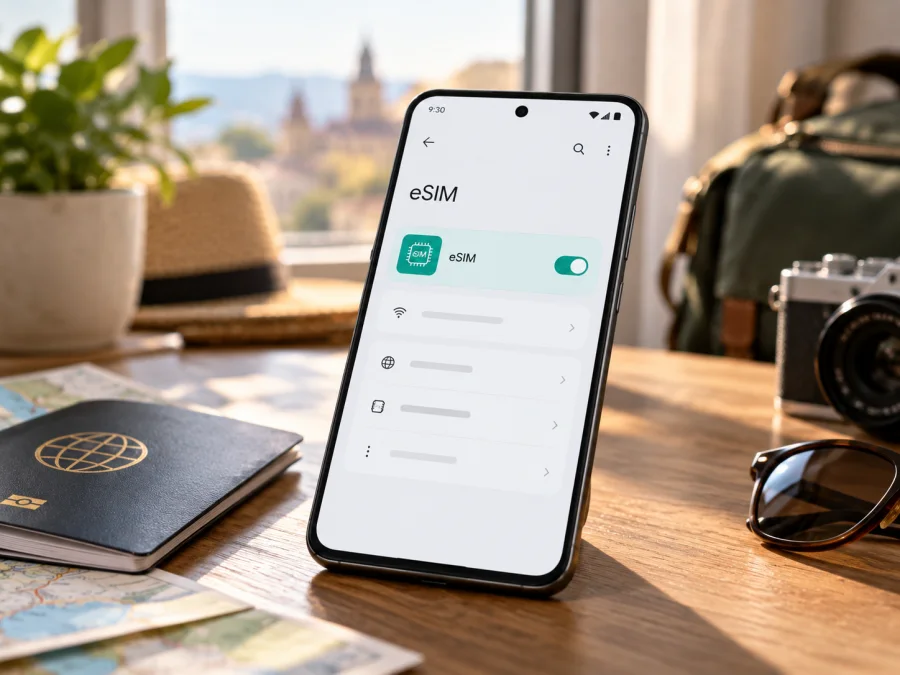
Google Pixel 8 Pro 12GB RAM eSIM: compatibility and setup
Yes. Google Pixel 8 Pro 12GB RAM supports eSIM. Google’s Pixel Phone Help currently says that all Pixel 4 and later phones work with eSIM, and its Pixel 8 Pro specifications list eSIM alongside the phone’s SIM connectivity. The 12GB RAM configuration does not change that capability. You can add a digital SIM profile for mobile data, including a travel plan, provided the particular phone is not restricted by its seller or carrier and the eSIM provider supports the device and destination.
That answer describes the device family, not a guarantee for every second-hand, imported, managed, or carrier-sold handset. Before you choose a plan, confirm that your own phone shows an EID or an eSIM setup option, can accept a profile, and is unlocked for the provider you intend to use. Network availability and supported radio bands are separate questions from eSIM support.
At a glance
| Item | Google Pixel 8 Pro 12GB RAM |
|---|---|
| eSIM | Supported according to Google’s Pixel Phone Help and hardware specifications |
| Memory | 12 GB LPDDR5X RAM |
| Physical SIM | Nano-SIM tray on Pixel 8 Pro models |
| eSIM setup | Settings → Network & internet → SIMs → Add SIM → Set up an eSIM; wording can vary with Android version and region |
| EID check | Settings → About phone → SIM status → EID |
| Travel use | Can be selected for mobile data when the plan and local network support it |
| Main checks before purchase | EID, carrier lock, destination coverage, provider requirements, plan conditions |
The phone can keep a physical SIM and an eSIM profile available, which is useful if you want to retain your usual number while using a separate plan for data abroad. Google also documents support for two eSIM profiles in use at the same time on Pixel 7 and later, when the carrier allows it. Having profiles stored on the phone is not the same as having both active at once: available combinations and dual-SIM behavior depend on the device software and the operators involved.
What eSIM support means on this model
An eSIM is a SIM profile downloaded to a compatible phone instead of being inserted as a plastic card. On Google Pixel 8 Pro 12GB RAM, it can be used as a second line alongside a nano-SIM or, where supported, as one of two eSIM profiles in use. You can select which SIM handles mobile data in the phone’s SIM settings.
The 12GB RAM wording identifies the memory configuration. It is not a separate cellular edition that needs its own eSIM decision. Google lists 12 GB LPDDR5X RAM for Pixel 8 Pro. Its storage choices differ by market and sales channel, but the published Pixel 8 Pro hardware specifications include eSIM. Storage capacity and RAM do not establish whether a particular operator will provision the phone, whether it is unlocked, or which network bands are enabled in the market where it was sold.
An eSIM data plan is also different from a regular mobile subscription. A travel data plan may provide mobile internet without assigning a conventional phone number or including ordinary calls and SMS. Check the terms of the specific plan. You can generally keep your home SIM available for calls and messages while directing mobile data to the travel eSIM, but your home operator’s charges and settings still apply to that line.
Regional versions, carrier restrictions, and the operator market
Google’s current general compatibility guidance draws a clear distinction between newer and older Pixels: it says all Pixel 4 and later phones work with eSIM, while it identifies certain exceptions for older generations. That guidance includes Pixel 8 Pro, so Google does not identify a regional Pixel 8 Pro RAM variant that lacks eSIM at the model-family level. Still, the exact model number, sales market, firmware, and carrier provisioning should be checked on the handset in front of you. Imported stock may also be sold under a different local warranty or support arrangement.
There are three separate checks to keep in view:
- Device capability: Does this phone have an eSIM component and does Android expose the EID or the option to add a SIM?
- Carrier lock and provisioning: Is the handset permitted to accept a profile from a different provider? A phone sold under a carrier agreement may be restricted until that carrier unlocks it. Ask the seller or original carrier; do not assume that an eSIM-capable handset is automatically unlocked.
- Service in the destination: Does the provider support this Pixel and offer service in the country or region you will visit? The destination network, local operator arrangements, frequency bands, roaming conditions, and plan terms affect service. A phone can support eSIM yet still fail to connect to a particular network or plan.
A country’s general eSIM availability does not guarantee that every local operator supports every device, and a plan that works in one country is not automatically valid across a nearby border. For a trip involving more than one country, check each destination and any regional plan’s stated coverage. The 12GB RAM label does not identify the radio variant, so use the phone’s model number and ask the provider about compatibility where market-specific network support matters.
<span id="kesim-device-compatibility"></span>
Compatibility checklist
Before purchasing a travel plan, confirm each item:
- [ ] The exact phone is Google Pixel 8 Pro 12GB RAM and the device is in your possession or its exact model number is available.
- [ ] An EID appears in SIM status, or Android offers the eSIM setup flow.
- [ ] The phone is carrier-unlocked, or the carrier confirms that it can accept the intended provider’s eSIM.
- [ ] The plan provider supports Pixel eSIM activation and your destination.
- [ ] The destination, route, data allowance, validity period, and activation conditions match your trip.
- [ ] You have a reliable Wi-Fi connection for setup and know whether the plan should be installed before departure or after arrival.
- [ ] You understand whether data roaming must be enabled for the travel profile and how to prevent your home SIM from using roaming data.
For a quick overview of the checks, check your device’s eSIM compatibility. If the EID is missing or the setup option is unavailable, pause before paying for a plan and ask Google support or the seller to confirm the handset’s exact model and status.
How to check the EID and eSIM menu
The EID is the identifier associated with the phone’s eSIM hardware. Google says it may be requested when an operator sets up an eSIM. On a Pixel 8 Pro, check the settings first:
- Open Settings.
- Tap About phone.
- Open SIM status.
- Look for EID. Depending on Android version, you may need to scroll through the status details.
Google also says the EID may be printed on the phone’s original box. Treat the number on the device as the most relevant check for the handset you are about to use, especially if a used phone and its packaging may have been separated.
You can also inspect the installation path without completing an activation:
- Open Settings.
- Tap Network & internet.
- Tap SIMs or Add SIM.
- Look for Set up an eSIM or a similar option.
The exact labels can shift with Android updates, language, or carrier software. Seeing a setup menu is a useful sign, but it does not confirm that the phone is unlocked or that a specific provider accepts it. Conversely, if the menu is not visible, restart the phone, install available system updates, and check the exact model and EID before drawing a conclusion. A missing EID is a reason to verify the device with Google or the seller, not a reason to guess that the phone is compatible.
Before you buy a travel eSIM plan
Compatibility is only one part of choosing a plan. Match the plan to the actual trip and the way you use your phone. Check the listed country or region, data amount, validity period, start-of-validity rule, supported activation method, and whether tethering is permitted if you need a hotspot. Plans can differ in when the validity clock begins, so read the current conditions instead of assuming that purchase, installation, and first network connection are the same event.
Think about your data needs. Navigation, ride-hailing, messaging, email, and occasional browsing usually require less data than video streaming, cloud photo backups, or work calls. Download maps and other large files over Wi-Fi before travel if that suits your plans. When multiple countries are involved, confirm each one is included; a regional plan may have a distinct list of supported destinations.
Kaspersky eSIM Store is an app and website that helps you choose, arrange, and activate an eSIM plan for mobile internet on an overseas trip. Once you have confirmed the handset and destination, you can use the app or website to review the available plan conditions and choose one that fits your route and expected data use. Kaspersky eSIM Store is not a mobile operator and does not own the destination network; service depends on the selected plan and local network arrangements.
How to install and activate an eSIM
Before starting, connect the Pixel to stable Wi-Fi, keep the plan’s installation details available, and make sure the phone has enough battery. Do not delete an eSIM profile just to repeat installation unless the provider confirms that it can be installed again. Some activation codes are single-use or tied to the first device that downloads them.
Install using the Pixel settings flow
- Check the phone. Confirm the EID and make sure the device is carrier-unlocked for the provider you plan to use.
- Open eSIM setup. Go to Settings → Network & internet → SIMs → Add SIM → Set up an eSIM. Labels can vary slightly by Android version.
- Follow the provider’s method. Scan its QR code, use an in-app option, or enter manual details if provided. Keep Wi-Fi connected while the profile downloads.
- Name the line. Label it “Travel” or with the destination so you can identify it later.
- Choose the data SIM. In SIM settings, select the travel eSIM for mobile data when you are ready to use the plan. Keep calls and texts on your regular SIM if desired.
- Check activation timing. Some plans can be installed in advance; others begin validity at installation or first connection. Follow the provider’s stated rule.
- Set roaming carefully. Enable data roaming for the travel eSIM only if its instructions require it. If your home SIM stays active, check its roaming setting to avoid unintended charges.
- Test service at your destination. Turn on the travel profile and mobile data, wait for network registration, then test a simple webpage. Follow the provider’s advice if manual network selection is needed.
Keep the plan’s installation details available and do not delete a profile just to retry unless the provider confirms it can be installed again. Some activation codes are single-use or tied to the first device that downloads them.
For additional steps, see the Android eSIM installation instructions or the iOS eSIM installation instructions. The iOS guide is for a different phone platform; Google Pixel 8 Pro 12GB RAM uses the Android flow.
What activation looks like
Installation adds the profile; activation and usable service may depend on provider provisioning and the destination network. A profile can appear in SIM settings before registering locally. If installed before departure, leave it switched off until the plan instructions say to use it. After landing, enable the line and mobile data, then allow time for network selection. If service does not appear, troubleshoot before removing the profile.
Using the travel eSIM for mobile data
At your destination, open Settings → Network & internet → SIMs and select the travel eSIM for mobile data. Your regular SIM may remain available for calls and messages if your home operator permits it. Data, calls, and texts are separate SIM choices, so check each one.
A practical arrangement is to keep your usual number available for important incoming messages while using the travel plan for data. Confirm charges with your home provider, turn off data roaming for that line if you do not intend to use it, and verify that mobile data is assigned to the travel eSIM. Roaming controls apply to individual SIM profiles.
A data-only travel plan does not automatically include a phone number, ordinary cellular calls, or SMS. Internet calling and messaging apps can use the data connection. Before leaving, consider how you will receive account verification codes sent to your regular number.
For multi-country trips, confirm that each destination is covered and check whether network selection is automatic or requires provider guidance. Coverage, speed, and access depend on the plan and local network; an eSIM does not promise service in every location. Save essential tickets, maps, or booking details for offline access if useful.
Common problems and what to check
“Set up an eSIM” is missing
Check Settings → About phone → SIM status for an EID. Restart the phone and install available Android updates. Confirm the exact model with the seller or Google support. If neither EID nor setup option appears, verify the handset before purchasing a plan.
The QR code will not scan or the profile will not download
Raise screen brightness, clean the camera lens, and hold the phone steady. If the code is displayed on this phone, use the provider’s manual or app-based method if available. Confirm Wi-Fi works and the code is valid and unused. Ask the provider before requesting a replacement or retrying a one-time code.
Android cannot add the eSIM
Check that the phone is unlocked and that the provider accepts its model or IMEI. Confirm the activation details match the plan and that the profile has not already been installed elsewhere. Record the full error and contact the provider or carrier rather than repeatedly deleting and rescanning.
The profile is installed, but there is no signal
Make sure the eSIM is on and selected for mobile data. Toggle airplane mode, restart if needed, and verify that the plan is valid in your location and its activation conditions are met. Enable roaming on the travel profile or try manual network selection only when instructed by the provider.
Signal appears, but apps cannot connect
Check that mobile data is enabled for the travel profile and that it is the selected data SIM. Follow provider instructions for APN or roaming settings. Temporarily turn Wi-Fi off to test mobile data; if only one app fails, check that app separately.
Data uses the wrong SIM or roaming charges appear
Confirm the selected data line and review roaming for both profiles. Contact your home carrier about any charges already incurred; the travel profile does not change your home plan’s billing rules.
Service stops after crossing a border
Check that the new destination is included and that the plan is still valid. Allow the phone to register on a supported network. Follow provider guidance for manual selection and keep support details available in case mobile data is unavailable.
Frequently asked questions
Does Google Pixel 8 Pro 12GB RAM support eSIM?
Yes. Google’s current Pixel Phone Help says all Pixel 4 and later phones work with eSIM, and Google lists eSIM in the Pixel 8 Pro specifications. Check your own phone’s EID and carrier status before buying a plan.
Does 12GB RAM change eSIM compatibility?
No RAM-specific restriction is listed. The 12GB RAM detail describes memory; a carrier-sold or imported phone may still have a lock or local service limitation.
Can I use a physical SIM and eSIM together?
Yes, Pixel phones from Pixel 3a onward can use a physical SIM and an eSIM. You can choose which line handles data, calls, and messages, subject to operator support and your settings.
Can two eSIM profiles be active at the same time?
Google says Pixel 7 and later can use two eSIM profiles simultaneously when the operator allows it. Stored profiles and simultaneously active profiles are not the same thing; confirm the supported combination with the provider.
Will eSIM work in every country, and does it replace my number?
No universal coverage is guaranteed. The plan must include the destination and connect through a supported local network. A data-only plan usually does not include an ordinary phone number, calls, or SMS unless its terms say otherwise.
Should I install the profile before departure?
Follow the provider’s instructions. You may be able to install in advance and leave the profile off, but some plans start their validity at installation. Check the start rule before setup.
What if I cannot find the EID?
Look in Settings → About phone → SIM status and check the original box if available. If neither shows an EID, confirm the exact device with Google or the seller before you purchase a plan.
Final check before your trip
Google Pixel 8 Pro 12GB RAM supports eSIM, but check the actual phone’s EID and unlock status. Confirm that the provider supports the handset and destination, then review the plan’s activation timing, validity, and covered countries before purchase.
After checking compatibility, use the Kaspersky eSIM Store app or website to choose, arrange, and activate an eSIM plan for mobile internet on your overseas trip. Review its conditions, install the profile with the Android steps, and select it for mobile data when appropriate.


