Travel connectivity guide
Google Pixel 8 Pro 512GB eSIM compatibility
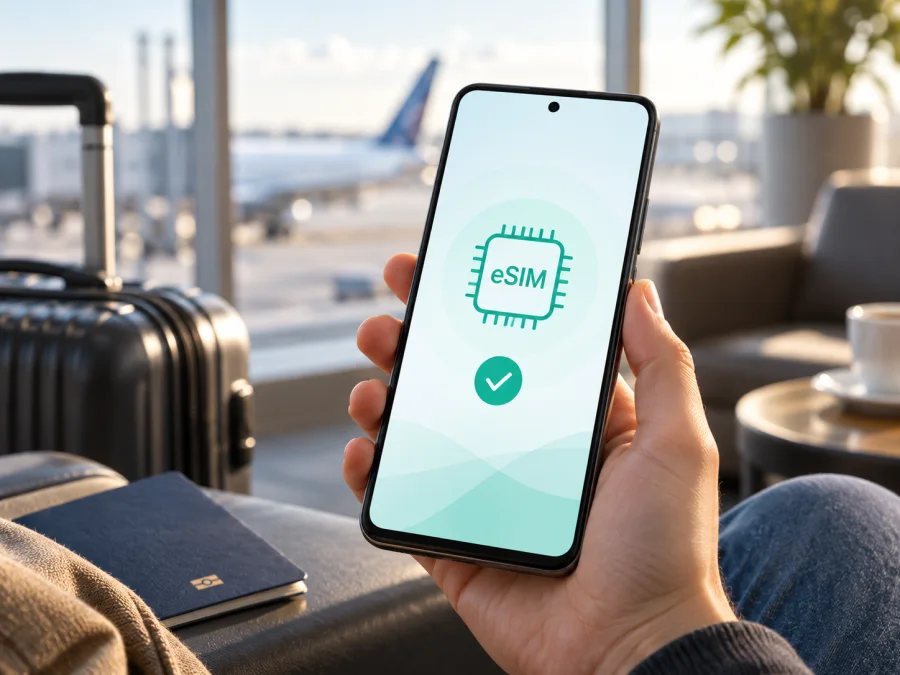
Google Pixel 8 Pro 512GB eSIM: compatibility and setup
Yes, Google Pixel 8 Pro 512GB can use an eSIM. Google’s current Pixel documentation lists eSIM support for the Pixel 8 Pro family. The exact SIM arrangement still depends on the sales market and the individual phone: relevant US models are described with two active eSIMs, while many rest-of-world versions use one physical nano-SIM plus one eSIM. The 512GB storage label is part of the requested device name, but it does not identify the regional model or prove that an imported handset is unlocked.
For a dependable answer about your own unit, check both the manufacturer information and Android itself. An EID in Settings and an option to add or set up an eSIM are the most useful signs. Before buying a travel plan, also confirm that the phone is not carrier-locked and that the plan covers every destination on your route.
Quick answer for Google Pixel 8 Pro 512GB
Google’s official hardware specifications identify eSIM capability on Pixel 8 Pro. Google’s Pixel Help guidance says that an eSIM-capable phone has an EID and explains how to add an eSIM from Settings. This is manufacturer confirmation, rather than an assumption based only on a marketplace title.
| Check | What applies here |
|---|---|
| Exact device variant | Google Pixel 8 Pro 512GB |
| Storage | 512GB |
| eSIM support | Supported by the Pixel 8 Pro family according to Google’s current documentation |
| Typical non-US setup | One nano-SIM plus one eSIM; verify the regional model |
| Typical US setup | Relevant models may support two active eSIMs |
| Operating system | Android; launched with Android 14, while the installed version varies |
| 5G and cellular service | Depends on model, bands, carrier, plan and local network |
| Final check | EID, Add SIM or Set up an eSIM, and no operator lock |
The same storage description can appear on stock from different markets. A refurbished phone may retain its original regional model or operator restriction. If you are buying the handset for a trip, inspect the actual phone before paying for a non-refundable eSIM plan.
Does Google Pixel 8 Pro 512GB support eSIM?
Yes. Google’s current Pixel specifications distinguish SIM configurations by market: US versions are listed with dual eSIM, and the rest-of-world grouping is listed with a single nano-SIM and eSIM. Google also describes eSIM as a way to add a cellular plan without a physical SIM card. That supports the answer for Google Pixel 8 Pro 512GB.
“Compatible” has three parts:
- The Pixel 8 Pro platform includes eSIM capability.
- The particular regional model must expose that capability in software.
- The selected profile must be allowed by the operator, work on an unlocked phone and cover the trip’s network.
Storage capacity is not the deciding factor. Do not infer the regional configuration from colour, memory size, packaging language or the presence of a SIM tray. A phone can have eSIM hardware and still be locked, have limited bands in a destination, or show different controls after a software change.
Regional and operator differences
US and rest-of-world models can differ in how two SIMs work. A US model may keep two eSIMs active; many other models use one eSIM beside a physical nano-SIM. Several profiles can be stored without all of them being active. Google also notes that cellular service and band support depend on the carrier and may not be available everywhere, so eSIM support is not a promise of 5G or coverage in a particular country.
An operator lock is separate from eSIM hardware. A locked handset may show an EID and an eSIM menu but reject a profile from another provider. Ask the seller to confirm that the phone is unlocked. Menu names also vary with Android; an update or restart may restore a hidden option, but cannot add eSIM capability to an unsupported regional model. When the listing and the phone disagree, verify the exact model before purchasing.
Device compatibility check
Before selecting a plan, use this Check your device list. It separates hardware readiness from travel-plan readiness.
<a id="kesim-device-compatibility"></a>
Compatibility checklist
- [ ] The phone is specifically identified as Google Pixel 8 Pro 512GB, not another Pixel 8 model.
- [ ] Settings shows an EID under SIM status.
- [ ] Settings offers Add SIM, Download a SIM instead, or Set up an eSIM.
- [ ] The phone is unlocked for the profile you intend to use.
- [ ] Android is updated and can connect to Wi‑Fi during installation.
- [ ] The plan covers the destination country, region or complete route.
- [ ] Its allowance, validity, activation rule and roaming requirement suit the trip.
The EID and menu answer “can this unit install an eSIM?” The lock, network and plan checks answer “can I use it on my trip?” Both answers are necessary.
How to check the EID and eSIM menu
Google’s Pixel Help instructions identify the EID as the device number needed for eSIM use. Android labels may differ slightly, but these routes are the practical checks for Google Pixel 8 Pro 512GB.
Find the EID
- Open Settings.
- Tap About phone.
- Open SIM status or the related status screen.
- Look for EID.
The EID may also be printed on the box, but the actual phone is the final check. An IMEI identifies cellular hardware; an IMEI alone does not prove that eSIM setup is available. Do not post the full EID or IMEI publicly. Share an identifier only through a trusted activation or support process when requested.
Find the setup option
- Open Settings.
- Tap Network & internet.
- Tap SIMs or Mobile network.
- Choose Add SIM.
- Look for Set up an eSIM, Download a SIM instead? or similar wording.
If the flow opens, stop before confirming an unwanted profile. Seeing the option is enough for this check. If the EID is present but the menu is missing, install pending updates, restart the phone and try again. If neither appears, treat the unit as unverified despite a seller’s “eSIM compatible” claim and ask for the exact regional model to be checked.
What to prepare before installation
Use stable Wi‑Fi, charge the phone, unlock the screen and keep the QR code or manual activation details ready. If the QR code is displayed on the same phone, use another screen or the provider’s in-app method; the camera cannot normally scan a code hidden behind its own view.
A travel eSIM selected through Kaspersky eSIM Store is intended for mobile internet abroad. It generally does not add a regular phone number, voice calls or SMS unless the selected tariff says otherwise. Your home SIM may remain available for calls or messages, while the travel eSIM is selected for data. Check the whole route: a country plan may not cover a second destination, and installation may not be the same event as the start of validity or data use.
Choose an eSIM plan after checking compatibility
Once the EID and setup menu are confirmed, you can choose an eSIM plan for your destination in Kaspersky eSIM Store. The app and site help you select, arrange and activate an eSIM with a tariff for mobile internet during a foreign trip. Review destination, allowance, validity, activation conditions and support information before confirming.
Kaspersky eSIM Store is not a mobile operator, network owner or provider of mobile coverage. It is the app and website used to prepare the eSIM and select the travel data tariff. The underlying connection depends on the applicable local network arrangement and the selected plan.
How to install and activate an eSIM on Google Pixel 8 Pro 512GB
The wording can change with Android and regional software. For a visual walkthrough, see the Android eSIM installation instructions. The iOS guide is available when preparing another travel phone: iOS eSIM installation instructions.
1. Confirm the prerequisites
Connect Google Pixel 8 Pro 512GB to Wi‑Fi. Confirm the EID and eSIM menu, check that the phone is unlocked, and open the eSIM details in the Kaspersky eSIM Store app or site.
2. Open the eSIM flow
Open Settings → Network & internet → SIMs or Mobile network, tap Add SIM, and choose Set up an eSIM. Choose the download/add option, not the physical-card option.
3. Scan or enter the details
Scan the supplied QR code or use the manual or in-app method shown with the profile. Do not reuse an old code. If scanning fails, increase brightness, display the complete code on another screen and try the manual method if provided.
4. Download the profile
Keep Wi‑Fi on and wait for Android to contact the activation service. A short delay is normal. If the process stops, note the exact message before trying again.
5. Name the eSIM and select data
Give the profile a label such as “Travel”. When Android asks which SIM handles mobile data, select the travel eSIM if that is your intention. Check the default settings for calls, SMS and data so the home SIM is not selected accidentally.
6. Enable it at the right time
You can install before departure and enable after landing, or test it at home if the tariff permits. Follow the plan’s activation rule. If data roaming is required, enable Roaming for the travel eSIM only; keep it off on the home SIM if you want to avoid unexpected charges.
7. Test mobile data
Turn Wi‑Fi off briefly, open a simple webpage or map and check the network indicator. If the plan starts only on arrival, no service at home may be expected. Restore Wi‑Fi after the test.
Using the eSIM for mobile internet while travelling
After landing, open Settings → Network & internet → SIMs and confirm that the travel profile is enabled and selected for mobile data. Review automatic data switching carefully; turning it off gives clearer control over which line uses data. Keep the home SIM for calls or messages only when its roaming terms are acceptable.
A travel data eSIM can support maps, translation, transport, reservations, email, work tools and messaging apps without a physical SIM swap. Regular calls and SMS are not included merely because an eSIM is installed. Hotspot use, video, photo backup and app updates can consume data quickly, so monitor the allowance and check whether tethering is permitted. When crossing a border, verify that the plan covers the new country before relying on it.
Common problems and checks
The QR code will not scan
Check that the code is complete, sharp and displayed on another screen. Increase brightness and clean the camera lens. If the code was already used, ask support whether it can be reinstalled; do not assume that deleting the profile is harmless.
“Set up an eSIM” is missing
Check About phone → SIM status for an EID, install Android updates, restart and review Network & internet → SIMs → Add SIM. If the EID and menu remain missing, verify the exact regional model. The 512GB label alone cannot resolve a regional mismatch.
The profile downloads but there is no service
Confirm that the eSIM is enabled and selected for data. Check mobile data, the roaming requirement, destination, validity and activation status. If there is a carrier error, check for an operator lock and contact support with the order details and device identifier.
The phone uses the wrong line
Select the travel eSIM for mobile data and turn off automatic data switching if strict control is needed. Check hotspot and background-data settings as well.
Data is slow or limited to some places
Try a location with better reception and restart the mobile connection. An eSIM-capable phone is not guaranteed a particular speed, 5G connection or coverage level; congestion, bands, the regional model and the plan can all matter.
The profile cannot be added
Confirm that the phone is unlocked, the code belongs to this purchase and the profile has not already been installed. Save the exact error and contact support rather than repeatedly deleting profiles.
FAQ
Is Google Pixel 8 Pro 512GB eSIM compatible?
Yes. Google documents eSIM support for Pixel 8 Pro. US and rest-of-world configurations can differ, so verify the EID and setup menu on the individual phone.
Does 512GB storage guarantee eSIM support?
No. Storage is part of the exact device name, but it does not identify the sales region, operator configuration or lock status.
Can I keep a physical SIM and add a travel eSIM?
Usually, yes, on the nano-SIM-plus-eSIM configuration documented for many non-US models. Active-line controls depend on the regional model and Android version.
Does a travel eSIM give me a local phone number?
Not necessarily. A travel eSIM used through Kaspersky eSIM Store is intended for mobile internet unless the tariff explicitly says otherwise. It does not automatically add ordinary calls or SMS.
Should I install before the flight?
It can be convenient because Wi‑Fi is available and there is time to resolve problems. Whether to enable it immediately depends on when the plan starts counting validity or data use.
Do I need data roaming?
Some travel eSIMs require it because the profile uses a partner network. Check the tariff guidance, then enable roaming on the travel eSIM only.
What if the EID is visible but installation fails?
Check Wi‑Fi, the QR code, activation status, unlock status and destination. Restart and retry once for a temporary error; for a persistent failure, contact support with the exact message. An EID proves eSIM identification, not that every profile is valid for every network.
Can I move the eSIM to another phone?
Do not assume that you can. Some profiles can be transferred, while others are tied to the first installation or have reissue rules. Check the tariff conditions before deleting a working profile or resetting Google Pixel 8 Pro 512GB.
Key takeaways
Google Pixel 8 Pro 512GB belongs to an eSIM-capable device family, and Google’s official information confirms that support. The qualification is regional configuration: US and rest-of-world models can differ in active-SIM behaviour, while carrier locks, software, bands and local network compatibility can affect the result. The most dependable on-device proof is an EID together with an eSIM setup option in Android.
Check the unit before buying a plan, install over reliable Wi‑Fi, select the travel eSIM for mobile data and enable roaming only when required. Kaspersky eSIM Store helps you choose, arrange and activate an eSIM tariff for mobile internet abroad through its app or site; it is not the operator or owner of the network.
Final device check and travel eSIM choice
Before leaving, confirm that Google Pixel 8 Pro 512GB shows an EID, open Network & internet → SIMs → Add SIM, verify that the phone is unlocked, and check that the eSIM tariff covers every destination on your route. Make sure the data line is set to the travel profile, activation timing matches the tariff conditions, and the home SIM cannot use data roaming by accident. After those checks pass, choose the eSIM for your trip in Kaspersky eSIM Store, install it with the Android instructions, and activate mobile data when ready.


