Travel connectivity guide
Google Pixel 8a 8GB RAM eSIM support
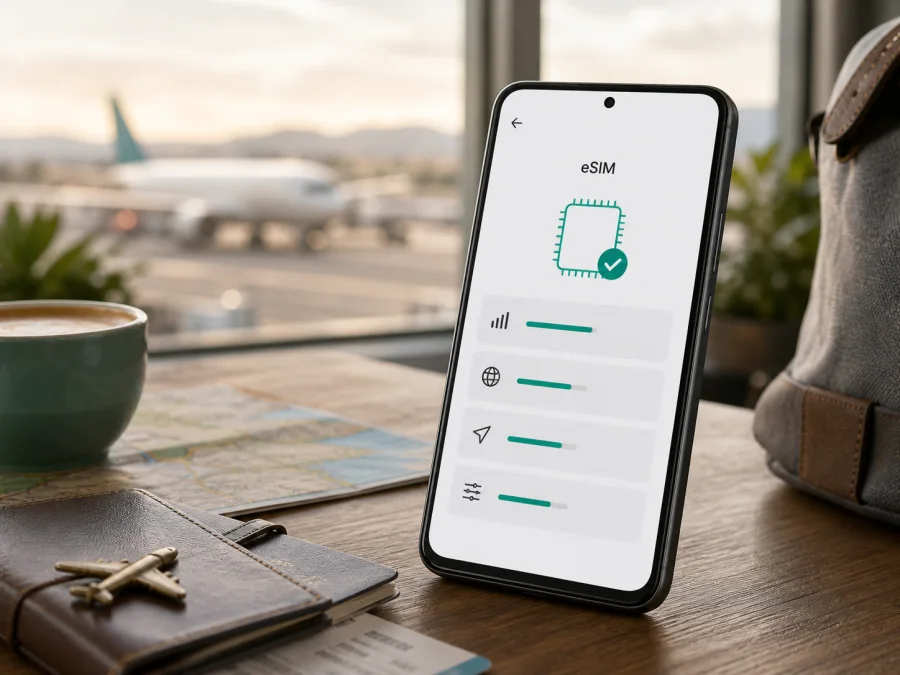
Google Pixel 8a 8GB RAM eSIM: compatibility, setup, and travel use
The short answer is yes: the standard Google Pixel 8a 8GB RAM specification supports eSIM. Google’s current official Pixel Phone Help specification lists eSIM for Pixel 8a, and the Google Store describes it as a way to add a cellular plan without a physical SIM card. The usual arrangement is one nano-SIM plus one eSIM. Your unit still needs checking because region, carrier, firmware, and plan can affect activation.
The 8GB RAM detail identifies the requested memory variant; it does not enable or disable eSIM. Before paying for a travel plan, confirm that this exact phone shows an EID, offers an add-eSIM action, is not carrier-locked, and can use the plan at your destination.
Quick answer: does Google Pixel 8a 8GB RAM support eSIM?
Yes. Google lists eSIM in the official Pixel 8a hardware specification and documents one physical nano-SIM plus one eSIM. Google Pixel 8a 8GB RAM can therefore keep a regular SIM in the phone while using a separate profile for mobile data abroad.
This describes the supported family configuration, not every retail unit or plan. A carrier-locked device may reject another provider’s profile, and a regional or operator-supplied unit may have different bands or activation rules. Software may use a different label. An EID and add-eSIM path are the strongest practical signs, but the plan must still cover the destination.
What eSIM means for a trip
An eSIM is a digital SIM profile built into the phone. You download it instead of inserting a plastic card, then select it for mobile data. It can help you prepare before departure while keeping the home line available.
Kaspersky eSIM Store is an app and website that helps you choose, arrange, and activate an eSIM with a suitable plan for mobile internet abroad. It is not a mobile operator, network owner, or coverage provider. The network after activation depends on the selected plan and local networks at the destination.
Travel eSIM plans in this context are generally data-only. Unless a plan says otherwise, they do not add an ordinary number, voice calls, or SMS. Use messaging and calling apps over data, while the home line handles calls or messages when appropriate.
Google Pixel 8a 8GB RAM: specifications relevant to eSIM
| Item | What to know |
|---|---|
| Exact device variant | Google Pixel 8a 8GB RAM |
| Memory | 8 GB LPDDR5X RAM in Google’s Pixel 8a specification |
| Physical SIM | Nano-SIM in the standard dual-SIM arrangement |
| eSIM | Listed by Google as supported for Pixel 8a |
| Dual-SIM pattern | One nano-SIM and one eSIM, subject to carrier rules |
| 5G | Supported; actual service depends on model, bands, destination, and operator network |
| EID | Check in Settings to confirm eSIM provisioning support |
| Main limitation | Lock, regional variation, software, or an incompatible plan can prevent activation |
RAM identifies the requested variant but is not the eSIM mechanism. Keep Google Pixel 8a 8GB RAM in your purchase record and checks; do not replace it with a shorter label when comparing listings.
Regional, carrier, and software differences
Google’s specification confirms eSIM capability for Pixel 8a, but retail versions can differ by market. A unit for another country or carrier may have different bands, 5G availability, firmware, warranty, or activation rules. A listing that only says “Pixel 8a” is not enough evidence about one handset.
The accurate conclusion is conditional: a Google Pixel 8a 8GB RAM matching Google’s configuration and exposing eSIM controls should accept a compatible plan, but verify the unit before purchase. Regional uncertainty means checking the EID, add-eSIM menu, sales channel, and carrier status.
Carrier lock and operator policy
A phone may contain eSIM hardware and still be restricted to its original carrier. Ask whether it is unlocked for another operator’s plan, then inspect it after purchase. An unlocked or “no SIM restrictions” status is useful evidence, although wording varies by region.
The plan must support the destination and device. Pixel 8a 5G does not guarantee 5G on every journey: local bands, operator support, plan policy, signal, and load affect the result. Compatible 4G/LTE may be the expected fallback.
Firmware and menu names
Android updates can move settings or change labels. Search Settings for SIM, eSIM, or EID; you may see Add SIM, Add eSIM, or Download a SIM instead?.
What to check before buying an eSIM plan
An eSIM plan is tied to a destination, device, and activation conditions. Complete these checks before payment:
Device compatibility checklist
<a id="kesim-device-compatibility"></a>
- Confirm the model and memory detail are Google Pixel 8a 8GB RAM.
- Confirm that an EID is visible in Settings.
- Locate the action for adding or downloading an eSIM.
- Confirm that the phone is unlocked for another carrier.
- Install Android updates and restart the phone.
- Arrange reliable Wi-Fi for installation.
- Check that the plan covers every country, region, or route on your trip.
- Read allowance, validity, activation timing, supported networks, and top-up or refund conditions.
- Decide which line will handle data, calls, and messages.
- Keep account access or the QR code available without relying on the uninstalled eSIM.
For a compact self-check, Check your device before choosing a plan. If the EID or add-eSIM flow is missing, pause the purchase and confirm the regional version with the seller or carrier.
Find the EID and add-eSIM option
The EID is an identifier used for eSIM provisioning. It differs from the IMEI and should be treated as sensitive information.
Try this EID path:
- Open Settings.
- Tap About phone.
- Tap SIM status, if shown.
- Find EID.
Then check the installation path:
- Open Settings.
- Tap Network & internet.
- Tap SIMs or Mobile network.
- Choose Add SIM.
- Look for Add eSIM or Download a SIM instead?.
Google’s Pixel guidance documents these checks while noting that actions depend on the phone. If the EID exists but download fails, investigate the carrier lock and plan. If neither the EID nor eSIM action appears, verify the regional model and software before trying a QR code.
How to install and activate an eSIM
The steps below fit a travel plan prepared through Kaspersky eSIM Store. Installation downloads a profile; activation and data use depend on the plan and local network.
Before you scan the QR code
Prepare the compatible, unlocked Google Pixel 8a 8GB RAM, stable Wi-Fi, the QR code or manual details, destination information, and enough battery. If the code is on the Pixel, display it elsewhere or use manual details. Do not share it publicly: some profiles are intended for one installation.
For platform-specific guidance, use the Android eSIM installation instructions or the iOS eSIM installation instructions.
Step-by-step installation
- Connect to Wi-Fi. Establish a working internet connection.
- Open Settings. Use the system Settings app.
- Open Network & internet. Enter mobile-network controls.
- Tap SIMs. Review the existing SIM and actions.
- Choose Add SIM. Select the eSIM download option.
- Start the download flow. Confirm the digital SIM choice.
- Scan the QR code. Use the code for the selected plan.
- Enter manual details. Do so only if provided.
- Wait for download. Keep Wi-Fi active.
- Name the profile. For example, “Travel data.”
- Confirm the new SIM. Check the SIM list.
- Select the data line. Choose the travel eSIM.
- Configure the home line. Choose whether it stays on.
- Review data roaming. Enable it only if required.
- Test the connection. Turn off Wi-Fi briefly.
The download can take several minutes. Do not delete the profile because the signal icon is slow to change. Check activation timing, selected data line, destination network, and the plan’s conditions first.
Activation and safe line selection
Open Settings → Network & internet → SIMs and inspect both lines. Select the travel eSIM for data, and turn off automatic data switching if it could move traffic to the home SIM. Consider disabling data roaming on the home line while leaving calls or SMS as needed.
If the plan requires roaming on the eSIM, enable it for that profile, not the home line. Otherwise follow its instructions. Test once with Wi-Fi off, then restore the preferred settings.
Using Google Pixel 8a 8GB RAM for mobile internet abroad
The dual-SIM setup is useful when each line has a clear role. The home line can remain available for calls, while the travel eSIM handles maps, translation, reservations, email, and messaging. Name the lines clearly.
Before departure
Install while Wi-Fi is dependable, but do not assume installation means active service. Read when validity begins and save purchase details and support access offline.
At arrival
At arrival, choose the travel eSIM for data and enable its roaming if required. Turn off Wi-Fi and test a map or message. Keep home-SIM data off to avoid its roaming allowance.
On a multi-country route
Confirm that the plan covers every country, not just the first stop. After a border crossing, the phone may register on another supported network. If service does not return, toggle airplane mode once, confirm the data line, and check destination conditions. One-country cover cannot be assumed to include its neighbour.
Work, maps, and hotspot use
Photo backup, video, updates, and hotspot use can consume data quickly, so disable automatic downloads when the allowance is limited. Hotspot conditions depend on the plan and network; 5G does not change the allowance or guarantee a speed.
Troubleshooting common Pixel eSIM problems
“Add eSIM” is missing
Search Settings for SIM and EID, then check About phone → SIM status. Update Android and restart. If no EID or add-eSIM control appears, confirm the sales region and carrier status.
The QR code will not scan
Increase code brightness, clean the lens, and keep the full code in frame. Use another screen if it is on the Pixel. Confirm it belongs to this purchase and is unused; if expired or already installed, contact the issuer.
The profile will not download
Reconnect to Wi-Fi and retry from Add SIM. Check battery, storage, and other installations. Verify the handset is unlocked and the plan supports eSIM in the region.
The profile appears, but there is no service
Confirm that the travel profile is on and selected for data. Check roaming, toggle airplane mode once, and wait for registration. Verify destination conditions.
Mobile data uses the wrong SIM
Return to Network & internet → SIMs and select the travel profile for data. Check automatic switching and turn it off if necessary. Test with Wi-Fi off.
5G is not showing
5G is not required for eSIM. Pixel 8a supports 5G, but the icon depends on local bands, operator support, plan policy, coverage, signal, and load. Test 4G/LTE first and compare any plan promise with the regional handset.
Calls or SMS do not work
Many travel plans are data-only and do not provide a number, voice, or SMS. Check the conditions before treating this as a fault. Keep the home line for calls and texts or use internet-based apps.
Frequently asked questions
Is Google Pixel 8a 8GB RAM compatible with eSIM?
Yes. Google’s standard Google Pixel 8a 8GB RAM specification supports eSIM. Confirm the EID, add-eSIM path, and unlocked status of the handset before purchase.
Can I keep a physical SIM and add a travel eSIM?
The standard Pixel configuration supports one nano-SIM and one eSIM. Line roles and simultaneous use depend on the carrier and Android settings.
Should I turn on roaming?
Possibly. Some plans require roaming on the travel eSIM; others give different instructions. Enable it for that profile only and review the home SIM separately.
What if the profile is installed but will not activate?
Confirm that it is on, selected for data, and assigned to the right destination. Check activation timing, roaming, and supported networks. If the error remains, contact support with the exact message and do not share the QR code.
Conclusion: check first, then prepare the travel eSIM
Google Pixel 8a 8GB RAM supports eSIM according to Google’s current official specification. Confirm the EID, find Add SIM or Add eSIM, verify the handset is unlocked, and match the plan to the route. RAM, 5G, and the physical SIM tray do not replace these checks.
Final device check and trip eSIM plan
Before you pay for a plan, confirm all of these on your Google Pixel 8a 8GB RAM:
- EID: visible under Settings → About phone → SIM status.
- eSIM action: available under Network & internet → SIMs.
- Carrier status: no restriction preventing another operator’s profile.
- Destination: every country or region on the route is covered by the plan.
- Conditions: allowance, validity, activation timing, roaming requirement, and transfer rules fit the trip.
- Line roles: you know which SIM will handle data and which will handle calls or messages.
- Setup access: Wi-Fi, QR code or profile access, and support details are available.
When these checks pass, Kaspersky eSIM Store can help you choose, arrange, and activate an eSIM plan for mobile internet in the selected destination. Read the conditions, install carefully, test the travel line, and keep control of which SIM uses data. This prepares the trip without treating Kaspersky eSIM Store as a network operator or assuming every regional handset and plan behaves identically.


