Travel connectivity guide
Google Pixel 9 128GB eSIM: compatibility & setup
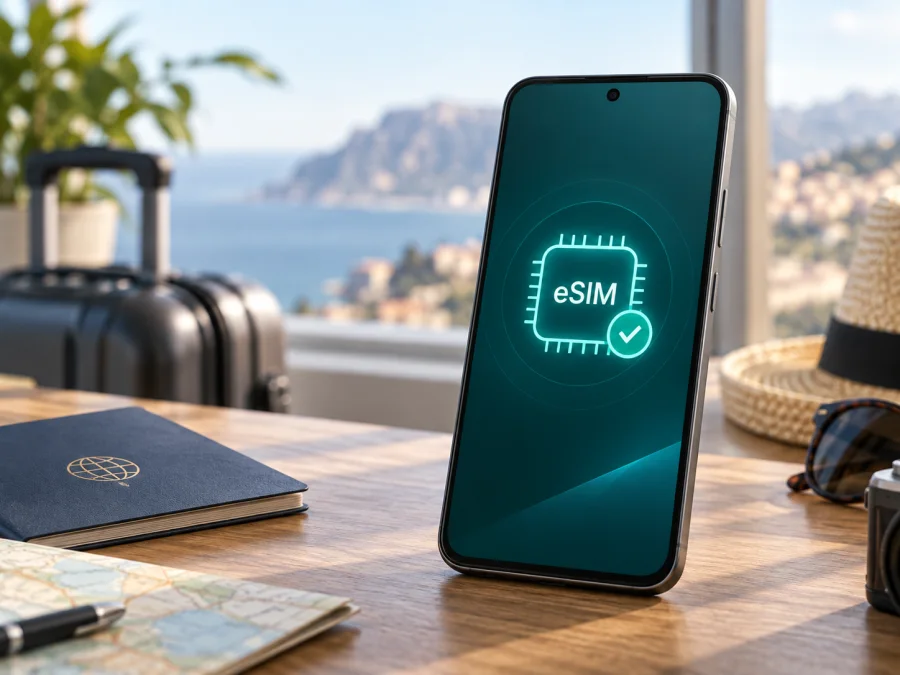
Google Pixel 9 128GB eSIM compatibility and setup
If you are checking whether Google Pixel 9 128GB can use an eSIM, the short answer is yes: Google’s current Pixel hardware information lists eSIM support for Pixel 9 configurations. The exact cellular arrangement still depends on the market, model number, carrier, and the software available on your phone. A US version may support two active eSIMs, while a rest-of-world version is generally described as dual SIM with one nano-SIM and one eSIM. The 128GB storage capacity does not by itself remove eSIM support, but it also does not identify which regional radio configuration you own.
Before a trip, check the device, carrier, and SIM-lock status together. This guide covers the exact Google Pixel 9 128GB variant, on-device verification, installation, activation, and troubleshooting.
Quick answer: does Google Pixel 9 128GB support eSIM?
Yes. Google’s official Pixel documentation says that Pixel 3a and later phones can use an eSIM, and its Pixel 9 hardware specifications list eSIM in the SIM configuration. For the exact Google Pixel 9 128GB, this means the storage option is compatible with eSIM when the phone is an eligible regional model and the carrier permits the service.
The conclusion is eSIM supported, subject to regional and carrier checks. Do not rely on the storage label or product photograph alone; confirm the EID and eSIM menu before paying for a plan.
Google’s specifications distinguish the following broad configurations:
| What to check | Google Pixel 9 128GB guidance |
|---|---|
| Device variant | Google Pixel 9 128GB; the 128GB figure is internal storage. |
| eSIM | Supported on eligible Pixel 9 regional configurations. |
| US SIM arrangement | Google documents dual eSIM support for US Pixel configurations, including two active eSIMs where the carrier allows it. |
| Rest-of-world arrangement | Google generally documents one nano-SIM plus one eSIM for the rest-of-world configuration. |
| Carrier requirement | The carrier must support eSIM activation and the selected plan must be available in the relevant country or region. |
| SIM lock | A phone locked to its original carrier may reject a different eSIM plan until the lock is removed. |
| 5G and coverage | Network bands, 5G availability, speed, and roaming depend on the regional model and local carrier. |
Regional and carrier differences to understand
The US configuration documented by Google can use two eSIMs at the same time, with the number of stored profiles and simultaneous active lines controlled by the device and carrier. A phone purchased in another market is more commonly presented as a physical nano-SIM plus eSIM. These statements describe the published regional configurations; they are not a promise that every carrier offers every dual-SIM function.
Carrier approval is separate from hardware support. Google’s setup guidance says to confirm eSIM support and, when needed, provide the IMEI or device ID. A travel plan can still fail if the phone is SIM-locked or the plan is not provisioned for that region. This page is specifically about Google Pixel 9 128GB, not a different storage option or regional suffix.
What to check before buying an eSIM plan
Complete these checks while you still have Wi-Fi and time to contact the seller or carrier:
- Confirm that the phone is the exact Google Pixel 9 128GB, not a similarly named configuration.
- Open the phone settings and look for an EID. An EID is the identifier associated with the embedded SIM function.
- Look for an option such as Set up an eSIM, Download a SIM, or Add SIM under network settings.
- Confirm that the phone is SIM-unlocked. A device tied to its original carrier may not accept a travel profile from another provider.
- Check that the travel plan covers every country or region on your route, not only the arrival airport or first city.
- Read the plan’s data amount, validity period, start condition, and limits.
- Make sure the phone can connect to Wi-Fi during installation and that it has enough battery for the setup.
- Check whether the plan is data-only. A travel eSIM normally supplies mobile data and does not automatically include a new phone number, ordinary calls, or SMS.
- Keep your primary SIM if you need its number, but decide which line will be used for data.
The check has two parts: confirm that the phone has eSIM hardware, then confirm that the chosen plan can be activated on that particular model. The EID addresses the first question; the model, SIM lock, carrier, destination, and plan terms address the second. Completing both checks reduces the risk of paying for a profile that cannot be used after arrival.
For the full on-device check, Check your device before selecting a tariff. Verify the handset instead of treating the product name or storage capacity as proof of compatibility.
How to verify EID and eSIM settings
Google’s current Pixel instructions identify the EID in the phone settings and on the device packaging. Menu labels can vary slightly with Android version and language, but the path normally looks like this:
- Open Settings.
- Tap About phone.
- Open SIM status or the section that shows mobile identifiers.
- Find EID and confirm that a value is displayed.
You can also check the eSIM entry in the network menu:
- Open Settings.
- Tap Network & internet.
- Tap SIMs.
- Choose Add SIM and look for Set up an eSIM or Download a SIM instead?.
An EID and an Add SIM option are the expected signs of eSIM capability, but do not guarantee that a particular plan will activate. If either is absent, pause the purchase and confirm the regional model with the seller or carrier.
Do not publish the full EID. Share it only through the carrier’s or service’s normal support channel if activation support requests it.
How to install an eSIM on Google Pixel 9 128GB
Install before departure when possible, using Wi-Fi, enough battery, and the activation details supplied with the plan. Activation may use a QR code, an app flow, or manual details.
1. Check the phone and plan
Verify the EID, confirm that Google Pixel 9 128GB is unlocked, and make sure the plan covers the destination. Do not delete your working primary SIM before the travel profile is tested.
2. Open the eSIM setup screen
Go to Settings → Network & internet → SIMs → Add SIM → Set up an eSIM. If the phone offers Download a SIM instead?, choose it and continue. The wording can differ by Android release, but the flow should lead to adding a mobile plan.
3. Scan or enter the activation details
Use the plan’s QR code or manual details. If the code is displayed on the Pixel itself, open it on another screen. Do not use an untrusted screenshot or forward the activation code.
4. Wait for the profile to download
Keep Wi-Fi on while the phone downloads the profile; this can take several minutes. Review the plan name and destination before accepting. Downloaded does not mean selected for data.
5. Name and enable the eSIM
Name the profile Travel data or by destination, then turn on Use SIM. Keep the primary line enabled if needed, but do not make it the default for data by mistake.
6. Choose the mobile-data line
In Settings → Network & internet → SIMs, select the travel eSIM for mobile data. Leave automatic data switching off unless you understand its effect.
7. Configure data roaming if required
Some travel eSIMs require Roaming because they connect through a partner network. Read the plan instructions first. Enable it for the travel eSIM only when required, and keep primary-SIM roaming off to avoid accidental charges.
For Android installation details, see the Android eSIM instructions. For the corresponding Apple workflow, see the iOS eSIM instructions. The Pixel steps above remain the relevant steps for Google Pixel 9 128GB.
Activation before departure and after arrival
If the plan activates on installation, install it shortly before the trip and keep data on the primary line until departure. If it starts on connection to a supported network, install it at home over Wi-Fi and activate it after arrival. Follow the plan’s start rule.
After landing, turn off airplane mode and allow a few minutes for registration. In Settings → Network & internet → SIMs, select the travel eSIM and check Use SIM and Mobile data. Enable roaming for that profile only if required. Turn Wi-Fi off briefly and test a webpage, then confirm that the travel line—not the primary line—is handling data.
If the phone offers a preferred network type, use the carrier-recommended setting. Pixel 9 can fall back to 4G when 5G is unavailable; a missing 5G icon does not automatically mean the eSIM failed. Bands, coverage, speed, and 5G access depend on the regional model and local carrier, not the 128GB storage option.
Practical travel scenarios
Short city break
For a few days in one country, choose validity and data for the whole stay. Install over Wi-Fi, select the travel eSIM on arrival, and keep the primary SIM for account messages only if its roaming terms are acceptable.
Multi-country route
Check coverage for every border crossing. A country plan may stop at the border, while a regional plan may cover the whole route if its terms say so. Downloaded profiles do not guarantee service; the active profile and local network still matter.
Work trip with a primary number
Keep the primary line for calls or two-factor messages and assign the travel eSIM to data. Review call, SMS, and data defaults before the flight. Disable automatic data switching if it could move traffic back to the primary line.
Heavy data use
Video calls, backups, navigation downloads, and hotspot use can consume data quickly. Check hotspot rules, monitor usage in SIM settings, and download large files over Wi-Fi. A travel eSIM is not a promise of unlimited speed or coverage.
Common problems and fixes
The QR code will not scan
Increase the other screen’s brightness, clean the camera lens, and hold the code steady. Use manual activation if supplied. Confirm that the code is unused and belongs to this purchase; ask support about reissue if it is tied to another device.
The eSIM profile will not download
Connect to reliable Wi-Fi, charge the phone, install Android updates, and retry from Network & internet → SIMs → Add SIM. Check the EID. A missing menu can indicate a different regional model; a rejected activation can mean the carrier needs the device ID or does not support the plan in that market.
The profile is installed but there is no data
Verify Use SIM, Mobile data, and, when required, Roaming. Turn off airplane mode, restart, and briefly turn off Wi-Fi. Confirm that the plan has started, has data remaining, and covers your location; weak local service can look like an installation error.
The phone shows the wrong line for data
Return to Settings → Network & internet → SIMs and select the travel profile under Mobile data. Check automatic data switching and keep primary-SIM roaming disabled if you do not want it used abroad.
Calls or SMS do not work
That may be expected. Many travel eSIMs are data-only and do not create a regular phone number. Use internet calling or messaging, or keep the primary line for ordinary calls and SMS under your home carrier’s terms.
The phone says the SIM is not supported
Check for a carrier lock, incorrect activation code, incompatible plan, or regional-model mismatch. Google notes that a phone bought through a carrier may be SIM-locked, while an unlocked phone can be used with another provider. The original carrier must remove a lock; a Pixel setting cannot bypass it.
FAQ
Does the Google Pixel 9 128GB have eSIM?
Yes. Google’s current Pixel documentation lists eSIM support for Pixel 9 configurations. Confirm the phone’s EID and Add SIM menu because the region and carrier determine what can be activated.
Does 128GB change eSIM compatibility?
No. 128GB describes storage, not the embedded-SIM function. Regional hardware, model identification, firmware, carrier support, and SIM-lock status are the factors to verify.
Can I use a physical SIM and an eSIM together?
Usually yes on the rest-of-world configuration, which Google describes as one nano-SIM plus one eSIM. US configurations may support two active eSIMs, but the carrier must support the arrangement.
Do I need an EID to activate a travel eSIM?
An EID is a strong on-device check, and a carrier may request it or another device identifier. It does not replace the QR code or prove that every plan works everywhere.
Is Kaspersky eSIM Store a mobile operator?
No. Kaspersky eSIM Store is an app and website for choosing, arranging, and activating an eSIM tariff for mobile internet on an international trip. It is not a network owner or mobile-internet provider; coverage and terms come from the selected plan and its supporting networks.
Final device check and travel eSIM choice
Before buying a plan for Google Pixel 9 128GB, confirm the EID, eSIM menu, unlocked status, and route coverage. Then check data, validity, activation, roaming, and whether it is data-only. These checks matter more than assuming all 128GB Pixel 9 phones share one regional configuration.
When the device passes, Kaspersky eSIM Store can help you choose a destination and suitable eSIM tariff for mobile internet, arrange the plan through the app or website, and follow activation. Install over Wi-Fi, select the travel profile for data, and test it on arrival. If a check fails, confirm the model and carrier requirements before purchase.


