Travel connectivity guide
Google Pixel 9 eSIM: Compatibility and Setup
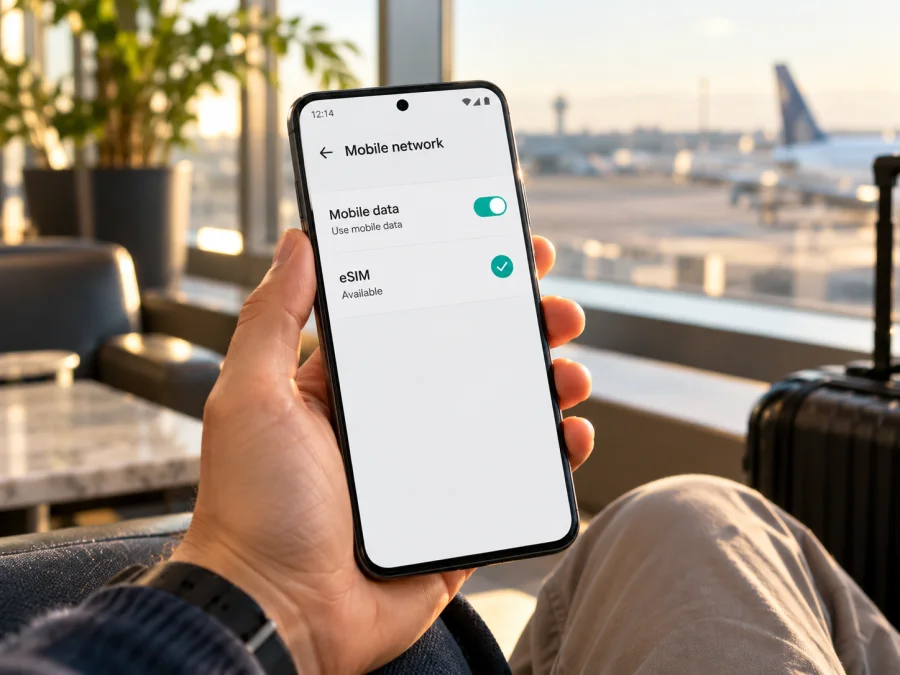
Google Pixel 9 eSIM: compatibility, setup and travel guide
The Google Pixel 9 supports eSIM. Google lists Pixel 4 and later phones as eSIM-capable, and its Pixel 9 instructions describe adding an eSIM from Settings. You can therefore use a compatible travel data plan on a Pixel 9, provided the specific handset is not restricted by a carrier or software issue and the plan’s provider supports the device.
That answer applies to the Google Pixel 9 model family as described by Google. It does not guarantee that every second-hand, carrier-sold, refurbished or market-specific handset will accept every eSIM. Before you choose a plan, check the phone itself for an EID and the option to add an eSIM, confirm that it is network-unlocked, and verify that the provider supports your device and destination.
Google Pixel 9 eSIM at a glance
| Check | What to expect |
|---|---|
| eSIM support | Yes. Google lists Pixel 4 and later as eSIM-capable. |
| Physical SIM | A nano-SIM can be used alongside an eSIM when the operator allows it. |
| Dual eSIM | Pixel 7 and later can use two eSIM profiles at once if the carrier supports this. Stored profiles and simultaneously active lines are not the same. |
| EID | Find it at Settings → About phone → SIM status. |
| Add eSIM | Settings → Network & internet → SIMs → Add SIM → Set up an eSIM. Labels may vary slightly by Android version. |
| Travel use | A compatible plan can provide mobile data abroad; destination, validity, data allowance and roaming terms apply. |
| Calls and SMS | A data-only plan does not automatically include a phone number, standard calls or SMS. |
An eSIM is a digital SIM profile downloaded to the phone, so no extra plastic card is needed. Google’s model-family guidance is a starting point, not a guarantee that every operator or plan will activate on every handset. Carrier approval, lock status and the phone’s own eSIM settings also matter.
Regional models, carrier versions and network locks
Google Pixel 9 phones are sold in different markets and through different carriers. The broad eSIM support statement covers the model family, while bands, SIM configuration, firmware and operator activation rules can vary. A phone purchased from a carrier may remain locked until it meets that carrier’s unlocking conditions. An EID does not prove the phone is unlocked. Keep three questions separate: the handset’s market variant is identified by its model number; the operator market is where the carrier or eSIM provider provisions the profile and may apply its own eligibility rules; the trip destination determines whether the plan includes a usable partner network. A phone can support eSIM in general while a specific provider or destination plan does not support that combination.
For a second-hand, refurbished, imported or carrier-sold Pixel 9, check the model number in Settings → About phone or on the original box. Ask the original carrier or seller to confirm in writing that it is unlocked, then ask the intended eSIM provider whether it accepts that model and IMEI/EID in the market where you will use it. Keep Android up to date and make sure any account or activation restriction has been removed.
Google describes Pixel phones from Pixel 3a onward as supporting a physical SIM and eSIM in Dual SIM Dual Standby, subject to the phone and operator. Pixel 7 and later may use two eSIM profiles at once if the carrier allows it. The available profiles and active lines depend on the operator and software. A missing EID or setup option after setup, restart and a stable system update warrants a check with Google or the seller before you buy a plan.
Check eSIM compatibility on your own Pixel 9
Complete these checks before choosing a plan. Android labels can shift after updates; use Settings search for “EID,” “SIM status” or “Add SIM.”
- Find the EID. Open Settings → About phone → SIM status. Record it privately if a provider requests it.
- Find the setup menu. Open Settings → Network & internet → SIMs → Add SIM → Set up an eSIM. If a profile already exists, do not delete it just to test compatibility.
- Verify unlock status. Ask the original carrier or seller. The EID and menu cannot confirm this.
- Confirm provider eligibility. Ask whether the plan supports Pixel 9 and whether activation must occur over Wi-Fi or in a particular country.
If the phone has an EID and offers eSIM setup, it is generally ready for a profile, subject to network and provider support. If either is absent, restart, update stable Android software and check again; contact the seller or Google support if still missing. Check your device against the compatibility checklist before choosing a travel plan: model, EID, unlock status, provider and destination all matter.
Before you install: prepare the plan and phone
Read the plan terms first: destination or region, data allowance, validity and what starts the validity period. It may begin at installation, first network connection or a specified date. Prepare the QR code, in-app setup flow or manual SM-DP+ details. If the QR code is displayed on the Pixel, show it on another screen or use manual entry; the same phone cannot scan its own display.
Before starting, connect to reliable Wi-Fi, charge the phone, keep your existing SIM available if needed for verification, and confirm which line should handle data, calls and texts. Do not share an activation code publicly; some codes are single-use.
Install and activate an eSIM on Google Pixel 9
Google’s settings path is below. Your plan provider may use slightly different wording. Keep its instructions available while you install.
- Connect the Pixel to Wi-Fi and leave your existing SIM active if needed for account verification.
- Open Settings → Network & internet → SIMs → Add SIM → Set up an eSIM. If the option is absent, check the EID, restart and recheck the model.
- Follow the provider prompt or scan its QR code. For manual setup, enter the supplied SM-DP+ address and activation code exactly.
- Approve the download and wait for the profile to install. Keep Wi-Fi connected; do not close the flow while it is working.
- Name the line “Travel data” or another clear label, then select it for mobile data when appropriate. Choose calls and texts separately.
- Follow the plan’s activation timing. Enable data roaming for this eSIM only if its instructions require it; roaming on your home line may incur charges.
- In the covered destination, briefly turn off Wi-Fi and load a webpage to check the connection. Restore Wi-Fi if troubleshooting.
For the Pixel 9, see the Android eSIM installation instructions. The iOS eSIM installation instructions are for travellers setting up an iPhone, not the Pixel.
Using a Pixel 9 travel eSIM abroad
Kaspersky eSIM Store is an app and website where you can choose, complete and activate an eSIM with a suitable mobile-data plan for an international trip. Review the destination, data amount, validity and activation conditions before confirming. The underlying mobile service comes from the relevant local operator or operators; availability depends on their networks and the plan terms.
Once installed, open Settings → Network & internet → SIMs and select the travel profile for mobile data. Keep your home SIM enabled only if needed and after checking its roaming terms. Review automatic data switching: if enabled, the phone may fall back to another line and use that line’s data service.
For a multi-country itinerary, check every destination, not only the first arrival point. Regional plans can have different coverage and validity rules from country plans. Network availability, speed and local service conditions vary by location. A data-only eSIM does not automatically replace your usual phone number; calls and SMS on the home line remain subject to its operator’s terms. Internet messaging and calling apps can use the data connection.
Common scenarios: To keep your regular number, leave that line enabled if needed and select the travel eSIM for data. To avoid unexpected home-line data, disable data switching and verify the data SIM before use. For a late arrival, install in advance only if the plan allows it and wait to activate until the stated time. For hotspot use, check whether tethering is allowed and whether its data counts toward the same allowance. Monitor usage in the provider’s account; the phone’s counter is an estimate.
Troubleshooting eSIM setup and mobile data
First identify whether the issue occurs before download, during activation or after installation. Avoid deleting a profile until the provider confirms it can be reinstalled.
- No EID or setup option: Restart, install available stable Android updates, and check Settings → About phone → SIM status and Settings → Network & internet → SIMs. If still absent, contact Google or the seller. A managed-device policy or carrier configuration may affect setup.
- QR scan or download fails: Use a second screen for the code, connect to Wi-Fi and retry once. If the code was used, expired or tied to another phone, ask the provider for next steps rather than repeatedly deleting or scanning it.
- Profile installed but no service: Ensure the eSIM is switched on, the plan covers your current country, and its validity has started. Select it for data and enable roaming on that line only if required. Restart or try a listed partner network manually if the provider permits it.
- Connected but no data: Verify mobile data is on for the travel line, it is selected as the data SIM and the allowance is active. Enter an APN only if the provider supplied it. Do not copy settings from another plan.
- Home line used for data: Check the selected data SIM and disable automatic data switching if you do not want fallback. Review your home carrier account for any charges already incurred.
- Cannot reinstall or transfer: Some QR codes are single-use and profiles may be device-bound. Ask the provider about transfer or replacement before deleting an eSIM.
Contact the plan provider for activation rejection, used codes or missing plan data. Contact Google or the seller if the EID is missing or SIM settings repeatedly fail. Share EID or IMEI only through a secure support channel when requested.
Frequently asked questions
Does Google Pixel 9 support eSIM?
Yes. Google lists Pixel 4 and later as eSIM-capable, including Pixel 9. Check the EID, setup menu, unlock status and plan support on your own phone.
Can I use a physical SIM and eSIM together?
Yes, when the carrier supports dual-SIM operation. You can choose separately which line handles mobile data, calls and texts.
Can two eSIMs be active at once?
Pixel 7 and later support this if the carrier allows it. Two stored profiles do not necessarily mean two active lines.
Does a travel eSIM include a phone number?
Not necessarily. Many plans are data-only; standard calls and SMS are not included unless the plan terms say so. Internet apps can use the data connection.
Should I install before departure?
You can often install over Wi-Fi in advance, but validity may begin at installation, first connection or a selected date. Follow the plan’s instructions.
Should I delete a failed profile and scan again?
No, not before checking with the provider. A QR code may be single-use, and deleting the profile may prevent reinstallation.
Key takeaways
Google Pixel 9 supports eSIM, and Google documents the Settings path for adding a profile. Before purchase, verify the EID and eSIM menu on your own phone, confirm that it is unlocked, and check support for the exact plan, destination and operator market. Install over reliable Wi-Fi, follow the plan’s activation timing, select the intended data SIM, and enable data roaming only when the plan requires it.
Check your device and choose an eSIM for your trip
Before confirming a plan, make sure the Pixel 9 shows an EID, offers eSIM setup and is not carrier-locked. Then match the plan to every destination on your itinerary and review its allowance, validity and activation conditions. Kaspersky eSIM Store is an app and website where you can choose, complete and activate an eSIM with a mobile-data plan for an international trip. Check your handset and the plan terms first so you can set up the travel connection with the right expectations.


