Travel connectivity guide
Google Pixel 9 Pro Fold 128GB eSIM Guide
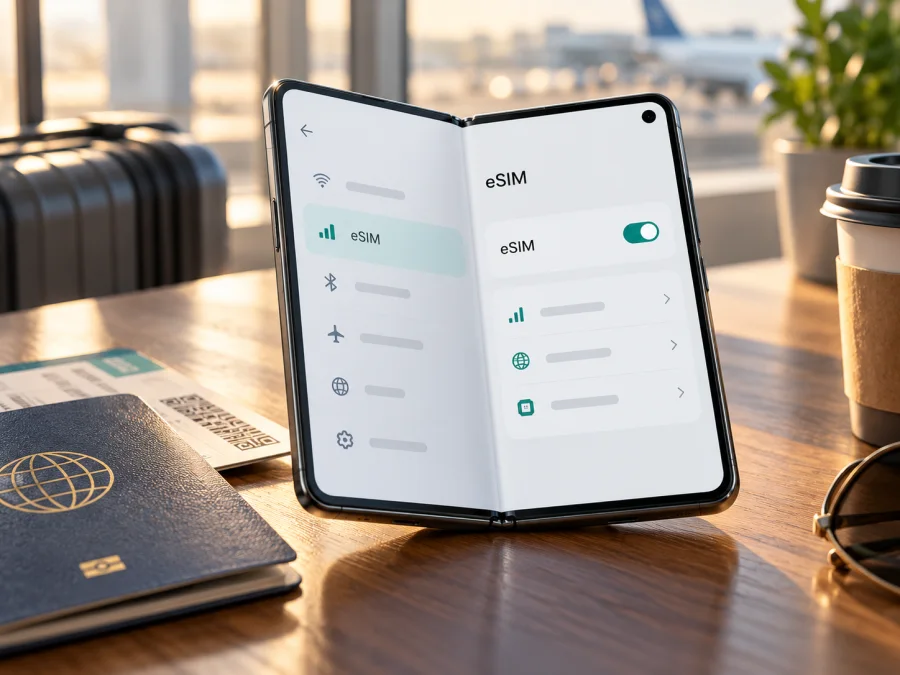
Google Pixel 9 Pro Fold 128GB eSIM: compatibility and setup
Short answer: Google’s published specifications list the Pixel 9 Pro Fold as supporting one physical nano-SIM and one eSIM. However, Google lists the phone with 256GB or 512GB storage, not 128GB. I could not verify “Google Pixel 9 Pro Fold 128GB” as an official storage configuration, so treat that part of the listing as unconfirmed. If you have a handset sold under that description, check its EID and eSIM menu directly, confirm the exact model and regional version with the seller, and ask the operator whose plan you want to use whether it will activate on that device.
Storage capacity does not determine eSIM support. That depends on the handset, regional model, software, carrier restrictions and operator. An unlocked compatible Pixel can keep your usual SIM available while a travel eSIM handles data.
Does Google Pixel 9 Pro Fold 128GB support eSIM?
Google lists the Pixel 9 Pro Fold as “Dual SIM (single nano-SIM and eSIM),” so yes, the model family supports eSIM. A handset advertised as 128GB needs extra checking because Google does not list that capacity for this model.
A product listing or SIM tray alone does not prove that eSIM is available on your handset. Carrier locks and imported or second-hand devices need checking.
The 128GB wording may be a listing error or unverified claim. Google lists 16GB RAM and 256GB/512GB storage. Ask the seller for the model number, sales market and unlock status, then compare the details with About phone and the box.
| Item | What is documented or should be checked |
|---|---|
| Exact requested name | Google Pixel 9 Pro Fold 128GB |
| Storage caveat | Google lists 256GB or 512GB for the Pixel 9 Pro Fold; 128GB is unverified |
| eSIM capability for the model family | Google lists one nano-SIM and one eSIM |
| Physical SIM | One nano-SIM is listed alongside eSIM |
| eSIM and data service | Depend on the specific device, its software and restrictions, and the operator |
| Regional hardware | Google lists model codes and network bands by market; bands and enabled services can differ |
| Best first checks | Find EID; look for Add SIM / Set up an eSIM; confirm the device is unlocked |
Regional versions and operator restrictions
Google lists regional model codes and network bands; the US, Japan and other markets can use different radio configurations. Its specs list nano-SIM plus eSIM, but operator acceptance, service and bands vary by market and area.
Check three things: EID and the eSIM menu on the handset; unlock status with the original carrier; and acceptance by the specific operator or plan in your destination. Sales market and travel destination are different: an imported regional version may lack a local band or face restrictions. A destination plan listing alone does not confirm handset compatibility.
Treat geographic checks separately too. A regional model code describes the hardware market, while your destination is the place where you will actually connect. The plan must name or cover that destination, and the local operator must accept the phone’s version and network bands. A broad label such as “Europe” or “global” is not a substitute for checking the plan’s country list and current conditions. If your itinerary crosses borders, confirm every country rather than assuming that a working connection in the first stop will continue everywhere.
Check compatibility before choosing a plan
Use this checklist before paying:
- [ ] Find EID under Settings → About phone → SIM status; it may also be on the box.
- [ ] In Settings → Network & internet → SIMs, look for Add SIM or Set up an eSIM.
- [ ] If both are missing, ask support or the seller to verify the model; an update cannot add missing hardware.
- [ ] Confirm “128GB,” model code, sales market and unlock status with the seller and on the phone.
- [ ] Ask whether this exact regional version is accepted by the plan provider in your destination.
- [ ] Check destination, data allowance, validity and activation timing. Arrange Wi-Fi and keep the QR code on another screen or printed.
How to check the EID and eSIM menu
- Open Settings → About phone → SIM status and look for EID.
- Return to Settings and open Network & internet → SIMs.
- Look for Add SIM or Set up an eSIM.
- If the EID is absent, search Settings or check the box; ask the seller to verify the model.
An EID is useful evidence, but does not guarantee operator activation. Confirm that the phone is unlocked and accepted by the provider.
You can also check your device compatibility before selecting a travel plan. Compatibility depends on the handset and its operator restrictions, not only the product name.
At this point, if the phone passes those checks, you can explore destinations and check current travel plans. This verified English-language Kaspersky eSIM Store homepage is a general place to browse current destinations and plans; it is not a country-specific tariff page, and availability and conditions should be checked for your own trip.
Install and activate an eSIM
Connect to Wi-Fi, charge the phone and get the provider’s QR code or manual details. Follow its timing rules: installation and the start of validity may be separate events.
On Pixel, open Settings → Network & internet → SIMs → Add SIM → Set up an eSIM. Follow the prompts to select a provider or scan its QR code. If scanning fails, ask about manual setup before retrying; some codes are single-use. If a setup screen asks you to choose a provider, use the provider or plan name shown in your activation instructions. After installation, check that the profile appears in SIM settings before you travel.
Step-by-step setup
- Connect to Wi-Fi. Keep the QR code on another screen or print it.
- Open SIM settings. Go to Settings → Network & internet → SIMs.
- Add the profile. Tap Add SIM → Set up an eSIM and follow the provider’s prompts to scan or enter details.
- Wait for download. Keep the phone online; setup can take a few minutes.
- Name the profile. Use a label such as “Travel data.”
- Choose preferences. Select the SIMs for calls, texts and data as needed.
- Enable the profile. Turn on Use this SIM when the plan instructions say it is time.
- Select mobile data. Choose the travel eSIM; only one SIM can be the default data line.
- Set roaming as instructed. Enable it for the travel profile only if required; check roaming on your home SIM to avoid charges.
- Test. Turn Wi-Fi off briefly and open a webpage. Restore Wi-Fi if the connection fails and troubleshoot below.
The Android eSIM guide is a general walkthrough written for Samsung, so follow the Pixel menu path above. The iOS guide applies to iPhone, not Pixel. Use your provider’s instructions for activation details.
Before leaving home
If allowed, install at home using stable Wi-Fi. Check whether validity starts at installation or first connection, and whether the provider says to enable the profile only after arrival. If installing abroad, arrange Wi-Fi and save your order details. A QR code shown on the Pixel needs a second screen, printout or manual activation method.
Use the eSIM for mobile data on a trip
Keep your regular SIM for calls or texts if needed, and select the travel eSIM for data under Settings → Network & internet → SIMs. Turn on mobile data and Use this SIM for the profile. Enable data roaming only if the plan requires it. Pixel settings let you select data, calls and texts separately; review each choice so your regular number remains available only for the uses you intend. If you want data to stay on the travel eSIM, check that automatic data switching will not move it to your home line.
The available local network, coverage and speed depend on the plan and local operator. Kaspersky eSIM Store is the app and website where you can choose, arrange and activate an eSIM with a mobile-data plan for an overseas trip; it is not an operator or network. Check destination, data allowance, validity and activation timing in the plan terms.
A data-only travel eSIM generally does not replace your number for ordinary calls or SMS unless its terms say otherwise. Messaging and internet calls can use data through compatible apps. Check home-SIM roaming settings because calls, texts or background data may incur charges under that operator’s rules.
Practical travel setups
City break: If allowed, install at home and select the travel profile for data after landing. Keep the main SIM for calls if needed and check its roaming settings.
Several countries: Confirm every destination is included; check validity and network limits.
Two lines: Keep your regular line for calls and texts and use the travel eSIM for data. Pixel 7 and later may use two profiles at once if the carrier permits it; saved profiles are not necessarily both active.
Hotspot: Check whether the plan permits tethering and monitor data use.
Common problems and what to check
“Add eSIM” is missing
Look under Settings → Network & internet → SIMs and About phone → SIM status. If both the EID and setup option are missing after an update and restart, ask support or the seller to verify the hardware. Treat the 128GB description as unverified until confirmed.
The QR code will not scan
Increase the other screen’s brightness, enlarge the code and avoid glare. Confirm it belongs to your order. If scanning still fails, ask about manual or in-app setup. Do not share a private activation QR code.
The profile downloads but does not connect
Check that the eSIM is on, selected for data and valid in your destination. Turn off airplane mode, enable roaming if required, then restart. Contact the provider if service remains absent; do not delete the profile unless instructed.
The phone shows signal but apps have no internet
Check the selected Mobile data SIM and roaming settings, then test a webpage with Wi-Fi off. If all apps fail, ask the provider whether the plan is active or needs a manual access point name (APN). If the provider confirms the plan is active, check whether its instructions recommend automatic network selection or choosing a named supported network manually. Do not edit APN values or select an unrelated network based on guesswork.
Activation is pending or an error appears
Check the connection and whether the code is expired or used. Confirm the plan is assigned and ready, then contact the provider with the exact error. Ask Google or the seller about device eligibility.
Calls or texts use the wrong SIM
Review default SIMs for calls, texts and data separately. A data-only plan is not a voice line; home-SIM charges depend on your operator.
The device is locked or the operator rejects it
Ask the original carrier to confirm unlock status. An eSIM-capable phone may still fail carrier checks; verify the model code and eligibility for an imported, refurbished or 128GB-listed unit.
Frequently asked questions
Is Google Pixel 9 Pro Fold 128GB an official storage variant?
I could not verify 128GB in Google’s published specifications; it lists 256GB and 512GB. Confirm the actual capacity and model code with the seller and on the phone.
Does the Pixel 9 Pro Fold support eSIM?
Yes, Google lists one nano-SIM and one eSIM. Because 128GB is unverified, check EID, eSIM setup and carrier status on the actual unit.
Can I use two eSIMs at the same time?
Pixel 7 and later may use two profiles at once when the carrier permits it. Saved profiles are not necessarily both active.
Do I need to remove my physical SIM?
Usually no. The listed configuration is one nano-SIM and one eSIM; select which line handles data, calls and texts.
Does a travel eSIM include calls and SMS?
Check the plan terms. Travel eSIMs are often data-only; compatible messaging apps can use data.
Should I install it before departure?
Follow the provider’s validity rules. Some plans start at installation, others at first connection.
What if I cannot find EID?
Check About phone → SIM status and the box. If eSIM setup is also missing, ask support or the seller to verify the device.
Final check: verify the phone, then choose for the trip
Google lists the Pixel 9 Pro Fold with nano-SIM and eSIM, and its EID is under About phone → SIM status. Google lists 256GB and 512GB storage, so “128GB” remains unverified. Inspect the phone, confirm it is unlocked and check regional compatibility with the specific operator.
Then compare destinations, data and validity. Kaspersky eSIM Store is an app and website for choosing, arranging and activating an eSIM with a mobile-data plan for overseas travel. Browse destinations and check current plans after confirming compatibility.


