Travel connectivity guide
Google Pixel 9 Pro Fold 256GB eSIM Guide
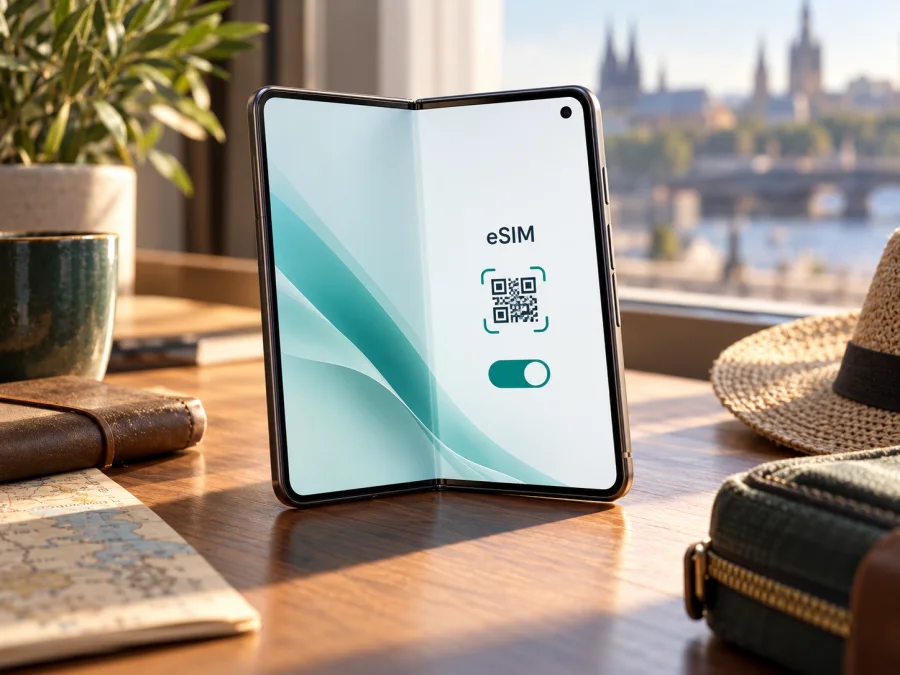
eSIM on Google Pixel 9 Pro Fold 256GB: compatibility and setup
Short answer: Yes. Google lists the Google Pixel 9 Pro Fold as supporting eSIM and identifies its SIM configuration as one nano-SIM plus eSIM. The 256GB capacity does not change that radio feature. Google’s hardware specification lists model G9FPL for the US and model GOB96 for Japan; it also lists eSIM for both. Before buying a travel plan, check the EID and eSIM menu on your own phone, confirm that it is not carrier-locked, and ask whether the provider supports that device and your destination.
A foldable phone can be useful on a trip: you can keep maps, booking details and messages open on a larger inner screen while using mobile data. eSIM lets you add a digital SIM profile without inserting a second physical card. Still, a compatible phone alone does not guarantee service. The exact model, its software, the operator’s activation method and the destination network all matter.
Google Pixel 9 Pro Fold 256GB eSIM compatibility at a glance
| Check | What is confirmed | What you should verify |
|---|---|---|
| eSIM support | Google’s Pixel 9 Pro Fold specification lists eSIM. Google’s general Pixel guidance says Pixel 4 and later phones support eSIM. | Confirm that your particular handset shows an EID and offers an eSIM setup option. |
| Physical SIM | Google lists a dual-SIM configuration with one nano-SIM and eSIM. | Tray and SIM availability can depend on the unit sold in your market. |
| 256GB storage | Google lists 256GB as a storage option for this model. | Storage size does not establish carrier approval or network compatibility. |
| Regional models | The official specification identifies G9FPL for the US and GOB96 for Japan. | The operator’s supported bands, provisioning and any lock status for your exact unit. |
| Mobile data abroad | eSIM can be used for a separate travel data profile when the provider supports the device. | Destination, roaming arrangements, plan terms, activation timing and coverage. |
The specific answer for Google Pixel 9 Pro Fold 256GB is therefore “eSIM-capable, subject to the phone’s condition and service-provider support.” Google’s published information confirms the device family’s eSIM feature; it does not certify every individual phone sold second-hand, carrier-branded, repaired, or imported into another market. A listing that only says “unlocked” or “256GB” is not a substitute for checking the phone itself.
What regional and carrier variants mean
Google lists separate radio model identifiers for the US and Japan. Those identifiers can correspond to differences in supported network bands and regional services. This matters most when your goal is to connect to a specific local network: the eSIM profile may install correctly, yet the phone still needs compatible radio bands and an operator willing to activate it. The storage capacity is a separate product choice and does not tell you which radio model you have.
Google’s specifications list eSIM for both of the named Pixel 9 Pro Fold regional models. That is a useful confirmation of the hardware feature, but actual activation depends on the operator. Google itself advises users to check eSIM availability and the device IMEI with the operator, and notes that the process can vary. A provider may reject an otherwise compatible phone if it is locked, its IMEI is not accepted, its software is outdated, or the provider does not support that market or model.
There is no single geographic rule that can safely be inferred from the product name alone. A phone purchased in one country may be used in another, but this does not mean every foreign eSIM plan, network band, or carrier activation flow will work. Distinguish these questions:
- Does the hardware have eSIM? Google’s documentation says yes for the Pixel 9 Pro Fold.
- Does this specific handset expose eSIM now? Check EID and the Add SIM/eSIM control in Settings.
- Will this operator activate it? Ask the operator or plan provider to check the IMEI and eligibility.
- Will it connect at your destination? Check the plan’s destination, partner network, supported bands and coverage terms.
If you bought the phone used or imported, ask the seller for the exact model identifier and written confirmation that it is unlocked. If the seller cannot show the device’s Settings screen, do not rely on a generic Pixel 9 Pro Fold specification to settle the status of that individual unit.
Check compatibility before buying a plan
Use this checklist while you still have a reliable internet connection:
- Open Settings → About phone → SIM status and look for an EID. You may also find an EID on the original box. Google describes the EID as an identifier needed for eSIM use.
- Open Settings → Network & internet → SIMs. Look for Add SIM or Set up an eSIM. Wording can vary slightly by Android version and software build.
- If the menu is present, confirm that the phone can begin adding a profile; do not delete an existing profile just to test it.
- Check Settings → About phone for the model information. Compare it with the seller’s description and the operator’s compatibility requirements.
- Ask the current operator whether the phone is unlocked. A SIM lock can prevent an eSIM from another provider from connecting even when the phone includes eSIM hardware.
- Confirm the travel plan supports data service in the country or region you will visit, and read when its validity begins. Some plans start when installed or activated; others begin on first connection. Follow the terms shown for the specific plan.
- Keep Wi-Fi available during setup. The phone usually needs an internet connection to download and activate a profile.
- Check whether the plan is data-only. Travel eSIM plans commonly provide mobile data without a regular phone number, voice service or SMS unless the plan says otherwise.
Check your device before choosing a travel plan. If the EID or setup option is missing, ask Google or the seller to verify the handset. The provider can separately confirm IMEI eligibility.
How to find the EID and eSIM controls
On a Pixel running a recent version of Android, start in Settings. The exact labels can change after software updates, but the usual route is Settings → About phone → SIM status → EID. The EID is a long device identifier; it is not the same as the IMEI or the phone number. If you need to give an identifier to a provider, use the one it requests and share it only through the provider’s official support or activation flow.
You can also open Settings → Network & internet → SIMs. If the phone is capable and the software exposes the feature, the page should offer Add SIM and an option such as Set up an eSIM or Download a SIM instead. Menu wording and placement can change with Android version, language and carrier customization. Search Settings for “EID” or “SIM” if the route differs.
An EID and setup menu are practical signs that eSIM is available on the phone, but they do not confirm that a provider accepts the IMEI, that the device is unlocked or that a plan covers your destination. Check all four: EID, setup menu, provider eligibility and destination coverage. For a used phone, inspect these in person; do not factory-reset it just to test eSIM.
Install and activate an eSIM
Before installation, make sure the Pixel is connected to Wi-Fi, has enough battery, and is updated if an update is available. Keep the QR code or manual activation details accessible on another screen or printed page, because the phone cannot scan a code displayed on its own screen. Some providers allow direct installation from an app; use that route if it is offered for your purchase.
- Open Settings on the Google Pixel 9 Pro Fold.
- Tap Network & internet, then SIMs.
- Tap Add SIM and choose Set up an eSIM or the equivalent option shown on your phone.
- Follow the on-screen prompts. If asked, scan the provider’s QR code with the Pixel camera. If scanning is unavailable, enter the activation details manually only when the provider supplies them.
- Wait while Android downloads the profile. Do not close the setup screen, remove the profile or repeatedly scan the same code while installation is in progress.
- When setup finishes, give the profile a clear label such as “Travel data” so you can distinguish it from your home SIM.
- Review the SIM settings and select which line should handle mobile data. If you want to keep your usual number available for calls or messages, leave that SIM enabled but make sure data is assigned to the travel profile when appropriate.
- Turn on the travel eSIM when you are ready to use it. Depending on the plan, activation may occur during installation, at a scheduled time, or when the phone first connects to a supported network. Follow the plan’s instructions.
Google’s Android eSIM route and menu labels are described in its Pixel help pages. For the broader product-specific process, see the Android eSIM installation guide. It is written for Android devices generally and notes that steps can differ by manufacturer and operating-system version. The iOS installation guide is for Apple devices, but is included here as a reference for anyone helping a travel companion with an iPhone; it is not the guide for this Pixel.
QR code and activation details
Treat the QR code as private; many activation codes are single-use, and deleting a profile may not make the code reusable. Keep the Pixel online, show the full code on another screen, and scan it only for the intended plan. Enter manual activation details exactly as supplied. An APN is a separate network setting, not an activation code. If setup says the code was already used, stop retrying and ask the provider to check the profile status.
Use the eSIM for mobile data while travelling
A practical arrangement for many trips is to keep your home SIM available for its normal calls and texts, then assign mobile data to the travel eSIM after you arrive. On Pixel, open Settings → Network & internet → SIMs and select the eSIM under the mobile-data preference. The phone generally uses one default SIM for mobile data at a time. Check which line is selected before turning off airplane mode or using data abroad.
When you are ready to connect:
- Turn on the travel eSIM in its SIM settings.
- Select it as the preferred SIM for mobile data.
- Enable mobile data.
- If the provider’s instructions require it, enable Data roaming for the travel eSIM. This allows that profile to connect through the supported roaming arrangement; it does not mean you should enable roaming on your home SIM.
- Keep data roaming disabled on your home SIM if you want to avoid using its roaming allowance, unless your home operator’s plan specifically covers your use.
- Wait a few minutes for registration. If there is still no connection, check network selection and APN only against the provider’s instructions.
Keep in mind that both SIMs can be enabled while only one is selected for data. If the home SIM is selected, data may use its roaming service; disabling that SIM may also stop calls and texts to its number. Check your home operator’s terms.
Kaspersky eSIM Store is an app and website where you can choose, arrange and activate an eSIM plan for mobile data on an international trip. Current destinations, data amounts, validity and activation rules vary by plan. Browse current eSIM plans to review available options; this homepage is a general store entry point, not a country-specific tariff.
Travel eSIMs are often data-only and do not replace your regular number. Keep the home SIM active if you need ordinary calls or SMS, and check its roaming costs. Compatible messaging and calling apps can work over data.
Choose a plan around your actual route
For a single destination, confirm that the country is included. On a multi-country route, check every country rather than assuming a regional label covers all nearby places. Review the allowance, validity, activation timing and top-up terms on the current plan page.
Estimate usage before choosing a data amount: maps and messaging use less than video, cloud backups or hotspot use. Download maps over Wi-Fi, pause large backups and check Android’s data-usage screen. Confirm hotspot terms if you plan to connect a laptop.
A profile may be installed before departure over Wi-Fi, but validity can begin at installation, activation or first connection, depending on the plan. Follow the confirmation instructions and avoid deleting a working profile. If you wait until arrival to install, arrange an internet connection first.
Common problems and what to check
There is no “Add eSIM” option
Restart the phone, check Android updates, and search Settings for “eSIM” or “SIM.” Confirm the exact model and look for an EID under SIM status. If the EID or menu is missing, ask Google support or the seller to verify the handset before purchasing a plan.
The QR code will not scan
Check brightness, focus, Wi-Fi and that the full activation code is visible. Use manual activation only when the provider supplied those details; do not reuse a single-use code.
The profile downloads but shows no service
Check that the eSIM is on, mobile data is enabled, the travel eSIM is selected for data, and your destination and validity are covered. Toggle airplane mode once or restart, then wait for registration. Enable data roaming on that profile only if the plan requires it. Use only provider-supplied APN or network settings.
The phone uses the home SIM for data
Set the travel eSIM as the mobile-data SIM and recheck after a restart. Review the home line’s roaming setting and terms. If available, turn off automatic data switching to prevent a change to the other SIM.
The eSIM cannot be added or activation is rejected
Check that the phone is unlocked and the provider accepts its IMEI, model and destination. The code may have expired or been used, or a profile may already be installed. Check the order instructions and share the exact error with the provider before deleting a profile.
Data is connected but apps do not load
Confirm the travel eSIM is selected and the plan has data remaining. Test with Wi-Fi off. Change the APN only if the provider supplied a value; if one app alone fails, check its permissions and data-saving settings.
Calls or texts behave differently than expected
A data-only eSIM may not include a phone number, calls or SMS. Keep the home SIM enabled if you need its number and check its roaming terms. Internet calls and messages require compatible apps; do not expect traditional SMS or verification codes to arrive through the data profile.
Frequently asked questions
Does Google Pixel 9 Pro Fold 256GB support eSIM?
Yes. Google’s hardware specification lists eSIM for the Pixel 9 Pro Fold and states that the SIM setup is one nano-SIM plus eSIM. The 256GB version is a storage configuration; it does not remove eSIM support. Verify the EID and setup option on your own phone and check provider eligibility before purchase.
Does the 256GB version differ from other storage options for eSIM?
Google lists storage choices separately from the SIM configuration. The 256GB label describes capacity, not a carrier-specific radio model. Regional model identifier, lock status, software and provider eligibility are the more relevant checks for activation.
Can two SIMs be used at once?
Google documents one nano-SIM and eSIM. You can set preferences for data and other services, but ask both operators about your intended combination.
Can I install a travel eSIM before leaving home?
You can usually start setup over Wi-Fi, but validity may begin at installation, activation or first connection. Read the plan’s rule before installing early.
Should data roaming be on?
It may be needed on the travel profile. Follow the plan instructions and check that the setting applies to that eSIM, not your home line.
Will every eSIM provider work with this phone?
No. A provider may have device, market, IMEI or plan restrictions. Confirm eligibility and destination coverage.
Can I move the eSIM to another phone later?
That depends on the provider; some profiles are device-bound or single-use. Check transfer rules and do not erase an active profile until you know how it can be restored.
Final check before your trip
For Google Pixel 9 Pro Fold 256GB, eSIM support is confirmed in Google’s published specifications, including the listed US and Japan regional models. Before you choose a plan, make the device-level checks: confirm the EID, find the eSIM setup control, verify the phone is unlocked, and have the provider check its IMEI and destination support. The 256GB storage option does not itself determine whether the plan will activate.
Then compare the current plan’s destination coverage, data amount, validity period, activation timing and any hotspot conditions. Install over a reliable connection, label the profile, and set the travel eSIM as the data line when you want to use it. Keep the home SIM’s settings in mind so it does not use roaming data unexpectedly. A few minutes spent confirming the exact phone and plan can prevent confusion when you need maps or messages on arrival.


