Travel connectivity guide
Google Pixel 9 Pro Fold 8GB RAM eSIM Guide
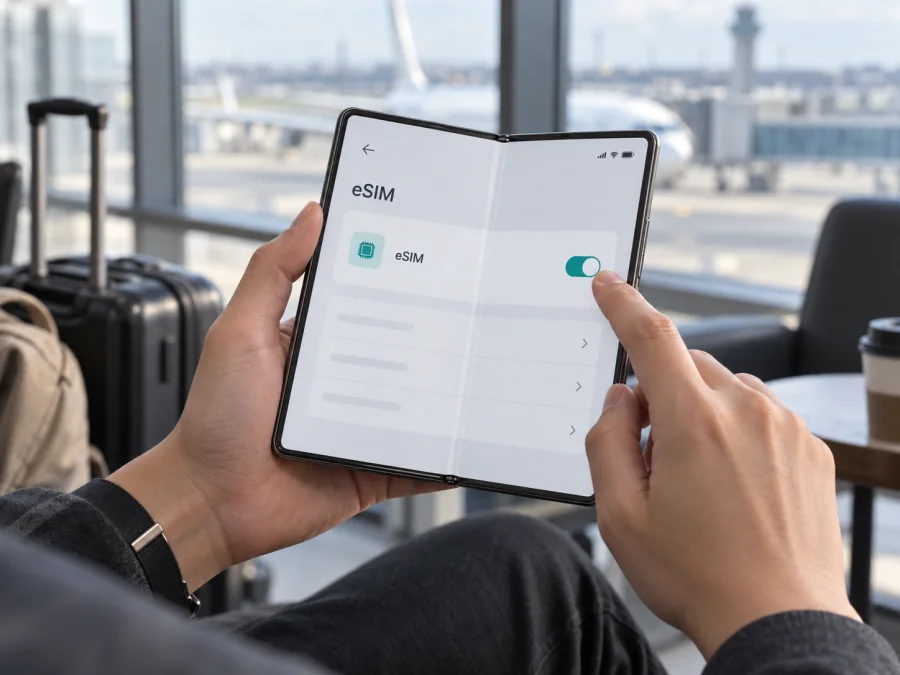
Google Pixel 9 Pro Fold 8GB RAM eSIM compatibility and setup
If you are checking whether the Google Pixel 9 Pro Fold 8GB RAM can use an eSIM, the short answer is yes for an authentic Pixel 9 Pro Fold with a supported regional configuration and an unlocked device. Google lists eSIM support for the Pixel 9 Pro Fold. The “8GB RAM” wording needs a separate check, however: Google’s published hardware specifications list 16 GB of RAM for this model, not 8 GB. A retailer listing or phone description that says 8 GB may contain an error or refer to a different device. Do not use that memory label alone to identify the phone; check the model number, EID and SIM menu on the actual handset.
An eSIM is a digital SIM profile stored in the phone. Depending on the market version, it can work alongside a physical SIM so you can keep your usual line while using a separate travel data plan. Device support alone does not guarantee that a provider or destination will work: the model must be accepted, unlocked where required, and supported on a local network.
Google Pixel 9 Pro Fold 8GB RAM: specifications that matter for eSIM
| Detail | What to know |
|---|---|
| Device name in this guide | Google Pixel 9 Pro Fold 8GB RAM |
| eSIM support | Yes on supported Pixel 9 Pro Fold regional versions |
| Published RAM specification | Google lists 16 GB RAM for Pixel 9 Pro Fold; the 8GB RAM wording is not confirmed by Google |
| SIM configuration | Google lists a nano-SIM plus eSIM for the rest-of-world version; US version is listed for two active eSIMs |
| Network | 5G and LTE availability depends on model, carrier, supported bands and local coverage |
| What can prevent use | Carrier lock, unsupported carrier or country, missing EID, restricted or modified software |
Google’s Pixel phone hardware tech specs page (checked 27 September 2026) lists two active eSIMs for the US version and one nano-SIM plus one eSIM for the rest-of-world version. Google Pixel Help also says an EID is required and documents eSIM setup in Android settings. These confirm capability for the model family, not every imported, refurbished or carrier-customized phone sold under a similar title.
RAM does not enable or disable eSIM. However, “8GB RAM” conflicts with Google’s specification, so verify the handset before buying it or a plan. Check Settings → About phone, compare the model number with the box, and ask the seller about the discrepancy. If the software identifies another model, check that exact phone’s compatibility.
Regional versions, carrier restrictions and what “compatible” means
Google’s published SIM table separates US and rest-of-world configurations. That distinction matters. A US-market Pixel 9 Pro Fold is specified for dual eSIM use; the rest-of-world version is specified for one physical nano-SIM and one eSIM. Both entries include eSIM capability, but the number and combination of active profiles differ. The wording does not mean every version can keep two eSIM lines active at once. If you need a particular dual-SIM arrangement, check the model code and SIM controls on your own phone.
Carrier approval and network access are separate. The eSIM issuer must support the phone and market; a carrier-sold device may be locked or restricted. Ask the original carrier whether it is unlocked for other networks. Even an unlocked phone may not register if the provider, destination network or radio bands are unsupported.
Google does not list an “8GB RAM” eSIM edition. Treat that wording as unverified. For a used or imported device, confirm the following before payment:
- The phone identifies itself as Google Pixel 9 Pro Fold in Android settings.
- The model number and region match the handset and sales documents.
- An EID appears in the phone’s SIM status or device identifiers.
- Add SIM or Set up an eSIM is available in Network & internet settings.
- The original carrier confirms that the phone is unlocked, if it was sold through a carrier.
- Your chosen eSIM provider supports the device and the country or region where you intend to use it.
If a check fails, a software update may not resolve it: the model, region, carrier restriction or device itself may be the cause. Confirm the phone’s identity before purchasing a plan.
How to check eSIM support on your own phone
Check both the EID and the eSIM setup option. Menu wording can vary by Android release:
- Open Settings and tap About phone.
- Open SIM status and look for EID. Depending on the software, you may also find device identifiers under About phone or Regulatory labels.
- Return to Settings and open Network & internet → SIMs.
- Look for Add SIM, Download a SIM instead? or Set up an eSIM.
- If you are already using a physical SIM, open its settings and check whether an additional eSIM can be added.
Google Pixel Help identifies the EID as the number required for eSIM use. A carrier may ask for the EID or an IMEI to activate service. Share identifiers only through the chosen provider’s secure activation flow; do not post them publicly.
An EID does not guarantee that a particular provider or destination is supported. If the menu is missing, update Android, restart and check again on Wi-Fi. If both the EID and setup option are absent, ask Google or the seller to confirm the model before purchasing.
Before you commit, check whether your phone is compatible with eSIM. Confirm the model, EID, setup menu and provider requirements, especially when the listing’s RAM description conflicts with Google’s published specification.
Install and activate an eSIM
Use reliable Wi-Fi and keep the phone charged. A provider may install a profile by QR code, activation link or in-app flow; follow its instructions if they differ from these general steps.
- Check compatibility. Confirm destination, validity, data, activation rules and that the unlocked phone is accepted.
- Open setup. Go to Settings → Network & internet → SIMs → Add SIM → Set up an eSIM. Wording varies by Android version.
- Add the profile. Follow the provider flow or scan its QR code. If it appears on this phone, use another screen or manual activation details.
- Download the profile. Stay on Wi-Fi and confirm the provider details when prompted.
- Name the line (for example, “Travel data”).
- Choose SIM preferences. Keep your home line for calls or texts if desired, and select the travel eSIM for data when ready.
- Check timing. Validity may start on installation, first connection or another activation step. Follow the provider’s terms.
- At destination, enable the line and data. Turn on roaming for the travel eSIM only if instructed; keep it off on your home line to avoid unintended charges.
- Test a webpage or map. If it fails, troubleshoot before deleting the profile.
See the Android eSIM installation instructions or iOS eSIM installation instructions. The Pixel 9 Pro Fold uses Android; the iOS guide is for iPhone.
Do not delete an eSIM profile just to retry a failed connection unless the provider tells you to. Many profiles cannot be installed again after removal, or may require the provider to issue a replacement. First try toggling the line, restarting the phone and checking the selected network and data settings.
Use the Pixel 9 Pro Fold for mobile data while travelling
A travel eSIM can provide mobile data without removing your regular SIM. Before departure, check that the plan covers each destination and date, whether hotspot use is allowed, and when validity begins. Terms vary by plan.
Short city break. Install the profile at home over Wi-Fi if the provider allows advance installation. Keep the profile disabled until the instructions say to activate it or until you arrive. At the destination, select the travel profile for data and check that it connects before leaving airport Wi-Fi.
Several countries. Confirm that every destination and stopover is included. A profile that connects in one country may not connect in the next; review destination coverage and reconnect after crossing a border if needed.
Keep your regular number available. If your regional Pixel configuration supports the SIM combination you need, you may keep the home line for calls or messages while routing mobile data through the travel eSIM. Make the data-line selection explicit in SIM settings. Standard roaming charges may apply to the home line even when you do not use it for data; check with your home carrier. Data-only eSIM plans generally do not provide a regular phone number or cellular voice and SMS unless the plan states otherwise. Internet calling and messaging apps can work over data.
Maps and work. Download offline maps as a backup. Check hotspot rules before sharing data with a laptop, and monitor video calls, photo uploads and automatic updates, which can use data quickly.
Kaspersky eSIM Store is an app and website where you can choose, arrange and activate an eSIM with a mobile-data plan for an international trip. When you are ready, use it to review options for your destination after confirming support for your Pixel’s regional configuration.
Troubleshooting: when an eSIM will not install or connect
No eSIM option. Update Android, restart and check Settings → Network & internet → SIMs. Verify the EID and model number. If both are absent, ask Google, the seller or original carrier to confirm the model or any restriction.
QR code fails. Confirm it belongs to the selected plan, is valid and unused. Use stable Wi-Fi. If it is displayed on the Pixel itself, use another screen or the provider’s manual activation details. Keep one-time codes private.
“No service.” Turn on the travel line and confirm the plan is active in a supported destination. Keep network selection automatic unless instructed otherwise. Toggle airplane mode, then restart. An installed profile cannot connect where the provider has no supported network.
Connected, but no data. Select the travel eSIM for mobile data, check any APN instructions, and enable roaming for that profile only if required. Confirm mobile data is on. A data-only plan may not support voice or SMS.
Home SIM loses service. Check dual-SIM preferences and ensure the home line is enabled. The US dual-eSIM and rest-of-world nano-SIM-plus-eSIM configurations differ; confirm yours before expecting two active eSIMs.
Plan started early. Check the provider’s activation rule: installation, profile activation and the start of validity may be separate events. Contact the provider if the start time conflicts with its terms.
EID or IMEI requested. Find the EID in Settings → About phone → SIM status. Give the provider only the identifier it requested, through its secure channel.
If the issue persists, note the error, Android version, model number, destination and profile status. Contact the eSIM provider about its plan or QR code; contact Google or the original carrier about the device, lock or EID.
Frequently asked questions
Does Google Pixel 9 Pro Fold 8GB RAM support eSIM?
Yes, Google lists eSIM for Pixel 9 Pro Fold. US models support two active eSIMs; rest-of-world models list one nano-SIM plus one eSIM. The phone must be supported and unlocked where required. Google lists 16 GB RAM, so verify the “8GB RAM” listing.
Does the RAM amount affect eSIM compatibility?
No. RAM does not determine eSIM support. The 8GB label is an identification discrepancy; check the model number, EID and SIM settings.
Can I use a physical SIM and eSIM together?
Google lists nano-SIM plus eSIM for rest-of-world models, and dual eSIM for US models. Check the exact phone’s SIM menu and carrier support.
Can I install a travel eSIM before I leave?
Often, if the provider allows it. Check when validity begins and leave the line off until the required activation point.
Does a travel eSIM replace my phone number?
A data-only plan usually does not include a number, calls or SMS. Your home SIM may remain available; check roaming charges with its carrier.
Will every eSIM work in every country?
No. Provider, destination, regional model, lock status and network bands matter. Confirm compatibility before purchase.
Final device check before your trip
For Google Pixel 9 Pro Fold 8GB RAM, Google’s published Pixel 9 Pro Fold specifications confirm eSIM capability, with a different SIM configuration for US and rest-of-world devices. They list 16 GB RAM, so treat “8GB RAM” as an unverified listing detail and confirm the exact handset. On the phone itself, check that an EID is present and that Set up an eSIM appears in SIM settings. Confirm the device is unlocked, the provider accepts that model and the selected plan covers your destination and travel dates.
Then choose a plan that fits your route and data needs. In Kaspersky eSIM Store’s app or website, you can choose, arrange and activate a travel eSIM with a mobile-data plan. Install over Wi-Fi and follow the provider’s activation timing before selecting it for mobile data.


