Travel connectivity guide
Google Pixel 9 Pro XL 128GB eSIM Guide
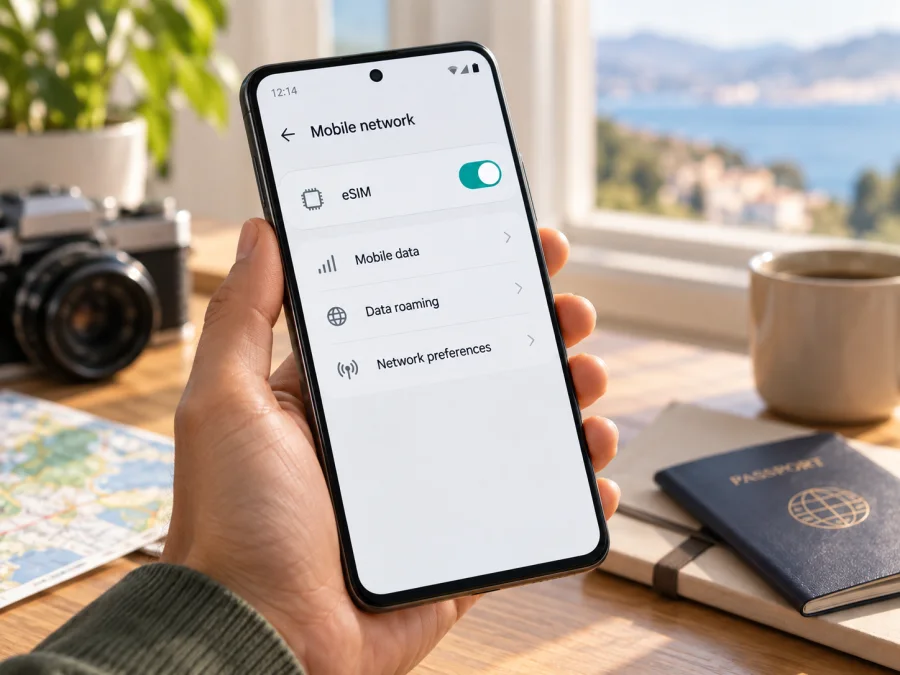
Google Pixel 9 Pro XL 128GB eSIM: compatibility and setup guide
The Google Pixel 9 Pro XL 128GB supports eSIM, according to Google’s current Pixel hardware specifications. The 128GB storage option does not change the eSIM feature: it is a storage configuration of the Pixel 9 Pro XL, not a separate cellular model. In the standard configuration Google lists one nano-SIM and eSIM. However, Google also cautions that eSIM functionality depends on the carrier and country. Before buying an eSIM plan, confirm that your exact regional device and carrier support it and that the phone is not locked to another provider.
An eSIM is a digital SIM profile. A travel plan can provide mobile data while your usual number remains on another line, subject to carrier settings. It may not include voice, SMS or a regular phone number, so check the plan terms.
Google Pixel 9 Pro XL 128GB at a glance
| Item | What to know |
|---|---|
| Exact variant covered | Google Pixel 9 Pro XL 128GB |
| eSIM support | Yes, in Google’s published Pixel 9 Pro XL specifications |
| SIM arrangement listed by Google | One nano-SIM and eSIM; carrier and country dependent |
| Storage | 128GB; storage capacity does not determine eSIM support |
| Operating system | Pixel 9 Pro XL launched with Android 14; available menus can vary after updates |
| What eSIM provides | A digital SIM profile. A travel eSIM plan is commonly intended for mobile data; confirm included services with the plan details |
| What must also be true | Your particular phone must have eSIM enabled, be compatible with the provider, and be carrier-unlocked where required |
Does the Pixel 9 Pro XL 128GB support eSIM?
Yes. Google’s published specifications list the Pixel 9 Pro XL with one nano-SIM and an eSIM. The 128GB storage capacity does not change that capability. A compatible provider can activate an eSIM profile, subject to the carrier and country supporting the feature.
“Supports eSIM” describes the phone’s capability; it does not guarantee that every provider can activate it, that every country permits the service, or that all cellular bands work in every market. A plan must accept the particular phone, and an operator lock can prevent activation even when Settings offers eSIM.
Regional and carrier differences
Google cautions that eSIM is not supported by all carriers or in all countries. Regional configurations, firmware and carrier activation rules may differ, so do not assume an imported or operator-supplied Pixel is identical to a model bought in another market. Ask the seller for the model number and country of sale. Give these details, and the EID if requested, to the provider before buying.
Also ask whether the phone is unlocked, whether eSIM activation is supported in the country where it was sold, and whether a travel data eSIM can be used alongside your regular line. The ability to store profiles is different from how many can be active at once. Confirm the provider’s supported model and destination rather than relying on the “Pixel 9 Pro XL 128GB” name alone.
Check your phone before you buy a plan
Use this checklist before ordering an eSIM:
- Find the EID. On the phone, open Settings → About phone → SIM status and look for EID. Menu wording can vary slightly by Android version. Google also notes that the EID may be printed on the device packaging.
- Look for the eSIM setup option. Open Settings → Network & internet → SIMs. Depending on the software version and current SIM configuration, look for Add SIM, Add eSIM, or Set up an eSIM. Seeing the option is a useful check, but provider eligibility still matters.
- Check for a carrier lock. Confirm with the seller or original mobile provider that the handset can be used with another provider. An eSIM-capable phone can still be network-locked.
- Confirm exact-model support. Give the eSIM provider the model number and, if requested, the EID or IMEI. Ask if this Pixel version can activate its profile in your destination.
- Review the plan. Check destinations, data allowance, validity period, activation conditions, tethering rules and whether voice or SMS are included. Do not assume that a data plan includes a phone number.
- Keep the device online for setup. Install the profile while connected to Wi-Fi or another reliable internet connection, unless the provider’s instructions say otherwise.
If EID or the add-eSIM option is missing, connect to Wi-Fi, update and restart the phone, then ask the seller or carrier to verify the model. Do not infer support from a different Pixel 9 model.
If you want to check another device as well, check your device before choosing a plan.
Install and activate an eSIM
The screens vary by Android version and provider. You may install by QR code, provider app or manual activation details. Follow the plan’s instructions; some activation codes are single-use, so do not delete a working profile unless the provider says it can be installed again.
- Confirm eligibility. Check the EID, exact model, carrier unlock status and provider support for the destination.
- Review the plan. Check coverage, data allowance, validity, included services and when activation begins.
- Connect to Wi-Fi. Keep the QR code or activation details available on another screen if you need to scan them.
- Open SIM settings. Go to Settings → Network & internet → SIMs → Add SIM → Set up an eSIM. Wording can differ by software version.
- Install the profile. Choose the provider if asked, then scan the QR code or use its app/manual method. Wait for completion instead of retrying a scan repeatedly.
- Enable and label the line. Use a clear name such as “Travel data.” Keep your home SIM enabled only if you want it available and have checked its roaming terms.
- Choose the data SIM. In Settings → Network & internet → SIMs, select the travel eSIM for mobile data. Calls and texts can use another line if supported.
- Follow roaming directions. Some travel plans require data roaming on for that eSIM. Enable it only as the provider instructs, and avoid enabling roaming on your home SIM by mistake.
- Test at the right time. If the plan starts on first connection in the destination, wait until arrival to enable it. Check for service before relying on data.
For detailed device steps, see Android eSIM instructions or iOS eSIM instructions. The iOS guide is for another device a traveler may use; the Pixel runs Android. Installation adds a profile, while activation and the start of plan validity follow the provider’s terms. These may happen at different times, so check when to install and enable the eSIM.
Use the Pixel 9 Pro XL 128GB while travelling
Pixel dual-SIM settings let you choose which line handles mobile data, calls and texts, subject to carrier support. For a trip, select the travel eSIM for data and keep your usual line available only if you want it. Check your home carrier’s roaming terms; having a travel eSIM does not automatically prevent charges from the other line. Only one SIM is selected for mobile data at a time.
Scenario 1: Prepare before departure
If advance installation is allowed, download the profile on Wi-Fi and label it by destination. Read the activation rule: validity may begin at purchase, installation or first network connection. Enable the line at the time specified. Keep the activation details accessible, but remember that a one-time QR code may not work again.
Scenario 2: Connect after landing
Use airport Wi-Fi if needed to finish setup. Turn on the travel line, select it for data, and enable its data roaming only if instructed. Allow time for registration. If it does not connect, briefly toggle airplane mode or restart, then check the SIM settings before attempting another installation.
Scenario 3: Keep the home line available
Under Settings → Network & internet → SIMs, choose the travel eSIM for data and set calls and texts separately. Consider disabling data roaming for the home line to avoid accidental use. Incoming calls, voicemail, SMS and charges still depend on your home plan and local conditions.
A travel data eSIM can support maps, translation, ride services, messaging and online bookings. It may not include a conventional phone number, voice calls or SMS. Check the plan terms; internet calling and messaging apps require data and compatible apps at both ends.
Troubleshooting: when an eSIM does not work
Start with the settings that determine which profile is active. Many apparent installation failures are caused by the wrong SIM being selected for data, a plan that has not reached its activation point, or a roaming setting that does not match the provider’s directions.
| What you notice | What to check |
|---|---|
| No option to add eSIM | Confirm the full model number and country of sale; connect to Wi-Fi, update Android, restart, and ask the seller or carrier to verify EID and eSIM eligibility |
| QR code will not scan | Use a clean, well-lit display; increase brightness on the other screen; check that the code belongs to this plan and has not already been used; ask the provider for another activation method |
| Profile installs but has no service | Make sure the profile is enabled, the destination is covered, and the plan is active; select it for mobile data; apply the provider’s roaming and APN instructions if supplied |
| Mobile data uses the wrong SIM | Open Settings → Network & internet → SIMs and choose the travel eSIM under Mobile data; turn off data on the other line if needed |
| Signal appears but apps do not load | Check mobile data, the selected data SIM, plan balance/allowance, roaming settings, and any APN directions; try airplane mode briefly, then reconnect |
| QR code says it has already been used | Do not repeatedly retry or delete the profile. Contact the provider to confirm whether it was installed and whether a replacement activation code is needed |
| The phone reports that the network is unavailable | Check local coverage, supported bands and carrier compatibility. Move to an area with better reception and ask the eSIM provider whether its partner network supports this exact model |
| Home line shows roaming activity | Review which line is assigned to data, disable home-line data roaming if appropriate, and check the home carrier’s rules for calls, SMS and voicemail |
If troubleshooting does not resolve the issue, note the exact error message, destination, model number, Android version, EID (share it only with the provider or carrier when requested) and the time you tried to connect. Contact the eSIM provider through its official support channel. Do not post EID, QR codes, activation codes or account details publicly. The provider can check whether the profile was downloaded, whether the plan is active and which network settings are needed.
Frequently asked questions
Does 128GB change whether eSIM is supported?
No. 128GB is storage capacity. Google lists eSIM for the Pixel 9 Pro XL, but you should verify the exact regional model and provider eligibility.
Can I use a physical SIM and eSIM together?
Google lists one nano-SIM and an eSIM. Using both depends on carrier and country support; one line is selected for data at a time.
Can two eSIM profiles be active at once?
Google says some Pixel 7 and later phones can use two eSIMs at once when the carrier allows it. This is not guaranteed for every provider or regional configuration. Stored profiles are not necessarily active profiles.
Does a travel eSIM include calls and SMS?
Not necessarily. Many are data-only. Check whether a number, calls or texts are included. Internet messaging and calling apps work over data when supported.
Will I get 5G?
That depends on model region, plan, carrier, local network and signal. A 5G-capable phone does not guarantee 5G access on every travel plan.
Can I move the profile to another phone?
Do not assume so. Some eSIMs are limited to one device or installation. Ask the provider before transferring, deleting or resetting a profile.
Do I need Wi-Fi after installation?
Wi-Fi is often needed to download the profile. Once active and in coverage, mobile service can work without Wi-Fi. Follow the provider’s setup instructions.
A simple pre-trip routine
Before leaving, confirm the EID and eSIM option in Settings, ask the provider to verify the exact regional model and unlock status, and check destination coverage and activation timing. Install the profile when appropriate. On arrival, select it for data and apply its roaming instructions. Keep your home line’s settings under control.
Kaspersky eSIM Store is an app and website where travelers can choose, arrange and activate an eSIM with a mobile data plan for an international trip. Compare the destination and plan conditions with your itinerary, then follow the instructions for your device and plan. Availability, coverage and activation depend on the plan and underlying provider network.
Final device check and travel eSIM choice
Before you choose an eSIM for a trip, confirm that your Google Pixel 9 Pro XL 128GB shows an EID and an option to add eSIM, check the model’s regional and carrier eligibility, and make sure it is unlocked. Then compare the plan’s destination, data amount, validity period and activation requirements with your travel dates. If any point is uncertain, verify it with the phone seller, your carrier or the eSIM provider before purchase. This final device and plan check helps you prepare the Pixel for mobile data abroad without assuming that every regional version or carrier behaves the same way.


