Travel connectivity guide
Google Pixel 9 Pro XL 1TB eSIM: Setup Guide
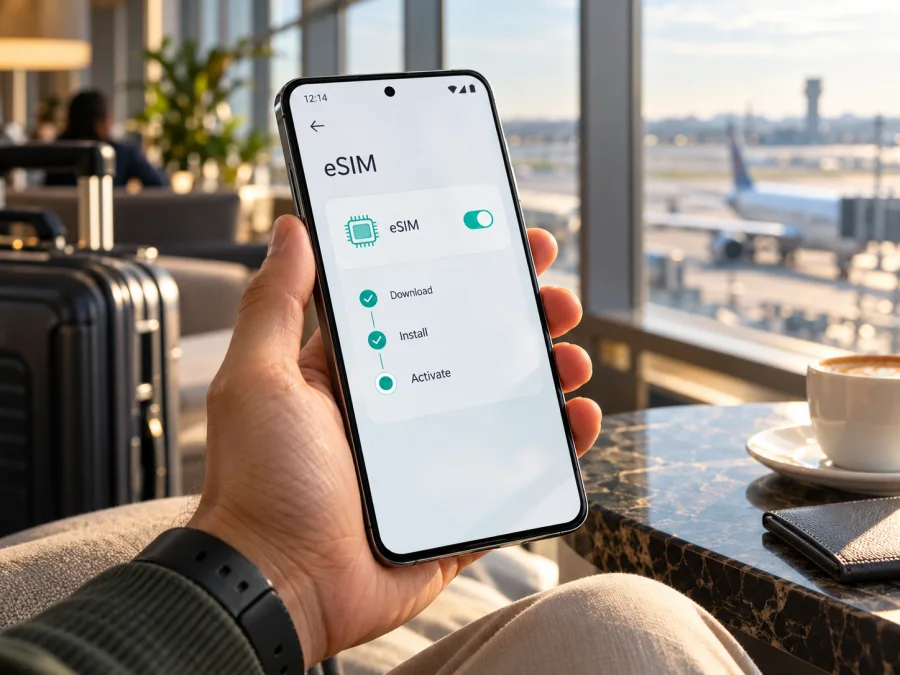
Google Pixel 9 Pro XL 1TB eSIM: compatibility and setup guide
The Google Pixel 9 Pro XL 1TB supports eSIM. Google's published specifications list eSIM alongside its dual-SIM capability, and its Pixel support guidance says Pixel 4 and later phones work with eSIM. The 1TB storage capacity does not remove or add eSIM capability; it is a storage option within the Pixel 9 Pro XL family.
That is the device-level answer. Whether a particular phone can download a travel eSIM also depends on the exact regional model, carrier support, whether the phone is unlocked, its software and the service market where you plan to use it. Before purchasing a plan, check the phone itself and confirm that the provider of the eSIM supports your device and intended destination.
Google Pixel 9 Pro XL 1TB eSIM specifications
| Item | What to expect |
|---|---|
| Exact device variant | Google Pixel 9 Pro XL 1TB |
| eSIM support | Yes, according to Google's Pixel 9 Pro XL specifications |
| SIM configuration | Dual SIM; the published configuration lists one nano-SIM and eSIM |
| 1TB storage | Storage capacity; it does not determine mobile-network compatibility |
| Two active eSIM profiles | Pixel 7 and later can use two eSIM profiles at once when the carrier allows it |
| Network access | Depends on the regional model, supported bands, carrier and destination |
| Operator lock | A locked device may restrict which SIM or eSIM providers it accepts |
“Supports eSIM” means the phone has an embedded SIM component and software for downloading a profile. It does not mean every carrier offers eSIM service, every profile works in every country, or that an eSIM automatically connects as soon as it is installed. The carrier or plan provider must be able to provision a profile for that device and market.
Regional versions and operator restrictions
Google's specifications describe the Pixel 9 Pro XL as supporting a nano-SIM and eSIM, but list service features as dependent on the carrier and country. Hardware versions can also differ in radio bands and network features. A US-market unit, for example, may be listed with a different 5G configuration from the rest-of-world model. This can affect whether a phone connects to a particular network or supports a feature there; it does not change the general answer that the Pixel 9 Pro XL generation supports eSIM.
The exact 1TB capacity is a storage SKU, not a separate eSIM edition. Still, the words “Google Pixel 9 Pro XL 1TB” alone do not identify the country of sale, model code, original carrier or lock status. If you bought the phone through an operator, second-hand, or as an imported device, verify those details before travel. Ask the seller or carrier whether the phone is unlocked and whether another provider's eSIM can be installed. Google's device specifications also caution that SIM functionality is not supported by every carrier or in every country.
Some US-market Pixel 9 Pro XL devices may support two active eSIM profiles, while Google's general dual-SIM description lists one physical nano-SIM and one eSIM. The ability to keep two eSIMs active depends on the device configuration and the carrier. Do not assume that two profiles can be active simultaneously just because the phone can store more than one profile. For a trip, a common arrangement is to keep a home line available and use the travel eSIM for data, but verify the exact dual-SIM options shown in your Settings app.
There are three separate checks to make:
- Device capability: Does this particular phone have an EID and an option to add an eSIM?
- Operator market: Is the phone unlocked, and does the eSIM provider support this device and its regional model?
- Destination service: Does the selected plan include the country or region you are visiting, and will its partner network work with the phone's supported bands?
These checks answer different questions. A phone may be eSIM-capable and still be locked to an operator. An unlocked phone may accept a profile but not support the partner network's bands in a destination. A compatible phone and network are still not enough if the plan does not cover the place you are visiting.
Check your Google Pixel 9 Pro XL 1TB for eSIM
<a id="kesim-device-compatibility"></a>
Use the phone's own settings before you buy a travel plan. Menu labels can vary slightly with Android version, language and carrier configuration.
Look for the EID
- Open Settings.
- Tap About phone.
- Open SIM status and look for EID.
Google also says the EID may be printed on the phone's original packaging. The EID is a useful sign that the handset has an eSIM component; it is not proof that the phone is unlocked or that a specific carrier supports it. If an EID is present, keep the number private and share it only when an eSIM provider or operator specifically needs it for activation.
Look for the eSIM setup option
- Open Settings.
- Go to Network & internet.
- Tap SIMs, then Add SIM.
- Look for Set up an eSIM or a similar option.
If you see the setup option, the device software is presenting an eSIM installation path. If it is missing, restart the phone, connect to Wi-Fi, install available Android system updates, and check again. Also check the exact model number and ask the original operator whether the device is restricted. A missing menu can reflect software, carrier provisioning or regional configuration, so do not infer the cause from one screen alone.
Before changing settings, note the exact model identifier under About phone and confirm ordinary Wi-Fi and mobile data work with your current SIM. An imported handset's retail name may not show its market version; ask the seller or original operator to confirm its unlock status. A visible eSIM menu cannot verify that the phone is unlocked.
A practical pre-purchase check is to note the EID, verify that Set up an eSIM appears, and ask the original operator whether the phone is unlocked. Then compare the model and country of sale with the eSIM provider's supported-device details. If any of those points are unclear, resolve them before paying; a displayed EID does not remove a carrier restriction. You can check your device against the steps above and compare the result with the plan provider's compatibility information.
Preparing a travel eSIM
A travel eSIM is a digital SIM profile that can provide mobile data over partner networks in the destination. It can be useful when you want to arrange data before a flight, avoid changing a small physical SIM card, or use a separate data line while keeping your usual number installed. The exact plan terms determine the covered destinations, data allowance, validity period, supported network and when usage begins.
Kaspersky eSIM Store is an app and website where you can choose, arrange and activate an eSIM with a suitable mobile-data plan for an international trip. Before choosing, check the destination, allowance, validity and activation terms shown for the individual plan. These are plan details, not a promise that every device, destination or network will behave the same way.
An eSIM plan for mobile data does not automatically include a regular phone number, voice calls or SMS. Unless the specific plan says otherwise, use your usual line for calls and messages or use internet-based messaging and calling apps over data. Review your home operator's roaming terms if you leave that line switched on.
How to install and activate an eSIM
Prepare the installation while you have a stable internet connection, ideally Wi-Fi. Keep the activation instructions or QR code available on another screen or printed page if the phone cannot scan its own display. Do not scan a QR code sent for a different device or profile, and do not share it publicly: it may be used to download the eSIM.
For Android setup guidance, see Kaspersky eSIM Store's Android instructions. The iOS guide is available at Kaspersky eSIM Store's iOS instructions; its menu names are for Apple devices, while the Pixel steps below are for Android.
Install from Android settings
- Confirm that your Google Pixel 9 Pro XL 1TB is unlocked and connected to Wi-Fi. Have the plan's activation details ready.
- Open Settings and choose Network & internet.
- Tap SIMs or Add SIM, then choose Set up an eSIM. Follow the on-screen prompts.
- If the provider gives you a QR code, scan it when prompted. If you receive manual activation details, use the manual entry option only as instructed by the provider.
- Wait while the phone downloads and installs the profile. Do not close the setup screen or delete the profile while installation is in progress.
- When asked, label the new line, for example Travel data, so you can distinguish it from your regular SIM.
- Select which SIM should handle mobile data. If you want to retain your home number for calls or texts, review the default calling and messaging SIM separately.
- Turn on the eSIM line when the plan instructions say to do so. Some travel profiles can be installed in advance and activated at the destination; others start their validity at installation or first network connection. Follow the exact plan terms.
- At the destination, enable mobile data for the travel eSIM. If its instructions require data roaming, enable roaming for that eSIM line only, and check your home SIM's roaming setting to avoid unexpected charges.
- Allow a few minutes for network registration. If it does not connect, check the troubleshooting steps below before deleting or reinstalling the profile.
Installation downloads the profile; activation may happen during setup, at first connection or through another provider-specified step. The plan's validity clock may start at a different point from the QR scan, so check the selected plan's terms.
After activation, open Settings → Network & internet → SIMs and check that the travel line is enabled and selected for mobile data. The exact route can differ slightly by Android release. Leave the profile installed while you use it. If activation fails, contact the plan provider with the order or activation reference; do not post the QR code or full EID in a public forum.
Using the Pixel during an international trip
Before departure, install system updates, check the destination and validity terms, and decide how you want to use your existing line. If you install the travel eSIM in advance, keep it switched off until the provider's instructions say to enable it, particularly if the validity period may begin on first connection. Save the activation details somewhere accessible without relying on mobile data.
When you arrive:
- Open Settings → Network & internet → SIMs and confirm the travel eSIM is on.
- Set the travel eSIM as the mobile-data SIM.
- Enable data roaming for that line only if the provider's instructions require it.
- Check that your home SIM's data roaming is off if you do not want it to use roaming data.
- Wait for the phone to register, then test a simple web page or messaging app.
- Review the plan's data use and validity in the app or account where you arranged it.
For a short city break, estimate data for maps, transport and messaging, then use Wi-Fi for large downloads. For a longer or multi-country route, confirm that the plan covers each stop and that its validity spans the itinerary. Check plan terms before relying on a hotspot. Network availability and speed vary by destination and partner network.
The Pixel can keep multiple SIM profiles stored, but active-line limits and dual-SIM behavior depend on the device and operator. When two lines are active, choose the data line deliberately. Calls or messages may continue to use your home number, and the home operator may still charge according to its own roaming terms. A data-only travel eSIM does not replace the home line's voice service.
Troubleshooting: eSIM will not install or connect
“Set up an eSIM” is missing
Check for an EID under Settings → About phone → SIM status. Restart and update the phone, then check the menu again. Confirm the exact device model and region, and ask the original operator whether the handset is unlocked. If the EID is absent or the menu remains unavailable, contact the seller or Google support before buying a plan.
The QR code cannot be scanned
Make sure the display showing the QR code is bright and not cropped, and use the phone's built-in eSIM setup flow rather than a regular camera scan if the prompt requests it. If the QR code is on the Pixel screen, display it on another device. If it still fails, ask the provider whether manual activation is supported and whether the code has already been used. Avoid repeated attempts if the provider says the code is single-use.
The profile installs but shows no service
Confirm that the eSIM is switched on, selected for mobile data and covered in the country or region where you are standing. Check whether the provider requires data roaming for that line. Toggle airplane mode on briefly and off, then restart if needed. If the phone offers a network-selection setting, return it to automatic unless the plan provider instructs you to select a particular network. A profile cannot connect where its plan has no service agreement or the handset does not support the required bands.
Mobile data works on the wrong SIM
Open Settings → Network & internet → SIMs and check the mobile-data preference. Turn off data switching if you do not want the phone to fall back to another line, if that option is available. Verify the home SIM's roaming setting separately; the travel eSIM being selected for data does not itself disable roaming on the other SIM.
Data is slow or stops unexpectedly
Check the plan's remaining allowance and expiration, then confirm the correct eSIM is the data line. Move to an area with stronger coverage and toggle airplane mode once to prompt a fresh connection. If service does not return, consult the provider's current setup instructions before changing APN or network settings; entering an incorrect value may prevent data access. If the problem persists, contact the plan provider and share the phone model, Android version, destination and error message—without sharing the QR code.
The operator says the phone is not eligible
Ask which identifier it needs (often the IMEI or EID), and confirm that the operator supports eSIM for this Pixel model in the relevant country. If the phone was sold by a carrier, check whether it is unlocked. Google's device-wide eSIM support does not override an operator's eligibility rules or a device lock.
Do not delete an eSIM profile as a first troubleshooting step. Some profiles cannot be downloaded again using the same QR code. First contact the provider to confirm whether the profile can be reissued or reinstalled, and follow its instructions.
Frequently asked questions
Does Google Pixel 9 Pro XL 1TB support eSIM?
Yes. Google's specifications list eSIM support for the Pixel 9 Pro XL. The 1TB storage option does not change it; carrier, country, model and lock status still matter.
Can I use an eSIM and a physical SIM at the same time?
Yes. Google lists one nano-SIM and one eSIM; available combinations can depend on your regional model and carrier. Check the phone's SIM settings.
Can I use two eSIMs at once?
Pixel 7 and later can use two active eSIM profiles when the carrier permits it. Confirm support with both operators before relying on this while travelling.
Does 1TB mean this is a US model?
No. Storage capacity does not identify country or carrier version. Check the model number, lock status, EID and SIM settings; regional bands and carrier features can differ.
Will the travel eSIM give me a phone number?
Not necessarily. A travel data plan normally provides mobile data; voice calls, SMS and a regular phone number are included only if the specific plan explicitly says so. Internet calling and messaging apps can work over data.
Should I install the profile before I travel?
Often you can install it while connected to Wi-Fi, but when to enable it depends on the plan's activation and validity rules. Check whether validity begins at installation, first use or first network connection. Keep the activation code safe and do not delete a working profile without provider guidance.
What should I do if there is no EID?
Recheck About phone → SIM status, check the original packaging, install available system updates and confirm the exact model with the seller or operator. If the EID is still absent, ask Google support or the seller to confirm that the handset has eSIM hardware before purchasing a plan.
Before you choose an eSIM for a trip
The Google Pixel 9 Pro XL 1TB is eSIM-capable, but trip setup depends on the handset and plan. First confirm the EID and eSIM setup option in Settings. Then check that the phone is unlocked, that the eSIM provider supports the device and operator market, and that the plan covers every destination on your itinerary. Review the data allowance, validity start and roaming instructions before purchase.
Once compatibility is confirmed, use Kaspersky eSIM Store, the app and website, to choose, arrange and activate an eSIM with a suitable mobile-data plan for your international trip. Select the travel eSIM for data when appropriate and follow its activation instructions.


