Travel connectivity guide
Google Pixel 9 Pro XL 8GB RAM eSIM Compatibility
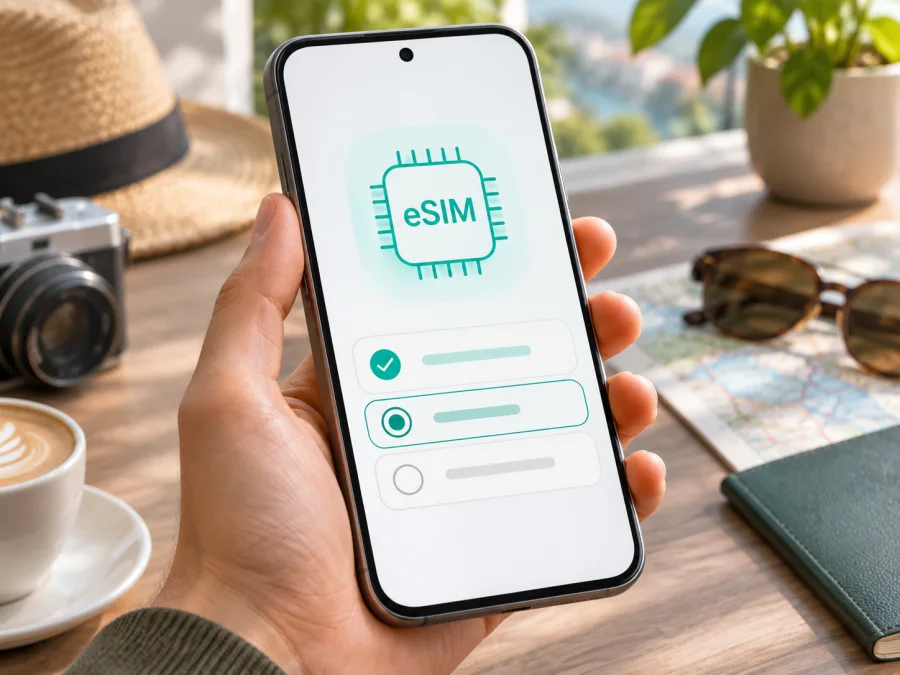
Google Pixel 9 Pro XL 8GB RAM eSIM: compatibility and setup guide
Short answer: Google’s official guidance says Pixel 4 and later phones support eSIM, and includes setup instructions for Pixel 9 Pro XL. A genuine Pixel 9 Pro XL should therefore support eSIM. However, Google lists 16 GB RAM for the model, not the “8GB RAM” in the supplied name. Treat that seller description as unverified and confirm the handset directly.
You still need a supported profile, internet access during setup, and an unlocked phone. Verify the handset before choosing a travel plan; the steps below cover compatibility, installation, data-line selection, and common problems.
What the model name tells you — and what it does not
The supplied device name includes a memory modifier, so it is kept intact throughout this guide. Google’s official Pixel 9 Pro XL specifications list 16 GB RAM, not 8 GB. An “8GB RAM” listing may be a retailer data-entry error, an inaccurate listing, or a description of a different product. That discrepancy does not, by itself, prove anything about the eSIM hardware. Confirm the exact model in Settings, check the device identifiers, and ask the seller to explain the mismatch before relying on the listing.
Google’s Pixel support documentation says Pixel 4 and later support eSIM. It also has separate setup steps for adding an eSIM and separately explains how to find the EID. Those official instructions support the general answer for a genuine Pixel 9 Pro XL; they do not certify every handset sold under a marketplace title or establish whether an individual unit is unlocked, carrier-approved, or configured for every network band.
| Check | What to expect for the named device | Why you should verify it |
|---|---|---|
| eSIM capability | Expected on a genuine Pixel 9 Pro XL under Google’s Pixel 4-and-later guidance | The phone’s EID and Add SIM menu are practical device-level checks |
| RAM wording | Google’s published Pixel 9 Pro XL specification is 16 GB RAM; “8GB RAM” is unverified | A listing mismatch can indicate that the seller’s description is unreliable |
| Physical SIM | Pixel 9 Pro XL instructions include a physical SIM tray; eSIM can be used alongside a SIM where supported | The active SIM combination depends on software, carrier, and market |
| Carrier lock | Not established by the model name | A carrier-sold phone may remain locked until the seller unlocks it |
| Travel eSIM service | Depends on the selected profile, destination, local network, and device status | Device support alone does not guarantee local coverage or service |
Regional, seller, and carrier versions
“Google Pixel 9 Pro XL” identifies a product family, but the seller and country still matter. Google’s broad guidance covers Pixel 4 and later; it also advises checking with the mobile operator. Its exceptions for some older Pixel generations do not specifically describe the Pixel 9 Pro XL. Check the handset rather than assuming that every imported or refurbished unit has identical status.
For travelers, the key distinction is often a SIM lock, not RAM. Google says phones bought through Google Store are unlocked, while phones bought from a mobile operator may be locked to that provider. A locked phone may reject another provider’s profile even though it has eSIM hardware. Ask the seller or original carrier whether the phone is unlocked, and confirm that the travel eSIM provider supports the exact device and destination network.
Do not infer eSIM support from a SIM tray or a reseller’s “global version” label. The tray can coexist with eSIM, and a listing is not a substitute for an EID and setup-menu check. If the 8 GB RAM claim is unexplained, verify the model identifier and purchase documents before ordering. The discrepancy warrants checking the listing; it does not prove eSIM is absent.
Check eSIM compatibility on your own phone
Use both the software menu and the EID check. Seeing the menu is useful, but confirming an EID gives you another direct indication that the device contains an eSIM identity. Menu labels can vary slightly with Android version, language, and updates.
- Connect the phone to Wi-Fi and install available Android system updates. Restart it if updates were applied.
- Open Settings and go to About phone. Review the model name and identifiers. Google’s Pixel help places the EID under About phone → SIM status. If you see an EID, record it privately; do not post it publicly.
- Open Settings → Network & internet → SIMs. Look for Add SIM or Set up an eSIM. On some software versions the wording may differ, but the setup path should offer an eSIM download option.
- Check the phone’s unlock status with the original seller or carrier. A working EID does not remove a SIM lock.
- Before purchase, confirm that the intended eSIM provider accepts this device and that the plan covers every country on your route. For a Kaspersky eSIM Store travel plan, use its compatibility checker as an additional pre-purchase step.
If there is no EID and no eSIM setup option after updating and restarting, pause before purchasing. Confirm the exact product identifier with Google support or the seller. If the EID exists but setup fails, ask the seller or carrier about lock status, and ask the eSIM provider to verify the device identifiers and plan requirements.
Install an eSIM on Google Pixel 9 Pro XL 8GB RAM
Connect to Wi-Fi and have the provider’s QR code or activation details ready. Installation and data-use start may be separate events; check plan terms and do not delete an unconnected profile without checking the provider’s policy.
- Prepare: Update Android, charge the phone, and confirm which SIM you want for calls, texts, and data.
- Get your profile: Order through the provider’s app or website and open the installation instructions or QR code from your account or confirmation. Check the destination, validity, activation timing, and data terms.
- Add the eSIM: Go to Settings → Network & internet → SIMs → Add SIM → Set up an eSIM and follow the prompts. Scan the supplied QR code or enter details manually if offered.
- Label and choose lines: Name the profile (for example, “Travel data”). Keep your regular line for calls or texts if desired, and select the travel eSIM for mobile data when ready.
- Activate at the right time: Follow the plan’s activation rule. At the destination, enable the travel profile and data roaming for that profile only if its instructions require it. Allow a few minutes for network registration, then test a webpage or map.
Google’s Android eSIM setup instructions describe QR installation and note that menus vary. The iOS installation guide is for an iPhone, not this Pixel; it is useful only if you are also setting up an Apple device.
Using the phone for mobile data on a trip
Choose which SIM handles each task. You may keep the home SIM available for calls or verification while assigning data to the travel eSIM, but check home roaming charges for calls, texts, and background data.
Check that the plan covers each country on your itinerary, including stopovers. Estimate data use and review validity and start time; streaming and cloud backups can consume data quickly.
Kaspersky eSIM Store is an app and website where travelers can choose, arrange, and activate an eSIM data plan for an overseas trip. The mobile service depends on the selected plan and local network. A travel plan should not be assumed to include a phone number, regular voice calls, or SMS unless its terms say so. Messaging and calls through apps can use data, subject to those apps’ requirements.
After checking compatibility, you can browse current destinations and travel eSIM options and review the conditions for your route. Keep home-line data roaming disabled if you want to avoid unintended data use, and enable roaming for the travel eSIM only if its instructions require it.
Three practical setups
One-country break: Check destination coverage, install over Wi-Fi if plan rules allow, then switch mobile data to the travel eSIM after landing. Keep home-line data off if you do not want background usage.
Multi-country route: Check every country and stopover. In border areas, the phone may connect to an unexpected network; verify coverage and try automatic network selection or provider-recommended settings.
Work trip: Keep the home line for calls or verification only if its roaming terms suit you. Route data through the travel eSIM and turn off automatic data switching if available.
Troubleshooting: checks before you reinstall
Identify whether the profile is missing, inactive, or active without data. Avoid rescanning or deleting it: activation codes may be single-use, and removal can require a replacement profile.
| Symptom | Checks to make |
|---|---|
| No “Add eSIM” option | Update Android, restart, check About phone → SIM status for an EID, and confirm the handset rather than relying on the 8 GB listing |
| QR code will not scan | Raise brightness on the other screen, clean the camera lens, use manual entry if offered, and confirm the code is unused |
| Profile will not activate | Check Wi-Fi, plan status, activation timing, unlock status, and provider support for the exact device |
| eSIM is installed but has no signal | Enable the profile, check destination coverage, turn off airplane mode, and follow the provider’s network selection advice |
| Signal but no data | Select the eSIM for mobile data, check APN instructions if applicable, and enable data roaming for that line only if required |
| Home SIM is using data | Recheck default data SIM and automatic switching; disable home-line data roaming if appropriate |
| Connection is intermittent | Move to a better reception area, try supported network selection, toggle the line, and check plan or local network restrictions |
| Provider reports incompatibility | Share the model identifier and EID through secure support, and ask the original carrier about a SIM lock |
Pixel can store multiple eSIM profiles, but how many can be active together depends on the phone and carrier. Google says Pixel 7 and later may use two active eSIMs when the carrier allows it; some combinations instead use one eSIM and one physical SIM. Do not assume every provider supports the same dual-SIM arrangement.
If service stops after working, check plan expiry or data balance, whether the profile is disabled, and whether Android needs an update. Toggle airplane mode, restart, and return network selection to automatic unless instructed otherwise. If the issue persists, contact the eSIM provider with order details and device identifiers. Never post an EID or QR code publicly.
Compatibility checklist before buying
Use this short checklist while you still have a reliable internet connection and time to contact the seller:
- [ ] The phone’s Settings screen identifies it as a Pixel 9 Pro XL, and the “8GB RAM” discrepancy has been checked with the seller or documentation.
- [ ] An EID appears under About phone → SIM status, and the Add SIM / Set up an eSIM option is present.
- [ ] The original carrier confirms that the phone is unlocked for another provider’s eSIM profile.
- [ ] The provider confirms that the exact device and destination are supported.
- [ ] The selected plan covers every country on your route and matches your expected data use and trip dates.
- [ ] You understand when the plan’s validity starts, whether data roaming must be enabled, and whether tethering is allowed.
- [ ] You know which line will handle data, calls, and texts, and you have checked the home SIM’s roaming terms.
Check whether your device is compatible before choosing a travel plan.
Frequently asked questions
Does Google Pixel 9 Pro XL 8GB RAM support eSIM?
Google says Pixel 4 and later phones support eSIM and provides setup guidance for Pixel 9 Pro XL. A genuine Pixel 9 Pro XL should support it. The 8 GB RAM label is unverified: Google’s published specification lists 16 GB. Check the phone’s EID and setup menu.
Does RAM affect eSIM compatibility?
Google’s eSIM check is the EID, eSIM setup option, carrier unlock status, and provider support. RAM does not establish eSIM capability. Resolve the unusual listing claim with the seller.
Can an imported or carrier-sold phone use a travel eSIM?
It can if its eSIM is available, it is unlocked, and the provider supports the device and destination. Ask the original carrier about a SIM lock and the provider about the exact model.
Can I use my home SIM and travel eSIM together?
Pixel can support dual SIM, but active combinations depend on software and carrier. Choose the data line in SIM settings and check roaming charges for your home line.
Should I install before travel, and does the plan include calls?
Follow the plan’s activation instructions: installation, activation, and data use may start at different times. A data-only travel plan should not be assumed to include a phone number, calls, or SMS; check its terms.
Final checks for your trip
For Google Pixel 9 Pro XL 8GB RAM, the reliable answer is conditional but practical: Google’s current Pixel guidance supports eSIM on Pixel 4 and later, including setup instructions for Pixel 9 Pro XL. Google lists the Pixel 9 Pro XL with 16 GB RAM, so the requested 8 GB variant label remains unverified. Confirm the actual model, find its EID, look for the eSIM setup option, and resolve any carrier lock before purchase.
Once the phone passes those checks, select a travel plan that explicitly covers your destination and review its validity, data, and roaming instructions. Use the travel eSIM for mobile data when appropriate, keep your home line settings aligned with your home carrier’s terms, and save the provider’s setup instructions somewhere accessible. A quick compatibility check before buying is the simplest way to avoid discovering a model, lock, or plan mismatch at the airport.


