Travel connectivity guide
Google Pixel 9 Pro XL eSIM Compatibility & Setup
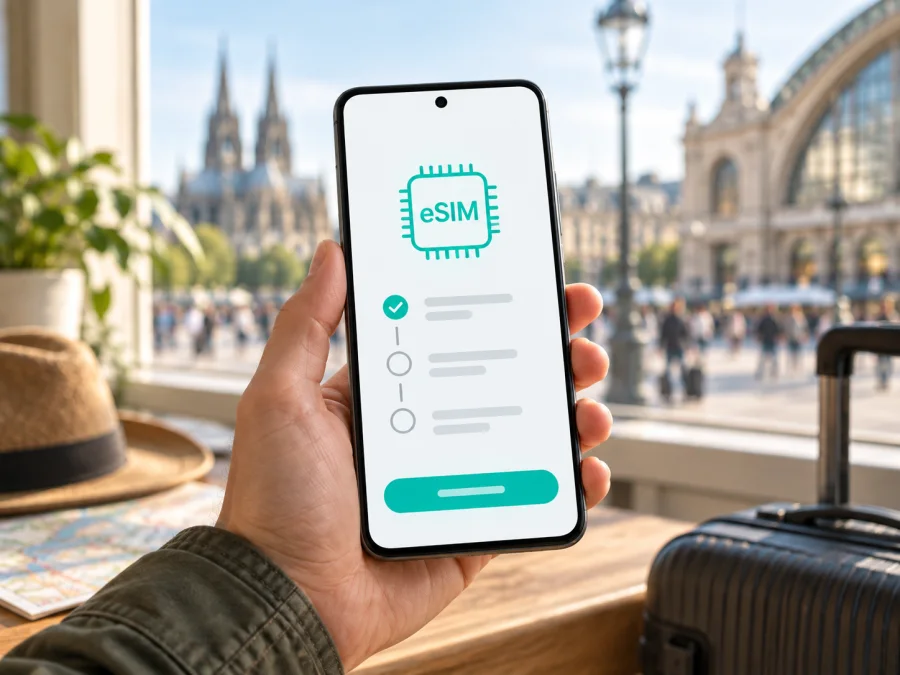
Does Google Pixel 9 Pro XL support eSIM?
Yes. Google Pixel 9 Pro XL supports eSIM. Google’s current Pixel hardware information lists the Pixel 9 Pro XL with Dual SIM using one nano-SIM and an eSIM, and Google’s Pixel help explains how to add and manage eSIM profiles. That is the general capability of this model; it does not guarantee that every carrier, plan, or regional unit will accept every eSIM. Before buying a travel plan, check the exact phone in Settings, confirm it is not carrier-locked, and make sure the provider’s activation method is supported.
This guide covers Google Pixel 9 Pro XL only. Similar Pixel names do not guarantee identical hardware or carrier support. Android updates can change Settings labels.
Compatibility at a glance
| Item | Google Pixel 9 Pro XL |
|---|---|
| eSIM capability | Supported by Google’s published Pixel hardware information |
| Physical SIM option | Google lists one nano-SIM alongside eSIM for this model |
| eSIM profile management | Add and manage profiles in Android Settings; availability of simultaneous lines depends on carrier and configuration |
| What must be checked on your own unit | EID, the “Add eSIM” option, carrier lock status, and network compatibility for the destination |
| Travel use | A travel eSIM can provide mobile data where its plan and partner networks are available |
| Voice and SMS | A data-only travel plan does not automatically include a regular phone number, calls, or SMS |
An eSIM is a digital SIM profile installed on the phone instead of a plastic card. It is usually added by scanning a QR code or following a provider’s app-based process. Device capability and plan eligibility are separate checks.
Why the answer still depends on the exact unit
Google’s specifications establish eSIM support for this model. Regional and carrier variants may differ in bands, configuration, software, and activation rules. An imported unit may lack the local carrier certification or support offered for a device sold in your country.
A carrier-branded phone may be locked until its unlocking requirements are met. It can show an eSIM menu yet reject another provider’s profile. Ask the seller or carrier whether the exact IMEI is unlocked and eligible. Appearance, a 5G icon, or a SIM tray does not prove eSIM support.
Software and device-management restrictions can also affect the menu. Update Android, restart, and check SIM settings. If the menu is missing, check the EID and confirm model and lock status with the seller or carrier.
Check your own Google Pixel 9 Pro XL
Before purchasing, check both the EID and the eSIM setup menu.
- Find the EID in Settings. Open Settings and go to About phone. Look for EID among the device identifiers. It may also appear under Settings → About phone → SIM status or after dialing
*#06#in the Phone app, if supported. Keep the EID private; share it only with a provider checking eligibility. - Look for Add eSIM. Open Settings → Network & internet → SIMs (on some versions, tap + Add SIM) and check for Set up an eSIM or Download a SIM instead? Labels vary by Android version. A visible menu does not replace the provider’s compatibility check.
- Check for a carrier restriction. In the SIM or network settings, check whether another carrier’s profile can be added. If you cannot determine lock status from the phone, ask the original carrier or seller to confirm that the IMEI is unlocked and that eSIM activation is allowed. A reset or software update does not remove a network lock.
- Confirm the plan’s requirements. Check whether the plan supports Pixel devices, whether it requires a QR code or provider app, whether installation must happen before departure, and when its validity period begins. Also verify coverage for every country on your route.
- Test on a reliable connection. Profile download needs an internet connection. Install at home over Wi-Fi when the plan permits, rather than relying on airport Wi-Fi.
If you are buying a used or imported phone, compare its model information in Settings with the seller’s listing and keep the IMEI available for the carrier’s eligibility check. Ask specifically whether eSIM is enabled on that unit and whether the device is free to use with another network. A seller’s statement that the handset is “dual SIM” can refer to different combinations, so confirm the eSIM function rather than relying on that shorthand. The EID identifies the embedded SIM component; the IMEI identifies the cellular device. Neither one proves that a particular plan will activate, but both help the carrier check the phone accurately.
For a pre-purchase check, check your device compatibility. An EID is useful evidence, but also confirm provider eligibility and unlock status.
Install and activate an eSIM
Before beginning, charge the phone and connect to stable Wi-Fi. Display the QR code on another screen, or use manual details if offered. Codes may be single-use; do not delete a profile unless the provider confirms it can be reinstalled.
Add the profile on the phone
- Open Settings → Network & internet → SIMs.
- Tap Add SIM or the plus sign, then choose Set up an eSIM. If the exact label differs, search Settings for “eSIM” or “SIM”.
- Follow the on-screen prompts. If asked to scan a QR code, point the camera at the activation code supplied for your plan. If scanning is not available, enter the activation details manually only when the provider offers them.
- Wait for Android to download the profile; keep Wi-Fi on. This may take a few minutes.
- Give the new SIM a clear label, such as “Travel”, so you can distinguish it from your home line. Select which SIM should handle mobile data. Keep your home SIM enabled for calls or messages if you need it, while checking its roaming terms.
- If the plan should connect only after arrival, keep the profile off until then if the provider permits. Validity may start at installation or first connection; check the terms.
- At the destination, enable the travel SIM and set it as the mobile-data SIM. Turn on data roaming for that eSIM only if the provider’s instructions require it. The right setting varies by plan, so follow the activation details rather than changing roaming on every line.
See the Android eSIM installation instructions. For an iPhone, use the iOS eSIM installation instructions.
Installation is not always the same as activation
A profile may appear in SIM settings before the plan is usable. Activation may begin at installation, when switched on, on first network registration, or at a selected date. Check the plan’s start rule before installing early.
Select the travel eSIM for Mobile data. Apply any network or roaming settings specified by the provider. Leave automatic network selection on unless told otherwise, and allow a few minutes for registration after landing.
Kaspersky eSIM Store is an app and website where you can choose, arrange, and activate an eSIM with a mobile-data plan for an international trip. Access depends on the plan, destination, and local partner network. Check allowance, validity, and coverage before completing an order. Data-only plans do not automatically include a regular number, calls, or SMS.
Use Google Pixel 9 Pro XL on a trip
A travel eSIM can provide data without replacing the home SIM. The home line may remain available for calls or verification messages, depending on the active profiles and carrier. Do not assume every combination of lines can be active at once.
Before departure
- Check the destination and any countries visited during a connection or road trip. Regional plans may cover multiple destinations, while a country-specific plan may not.
- Match data allowance and validity to expected use. Maps, translation, tickets, and messaging use data; video calls and streaming use more.
- Confirm the activation window. Install before departure only if the terms permit it without starting the plan too early.
- Save activation instructions offline and keep the QR code or manual details until installation.
- Check that the phone is updated, unlocked, and able to connect to Wi-Fi for installation.
- Decide which line handles data and which handles calls or texts. Check your home operator’s roaming conditions so the home SIM does not create unexpected charges.
On arrival
Turn on the travel line, select it for mobile data, and wait for registration. Enable data roaming on that eSIM only if instructed. Test a webpage or map. Network and 5G availability depend on local coverage, bands, and plan.
At a border, confirm that the plan covers the next country. A connection in one destination does not prove coverage in another.
Example situations
Short city break: install over home Wi-Fi if permitted, switch data to the travel line after landing, and keep the home line for calls if needed.
Multi-country itinerary: check every destination and stopover. Review regional coverage, speed, and validity terms; service may stop in an excluded country.
Work trip: check for employer device restrictions, choose the data line before meetings, and keep key files offline.
Low-data travel: restrict background data, download maps over Wi-Fi, and compare Android’s usage estimate with the provider’s plan balance.
Troubleshooting: when the eSIM does not work
First confirm the eSIM is installed, switched on, and selected for mobile data; turn off Airplane mode. Restart once, then compare settings with the plan instructions.
| Symptom | What to check |
|---|---|
| No “Set up an eSIM” option | Check for an EID, update Android, restart, and confirm that the phone is the exact Google Pixel 9 Pro XL and is not a restricted or carrier-locked unit. Ask the original seller or carrier if the menu remains absent. |
| QR code will not scan | Make sure the code is for this plan and has not already been used. Increase screen brightness on the device displaying the code, clean the camera lens, or use manual activation details if the provider supplies them. |
| Profile downloads but has no service | Check the plan’s start time, destination coverage, account status, and whether the travel SIM is turned on. Give it a few minutes to register, then restart once. |
| Signal appears but there is no internet | Select the travel eSIM under Mobile data, confirm mobile data is enabled, and check the provider’s APN or roaming instructions. Do not copy APN values from an unrelated plan. |
| Data works only after roaming is enabled | Some travel plans require data roaming on their own eSIM. Confirm that requirement and enable it for the travel line only; keep the home line’s roaming setting consistent with your home carrier’s terms. |
| Calls or texts do not work | Many travel plans provide data only. Use your regular line for calls and SMS if its terms allow, or use messaging and calling apps over data. Check the plan details before expecting a phone number. |
| Connection is slow or switches networks | Check local signal, plan speed limits, and the provider’s supported network list. Move to an area with better reception, leave automatic network selection on unless told otherwise, and test again. |
| It worked at one destination but not another | Recheck country coverage and the plan’s roaming rules. A regional label does not necessarily include every nearby territory or island. |
| The profile was deleted or moved | Contact the plan provider before reinstalling. Many activation codes are single-use, and eSIM transfer or redownload depends on provider policy. |
If a profile stays at “Activating”, keep the phone online, restart once, and wait. If it remains stuck, contact the plan provider with order and model details. Never post passwords, recovery codes, or an EID publicly.
Frequently asked questions
Does every Google Pixel 9 Pro XL support eSIM?
Google lists eSIM for Google Pixel 9 Pro XL. Verify EID, settings, carrier, market, and lock status on your actual unit.
Can I use a physical SIM and eSIM together?
Can two eSIMs be active at the same time?
How do I find the EID?
Look under device identifiers in Settings → About phone, or check SIM status. The EID is not an activation code; share it only with a provider checking compatibility.
Will a travel eSIM replace my home number?
Does eSIM support guarantee 5G while abroad?
No. The local network, its coverage, the plan, and the phone’s regional band configuration determine available service. A supported eSIM can connect on 4G or another available technology even when 5G is unavailable.
Can I move the travel eSIM to another phone?
When should I install the eSIM?
Follow the plan’s terms: validity may start at installation or first connection. Ask the provider if unclear.
Final device and trip check
Before you choose an eSIM for a trip, confirm that your Google Pixel 9 Pro XL shows an EID and offers an eSIM setup option, check that the phone is unlocked, and verify the exact destination coverage and activation rules. Install the profile over a reliable internet connection, label it clearly, and set it as the mobile-data SIM when the plan is ready to use. Check the plan’s allowance and validity against your itinerary, and keep the home line’s roaming settings in mind. With those checks complete, you can choose and activate a suitable travel eSIM through the Kaspersky eSIM Store app or website and use the compatible plan for mobile data abroad.


