Travel connectivity guide
Google Pixel 9a 256GB eSIM: Compatibility & Setup
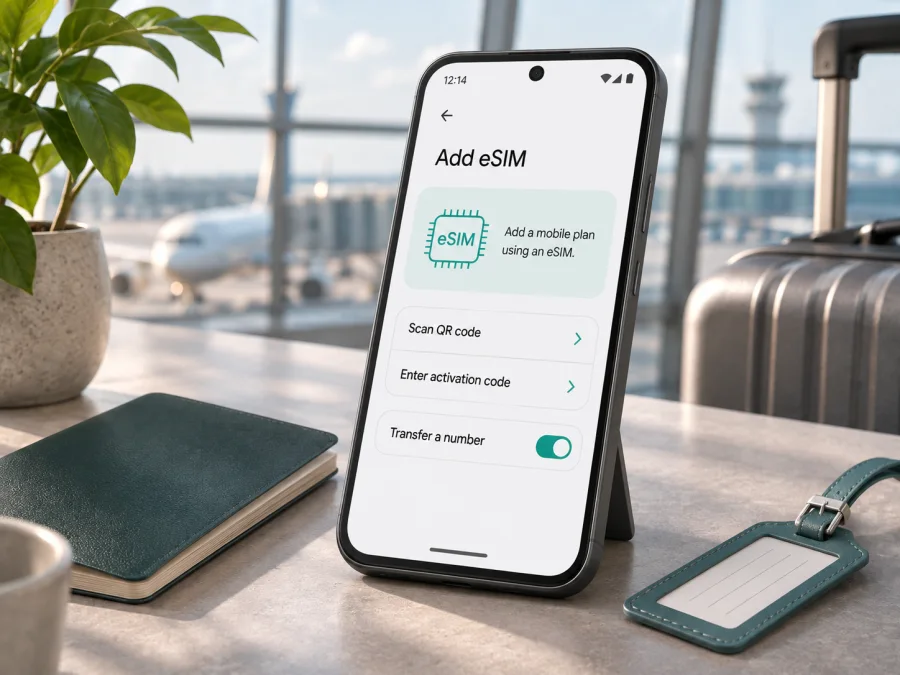
Google Pixel 9a 256GB eSIM: compatibility and setup guide
Short answer: Google lists the Pixel 9a with dual-SIM support: one physical nano-SIM and an eSIM. Its official specifications include both 128GB and 256GB storage options, so the 256GB capacity does not indicate a separate eSIM configuration. A Google Pixel 9a 256GB should support eSIM when its regional model, software and carrier allow it. Before buying a travel plan, verify the actual phone in Settings and confirm that it is not carrier-locked.
The storage label alone does not reveal the country where the handset was made for sale, its exact model identifier, or whether a particular carrier has restricted it. That distinction matters more than storage: mobile-network bands, carrier policies, software builds and local rules can vary by market. Use the checks below for the individual phone in your hand rather than relying only on a shop listing or the product family name.
Google Pixel 9a 256GB eSIM at a glance
| Item | What to know |
|---|---|
| Device in this guide | Google Pixel 9a 256GB |
| eSIM status | Google lists eSIM alongside one nano-SIM in the Pixel 9a specifications |
| Storage variant | Google lists 128GB and 256GB options; storage capacity is not itself an eSIM switch |
| SIM arrangement | One physical nano-SIM and an eSIM are supported in the listed configuration |
| Dual eSIM profiles | Pixel 7 and later can use two eSIM profiles at once when the carrier also supports the feature; confirm this with the carrier |
| Travel data | A travel eSIM can be selected as the mobile-data line while you keep your usual line available, subject to the plan and local network |
| Must-check items | EID, Add eSIM menu, carrier lock, carrier compatibility, destination coverage and plan conditions |
Specifications describe a product family, not every handset’s status on every network. Google notes that eSIM depends on the phone and mobile operator. A carrier may need to approve the device or activate the profile on its network, and a locked handset may not accept another provider’s eSIM. If the device was purchased from a carrier, refurbished, imported, or sold as an operator-specific model, ask the seller or original carrier to confirm its unlock status and eSIM eligibility before relying on it abroad.
Does the 256GB version support eSIM?
Google’s Pixel 9a specifications state “Dual SIM (Single Nano SIM and eSIM)” and list 128GB and 256GB storage options. Google’s Pixel help guidance says Pixel 4 and later phones work with eSIM, while advising users to check with their mobile operator. The 256GB Pixel 9a is therefore designed to support eSIM; the storage option does not remove that capability.
The name Google Pixel 9a 256GB does not identify the handset’s sales region, carrier lock or network eligibility. A carrier-branded, imported or refurbished unit may need additional checks. Ask the seller for the model identifier and original sales market, confirm the phone is unlocked, and ask the eSIM provider whether it supports that device for your destination. A hardware capability alone does not guarantee registration on every local network.
Google lists the Pixel 9a with a physical nano-SIM and eSIM. This allows a travel profile to be used for data while a regular SIM remains available for other services, subject to the two carriers’ support. Radio bands, software builds, certification and carrier features can vary by market, so do not assume that 5G, calls, two active profiles or every network combination will behave identically worldwide.
Why regional and carrier versions need a check
The 256GB label describes storage, not region. Ask whether the unit is SIM-unlocked and whether its original carrier permits activation with another provider. Then check the destination coverage, supported model and plan conditions. If buying second-hand or imported, verify these points on the handset or with the seller before relying on it abroad.
Check this Pixel 9a before you buy a travel eSIM
Check the individual phone where possible. If you have not received it, ask the seller for written confirmation and keep your return options open.
- Find the EID: Go to Settings → About phone → SIM status and look for EID. Menu labels may vary. Google also says to check the box. An EID is an important sign of eSIM hardware, but carrier approval and an unlocked device are still required.
- Find the setup menu: Open Settings → Network & internet → SIMs → Add SIM. Look for Set up an eSIM or similar. If missing, update Android, restart and check again.
- Confirm unlock status: If another provider’s SIM or eSIM is rejected, ask the original carrier whether the phone is locked and how to unlock it. A reset or update does not necessarily remove a lock.
- Check the destination and terms: Ask whether the provider accepts this Pixel model for the destination. Confirm data allowance, validity, activation timing, hotspot terms if needed, and whether roaming must be enabled on that profile.
- Prepare internet for setup: Profile downloads generally need an internet connection. Keep the QR code available on another screen if you plan to scan it.
If there is no EID or eSIM option after an update and restart, confirm the model identifier and market with the seller, then contact Google or the carrier. The product-family specification confirms capability, while the phone’s menus and carrier response are the practical checks for your unit.
Check your device compatibility before choosing a travel plan, especially if your Pixel 9a 256GB came from a carrier, another country or a second-hand seller.
Set up the eSIM on Google Pixel 9a 256GB
Before starting, connect to the internet, install available Android updates and confirm that the phone is unlocked for the intended provider. Check that the plan covers your destination and dates. Do not delete a downloaded profile or try to transfer it unless the provider confirms that this is supported.
- Choose the plan. Review coverage, data allowance, validity, activation timing and hotspot terms.
- Open setup. Go to Settings → Network & internet → SIMs → Add SIM → Set up an eSIM and follow the prompts. Select the provider that issued the profile if asked.
- Download the profile. Scan the provider’s QR code or enter supplied activation details if offered. Keep the code private and wait for setup to finish.
- Label the line. Name it “Travel data” or the destination so you can distinguish it from your usual SIM.
- Choose mobile data. In Settings → Network & internet → SIMs, select the travel profile for mobile data when ready. Your regular SIM may remain set for calls or texts; review its roaming charges first.
- Set roaming as directed. Some plans require data roaming on the travel profile. Enable it only for that profile if instructed, not for your home SIM unless you intend to use its service.
- Follow the activation rule. Installation and plan start are not always the same. A plan may start at installation, first connection in the destination or a scheduled time. Use the provider’s rule to avoid starting validity too early.
- Test on arrival. Turn on the travel profile and mobile data, allow it to register and load a webpage. If it fails, use the checks below before deleting the profile.
Google may change Android menu wording. See the Android eSIM installation instructions. The iOS eSIM installation instructions apply to iPhone, not Pixel, and may help if you are preparing another device for the trip.
Kaspersky eSIM Store is an app and website where you can choose, arrange and activate an eSIM with a mobile-data plan for an international trip. You can browse current eSIM options on the Kaspersky eSIM Store website; check destination and setup requirements against your Pixel before purchasing.
Use a travel eSIM for mobile data
At your destination, open Settings → Network & internet → SIMs, select the travel eSIM for Mobile data, and switch mobile data on. Enable data roaming on that profile only if the provider instructs you to. If the phone keeps using the wrong line, check the selected data SIM and automatic data switching.
A travel plan may be data-only. Unless its terms say otherwise, do not expect a regular number, carrier voice calls or SMS. Internet calling and messaging apps can work over data using your existing accounts. For verification codes or calls to your usual number, review your home carrier’s roaming terms and call/text preferences before leaving.
For a short trip, assigning data to the travel profile can help avoid using home-line data unintentionally. For a multi-country itinerary, verify that every destination is included instead of assuming a single-country plan works across borders. If you need a hotspot, check the plan terms and monitor data use. Disable data roaming on your home line if you do not intend to use it; calls, texts and voicemail may still incur charges under your carrier’s rules. An eSIM can reduce reliance on public Wi-Fi, but it does not guarantee signal everywhere.
Common eSIM problems and what to check
No “Set up an eSIM” option: Check for an EID under Settings → About phone → SIM status, install Android updates and restart. Confirm the model’s region and carrier settings with the seller or operator. Pause before buying if neither EID nor setup option appears.
QR code will not scan: Increase the screen brightness, clean the Pixel camera lens and adjust the distance until the code is in focus. Use another screen if the code was sent to the Pixel, or use manual entry if offered. Confirm that the code is for this profile and has not already been used; keep it private.
Profile downloads but there is no service: Confirm the plan covers your location and has started, the eSIM is switched on, airplane mode is off, and the travel eSIM is selected for mobile data. Enable roaming on that profile if required, then restart. If it still fails, contact the provider with the model, country and error message.
“eSIM not supported” or activation rejected: The phone may be locked, the carrier may not support it, or the code may be for another device or already used. Ask the original carrier about unlocking and the eSIM provider about eligibility. Avoid erasing the profile before checking whether its code is single-use.
Signal but no data: Check that mobile data uses the travel line, the plan is active and data remains. Toggle airplane mode briefly or restart, then try another location. If the provider supplied APN settings, follow its current instructions rather than guessing.
Provider asks for EID or IMEI: Google says the EID is under Settings → About phone → SIM status and may also be on the box. Share only the requested identifier through the legitimate provider’s secure support channel. An identifier does not confirm that the phone is unlocked.
Practical travel scenarios
- Data on landing: If allowed, install the profile on reliable internet before departure. Follow the provider’s timing rule, then select it for mobile data on arrival and test the connection.
- Keep your usual number: Review home-carrier roaming charges before leaving that SIM enabled. Set the travel eSIM for data and decide which line should handle calls and texts.
- Several countries: Check each country on the route against the plan’s coverage and validity conditions. eSIM support in the phone does not establish service in a destination.
- Buying shortly before travel: Test the EID and setup menu while you can still contact the retailer. Confirm unlock status and the original market so you have time to resolve restrictions.
Frequently asked questions
Is Google Pixel 9a 256GB compatible with eSIM?
Google lists the Pixel 9a with one nano-SIM and eSIM, and lists 256GB as a storage option. The model is designed for eSIM. Check the EID, setup menu, carrier lock and provider eligibility on the actual handset.
Can I use a physical SIM and eSIM together?
Google lists both on the Pixel 9a. Dual-SIM behavior and which services can be active together depend on the software and carriers, so review each line’s settings and terms.
Can two eSIMs be active at once?
Google says Pixel 7 and later can use two eSIM profiles at once when the carrier allows it. Confirm with both providers; having profiles stored does not mean all are active simultaneously.
Does a travel eSIM include calls or SMS?
A travel plan may be data-only. Check its terms rather than assuming it includes a number, calls or texts. Messaging and internet calls can work through apps over data.
Should I enable data roaming?
Only as the provider instructs for the relevant profile. Some travel eSIMs need roaming enabled. Keep it disabled on your home line unless you intend to use that service abroad.
Will an imported or carrier-sold phone work?
Possibly, but storage and product name do not establish unlock status or eligibility. Check the EID and setup menu, then confirm the model with the seller, original carrier and travel eSIM provider.
Can I move the eSIM to another phone?
This depends on the provider and profile. Some codes are single-use or non-transferable after installation. Check transfer or replacement rules before deleting the profile or changing devices.
Before you travel: verify the phone, then choose the plan
Google’s published specifications support a clear answer: Google Pixel 9a 256GB is designed to support eSIM. The remaining checks are specific to your handset and service: find its EID, confirm that Set up an eSIM appears, verify that the phone is unlocked, and ask the provider whether it supports the model for your destination.
Once those checks are complete, choose an eSIM plan based on where you are going, how long you will be away and how much mobile data you expect to use. Read when validity begins, whether data roaming must be enabled, and whether the plan includes the countries on your route. Kaspersky eSIM Store is an app and website for choosing, arranging and activating an eSIM with a mobile-data plan for an international trip. Review the current plan details and complete the compatibility check before purchase so the setup fits both your Pixel and your itinerary.


