Travel connectivity guide
Google Pixel Fold 128GB eSIM: compatibility and setup
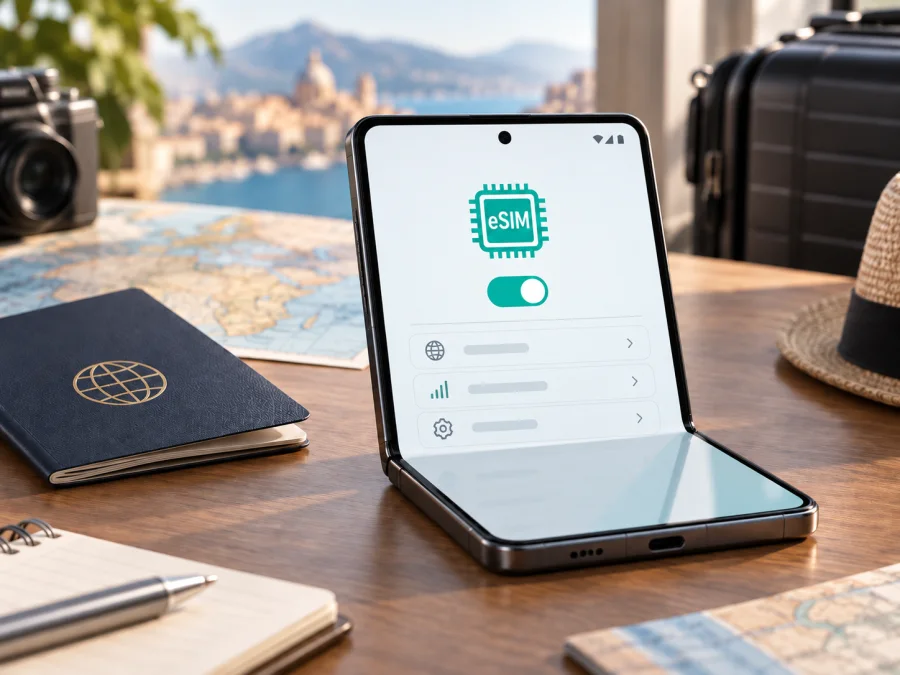
Google Pixel Fold 128GB eSIM: compatibility, setup, and travel data
If you are checking whether Google Pixel Fold 128GB can use an eSIM, the short answer is yes for the Pixel Fold hardware family documented by Google: it supports a nano-SIM together with an eSIM. There is an important qualification. eSIM availability and activation can depend on the exact regional model, carrier, software version, and SIM-lock status. Google’s official specifications describe the 2023 Pixel Fold as a dual-SIM phone with one nano-SIM and one eSIM, while Google also says that eSIM and dual-SIM features work only with some carriers.
This page preserves the exact search variant Google Pixel Fold 128GB. Google’s current hardware reference lists 12 GB of RAM and 256 GB or 512 GB of storage for the 2023 Pixel Fold, depending on market, rather than a 128 GB option. A “128GB” listing may be seller-specific or incorrect, so verify the model number, region, SIM status, and eSIM controls on the actual phone.
Quick answer: does Google Pixel Fold 128GB support eSIM?
Yes, the Google Pixel Fold family supports eSIM. Google lists the Pixel Fold as Dual SIM (Single Nano SIM and eSIM), and its network specifications include eSIM for the listed regional models. A compatible travel data plan can therefore be installed as a digital SIM profile without removing your everyday physical SIM.
For the exact Google Pixel Fold 128GB listing, treat the result as eSIM compatible after device-level verification, not as an unconditional promise about every unit sold under that name. Check the model number and whether the phone is unlocked, especially if it was imported or sold through a carrier.
Key facts
| Item | What to know |
|---|---|
| Exact search variant | Google Pixel Fold 128GB |
| Generation | Original Pixel Fold, launched in 2023 |
| eSIM | Supported by the Pixel Fold hardware family |
| Physical SIM | One nano-SIM is listed alongside eSIM |
| RAM | Google lists 12 GB LPDDR5 |
| Storage caveat | Google lists 256 GB and 512 GB in the US, UK, and Germany, and 256 GB in Japan; verify any 128GB listing |
| 5G | Bands and access depend on regional model and carrier plan |
| Two active eSIMs | Requires an eligible device and carrier support |
| Menu names | Can vary with Android version and language |
A phone can have eSIM hardware and still reject a travel profile if it is carrier-locked, lacks compatible destination bands, or is not accepted by the selected plan.
Why the region and carrier version matters
The original Pixel Fold was sold in multiple markets. Google identifies separate US and Japan network models with different 5G band combinations. It lists eSIM for those regional model groups, but also notes that eSIM features are carrier dependent and are not supported by all carriers or in all countries.
Open Settings > About phone and note the model, IMEI, and software build. Compare them with the seller’s information. If a listing combines “Google Pixel Fold 128GB” with an unclear model number or no region information, pause before paying.
An operator lock is separate from eSIM support. Google explains that a phone bought from a service provider can be SIM-locked until the provider removes the lock or the contract ends. A locked phone may show an eSIM menu and still reject a profile from another provider. Ask the original carrier or seller whether the phone is SIM-unlocked. If you cannot get a clear answer, test the phone with your intended plan before the trip.
Carrier support also affects dual-SIM behavior. Storing a second profile is not the same as two active connections. For travel, one eSIM for data is often enough; keep the everyday line available only if you understand which line handles mobile data, calls, and texts.
<a id="kesim-device-compatibility"></a>
Check Google Pixel Fold 128GB compatibility before purchase
Use this checklist on the actual handset:
- [ ] It is the Google Pixel Fold, not the Pixel 9 Pro Fold or another foldable model.
- [ ] The model number and region are known, especially if the phone was imported or refurbished.
- [ ] Google Pixel Fold 128GB is the exact listing name, but the model number—not the 128GB label—is used for technical verification.
- [ ] The phone is SIM-unlocked, or the original carrier has confirmed that another eSIM may be added.
- [ ] Settings shows Network & internet > SIMs > Add SIM or Set up an eSIM.
- [ ] The device can display an EID in its SIM or About phone information.
- [ ] Android is updated and Wi-Fi is available during installation.
- [ ] The destination and validity period are covered by the selected travel plan.
- [ ] You know whether data roaming must be enabled for the travel eSIM.
The two strongest local checks are the EID and the add-eSIM control. An EID is an identifier for the embedded SIM function. Its presence is useful evidence of eSIM hardware, but it does not guarantee that a particular carrier or travel plan will accept the phone. A missing menu can reflect a software state, carrier restriction, or a mismatch between the listing and the handset. If either check is unclear, verify the model with the seller and plan provider before purchase. You can check your device again before moving on to a plan.
Find the EID and eSIM menu
- Open Settings.
- Tap About phone and look for EID, or open SIM status information if your Android version places it there.
- Return to Settings, open Network & internet, and tap SIMs.
- Look for Add SIM, Set up an eSIM, or a similarly named option.
- Do not erase an existing profile just to make the option appear.
Menu wording can change after an Android update. If an EID is present but the setup control is missing, restart the phone, install available updates, and check again. If it remains unavailable, contact the carrier or seller rather than assuming that a QR code will work.
Choose a travel eSIM with the right expectations
An eSIM is a digital SIM profile that lets a compatible phone connect to a supported mobile network without inserting another plastic card. The travel use case is usually mobile data: maps, translation, ride-hailing, messaging, and work tools. A data eSIM normally does not replace your usual telephone number or include ordinary voice calls and SMS. Check the selected plan’s conditions.
Kaspersky eSIM Store is an app and website where you can choose, arrange, and activate an eSIM with a suitable mobile-data plan for a foreign trip. It is not a mobile operator, does not own a network, and does not supply radio coverage. Before paying, check the destination, traffic allowance, validity period, activation rules, and hotspot policy.
The right plan depends on how you travel. Estimate normal use, leave room for maps and updates, and read when validity begins. Some plans start on installation; others start when the eSIM connects in the destination.
How to install and activate an eSIM
Install the profile with stable internet access and the QR code or activation details from your purchase. Keep your physical SIM active until the travel eSIM has been added and tested unless the plan says otherwise. Use the Android installation instructions for the Pixel Fold and the iOS installation instructions for an Apple device.
1. Prepare the phone
Connect Google Pixel Fold 128GB to Wi-Fi and keep the QR code visible on another screen or printed. If the code is shown on the same phone, use manual activation details when supplied.
2. Open mobile-network settings
Open Settings, tap Network & internet, then SIMs. Choose Add SIM and Set up an eSIM. Android may ask you to choose or confirm the network provider. If the option is missing, return to the EID and carrier checks; repeated scanning will not fix a missing eSIM function.
3. Scan or enter activation details
Follow the camera prompt and scan the QR code supplied for the travel plan. Use manual entry only when the provider supplies an activation address and confirmation code. Do not invent an SM-DP+ address or reuse another phone’s QR code.
4. Name the profile
Label the new line Travel data or with the destination name. Keep your everyday SIM label unchanged. Select the travel eSIM for data only if that is the intended setup.
5. Select the data line
Open Settings > Network & internet > SIMs again. Turn on the travel eSIM and Mobile data, then choose the travel line under mobile-data preference. Only one SIM can normally be the default for data. To avoid accidental roaming charges, keep mobile data on the everyday line off while abroad or disable its roaming setting.
6. Enable roaming only for the travel line when required
Some travel eSIMs require data roaming because the profile connects through a partner network. Read the plan instructions before changing the setting and check the selected SIM name first.
7. Test the connection
Wait a few minutes for registration. Check that the travel line shows a network and that a simple webpage or map loads with Wi-Fi off. If the plan activates only in its destination, no connection at home may be expected.
Using the eSIM during a trip
Before departure, leave the travel profile installed but keep the everyday line as the default if you still need it at home. On arrival, turn on the travel eSIM and select it for mobile data. If required, enable roaming for the travel line only. Turn off automatic data switching unless you deliberately want the phone to move data between SIMs.
Keep the roles simple:
- Everyday line: calls and texts you still want to receive, subject to your carrier’s roaming terms.
- Travel eSIM: mobile data for maps, messaging, tickets, translation, and work apps.
You can temporarily turn off the everyday line to reduce background roaming, but first make sure you can receive important verification messages. Monitor the allowance and validity in the Kaspersky eSIM Store app or website. If you cross a border, confirm that the plan covers the new country or region.
Common problems and checks
The eSIM option is missing
Confirm the handset and look for the EID. Update Android, restart the phone, and revisit Network & internet > SIMs. If the EID is absent or the add-eSIM control never appears, ask the seller or original carrier about regional eSIM support.
The QR code will not scan
Increase the brightness of the screen showing the code and hold the phone steady. Confirm that the code belongs to this purchase and has not already been used. If it is on the Pixel Fold itself, open manual activation details on another screen.
The profile downloads but will not activate
Check Wi-Fi, date and time, the plan’s activation window, destination support, and SIM-unlocked status. Some plans activate only after the phone reaches the intended country.
There is no data after arrival
Open Settings > Network & internet > SIMs and check that the travel line is on and selected for mobile data. Verify roaming for the travel line and airplane mode. If a network appears but data does not, review the plan’s APN instructions and contact support.
The phone connects to the wrong line
Select the travel eSIM for mobile data and turn off automatic data switching if it is unnecessary. Calls and texts can follow separate preferences.
5G is unavailable
An eSIM can be installed while the phone uses LTE. Check the regional Pixel Fold model, selected plan, local network, and destination bands. Google notes that 5G access depends on the carrier and is not available on every network or in every area.
FAQ
Does Google Pixel Fold 128GB support eSIM?
The Pixel Fold family supports eSIM, and Google lists one eSIM alongside one nano-SIM. Because Google’s reference lists 256 GB and 512 GB storage options for the 2023 Pixel Fold rather than 128 GB, verify the exact retail unit and model number behind any Google Pixel Fold 128GB listing.
Can I keep my regular SIM and use a travel eSIM?
Yes. The Pixel Fold supports a nano-SIM plus an eSIM. Choose the travel eSIM for mobile data and review the everyday line’s roaming settings.
Does a travel eSIM include a phone number?
Usually not. This travel scenario is for mobile data. Ordinary calls, SMS, and a local number are included only when the plan says so.
Is the Google Pixel Fold 128GB suitable for every travel eSIM?
No. The phone must support eSIM, be SIM-unlocked, and have compatible local network access. Check the destination, model, and plan terms before payment.
What if the eSIM stops working?
Check the selected data line, roaming setting, signal, plan validity, and remaining traffic. If the problem remains, contact support with the exact model, country, and eSIM status. Do not erase the profile unless reinstalling is confirmed.
Final device check and trip eSIM choice
Before choosing a travel eSIM for Google Pixel Fold 128GB, verify the EID and Add SIM / Set up an eSIM control on the actual device. Confirm the model number, region, unlocked status, and the plan’s country coverage. Read the traffic allowance, validity, activation timing, roaming requirement, and data-sharing rules. Install with Wi-Fi, label the profile clearly, select it for mobile data, and test it with Wi-Fi temporarily off when the plan permits.
Kaspersky eSIM Store can help you choose, arrange, and activate an eSIM with a suitable mobile-data plan for a foreign trip through its app or website. Check the exact handset first, then choose the destination and plan that match your route and expected data use. This short compatibility check gives you a clearer setup and helps ensure that Google Pixel Fold 128GB uses the intended line for mobile internet while you travel.


