Travel connectivity guide
Google Pixel Fold 12GB RAM eSIM Guide
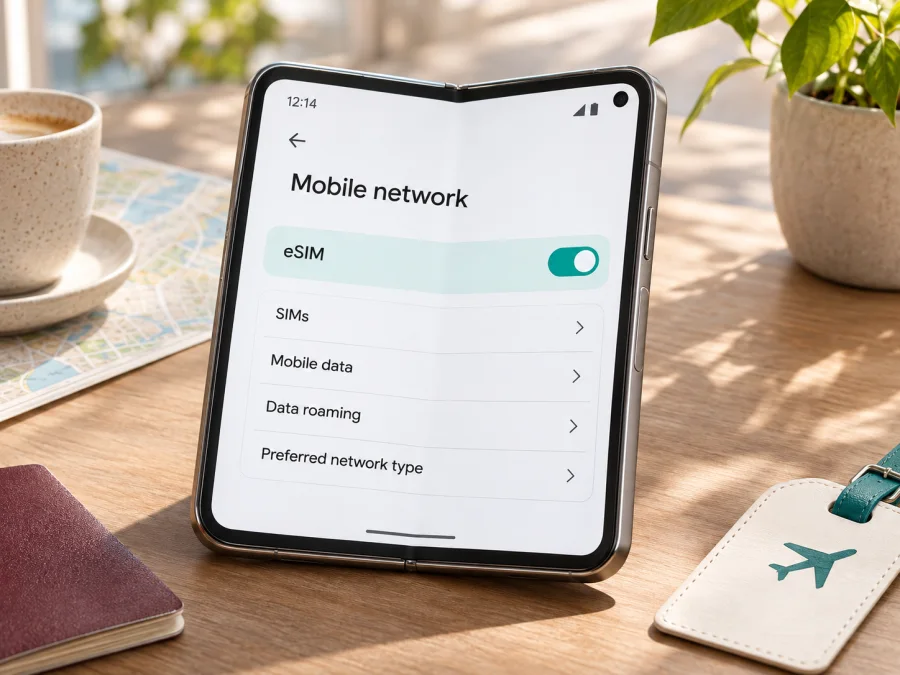
Google Pixel Fold 12GB RAM eSIM: compatibility and setup guide
Short answer: Google’s Pixel Help documentation says Pixel 4 and later phones work with eSIM, and it includes setup guidance for Pixel Fold. That means the Google Pixel Fold 12GB RAM is expected to support eSIM. The 12GB RAM description identifies a memory configuration; it does not by itself identify the sales region, carrier status, or exact software build. Before buying a travel plan, confirm that the individual phone has an EID, offers the eSIM setup menu, and is not carrier-locked. Your mobile operator or eSIM provider must also support the device and the destination plan.
The distinction matters when buying second-hand or importing: the model name and memory amount do not settle every question about a particular handset.
Does Google Pixel Fold 12GB RAM support eSIM?
Google’s support information states that all Pixel phones from Pixel 4 onward work with eSIM. Its Pixel SIM guide also has a section for inserting a physical SIM into Pixel Fold and explains that eSIM availability depends on the phone and the mobile operator. Google’s eSIM setup guide gives the Pixel settings path for adding a profile. Taken together, this is strong support for eSIM on Pixel Fold, including the 12GB RAM configuration.
There is still a difference between device capability and service availability. Google’s broad compatibility statement does not guarantee that every operator, country, corporate profile, or travel eSIM plan will activate on every handset. A phone may also be locked to its original carrier, have been repaired or modified, or have a software configuration that changes which options are visible. We cannot infer the exact market or carrier variant from “Google Pixel Fold 12GB RAM” alone. Check the actual device before you buy.
| Item | What to know |
|---|---|
| Exact device named here | Google Pixel Fold 12GB RAM |
| eSIM capability | Expected to support eSIM according to Google’s Pixel 4-and-later support guidance, which includes Pixel Fold setup information |
| Memory detail | 12GB RAM is a configuration label; it does not confirm the region or carrier variant |
| What the handset needs | A working eSIM capability and an EID visible in settings or on the box |
| What the service needs | eSIM activation support from the relevant provider, an eligible plan, and network availability where you travel |
| Before purchase | Check the specific phone, its lock status, the destination and plan conditions |
An EID (Embedded Identity Document) is the identifier associated with the phone’s eSIM hardware. Google says a phone needs an EID to use eSIM. An EID is a useful compatibility signal, but it does not confirm that a specific operator will accept the phone or that a particular plan covers your destination.
Regional versions, carrier status and what the name tells you
The name in a listing is not a complete variant code. A seller may omit the country of sale, model number, carrier, or whether the handset is unlocked. Google says eSIM depends on both phone and operator, so do not infer eligibility from the seller’s country or the presence of a physical SIM tray.
A physical SIM and eSIM can coexist on supported Pixel devices, but the available combinations and dual-SIM features can depend on the carrier. An unlocked phone is generally more flexible for travel, yet does not substitute for checking eSIM activation and plan eligibility. Ask the seller or original carrier to confirm that the handset is not restricted to another network.
There is no evidence in the name “Google Pixel Fold 12GB RAM” that identifies a special eSIM-disabled regional edition. Equally, the name alone cannot rule out a carrier restriction or an issue with an individual handset. Treat compatibility as likely at the model-family level and verify it on the phone itself.
Check compatibility before choosing a plan
Use this checklist before you pay for a plan:
- [ ] Open Settings → About phone → SIM status and look for EID. You can also check the original box if you do not have the phone in hand.
- [ ] Open Settings → Network & internet → SIMs. Look for Add SIM or Set up an eSIM. Menu wording can vary slightly by Android version and language.
- [ ] Confirm the phone can connect to Wi-Fi. A connection is normally needed to download a profile if you are installing it by QR code or through a provider app.
- [ ] Ask whether the handset is carrier-unlocked. A phone restricted to its original carrier may reject another provider’s profile even when eSIM hardware is present.
- [ ] Check the specific plan’s destination, activation method, validity start, data allowance, and any device restrictions before purchase.
- [ ] Confirm whether the eSIM is data-only. Do not assume it includes a local phone number, standard calls, or SMS unless the plan terms say so.
- [ ] Keep access to your existing number and account recovery methods while travelling; installing a data eSIM does not automatically move your number.
If an EID appears, the phone has an eSIM identifier. If both the EID and setup option appear, the phone can likely add a profile. Neither check proves carrier acceptance, so verify the plan and lock status too. If you cannot find either, update Android, restart, and ask Google support, the seller, or original carrier to confirm the handset before proceeding.
Check your device against the requirements before you select a plan. Keep the exact model name, including “12GB RAM,” available when contacting support so the check applies to the device you actually own.
Find the EID and eSIM menu on Pixel Fold
Google’s instructions place the EID in the phone’s SIM status screen. On a Pixel Fold, try these steps:
- Connect the phone to Wi-Fi and open Settings.
- Tap About phone.
- Tap SIM status. Depending on the software version, you may need to select a SIM or scroll to see the status section.
- Look for EID. Do not share the full number publicly; provide it only to a service provider that needs it for activation.
- Return to Settings → Network & internet → SIMs.
- Look for Add SIM and then Set up an eSIM. If the wording differs, use Settings search for “eSIM” or “SIM”.
You can also check the box for the EID label. A menu can be absent because of software, carrier, or setup conditions; confirm the software is current and ask the seller or carrier to check eligibility. Do not factory-reset the phone just to make a menu appear.
Install and activate an eSIM
Installation may use an app, QR code, or manual details. Follow the provider’s instructions because a QR code may be single-use. Stay on Wi-Fi and do not delete a profile unless the provider confirms it can be downloaded again.
- Prepare the phone. Install Android updates, charge the battery, and connect to Wi-Fi. Confirm it is unlocked and compatible with the plan.
- Read the activation details. Check when to install, when validity begins, and whether data roaming is required. Keep the QR code or manual details accessible.
- Start setup. Open Settings → Network & internet → SIMs → Add SIM → Set up an eSIM. If the provider app supports direct installation, follow its prompts instead; menu wording can vary.
- Download the profile. Follow the prompts and scan the provider’s QR code or enter its supplied activation details. Use the code only for the intended plan and device.
- Label the line. Keep Wi-Fi on until download completes. Use a clear name such as “Travel data” to distinguish it from your regular SIM.
- Choose when it is used. Set the travel eSIM as the mobile-data SIM when the plan should begin. Check its activation rule before enabling it.
- Enable it at the destination. In Settings → Network & internet → SIMs, select the eSIM and turn on Use SIM. Enable Data roaming for that profile only if instructed.
- Test it. Turn Wi-Fi off briefly and load a page. If it fails, check the settings below before changing network details.
For the provider’s platform-specific walkthroughs, see the Android installation instructions and the iOS installation instructions. The Pixel Fold runs Android, so start with the Android guide; the iOS page applies to an iPhone, not this device.
Keep your regular line available
Pixel phones can support dual-SIM use, but the exact combination depends on the device and carrier. If you keep a home SIM active, review which SIM handles data, calls, and messages. Selecting the travel eSIM for data does not disable your home line or prevent roaming charges on it. Review your home plan and turn off data roaming for that line if appropriate.
To avoid unexpected charges, set the travel eSIM as the data SIM when its plan is active. Your regular line may remain enabled for calls or account verification, but charges can still apply; check with your home operator.
Use the eSIM for mobile data while travelling
A travel eSIM can provide data for maps, messages, ride bookings, and other online tasks without replacing a physical SIM. Compare the plan’s listed destinations with your itinerary: a country plan may exclude nearby territories, and regional plans have their own country lists.
Choose an allowance and validity period that match your expected use. Navigation, video calls, backups, and streaming can use data quickly; offline maps and downloads over Wi-Fi help conserve it. Check when validity begins, which may be installation, first network connection, or another event.
A few travel situations: For a short city break, install over Wi-Fi before leaving and switch mobile data to the travel profile when its validity begins. For a multi-country itinerary, confirm each stop is included. If you need your home number for account verification, ask your home operator about keeping that line active and avoid using its roaming data unintentionally.
Kaspersky eSIM Store is an app and website where you can choose, arrange, and activate an eSIM with a mobile-data plan for an international trip. To browse current destinations and plans, open the Kaspersky eSIM Store. Confirm the destination and current plan details shown there before making a choice; this general store page is a starting point for browsing, not a claim about a particular country tariff.
When ready, select the travel profile for mobile data and enable data roaming for that profile if instructed. Keep roaming off for other lines if you want to avoid using their data. At a border, check that the new country is included and allow the profile time to register.
Common problems and checks
“Set up an eSIM” is missing
Check Settings → About phone → SIM status for an EID, search Settings for “eSIM,” and update and restart the phone. If the identifier or menu is absent, ask the seller or original carrier to verify eSIM support for that handset.
The QR code will not scan
Increase the brightness on the screen displaying the code, clean the camera lens, and hold steady. Show the code on another device or use the provider’s manual option. Check that the code is for the right plan and unused; ask the provider before requesting a replacement or deleting a profile.
The profile downloads but does not connect
Make sure Use SIM is on and the eSIM is selected for data. Check that the plan is active and the country is included. Follow its roaming instructions, toggle airplane mode, and restart. Use automatic network selection unless the provider says otherwise.
Mobile data works on the wrong SIM
Go to Settings → Network & internet → SIMs and confirm mobile data is assigned to the travel eSIM. Disable data roaming on your regular line if you do not intend to use it abroad.
The provider says the handset is not eligible
Check for a carrier lock and verify the IMEI or EID requested. The 12GB RAM label does not identify carrier status. Ask the original carrier about unlocking or use a compatible unlocked phone; clarify eligibility before buying another plan.
The eSIM was deleted or cannot be transferred
An eSIM profile may not transfer by copying it to another phone. Contact the provider before deleting a working profile; ask whether the QR code can be reused or activation reset. Keep order details private.
Data still does not work
Check remaining data and validity, country eligibility, profile status, and signal. Toggle airplane mode, restart, and test with Wi-Fi off. Enter an APN only if the provider gives you one. For persistent problems, contact the eSIM provider about the plan or Google/the seller about the device.
FAQ
Is eSIM supported on Google Pixel Fold 12GB RAM?
Google’s support information says all Pixel 4 and later phones work with eSIM and provides Pixel Fold setup guidance. The named configuration is therefore expected to support eSIM. Confirm the EID, eSIM menu, carrier-unlock status, and plan eligibility on your own handset before purchase.
Does 12GB RAM identify the eSIM region or version?
No. The RAM amount describes a memory configuration, not the country of sale or carrier lock. Ask for the exact model and sales history if the region or carrier status matters.
Can I use an eSIM and physical SIM at the same time?
Pixel devices support dual-SIM functions in supported configurations, but the exact arrangement depends on the phone and carrier. Check Settings → Network & internet → SIMs and confirm with the provider which SIM combination it supports.
Will a travel eSIM provide a phone number and text messages?
Do not assume so. Travel eSIM plans are often for mobile data; voice calls, standard SMS, and a phone number are included only if the individual plan expressly says so. Internet messaging and voice apps can work over data, subject to their own requirements.
Should I install the eSIM before I leave?
Often it is practical to install while you have reliable Wi-Fi, but activation timing varies by provider and plan. Read when validity starts and whether the profile should remain off until arrival. Save the instructions somewhere accessible in case you need them offline.
What should I do if my Pixel Fold has no EID?
Check the SIM status page and the phone’s original box, then confirm the software is up to date. If no EID or setup option appears, ask the seller or carrier to verify the exact device. Do not rely on the product title alone to prove eSIM readiness.
Check your phone, then choose a travel eSIM
The Google Pixel Fold 12GB RAM is expected to support eSIM under Google’s Pixel compatibility guidance, but the actual handset still needs a visible EID, an available eSIM setup option, and no blocking carrier restriction. Confirm the plan accepts your device, covers every destination on your route, and has a validity period and data allowance that fit your trip. Follow its instructions for activation and roaming settings.
Once those checks are complete, browse the Kaspersky eSIM Store website or app to choose and activate an eSIM with a mobile-data plan for your trip. Check the listed terms before you proceed, install the profile over Wi-Fi, and select it for mobile data when it is ready to use.


