Travel connectivity guide
Goroka eSIM: Mobile Internet in Papua New Guinea
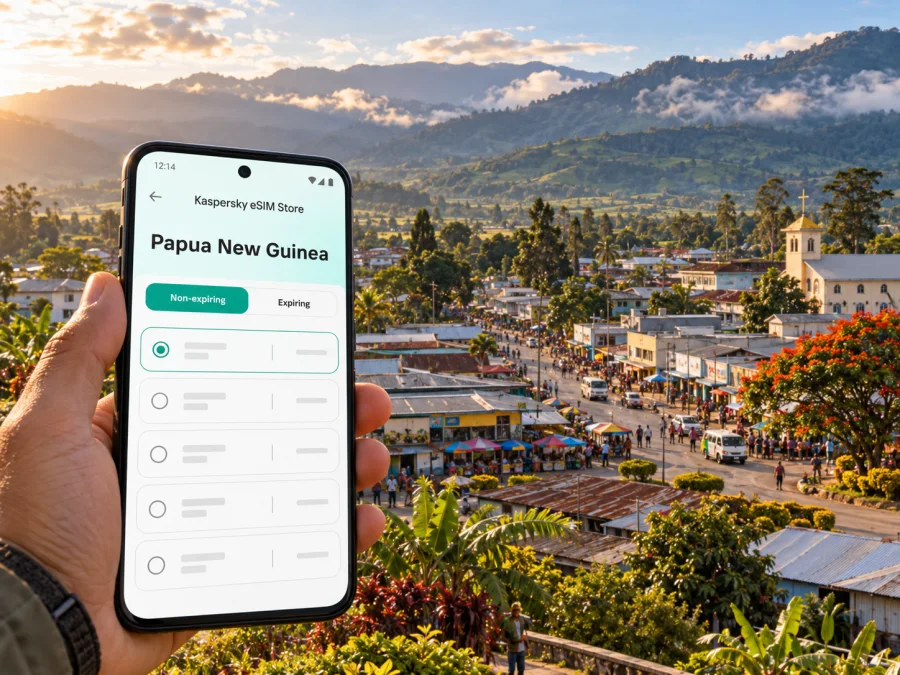
Goroka eSIM: mobile connection and internet for your trip
Goroka sits among the green highlands of Papua New Guinea, and a visit often involves more than moving between hotel and town centre. You may need to coordinate an airport pickup, find your accommodation, message a local contact, check a road journey or share a change of plan. An eSIM can make mobile data easier to prepare without swapping the physical SIM in your phone. It is useful as a travel data option, provided the selected plan covers Papua New Guinea and your device can use eSIM.
Goroka is the provincial capital of Eastern Highlands Province. Air Niugini lists Goroka Airport as an access point for the town, while the Highlands Highway connects the town with other settlements in the highlands. These are practical details for planning, but flight schedules, road conditions and mobile service availability can change. Check them close to departure and keep key addresses, booking details and route information available offline.
This guide focuses on the moments when mobile internet matters in Goroka: arriving at the airport, getting around town, attending an event or market, working during a short visit, and making onward journeys. It also explains what an eSIM can and cannot do, how to check a plan before payment, and how to prepare a backup if service is unavailable.
When mobile data is useful in Goroka
A connection is most helpful when it supports a specific task. In a town where an itinerary may depend on a driver, a host or a meeting time, the ability to send a message or load a saved map can reduce unnecessary uncertainty. It does not remove the need to confirm transport and opening times directly.
| Travel moment | What mobile data can help with | A practical backup |
|---|---|---|
| Before landing | Sending your arrival time and confirming a pickup | Save the driver’s number and meeting point offline |
| Leaving Goroka Airport | Opening a map or contacting your accommodation | Download the route and address before boarding |
| Around the town centre | Looking up a saved location or messaging a contact | Keep the destination name written down for your driver |
| At Goroka Main Market | Coordinating a meeting point or checking later plans | Agree on a clear landmark and time in advance |
| During a work visit | Joining essential online tasks or sharing documents | Download files and meeting materials before travel |
| On a road journey | Updating someone about your progress where service is available | Carry offline directions and avoid relying on continuous data |
Goroka’s compact town setting can make a phone useful for coordinating short trips, but a map pin is not a substitute for local directions. Place names may be spelled differently across booking messages, map apps and local usage. Before you leave, ask your host or driver to confirm the destination in a form they recognize. Save both the written name and any coordinates they provide; do not assume that a navigation app will identify every guesthouse, rural stop or community road accurately.
Air Niugini describes the town as a gateway to the Eastern Highlands and names the Goroka Show among its cultural events. If your dates coincide with the Show or another busy local occasion, arrange accommodation and transport in advance. Mobile data can help you coordinate changes, but it cannot resolve limited room availability, traffic or last-minute schedule changes. Keep confirmations in an email or document that is available offline.
At the airport and during your first hour
The easiest time to prepare an eSIM is usually before travel, while you still have reliable Wi-Fi and time to read the plan terms. If you install it in advance, check when its validity begins: some plans start when purchased, others when installed, and others when the eSIM first connects to a supported network. Follow the wording shown for the exact plan you select.
Before flying, send your arrival details to the person meeting you and save their phone number. Store the accommodation address, a second contact method and any transfer instructions on your device. If your flight is delayed, messaging apps may be useful when you have data or airport Wi-Fi, but neither should be your only way to contact the person waiting for you. Agree on what to do if you cannot get online.
When you land, make sure the correct line is selected for mobile data. If the eSIM does not connect at once, first check the plan’s destination, activation instructions and device settings. Avoid repeatedly deleting or reinstalling an eSIM profile unless its instructions say that this is safe: some profiles cannot be installed again after removal. Keep your primary SIM available if you need its number for calls or messages, and check its roaming terms separately to prevent unexpected charges.
Choosing a plan for a Goroka itinerary
A city name is not always the geographic unit used by a mobile data plan. A plan shown for a country may cover only the listed country and supported partner networks; it does not necessarily promise service at every address, on every road or inside every building. For Goroka, start by checking the destination field for Papua New Guinea and then read the plan details for network access, validity, data allowance, activation and any usage limits.
Kaspersky eSIM Store is an app and website where you can choose, purchase and activate an eSIM with a suitable plan for mobile internet during an international trip. The available plan options and terms can change. Review the live details for your travel dates, and use the destination page only as a starting point for checking what is currently available: view eSIM plan options for Papua New Guinea.
Choose based on your own itinerary rather than a generic “daily data” estimate. A traveler who mainly sends messages and checks a map uses data differently from someone who uploads video, joins long calls or streams media. If the plan lists a data cap, compare it with the activities you expect and identify which tasks can be done on Wi-Fi. It is safer to select a plan with clear terms than to assume that a high-speed connection or unlimited use is included.
Coverage: what to expect and what to check
There is no reliable basis for promising uninterrupted mobile data throughout Goroka or the Eastern Highlands. Digicel PNG’s published consumer guide names Goroka among its main and mid-sized centres, but that statement applies to Digicel’s own network and does not prove that a particular travel eSIM uses that network. NICTA’s 2024 performance report also records that population coverage in Eastern Highlands is not universal. These sources describe different measures; neither provides a guarantee for a hotel room, a road segment or the provider selected by a particular eSIM plan.
This distinction matters because an eSIM’s destination label alone does not identify the network it will use at each location. A phone can show a network name and still have weak data indoors, and a connection that works in town may become unreliable on a journey beyond it. Before purchase, review any network information provided with the plan. If the exact local partner or Goroka-specific support is not stated, treat that as unknown and plan with offline maps, saved messages and a local contact.
For a road journey, especially along the Highlands Highway, do not rely on live navigation or continuous messaging as your only safety or logistics plan. Routes, roadworks and travel conditions can change. Confirm the latest advice with your accommodation, driver or travel organizer, tell someone your intended route, and download the relevant map area in advance. If you have a fixed appointment, allow for delays and make a check-in plan that still works without mobile data.
Getting around town and planning day trips
Air Niugini’s destination information says taxis and local PMVs are used for transport within Goroka. Verify the vehicle, route and fare arrangements locally before setting out; service availability and operating details can change. For a first trip from the airport or to a meeting, arranging transport with your accommodation or host can be simpler than trying to solve every detail after landing. Save the driver’s number and intended destination before you start.
A phone is most valuable as a coordination tool: confirm a pickup, share a location, check a message or tell someone that a plan has changed. It is less dependable as a live guide to every local route. If you are visiting the market, a coffee-related stop or a nearby community, ask your host whether a guide or pre-arranged vehicle is appropriate. Take note of a recognizable meeting point, because a moving map dot may not be enough in a busy or unfamiliar place.
For excursions beyond Goroka, keep the mobile plan aligned with the whole route, not just the town where you will sleep. Eastern Highlands scenery and settlements are part of the appeal, but service conditions can vary with terrain and distance from built-up areas. Ask the person organizing your trip which roads are planned, how long the journey may take, and what to do if the group is separated or delayed. Download directions and share an offline itinerary with someone who is not travelling with you.
Install and activate your eSIM
You can usually complete the installation before departure or after arrival, depending on the instructions for the selected plan. For pre-trip setup, use stable Wi-Fi, keep the QR code or activation details accessible on another screen, and do not remove the profile after installation unless support or the plan instructions tell you to. The phone may need an internet connection during installation, so avoid waiting until you are already away from Wi-Fi if you have no backup connection.
- Check that your phone supports eSIM and is not carrier-locked.
- Open the purchase or profile instructions and confirm the plan destination and validity trigger.
- In your phone’s mobile-network settings, choose the option to add an eSIM.
- Scan the QR code or enter the details provided for that plan.
- Label the new line clearly, for example “Travel data,” so you can distinguish it from your main SIM.
- Set the travel eSIM as the mobile-data line when you are ready to use it. Keep your regular number enabled only if you need it and understand its roaming charges.
- Follow the plan instructions for data roaming. Some eSIMs require data roaming to be enabled on that eSIM line; do not turn it on for your primary line unless you intend to use its roaming service.
- Allow time for the profile to register. If it does not connect, check the selected data line, destination, activation status and network settings before making further changes.
For device-specific steps, use the Android eSIM installation guide or the iPhone and iOS eSIM installation guide. Menu names vary between phone models and operating-system versions, so follow the instructions shown on your device. If the plan has a stated activation window, install it at a time that will not start validity earlier than you intend.
Check compatibility before you buy
Not every phone supports eSIM, and regional variants of the same device can differ. A phone can also be locked to a carrier even if its hardware supports eSIM. Check the model’s settings or manufacturer information, and confirm that the device is unlocked before purchasing. Check whether your device supports eSIM.
If you plan to use two SIMs at once, check how your device handles calls, messages and mobile data across its lines. The travel eSIM is generally intended for data unless the selected plan explicitly states otherwise; it should not be assumed to include a local number, ordinary voice calls or SMS. You can continue to use your existing number for calls if your home operator permits it, but the applicable roaming charges remain subject to that operator’s terms.
If the eSIM does not connect
Work through the basics calmly before reinstalling anything. A failed connection can be caused by plan timing, settings, device restrictions or local signal conditions. Keep Wi-Fi available for troubleshooting if possible.
- Confirm the destination and validity. Check that the purchased plan covers Papua New Guinea and that its activation period has begun.
- Select the travel line for data. A phone may continue using your primary SIM even after the eSIM is installed.
- Review roaming settings. Enable data roaming for the eSIM only when the plan instructions require it.
- Check the signal and location. Move to an open area or wait until you are back in a populated part of town; coverage can vary indoors and outside town.
- Restart the phone once. This can prompt the device to register again, but do not delete the eSIM profile as a first step.
- Use Wi-Fi and contact support. Keep the order details and any error message available so the support team can identify the plan.
If settings look correct but there is still no service, do not assume that repeated network switching will help. Follow the troubleshooting advice supplied with your plan, and ask support before resetting or removing the eSIM. Keep another way to communicate with your host or travel organizer, especially before a road transfer.
Goroka eSIM: quick answers
Will an eSIM work everywhere in Goroka?
No provider can guarantee reception at every building or along every route. A travel eSIM relies on the network arrangements described for its plan, and local conditions can vary. Check plan details, save important information offline and ask your host about connectivity at your accommodation and planned stops.
Does a Papua New Guinea plan guarantee service on the Highlands Highway?
No. A country destination indicates the plan’s intended market, not uninterrupted coverage along every road. Confirm the route with a local organizer and download offline directions before leaving Goroka.
Can I use the eSIM for calls and texts?
Only if the selected plan explicitly includes those services. Travel eSIMs in this context are for mobile data, so assume calls and SMS are not included unless the plan says otherwise. Internet-based messaging apps can work over data where service is available.
Should I install the eSIM before travelling?
That can be convenient if the plan instructions allow advance installation and you understand when validity starts. Install it over reliable Wi-Fi, keep its QR code or activation information safe, and set it as the data line when you are ready to use it.
Is Goroka a useful stop on a wider Papua New Guinea trip?
It can be a practical base for an Eastern Highlands itinerary, and Air Niugini identifies both the airport and local transport options in its Goroka travel information. Confirm current flights, road conditions, accommodation and local arrangements directly before departure. If your route continues beyond the town, prepare for places where mobile data may be limited.
What if my phone has a physical SIM already?
Many compatible phones can keep a physical SIM and add an eSIM, but the exact combination depends on the device. Check whether both lines can remain active and choose which one should use mobile data. Review your home operator’s roaming terms before keeping that line active abroad.
Prepare for the trip
A reliable setup is a combination of a suitable plan, a compatible phone and offline preparation. Before leaving for Goroka, confirm your flight and pickup, save your accommodation and local contacts, download the maps and documents you may need, and check the selected plan’s destination, validity and data allowance. Keep a second way to reach your host if the mobile connection is weak or unavailable.
Use Kaspersky eSIM Store to review current options, select a plan whose stated terms fit your Papua New Guinea itinerary, and follow the installation guidance for your device. Then choose an eSIM plan for your trip to Papua New Guinea and save the activation details before you travel.


