Travel connectivity guide
Guatemala City eSIM for Mobile Internet and Travel
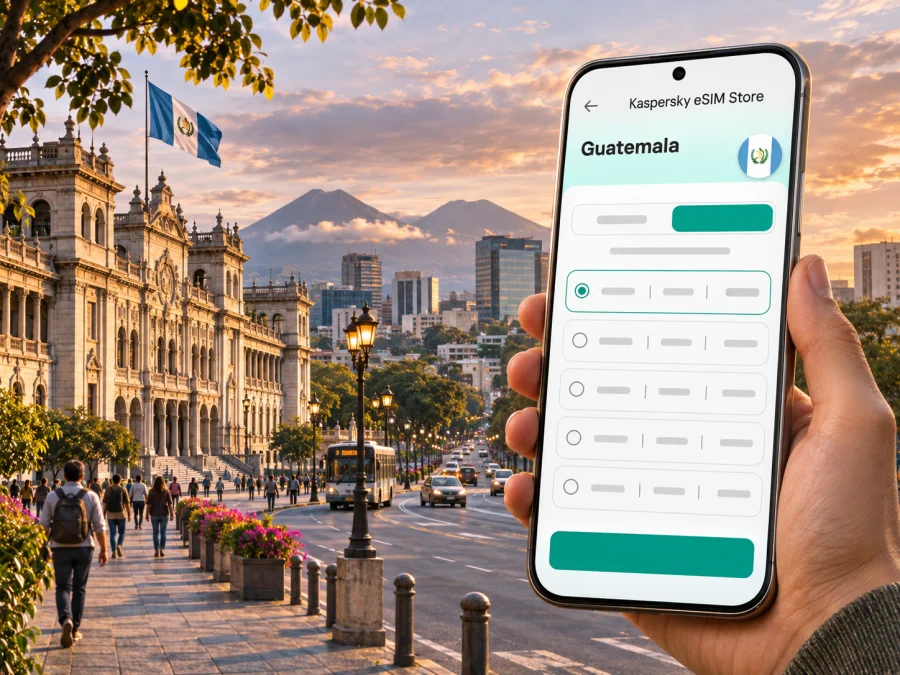
Guatemala City eSIM: mobile connection and internet for your trip
Guatemala City is often the first stop in a visit to Guatemala: La Aurora International Airport is in the capital, and onward plans may take you through the city’s numbered zones, to a hotel or meeting, or out toward another destination. A working mobile connection helps with maps, messages, ride coordination, check-in details and changes to your itinerary. An eSIM can provide mobile data without replacing a physical SIM card, if your device and chosen plan support it.
This guide focuses on using mobile internet in Guatemala City: what to prepare before landing, how to think about the airport-to-hotel journey, which city situations use data, and how to check an eSIM before buying. A travel eSIM is a data option, not automatically a local phone number. Voice calls and SMS are included only when the individual plan says so; messaging and internet calls can use data instead.
The first connection: from La Aurora to your first address
La Aurora International Airport (GUA) sits in Zone 13, south of the central area. Guatemala’s civil aviation authority describes it as about 9 kilometres from the centre of the capital. That is a useful orientation point, not a promise about journey time: road distance, congestion, weather, pickup arrangements and the part of the metropolitan area you are heading to all affect the trip.
Before you leave the terminal, you may need to confirm a pickup point, open a map, contact your accommodation or check a booking message. If your eSIM is already installed and its plan is eligible for use in Guatemala, you can select it for mobile data after arrival. If you prefer to wait, save the hotel address and directions offline and keep airport Wi-Fi available as a temporary fallback. Do not assume airport Wi-Fi or cellular service will be uninterrupted; make the first few steps usable without either.
A practical arrival checklist:
- Save the full hotel or meeting address, including its zone and any building or entrance details.
- Confirm the pickup location and the name or contact details for the person meeting you.
- Download an offline map of the area around the airport and your first destination.
- Keep your booking confirmation and essential travel documents available offline.
- Check that the eSIM profile is installed, but leave its data line switched off until you want to use it.
- After landing, select the intended data line and check whether the plan requires data roaming to be enabled for that eSIM.
The airport and the destination may both be in Guatemala City, but “the centre” is not a single pickup point. Zone numbers help distinguish locations in addresses. Ask your host or driver to confirm the exact entrance or meeting place rather than relying on a broad label such as “downtown.” Keep the route visible until you have matched the address on your screen with the place you are approaching.
Why mobile data is useful in Guatemala City
The capital is spread across numbered zones and connected by major roads. The same day can involve a hotel in one zone, an appointment in another, and a transfer back to the airport or onward travel. A phone with data can make these transitions easier to manage, especially when an address is written in a format that includes a zone, avenue, street and building number.
Mobile data is useful for more than turn-by-turn navigation. You may use it to:
- check a route before leaving a hotel and compare it with the driver’s proposed destination;
- share your arrival time with a host, colleague or family member;
- retrieve a reservation message, digital ticket or meeting invitation;
- translate a short message or confirm a local name and spelling;
- send a location pin when a street entrance is difficult to describe;
- check whether a planned stop is still suitable before crossing the city;
- use an internet calling or messaging app when the other person can receive messages that way.
These are practical uses, not guarantees of signal at every address. Buildings, terrain, congestion, the plan’s network and device settings can affect service. Save key information in advance and keep a backup way to communicate.
Think in zones, not only in landmark names
Addresses in Guatemala City commonly include a zone number. The city’s official planning materials map zones separately, and the official tourism plan groups several zones into visitor districts. For a traveller, the useful point is simple: include the zone in a saved address and verify it before setting off. Two places may have similar names, and a familiar landmark does not by itself establish which entrance or side of a large area is intended.
A few zones that may appear in itineraries include:
| Zone or area | What to prepare for a data-dependent visit |
|---|---|
| Zone 1 | Save the exact historic-centre destination and the nearest entrance or meeting point. Keep the map open when moving between several stops. |
| Zone 4 | Confirm the venue name and street address before setting out; send a pin to anyone meeting you. |
| Zones 9 and 10 | For an appointment, hotel or restaurant, keep the building name and zone together in your notes. Check the route before returning in the evening. |
| Zone 13 | This is where La Aurora Airport is located. Have onward directions ready before leaving the terminal. |
| Other zones or the wider metropolitan area | Do not infer that a destination is close because it shares a city name. Compare the full address and route, and allow for changing road conditions. |
This is an orientation aid, not a neighbourhood ranking or safety assessment. Store complete addresses, not just hotel or district names.
Getting around: build a route that can survive a signal gap
Guatemala City has municipal public transport, including the Transmetro system. The municipal route map labels lines such as 1, 2, 6, 7, 12, 13 and 18 and shows their stops and interchange points. Routes, operating details and station access can change, so check current municipal information on the day you travel. Use the map as a planning aid, and confirm that a station is practical for your actual origin and destination.
For a journey by car or pre-arranged pickup, mobile internet can help with address confirmation and keeping a route visible. For a journey involving public transport, it can help you check a route and identify a stop or interchange, but do not rely on a live data connection as your only source of directions. Save key route details or a screenshot when you have stable access.
A simple planning sequence:
- Enter the full origin and destination, including the zone.
- Compare the suggested route with the instructions from your accommodation or local contact.
- Identify a clear pickup point, station or landmark that both parties recognize.
- Save the address and a map view for offline reference.
- Recheck the route before departure, because travel time can change with conditions.
- Share your expected arrival time if someone is waiting for you.
Compare route options, required transfers and the final walk. If plans change, send a new map pin rather than describing a complex route by text.
Choosing a data plan for a city stay
Data needs depend on trip length and use. Estimate your map, messaging, work and upload needs, then compare the plan’s data amount, validity, activation conditions and destination coverage.
| Your travel pattern | What to consider when comparing plan terms |
|---|---|
| Airport transfer and one overnight stay | Whether a small allowance covers maps, messaging and arrival coordination, and when the validity period begins. |
| Several days in the capital | Your expected map use, messages, browsing and any tethering needs; check the allowed data amount and expiry. |
| Work meetings across different zones | Whether the plan’s stated allowance fits video calls or cloud files. Use Wi-Fi for large downloads when suitable. |
| Guatemala City plus travel elsewhere in the country | Confirm that the selected destination terms cover the full route, not just your first stop. |
| A multi-country itinerary | Check whether a regional plan includes every country you will visit and compare its terms with a country-specific option. |
A plan page can show data volume, price and validity, but those details can change. Read the current offer and its conditions at the time of purchase. In particular, check when the validity starts: installation, first connection, or another stated event. If you install an eSIM before flying, leave it inactive until you understand how activation and validity work for that plan.
To review current options for Guatemala, browse the Guatemala eSIM plans. This is the country-level destination page, not a Guatemala City-specific tariff. Confirm the destination, data allowance, validity, activation rules and any network conditions shown for the option you choose.
Check the device and regional model before purchase
An eSIM is a digital SIM profile stored by a compatible device. Support can depend on the exact model, the country or region where that model was sold, the operating system and whether the phone is carrier-locked. A product family name alone may not be enough to confirm support. If your phone was purchased in a different market, check the model number and the manufacturer’s specifications for that exact variant.
Before selecting a plan, check whether your device supports eSIM. Confirm that the device is unlocked for use with another service where applicable, and that you can add a new mobile plan in its settings. If the eSIM option is missing, contact the device manufacturer or the seller that supplied the phone before purchase.
Compatibility checklist:
- Verify the exact device model and regional variant, not only the marketing name.
- Confirm eSIM support in the manufacturer’s documentation for that variant.
- Check that the phone is not restricted to a particular carrier.
- Update the operating system if the manufacturer recommends it for eSIM setup.
- Make sure you will have Wi-Fi or another internet connection when installing the profile, if required.
- Confirm that the device can keep your home line and travel data line configured as you intend.
The eSIM may provide mobile data without giving you a local number. Keep your usual number active if you need calls or verification messages, and review your home operator’s roaming terms so the original line does not create unexpected charges. You can usually select which line handles mobile data in the device settings; the labels and exact steps vary by phone and software version.
Prepare before you fly
Set up while you have reliable internet and purchase details. Installation and activation may be separate events, so follow the plan instructions. Do not delete a profile to troubleshoot unless support advises it; some profiles cannot be reinstalled.
Use this preparation sequence:
- Check the device. Verify eSIM compatibility and carrier-unlock status for your precise regional model.
- Choose the destination. Make sure Guatemala is included in the plan terms. If you will travel beyond the capital, check the route as well.
- Compare the conditions. Review data amount, validity, activation trigger, hotspot rules if relevant, and any stated limitations.
- Keep the installation details. Save the QR code or in-app installation instructions somewhere accessible. A code displayed on the same phone may need another installation method, depending on device and provider instructions.
- Install using a stable connection. Follow the instructions for your operating system and keep the confirmation details.
- Label the line clearly. For example, use “Guatemala travel data” so you can distinguish it from your home SIM.
- Set the data line when ready. Choose the travel profile for mobile data at the time required by the plan, and check whether data roaming must be enabled for that profile.
- Test without changing everything. Confirm that the profile appears in settings and that your home line remains configured as intended.
For device-specific steps, use the Android eSIM installation instructions or the iOS eSIM installation instructions. The menu names can differ by manufacturer and software version. If activation takes a few minutes, wait for the status to update before repeating the installation process.
Keep useful access while managing data
Maps, photo backups, video and app updates can use data quickly. Download offline maps and important documents over Wi-Fi, pause automatic backups and updates on the travel line, and check your phone’s data usage during the trip. For remote work, download files in advance and confirm that the selected plan allows any tethering you need.
Common city scenarios
A short airport connection
Check whether you need to leave the airport, confirm your connection time and save terminal or meeting details. A data eSIM may help with messages and itinerary changes if the plan covers Guatemala, but review validity and activation rules first.
A business day across several zones
Save each meeting address with its zone and contact name. Confirm the next destination before leaving and share an estimated arrival time. Download documents in advance if a meeting depends on them, and keep the calendar available offline.
A stay that continues beyond the capital
Before leaving Guatemala City, confirm that the plan covers each destination and remains valid through the rest of your dates. Save departure details and your next accommodation address. Do not infer coverage outside the capital from a city connection; performance depends on the plan and local network conditions.
Keeping a home number
If your model supports dual SIM, you may keep your home line while using the travel eSIM for data. Review your home operator’s roaming terms, select the intended data line, and check which line an app will use for calls or verification messages.
If the eSIM does not connect
Start with simple checks. Confirm that the profile is present and turned on, that the correct line is selected for mobile data, and that the plan is valid for Guatemala at the current date. If the plan instructions require data roaming for the eSIM, enable that setting for the travel profile only. The menu differs by phone, so avoid changing unrelated settings.
Then try this sequence:
- Move to a place where you can safely pause and check the screen.
- Confirm the phone has mobile signal and airplane mode is off.
- Check that the travel eSIM is enabled and selected for data.
- Review the plan’s activation and roaming instructions.
- Wait a few minutes for network registration to complete.
- Restart the phone only if the provider’s troubleshooting guidance recommends it.
- Contact the service support channel shown with your purchase if the issue continues.
Do not delete the eSIM profile as a first step. Ask support whether it can be reinstalled before removing it. While troubleshooting, use Wi-Fi if available and keep your saved addresses accessible offline.
Guatemala City eSIM: quick answers
Does a travel eSIM work only in Guatemala City?
No. A country plan follows its stated destination and coverage terms, not the city name in your itinerary. Confirm that Guatemala is included and suitable for your full route.
Will an eSIM give me a Guatemalan phone number?
Not necessarily. Many travel eSIMs are for data only; check whether voice, SMS or a local number is listed for the specific plan. Messaging and calling apps can use data.
Can I install it after arrival?
That may be possible if you have internet access and follow the plan’s instructions. Check when validity begins so installation does not start the plan earlier than intended.
Is every phone compatible?
No. Support depends on the exact model, regional variant and carrier status. Check the device before purchase.
A calmer connection plan for the city
Prepare for the first hour before you travel: save the airport pickup point, full accommodation address, zone number and offline directions. Choose a plan by matching its current data and validity terms to what you will actually do, then verify that your particular phone variant can install an eSIM. These steps make arrival, navigation and day-to-day coordination easier to manage without assuming that any network will work identically at every location.
When you are ready, browse current eSIM options for Guatemala in Kaspersky eSIM Store, the app and website for choosing, purchasing and activating an eSIM with a suitable mobile data plan for an international trip. Check the plan details before checkout, install it using the relevant Android instructions or iOS instructions, and activate it according to its stated conditions.


