Travel connectivity guide
HAMMER Blade 3 eSIM Compatibility & Setup
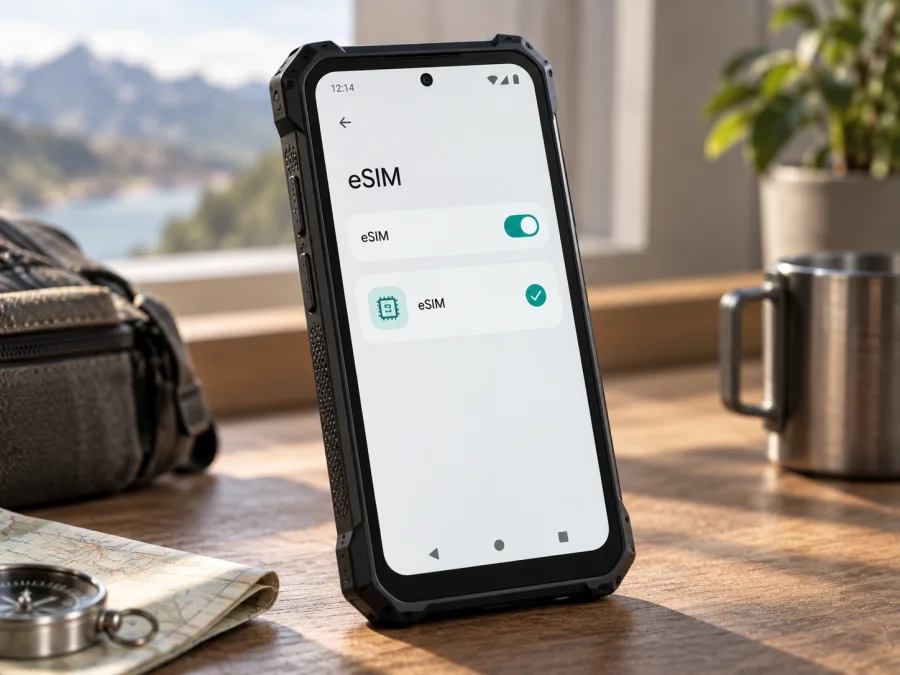
HAMMER Blade 3 eSIM: compatibility, setup and travel guide
The HAMMER Blade 3 supports eSIM according to the manufacturer’s user manual. Its SIM arrangement is hybrid: the manual lists eSIM plus a nano-SIM, or two nano-SIM cards. That is a useful confirmation for this specific rugged phone, but it cannot guarantee that every regional or carrier-supplied unit has eSIM enabled. Check your handset’s EID and SIM settings before buying a plan.
This guide covers the HAMMER Blade 3 only. The manual specifies Android 10, 4 GB RAM and 64 GB storage. Do not infer features from a similar-looking HAMMER model: in particular, the Blade 3 is a 4G model, not a 5G version. Regional hardware, software, carrier locks and available SIM combinations can affect what you see in Settings.
HAMMER Blade 3 specifications relevant to eSIM
| Item | HAMMER Blade 3 |
|---|---|
| Device type | Rugged Android smartphone |
| Operating system in the manual | Android 10 |
| Memory | 4 GB RAM, 64 GB internal storage |
| SIM configuration | eSIM + nano-SIM, or 2 × nano-SIM (hybrid) |
| eSIM support | Listed in the official HAMMER BLADE 3 manual; confirm on your unit |
| Cellular generation | 4G; do not assume 5G support |
| Possible variation | Market, firmware, carrier restrictions and SIM arrangement |
Does HAMMER Blade 3 support eSIM?
Yes. The official HAMMER BLADE 3 manual lists the eSIM + nano-SIM configuration. It also describes two nano-SIM cards as the alternative in a hybrid setup. This verifies eSIM support for the model documented by the manufacturer.
The practical answer for an individual phone still depends on its exact version and software. An operator may sell a customized or locked unit; a regional build may expose different menus; a used phone may have an outdated system version. Check the phone itself and ask the seller or carrier to confirm eSIM provisioning if anything is unclear. Information about another Blade device or a retailer listing alone is not enough to establish what your specific handset can do.
An EID identifies embedded SIM hardware. Finding an EID or an Add eSIM / Download a SIM option is a strong sign that eSIM is available, but the phone must also be unlocked and the plan must support the device and destination.
Check compatibility before you buy
<a id="kesim-device-compatibility"></a>
Run these checks on the HAMMER Blade 3 you intend to travel with. If you are buying a second-hand or operator-supplied phone, ask to see the settings before purchase.
- Confirm the model under Settings → About phone. Make sure it is HAMMER Blade 3, not another Blade model.
- Open Settings → Network & internet, SIM cards, or Mobile network. Names vary by firmware and language.
- Look for Add eSIM, Download a SIM, Add mobile plan, or a similar option.
- Look for an EID under About phone → Status / SIM status or device information. The exact location may differ.
- Ask whether the phone is carrier-locked. A lock may prevent installing another provider’s profile.
- Check that the plan supports Android and lists every country on your route.
- Have Wi-Fi available during installation, unless the provider gives another supported method.
Check your device against this list before selecting a plan. If both the EID and add-eSIM option are missing, do not assume an app can enable the feature. Confirm the regional version and software build with the seller or HAMMER support. The manufacturer’s manual verifies the model capability; the settings screen checks the individual phone.
Finding the EID and SIM menu
Start in the system settings, not a third-party checker. On Android 10 the path may differ slightly by software build:
- Open Settings and choose Network & internet, Connections, or SIM cards and mobile networks.
- Open the SIM manager and look for an option to add or download an eSIM. A QR scanner or profile download step is further evidence that eSIM setup is available.
- To find the EID, check Settings → About phone → Status or SIM status. You can also search Settings for “EID” or “SIM”.
- If the menu is missing, restart the phone and check for an official software update for this model. If it remains unavailable, ask the seller or manufacturer to verify the unit.
EID and IMEI identify different device functions. Do not post either publicly; share only through official support if requested. A menu item does not override carrier restrictions or plan rules.
Install and activate an eSIM
Before installing, charge the phone, connect it to reliable Wi-Fi and have the QR code or activation details ready on another screen. Read the plan’s instructions first. For some plans, installing the profile starts validity; for others, validity begins on first connection in the destination. Profile installation and plan activation are separate steps unless the provider says otherwise.
Android installation steps
- Confirm that the HAMMER Blade 3 shows an EID or eSIM-add option and is not locked against the profile you plan to use.
- Go to Settings → Network & internet or the equivalent SIM menu, then choose Add eSIM / Download a SIM.
- Scan the provider’s QR code. If scanning is unavailable, enter manual activation details only when the provider has supplied them.
- Keep Wi-Fi on while the profile downloads. Wait for confirmation before leaving the setup screen.
- Give the profile a clear name such as “Travel data” so you can distinguish it from your nano-SIM.
- Choose which line is used for mobile data. Keep your regular line for calls or SMS if needed and allowed by your carrier.
- At the destination, switch on the travel eSIM. Enable data roaming for that eSIM only if the provider’s instructions require it.
- Turn Wi-Fi off briefly and test a webpage or messaging app. Check that the data SIM shown in Settings is the travel profile.
Use Kaspersky eSIM Store’s Android installation instructions for general Android guidance. If you are helping someone set up a compatible iPhone or iPad instead, the iOS installation instructions cover that platform; iOS steps do not apply to the HAMMER Blade 3. Menu labels on the phone can differ from newer Android screenshots.
A QR code may be single-use. Do not delete a downloaded profile just to retry installation; first ask the plan provider whether it can be reissued. If the profile is installed before departure, leave it switched off until the provider’s stated activation point when its instructions allow this.
Select the right line for data
At your destination, set the travel eSIM as the mobile-data line. If required, enable data roaming on that profile, not automatically on the home nano-SIM. Keep the home line active only if you need calls or text messages and have checked its roaming charges. Turn off automatic data switching if the phone offers it, so it does not silently use the home line for data.
Many travel eSIM plans are data-only. Unless the plan explicitly includes them, do not expect a conventional phone number, voice calls or SMS. Internet messaging and calls can work through apps over mobile data, but that does not make a data-only plan a regular phone service. Check the plan conditions for data amount, validity, supported countries, hotspot use and activation timing.
Using HAMMER Blade 3 while travelling
For a short city stay, install the eSIM over Wi-Fi before departure if allowed, then select it for data after landing. Maps, transport apps, email and messaging can work while your regular nano-SIM remains available for calls, subject to its carrier terms. To make a data allowance last, set app updates and photo backups to Wi-Fi only.
For a multi-country route, verify each destination individually. A country plan may not include a neighboring country, even if you only cross its border briefly. A regional plan can simplify a route when all countries are included. Download offline maps and save booking details before travel as a backup in case coverage is unavailable.
For outdoor or remote work, the rugged casing can help protect the phone, but it cannot guarantee a cellular signal. Service depends on local coverage, network availability, plan terms and the device’s supported bands. The HAMMER Blade 3 is specified for 4G, so do not expect 5G service. Actual speed also depends on congestion and local conditions.
Install while you have dependable Wi-Fi, check the activation rule and test data on arrival. When you return, switch data back to your usual SIM and retain or remove the travel profile according to provider guidance. Check roaming charges if you use the home line for messages or calls.
Once the checks are complete, return to the compatibility checklist, then choose a suitable trip eSIM in the Kaspersky eSIM Store app or on the website. Compare destinations, data allowance and validity before completing setup. Kaspersky eSIM Store helps users choose, arrange and activate an eSIM plan for mobile data during an international trip; it is not a mobile operator or network provider.
Troubleshooting
First identify whether the problem is profile download, plan activation, network registration or internet access. Change one setting at a time. Keep the QR code and activation details private, and contact the provider if an installation attempt may have consumed a single-use code.
| Problem | What to check |
|---|---|
| No eSIM option | Verify the exact model, check EID and software build, restart, then confirm provisioning with the seller or support. |
| QR code will not scan | Increase brightness, clean the camera lens, check the code belongs to the plan, or request manual details if offered. |
| Download stops | Reconnect to stable Wi-Fi, restart, and retry only if the provider confirms the code remains usable. |
| Profile installed, no service | Check that the eSIM is on, the plan covers the country and activation has started; use automatic network selection first. |
| Signal but no internet | Set the travel eSIM as data SIM; enable roaming if instructed; check APN only against provider guidance; toggle airplane mode or restart. |
| Home SIM uses data | Recheck the preferred data line and disable data switching if available. Check home-carrier roaming charges. |
| No coverage | Move to an open area, wait for registration and verify destination coverage and local network availability. |
| Profile cannot be added | Check for carrier lock, a used QR code, profile limits or a plan/device mismatch. Ask the provider before deleting anything. |
Installing a profile does not always start validity or guarantee a connection. If “No service” remains in a covered destination, check airplane mode, the selected line and automatic network selection, then restart. If needed, contact the provider with the model, Android version, country and error message.
Frequently asked questions
Is eSIM available on every HAMMER Blade 3?
The manufacturer’s manual lists eSIM + nano-SIM for the documented HAMMER Blade 3. Regional, carrier-customized or refurbished units may differ, so check your own EID and SIM menu before buying a plan.
Can I use an eSIM and nano-SIM together?
The manual lists eSIM + nano-SIM as an option, with two nano-SIMs as the alternative. Confirm the active-line choices in your phone’s SIM manager.
Does HAMMER Blade 3 support 5G?
No 5G capability is listed for this model; its specifications describe 4G. Do not confuse it with separate HAMMER models whose names include 5G.
Why can’t I find an EID?
It may appear under another status menu, or the carrier or regional build may restrict eSIM. Search Settings for “EID,” check About phone and SIM status, and verify the software version. If still absent, ask the seller or HAMMER support to confirm the exact unit.
Can I install the travel eSIM before I leave?
Often, yes, over Wi-Fi, but follow the plan’s timing instructions. Some plans start validity at installation; others start when they connect abroad. Keep the profile until the provider confirms it is safe to remove.
Will eSIM work in every country?
No. eSIM is a way to provision a SIM profile, not a guarantee of service everywhere. The plan must include the destination, the phone must accept the profile and a supported local network must be available.
Final device check before your trip
Before choosing a travel plan for the HAMMER Blade 3, confirm that the model is correct, an EID or eSIM-add option is present, the phone is unlocked for the intended profile, and every destination is covered. Review data allowance, validity and activation timing. Install over Wi-Fi when permitted, select the eSIM for data at the right time, and test the connection.
The manufacturer’s manual documents eSIM + nano-SIM for the HAMMER Blade 3, with two nano-SIMs as the hybrid alternative. Your settings screen is the final practical check because regional firmware and carrier versions can differ. Check your device before purchase, then choose an eSIM plan for your route in the Kaspersky eSIM Store app or website. Kaspersky eSIM Store helps you select, arrange and activate eSIM for mobile data abroad. Keep the plan instructions available until the phone connects successfully.


