Travel connectivity guide
HAMMER Blade 5G eSIM: Compatibility & Setup
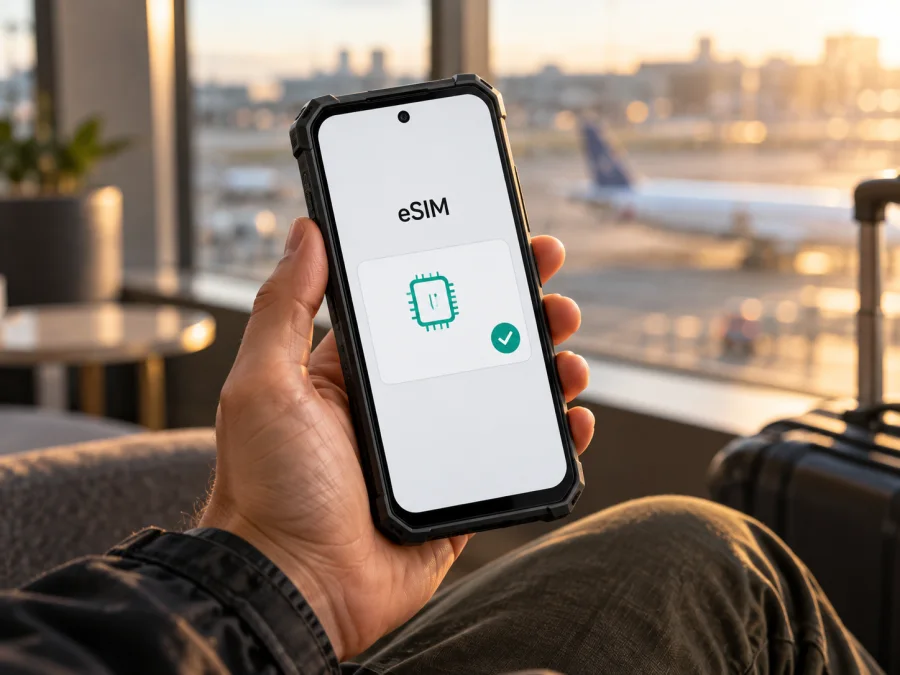
HAMMER Blade 5G eSIM: compatibility, setup and travel use
The HAMMER Blade 5G supports eSIM according to the manufacturer’s user manual. Its stated SIM arrangement is one eSIM profile alongside a physical nanoSIM. The manual also describes opening the eSIM management menu in Settings and adding a profile by scanning a QR code or entering an activation code. That is a useful starting point, but the name on a box or online listing is not enough to confirm every individual handset: check the specific unit, its software and any carrier restrictions before choosing a travel plan.
This guide is about the exact HAMMER Blade 5G. It does not treat similarly named models as interchangeable. In particular, HAMMER BLADE V 5G is a separate product with its own specification. Details such as memory, camera, Android version and SIM configuration should be checked against the label and paperwork for the phone you actually own.
HAMMER Blade 5G eSIM compatibility at a glance
| Item | What the manufacturer’s documentation says |
|---|---|
| Exact model covered here | HAMMER Blade 5G |
| eSIM | Supported; a dedicated eSIM function and management menu are described |
| SIM arrangement | Dual SIM: eSIM plus nanoSIM |
| Adding a profile | QR scan or manual entry of an eSIM code; the phone needs Wi-Fi or mobile data to download it |
| Documented software | Android 11 in the manual’s specification table |
| What to verify on your own unit | eSIM management is present, the handset is unlocked, and the travel plan’s network bands and conditions fit your destination |
The eSIM function means that the phone can store and use a digital SIM profile without inserting that profile as a plastic card. It does not guarantee that every eSIM plan, mobile network or 5G band will work in every country. A profile must be issued for a compatible network, and the handset needs network coverage where you are using it. A travel data eSIM can also have different service terms from the nanoSIM already in the phone.
Does every HAMMER Blade 5G have eSIM?
The manufacturer’s manual for HAMMER Blade 5G explicitly includes an eSIM function, and its technical specifications list “Dual SIM: eSIM + nanoSIM.” This supports a direct answer for the documented model: yes, HAMMER Blade 5G supports eSIM. The manual explains that an eSIM profile can be downloaded through the phone’s eSIM management app using a QR code or a code entered manually.
That model-level statement is not a substitute for checking a particular handset. Retail listings can mix product generations or omit regional details. A unit may also have a carrier restriction, software build, repair history or configuration that affects what the owner can activate. The cited model documentation does not establish that every device sold under a similar name in every market has identical firmware or carrier status. Before paying for a plan, look for the eSIM menu on your phone and ask the seller or carrier to confirm the exact model or regional SKU if anything is unclear.
Do not confuse HAMMER Blade 5G with HAMMER BLADE V 5G, HAMMER BLADE Va 5G, or another phone that includes “Blade” in its name. Those are separate product names and their specifications must be checked separately. A different RAM or storage configuration can also identify a different retail configuration; it should not be assumed to change or preserve eSIM support without checking the exact variant.
Regional versions, carrier locks and network compatibility
The available HAMMER Blade 5G manual documents eSIM, but a model name alone does not identify the market or carrier status of a particular handset. For imported, refurbished or carrier-sold units, check the eSIM menu, ask whether the phone is unlocked, and confirm that the travel plan covers your destination and supports the handset’s network bands. 5G branding does not guarantee 5G access on every local network.
Do not confuse HAMMER Blade 5G with HAMMER BLADE V 5G, HAMMER BLADE Va 5G or another “Blade” model. These are separate product names and their specifications should be checked separately. The manual confirms the documented model, but does not establish identical firmware or carrier eligibility for every regional unit. If the model label, seller listing and Settings screen do not agree, ask the seller or carrier to confirm the exact SKU before purchase. The handset’s sales market, your trip destination and the specific mobile network available through a plan are three different details: confirm each one separately. A plan listed for a country or region does not by itself prove that every local operator or roaming partner is available to this handset.
Check the phone before buying a plan
Use the handset as the final compatibility check. Android menus can differ by version and language.
- In Settings, search for “eSIM” or “SIM”. Look for eSIM management, Add eSIM or Add mobile plan. The HAMMER manual names an eSIM management menu.
- In Settings → About phone, inspect Status, SIM status or device identifiers. An EID is a useful sign of eSIM capability. Some software builds do not show it in the same place, so its absence on one screen is not conclusive.
- Try
*#06#in the dialler if needed. Some Android phones show an EID with the IMEI; others do not. Use it as a clue, not your only check. - Confirm that the phone is unlocked and can access Wi-Fi. The manufacturer’s manual says Wi-Fi or mobile data is required to download a profile.
- Check the plan’s destination, activation timing, data allowance and any network restrictions.
For a fuller device check, check whether your device is compatible before selecting a plan. A listed feature, visible EID and unlocked status are related but separate checks.
Quick compatibility checklist
- [ ] The model is HAMMER Blade 5G, not a similarly named version.
- [ ] Settings shows eSIM management, or the seller confirms support for this exact unit.
- [ ] The handset is unlocked and the plan covers your destination.
- [ ] You have internet access for profile download and know which SIM will handle data.
If eSIM settings are missing and the seller cannot verify the version, pause before buying. A QR code cannot add eSIM capability to incompatible hardware.
Set up an eSIM on HAMMER Blade 5G
The manufacturer describes adding a profile in the eSIM management app. Connect the phone to the internet, open the eSIM area, scan the supplied QR code or enter the activation code manually, then wait for the download. Keep the QR code on another screen or paper so the phone can scan it.
Before installation
Read the plan’s instructions first: confirm whether it should be installed before departure or after arrival, when validity begins, and whether the profile can be reinstalled. Those conditions vary by plan. Charge the phone, use stable Wi-Fi and keep activation details private. Do not delete a profile to troubleshoot unless the provider confirms it can be installed again.
Installation steps
- Connect to Wi-Fi or another working internet connection.
- Open Settings and find eSIM management. Search Settings for “eSIM” if needed.
- Choose the option to add or download a profile. Scan the QR code or enter the activation code exactly as supplied.
- Confirm the download and wait for it to finish without closing the screen or switching off the phone.
- Label the downloaded profile “Travel data” or another clear name. The manual says the profile details and a network indicator appear after download.
- Select the eSIM for mobile data when ready. Keep the nanoSIM for calls or texts only if you want those services and understand your carrier’s charges.
- At your destination, enable the eSIM and mobile data. Turn on roaming for that eSIM only if the plan’s instructions require it.
- Wait for registration on a supported network, then test a webpage using mobile data.
For general Android guidance, see the Android eSIM installation instructions. The iOS eSIM installation instructions are for Apple devices. Kaspersky eSIM Store is an app and website where travellers can choose, arrange and activate an eSIM plan for mobile internet abroad.
A downloaded profile is not necessarily an active data connection. Installation, the plan’s validity start and network registration can happen at different times. Check the plan terms before installing at home.
Using eSIM for mobile internet while travelling
When the phone has both a nanoSIM and travel eSIM, choose which line handles data in Settings → Network & internet, SIMs or Mobile network. The Android 11 manual describes cellular data and roaming controls; labels may vary on your handset.
A practical setup is to keep the home SIM for services you need and select the travel eSIM for mobile data. Check whether the home line could incur roaming charges. A data-only travel plan does not usually replace your phone number or include voice calls and SMS unless its terms say so; internet calling and messaging apps can use the data connection.
- Before departure: Install in advance only if the plan allows it. Leave it switched off until the provider says to activate, if required.
- After landing: If installation must wait, plan how to access Wi-Fi to download the profile.
- Multi-country trip: Confirm that every destination is covered; a country-specific plan may stop working across a border.
- Weak signal: Check coverage, selected data line, roaming requirement and network selection. 5G support does not guarantee reception or 5G service in every location.
- Both SIMs active: Confirm which line handles data and check the home carrier’s roaming terms.
Kaspersky eSIM Store helps travellers choose, arrange and activate an eSIM plan for mobile internet abroad. Review destination, data, validity, activation and hotspot conditions before confirming a plan.
Troubleshooting: when eSIM does not install or connect
Change one setting at a time and note any error message.
The eSIM menu is missing
Search Settings for “eSIM”, restart the phone and check the model and software information. If the option remains absent, ask the seller or manufacturer support to verify the exact unit and regional version. Ask the carrier whether a device lock or management setting is restricting eSIM. A missing EID on one screen alone is not decisive.
The QR code will not scan or download
Display the QR code on another device, check that the phone has stable Wi-Fi, and confirm the code is valid and unused. Enter the manual activation code carefully if available. If the provider reports that the code is invalid or already used, contact them before deleting or repeatedly retrying the profile.
The profile downloaded but there is no service
Make sure the profile is enabled, airplane mode is off, mobile data is on and the eSIM is selected for data. Enable its roaming only if required. Restart the phone or briefly toggle airplane mode, then verify that you are in a covered destination. Return network selection to automatic unless the provider names a network.
Signal appears but apps cannot connect
Check that mobile data is assigned to the eSIM, not the nanoSIM. Follow provider APN instructions only if supplied. Temporarily turn off Wi-Fi to test cellular data, then check the plan’s balance and validity. A signal icon confirms registration, not remaining data or correct line selection.
Data is using the wrong SIM, or service is slow
Recheck the default data SIM and disable roaming data on the home line if you want to avoid its roaming use. For a slow connection, move to an area with better signal and check plan speed limits and network availability. LTE may be available where 5G is not. Do not delete the profile or reset the phone as a first step; some plans restrict reinstallation.
Frequently asked questions
Can it use eSIM and nanoSIM together?
The manufacturer lists the HAMMER Blade 5G as dual SIM: eSIM plus nanoSIM. The active-line behaviour depends on phone settings and carrier support; confirm which SIM handles data.
Does 5G support prove eSIM support?
No. They are separate features. The manual documents both for this model, but one does not imply the other on every phone.
Is an EID required?
An EID is a useful eSIM identifier, but its display location varies. The manufacturer also confirms an eSIM management feature for this model. If neither check is clear, ask the seller or support to verify your exact unit.
Will a travel eSIM include calls or SMS?
Only if the plan says so. Many travel plans are data-focused; your nanoSIM may continue to handle calls and texts under its own carrier terms.
Should I enable data roaming?
Enable it only for the eSIM if its instructions require it. Avoid enabling roaming indiscriminately on the home SIM, where charges follow that carrier’s terms.
Can I transfer the profile to another phone?
Do not assume so. Transfer and reinstallation rules depend on the provider. Check before deleting a profile or replacing the device.
Key takeaways
The manufacturer’s documentation confirms eSIM support for the exact HAMMER Blade 5G model and describes adding a profile through Settings using a QR code or manual code. It lists a dual-SIM arrangement of eSIM plus nanoSIM. The model should not be confused with HAMMER BLADE V 5G or other “Blade” versions.
Before you buy, verify that eSIM management is present on your own handset, confirm that it is unlocked, and check the plan’s destination and activation rules. Install the profile over a reliable internet connection, choose the correct line for mobile data, and enable roaming only when the plan requires it. When your handset passes those checks, use the Kaspersky eSIM Store app or website to choose, arrange and activate an eSIM plan for mobile internet abroad. A few checks before purchase can help you travel with a setup that matches your device and itinerary.


