Travel connectivity guide
HAMMER Explorer PRO eSIM: compatibility and setup
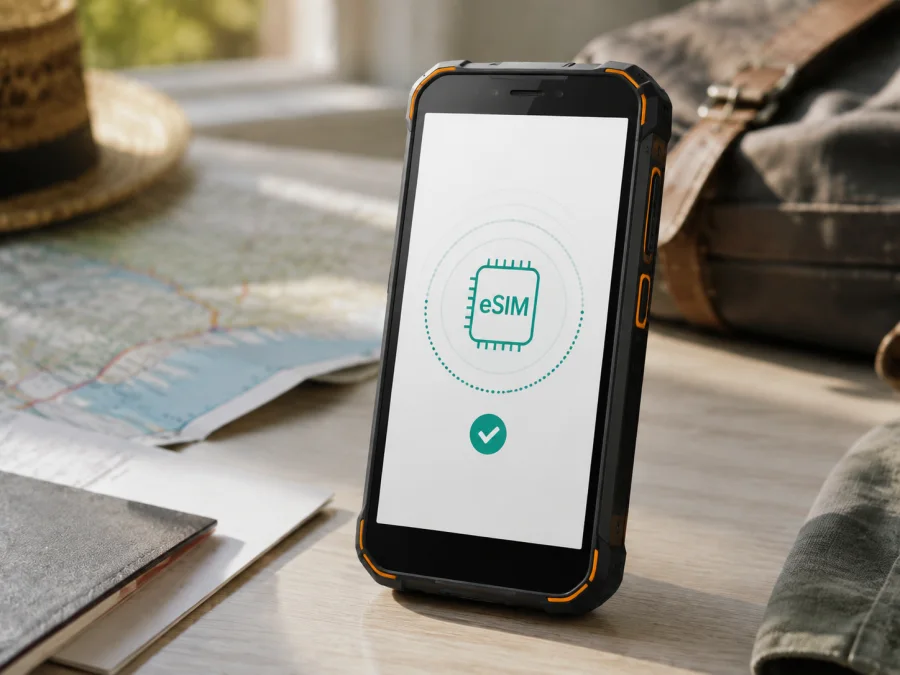
HAMMER Explorer PRO eSIM: compatibility, installation and use while travelling
If you are preparing a trip and want mobile internet without replacing your physical SIM card, HAMMER Explorer PRO is one of the rugged phones for which the manufacturer documents eSIM support. The official technical specification lists an eSIM function alongside Dual SIM, while the user manual describes downloading an eSIM profile through a dedicated eSIM application. This means the named HAMMER Explorer PRO configuration can use a digital SIM profile for data when the feature is present on your particular handset.
There is one important qualification. HAMMER Explorer PRO is an older Android 10 model, and a phone bought in another market or supplied with different firmware may not expose exactly the same menus. Check the phone in your hands: an eSIM application, an EID, or an option to add a profile is more useful than an advertisement.
Quick answer: does HAMMER Explorer PRO support eSIM?
Yes, the documented HAMMER Explorer PRO supports eSIM. The manufacturer’s technical material lists E-SIM as a feature and identifies the phone as a Dual SIM device. The official manual includes a separate eSIM function: it says that the phone needs Wi-Fi or mobile data to connect the eSIM, then allows the user to open the eSIM application and download a profile with a QR code or a manually entered activation code.
That support is for the exact model name HAMMER Explorer PRO, not for every HAMMER phone and not for every product that resembles it. It should also not be confused with 5G support: the published network specification for HAMMER Explorer PRO covers 2G, 3G and 4G LTE bands, so this model is an LTE phone rather than a 5G variant. The eSIM can provide mobile data where the selected tariff and a compatible local partner network allow it; it does not turn the handset into a 5G device.
HAMMER Explorer PRO specifications that matter for eSIM
| Item | HAMMER Explorer PRO documented configuration |
|---|---|
| Device name | HAMMER Explorer PRO |
| Operating system | Android 10 |
| Memory | 6 GB RAM, 128 GB internal storage |
| Cellular generation | 2G, 3G and 4G LTE; no 5G listed |
| SIM capability | Dual SIM with an eSIM function and nanoSIM support |
| eSIM activation | Dedicated app; QR code or manual code |
| Setup connection | Wi-Fi or mobile data |
The eSIM profile is software-based and does not occupy the removable nanoSIM tray. The phone still has a hybrid physical-SIM arrangement, so the active combination can depend on firmware.
What can differ by region, seller or firmware?
The official HAMMER Explorer PRO manual and technical sheet document eSIM for their stated configuration. Regional stock, used phones and carrier firmware can change the menus or activation rules, and a carrier may require the handset to be unlocked. Check these points:
- Compare the model name and storage information in Settings → About phone with the box or receipt.
- Look for the eSIM application mentioned in the manufacturer’s manual.
- Search the mobile-network settings for an eSIM, mobile plan, SIM manager or add-profile option.
- Look for an EID in the phone information or SIM status screen. Menu names vary by firmware.
- Ask the seller whether the unit is unlocked and intended for your market.
- Confirm that the tariff supports data roaming in the destination and compatible network access.
An EID is the embedded-SIM identifier, not an IMEI or serial number. Seeing only an IMEI does not settle the question because this model may expose eSIM through its dedicated application. If you see neither an EID nor an eSIM control, ask the seller or carrier to confirm the unit.
Check compatibility before buying a plan
Do the check while you have access to Wi-Fi and before you purchase a travel data plan. A plan cannot add eSIM hardware to a phone, and deleting a profile can be irreversible under the terms of the selected service. Use the following checklist for the exact HAMMER Explorer PRO in your possession.
- [ ] The About phone screen identifies the handset as HAMMER Explorer PRO or shows the matching manufacturer model information.
- [ ] The phone is not locked to a carrier, or the carrier has confirmed that another eSIM profile may be activated.
- [ ] The phone has a working Wi-Fi connection or another data connection for the initial download.
- [ ] An eSIM application, an EID, or a clear option to add an eSIM profile is visible.
- [ ] Android is stable, the battery is charged, and the phone has enough free storage for normal operation.
- [ ] You know whether the travel tariff starts on installation, first network connection or another event described in its conditions.
- [ ] You have checked the destination, validity period, data allowance, hotspot rules and supported network access for the plan.
- [ ] You have kept the QR code or manual activation details available on another screen or printed page.
Check your device for the model details, eSIM controls and EID before choosing a plan. This is especially important for imported stock.
Install and activate eSIM on HAMMER Explorer PRO
Plan the installation on Wi-Fi. The manufacturer’s manual says that eSIM connection requires Wi-Fi or mobile data. If the QR code is displayed on HAMMER Explorer PRO, use another screen or manual entry.
1. Prepare the phone and the profile
Charge HAMMER Explorer PRO, connect it to Wi-Fi and keep the activation QR code or code details ready. Do not delete an existing working eSIM just to test another one. If the travel plan has a stated activation window, read it before scanning.
2. Open the eSIM application
Open the app list and select the eSIM application. On some firmware versions, the same function may also be reachable through mobile-network or SIM settings. If you cannot find either route, return to the compatibility check and verify the unit with the seller or carrier.
3. Start adding a profile
Choose the option to activate, add or download an eSIM profile. Follow the on-screen prompt to use the QR-code scanner. The manufacturer’s manual also describes a manual-entry route using the icon at the bottom right of the eSIM application, which is useful when the camera cannot read the code.
4. Scan or enter the activation code
Point the camera at the complete QR code and keep the phone steady. If the code is on the HAMMER Explorer PRO screen itself, use another display or enter the code manually. Never publish the QR code or activation details: they may be usable only once or may expose the profile to someone else.
5. Wait for the profile to download
Confirm the download and allow the phone to complete the profile installation. Keep Wi-Fi or mobile data connected and do not power off the phone during the process. It can take several minutes. A profile appearing in the eSIM application means it was downloaded; it does not always mean that the travel tariff has already connected to a network.
6. Name and select the line
Give the profile a clear label such as “Trip data” and keep your regular physical SIM identifiable. In SIM or mobile-network settings, select the travel eSIM as the line for mobile data when you are ready to use it. Leave calls and SMS on your regular line if that is your intention and if the phone offers separate choices.
7. Activate data at the right time
If you want the tariff to begin only after arrival, install the profile on Wi-Fi but keep the travel line disabled when the plan’s conditions allow this. After landing, enable it, select it for mobile data and enable data roaming if required. Keep roaming disabled on the home line.
Use the Android installation instructions or the iOS installation instructions. HAMMER Explorer PRO follows the Android procedure.
If the profile downloads but the network does not appear, wait a few minutes, move to a clearer-signal area and recheck the data line.
Use HAMMER Explorer PRO for mobile internet on a trip
One practical arrangement is to keep the physical SIM for calls or incoming messages and use the eSIM for data abroad. This depends on the phone’s dual-SIM behavior and the tariff, so note the selected data line before departure.
Scenario: install before departure
At home, connect HAMMER Explorer PRO to Wi-Fi and download the profile. Check that it is listed, but leave it disabled if validity starts on first connection. Keep the QR code and order details accessible offline.
Scenario: activate after landing
After the aircraft mode is turned off, enable the travel eSIM and choose it as the mobile-data line. Turn on data roaming for the travel profile when required by the tariff. Keep the home line’s data roaming off. Open a simple webpage or messaging app to test data, then check the tariff balance or usage indicator in the service interface. A network name or signal icon alone is not proof that the correct line is carrying data.
Scenario: moving between countries
If the tariff covers a region, the eSIM may register on a partner network as you cross a border. If it covers one country, confirm the next destination before relying on it. If registration does not change, toggle airplane mode once and check automatic network selection.
Kaspersky eSIM Store is an app and website that helps you choose, arrange and activate an eSIM with a suitable mobile-data tariff for a trip abroad. It is not the mobile operator, network owner or mobile-internet provider. The destination, allowance, validity and price shown for an offer do not guarantee network performance; that depends on local partner networks, the plan and your location.
Troubleshooting eSIM on HAMMER Explorer PRO
The eSIM application or add-profile option is missing
Confirm the exact model in About phone. Restart the device and check for the EID in SIM status or phone information. If the software still has no eSIM application, EID or add-profile control, stop before purchasing a plan. The handset may be a regional or carrier-specific configuration, or the installed firmware may not match the documented model. Ask the seller or carrier for written confirmation for that unit.
The QR code will not scan
Increase the brightness of the screen displaying the code, clean the camera lens and hold the phone at a comfortable distance. Make sure the entire code is visible and not cropped. If the eSIM application offers manual entry, use the activation details exactly as supplied. Avoid editing characters that look similar, such as zero and the letter O.
The profile will not download
Check Wi-Fi, charge the phone and try again from the eSIM application. Verify that the code has not already been used and that the phone is not locked. Do not delete an old profile without checking reinstallation rules.
The profile is installed but there is no service
Confirm that the travel eSIM is enabled and selected for mobile data. Check whether data roaming is required. Toggle airplane mode, check automatic network selection, move to a clearer-signal area and verify that the destination is included. The LTE radio in HAMMER Explorer PRO and the partner network still need compatible bands and local coverage.
Data is going through the wrong line
Open the SIM or mobile-network settings and identify the default data line. Set the travel eSIM as the data line and disable automatic switching if that option exists. Keep the home line’s data roaming off. Test with a small webpage while watching the correct line’s usage indicator.
Data works but runs out quickly
Check which apps use mobile data, pause automatic updates and backups, and limit video quality. A hotspot can consume data quickly. Compare Android’s counter with the tariff balance; the two counters may update at different times.
FAQ
Is HAMMER Explorer PRO eSIM-compatible?
The documented HAMMER Explorer PRO is eSIM-compatible. The manufacturer’s technical sheet lists E-SIM, and the manual explains profile download through an eSIM application. Because market and firmware variations can exist, confirm the eSIM application, EID or add-profile option on your own phone before buying a tariff.
Can I keep my physical SIM active?
The documented phone supports Dual SIM behavior, but the exact active combination depends on the profile and firmware. You can usually keep a physical nanoSIM for calls or messages and choose the eSIM for data. Confirm the line selectors in your own settings and disable data roaming on the line you do not want to use abroad.
Does a travel eSIM include a phone number?
A data-focused travel eSIM normally provides mobile internet, not a regular phone number, voice calls or SMS, unless the specific tariff states otherwise. You can use messaging and calling apps over data, while keeping your ordinary SIM for services that require its number.
Final device check and eSIM for your trip
Before you leave, complete this short final block:
- Check that the phone still identifies itself as HAMMER Explorer PRO.
- Confirm that the eSIM application, add-profile control or EID is visible.
- Confirm that the handset is unlocked and can connect to Wi-Fi.
- Choose an eSIM tariff for the countries or region on your route.
- Review data volume, validity, activation timing, hotspot rules and support options.
- Install the profile carefully, then select it for mobile data when the trip begins.
- Keep the home line’s data roaming off unless you deliberately need it.
Once these checks are complete, Kaspersky eSIM Store can help you choose and activate an eSIM tariff for mobile internet during the trip through its app or website. Check the device first, then choose the travel eSIM that matches your destination and expected data use.


