Travel connectivity guide
HONOR 200 Pro eSIM: Compatibility and Setup Guide
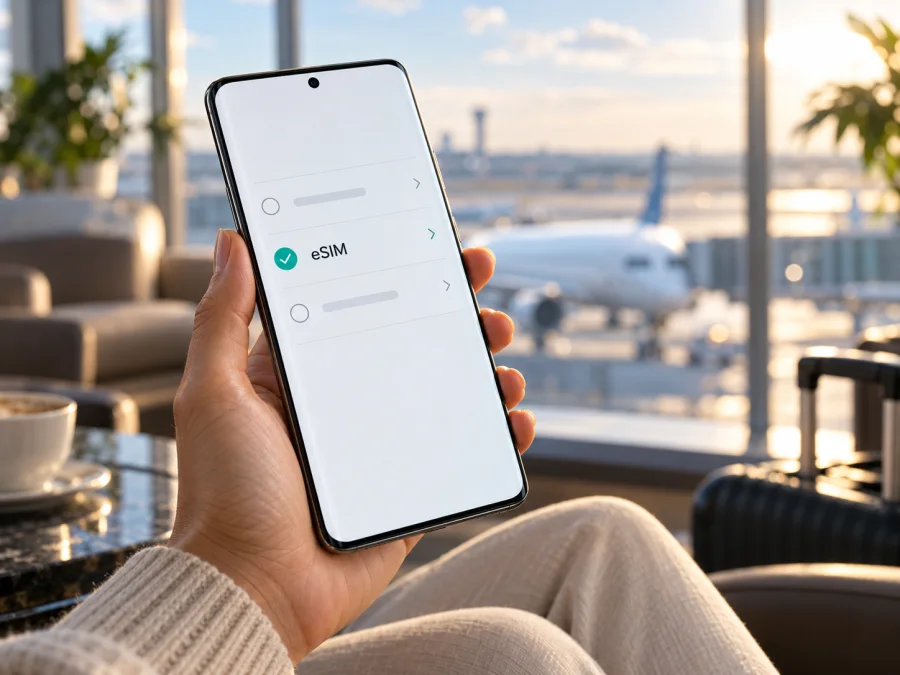
Does the HONOR 200 Pro Support eSIM? Compatibility, Setup, and Travel Use
The HONOR 200 Pro can support eSIM, but the answer for your handset depends on its regional version. HONOR includes the HONOR 200 Pro on its current official eSIM-compatible device list, and its Saudi Arabian product specifications identify SIM 2 as eSIM-capable. HONOR also cautions that a listed phone may lack eSIM depending on its country of origin. So the model name alone is not enough to approve a purchase: check the actual phone for an EID and an Add eSIM option, then confirm that it is unlocked and that your chosen plan is supported.
This guide helps you make that check, install a profile on a compatible version, and use a travel data eSIM alongside your usual SIM. It does not treat every HONOR 200 Pro sold worldwide as identical. A menu item, an EID, carrier support, and the conditions of a particular travel plan all matter.
HONOR 200 Pro eSIM compatibility at a glance
| Check | What can be confirmed | What it means for you |
|---|---|---|
| HONOR device list | HONOR's current global eSIM page includes HONOR 200 Pro. | The model family has eSIM-capable versions. |
| Regional specifications | HONOR's Saudi Arabia specification page lists SIM 2 as eSIM. For a Dual SIM model, SIM 2 can be configured as eSIM or Nano SIM; a Single SIM model may use SIM 2 only for eSIM. | At least one official regional configuration documents eSIM support. It does not establish that every market version has it. |
| Geographic qualification | HONOR says eSIM may not be supported depending on the device's country of origin, even when the model appears on its list. | Check the exact handset's origin and software, rather than relying on a listing for another country. |
| On-device evidence | An EID and Settings → Mobile network → SIM management → Add eSIM are useful checks. | If both are present, the handset has a stronger indication of eSIM capability; provider and plan compatibility still need checking. |
| Network access | A compatible phone still needs an eligible eSIM profile and a supporting mobile network in the destination. | Device capability does not guarantee coverage, speed, or service in every location. |
Direct answer: the HONOR 200 Pro is not a universal “yes” or “no.” Official HONOR materials document eSIM support for the model family and for a regional specification, while also warning that country of origin affects availability. Treat your exact phone as compatible only after you verify it directly.
HONOR's public product pages are not a complete map of every sub-variant and operator configuration. For a phone in hand, its Settings menu is more useful than a generic shop listing. Before buying, ask the seller for the market version or check the exact identifier with HONOR support.
Why two HONOR 200 Pro phones may differ
A product family name can cover phones made for different sales markets. A regional specification page may describe a SIM tray and software configuration that is not offered in another country. HONOR itself makes this caveat for eSIM: the feature can depend on country of origin. The carrier and local eSIM rules may also affect whether an otherwise capable device can download a profile or register on a network.
For this reason, do not infer eSIM support from a retailer's generic “global version” label, a photo of another phone's tray, or the fact that a different HONOR 200 Pro owner uses eSIM. Those details may refer to a different market, a different software build, or a specific operator arrangement. Conversely, the absence of a removable eSIM slot proves nothing: eSIM is a digital profile stored in the device, not a card that you insert into the tray.
HONOR's published material confirms some HONOR 200 Pro configurations support eSIM, but does not map every market variant. Check the handset itself; do not assume a firmware update will enable eSIM on a version that lacks it.
Before you buy a used or imported phone
Ask for the exact model identifier, original sales market, unlocked status, and a view of the EID and SIM-management screens. “Dual SIM” alone is not proof: it can describe two physical SIMs or different combinations by market. If the seller cannot show Add eSIM, ask HONOR or the original operator to verify that exact version before you buy.
How to check eSIM on your HONOR 200 Pro
Use these checks on the phone itself. Menu wording can vary by MagicOS version or language, but HONOR's published path is Settings → Mobile network → SIM management → Add eSIM.
1. Look for an EID
Open Settings → About phone and look for EID; HONOR says it may also be printed on the box. EID identifies the embedded SIM and differs from the IMEI. Keep both private and provide an EID only through a provider's secure setup channel. Check the Add eSIM menu as well.
2. Find the add-eSIM control
Go to Settings → Mobile network → SIM management and look for Add eSIM. You can verify that the setup flow exists without scanning a code or buying a plan. If it is missing, check the EID, install any official update for your phone, restart, and look again. If an EID exists but the menu does not, ask HONOR or the original operator about that exact regional version. Do not buy a plan assuming an update will expose the feature.
3. Check for a carrier lock and plan requirements
An eSIM-capable phone may still reject a profile if it is carrier-locked or the plan has device restrictions. Confirm the phone is unlocked and review the plan's destinations, validity, data allowance, and activation rules.
Check your device's eSIM compatibility before choosing a plan. The EID and Add eSIM checks confirm device capability; they do not guarantee that a specific provider, profile, or destination network will work.
Quick compatibility checklist
- [ ] The About phone screen shows an EID.
- [ ] SIM management offers Add eSIM.
- [ ] The handset is not locked to an operator that blocks another eSIM.
- [ ] The seller or manufacturer has confirmed the exact regional version if either check is unclear.
- [ ] The plan supports the country or countries on your itinerary and fits your expected data use.
- [ ] You have reliable Wi-Fi or another internet connection for installation.
If any of the first three checks fails, resolve the question before paying for a travel plan. If the phone passes them, continue to the plan's own eligibility and activation instructions.
Choose a travel data plan that fits the route
Once the phone is verified, think about where and how you will use data. A one-country plan may suit a stay in a single destination. A regional plan may be more convenient when you cross borders, but its country list should match every stop on your itinerary. A plan's name is not a coverage guarantee: read the current destination list and terms before checkout.
Estimate your use: navigation, messaging, and browsing differ from video streaming, cloud uploads, or hotspot sharing. Download maps and tickets over Wi-Fi, and check hotspot terms if you will connect other devices.
Review data allowance, validity, start rule, network conditions, and top-up terms for the exact plan. Conditions can change, so use current checkout details. Do not assume a travel eSIM includes a phone number, ordinary calls, or SMS unless its terms explicitly say so; messaging apps can use data.
Kaspersky eSIM Store is an app and website where you can choose, arrange, and activate an eSIM with a travel data plan. It helps you prepare for mobile internet abroad; it is not the mobile operator or the network carrying the service. After confirming your phone, you can browse current travel eSIM options and check the destination and conditions shown for the plan you need.
Install and activate an eSIM
Before you begin, make sure the HONOR 200 Pro shows Add eSIM, the phone is unlocked, the plan is intended for your destination, and you have a stable internet connection. Keep your QR code or manual activation details available on a different screen or device. A QR code displayed on the phone you are trying to scan cannot normally be scanned by that same phone's camera.
Install with a QR code
- Connect to Wi-Fi. Keep the phone online while it downloads the eSIM profile.
- Open SIM management. Go to Settings → Mobile network → SIM management.
- Choose Add eSIM. Follow the on-screen prompts to start adding a mobile plan.
- Scan the provider's QR code. Use the displayed code from another screen or a printed copy. If the provider gives you manual activation details instead, select the manual entry option and enter them exactly as instructed.
- Confirm the plan download. Wait for the profile to download and follow the phone's confirmation steps. Do not close Settings or turn off Wi-Fi while the process is running.
- Name the new line. Choose a clear label such as “Travel data” so you can distinguish it from your home SIM.
- Choose your default lines. Keep your usual SIM selected for calls and texts if you need it, and select the new eSIM for mobile data when you are ready to use it.
- Check the provider's activation rule. Some profiles are meant to be installed before travel and activated later; others start their validity when first connected. Follow the plan's stated rule rather than turning the line on early without checking.
HONOR's published setup sequence uses Settings → Mobile network → SIM management → Add eSIM. The exact next screen depends on the profile and software version. For more detail, see the Android eSIM installation instructions or the iOS eSIM installation instructions if you are helping a companion set up an iPhone.
Activate for data after arrival
- Turn on the eSIM line in SIM management if it is not already enabled.
- Set the eSIM as the mobile-data SIM in the phone's SIM or data settings.
- Enable data roaming for that eSIM only if the plan's instructions require it. Roaming may be needed for a travel profile to register on its partner network. Confirm that the selected line is the travel eSIM so you do not unintentionally use your home operator's roaming service.
- Wait for network registration. The first connection can take several minutes. Keep the phone in an area with signal and avoid repeatedly deleting or reinstalling the profile.
- Open a simple webpage or messaging app to confirm that mobile data works. If it does not, use the troubleshooting steps below and check the provider's plan instructions.
You can often install a travel profile at home over stable Wi-Fi and leave it off until needed. Check whether validity starts at installation, activation, or first network connection before switching it on.
Use the HONOR 200 Pro on a trip
A practical setup is to keep your usual SIM for calls or texts you still need and set the travel eSIM as the mobile-data line. Check the selection before leaving and after landing. A data-only eSIM does not replace your home number; confirm roaming terms with your home operator if you keep that SIM active.
| Travel scenario | What to check |
|---|---|
| One-country stay | Match the country, dates, data amount, and validity trigger to the whole visit. |
| Several countries | Confirm each stop appears in the plan's current destination list; allow time for network registration after crossing borders. |
| Work and hotspot | Check hotspot terms and estimate video calls, uploads, and shared-device use; defer backups and updates to Wi-Fi. |
| Keep home number | Keep the home line available if needed, select the travel eSIM for data, and review possible roaming charges with your home operator. |
Download maps and tickets over Wi-Fi before departure. For a data-only plan, ordinary calls and SMS are not included unless the terms explicitly say so; internet calling and messaging apps can use the data connection. Service depends on the destination networks and plan conditions.
Troubleshooting: when eSIM does not work
“Add eSIM” is missing
Check About phone for an EID, confirm the SIM-management menu, install an official update, and restart. If the option remains absent, ask HONOR with the model identifier and country of purchase; the model name cannot override a regional limitation.
The QR code is rejected
Confirm the code belongs to this plan, is readable, and has not already been used; some codes are single-use. Keep the phone online and use manual activation only if the provider supplied details. If it is redeemed or meant for another phone, contact the provider instead of retrying.
The profile installs but does not connect
Confirm the eSIM is on, selected for data, and valid in your country. Enable roaming for that line only if the provider requires it, and check that the home SIM is not selected for data. Briefly toggle airplane mode or restart, then wait. Follow the provider's exact network or APN instructions; do not guess.
Data works on Wi-Fi but not on mobile network
Turn Wi-Fi off and check signal, selected data SIM, plan status, remaining data, and destination. If connected but apps cannot load, check the provider's APN instructions and review private DNS or data-saving settings. Change one setting at a time.
The travel eSIM connects, but the home SIM incurs charges
Check the default data SIM and turn off automatic data switching if available. Keep roaming off for the home SIM unless its terms allow it. Read the line label before changing roaming, and ask your home operator about charges if unclear.
The phone is locked or cannot download the profile
Ask the original carrier or seller whether the phone is unlocked. If it is but activation fails, send the exact error to the eSIM provider and share the EID only through secure support if requested. Never post an EID, IMEI, QR code, or activation code publicly.
Avoid deleting an installed profile as a first troubleshooting step. Some providers require a fresh QR code or manual reissue after deletion, and an original one-time code may not install a second time. Check the provider's reinstallation and transfer policy first.
Frequently asked questions
Does the HONOR 200 Pro support eSIM?
Some versions do. HONOR lists the HONOR 200 Pro among eSIM-compatible devices and documents eSIM for SIM 2 on a regional specification page. HONOR also says country of origin can affect support. Check the EID and Add eSIM menu on your exact phone before buying a plan.
Is every HONOR 200 Pro sold with eSIM?
No such blanket conclusion is supported by HONOR's published guidance. Regional versions can differ, and HONOR explicitly warns that the country of origin may determine whether eSIM is available. Confirm the exact model identifier and on-device menu.
Where can I find the EID?
Open Settings → About phone and look for EID. HONOR says it may also appear on the box. Keep it private and provide it only to a provider through a secure setup or support channel when needed.
Should I install the eSIM before leaving?
Often, if the plan allows it. Installing over home Wi-Fi gives you a more reliable setup window. Check when the validity period starts, then follow the plan's instructions about when to turn on the profile or begin using data.
What if I cannot find “Add eSIM”?
Check for an EID, confirm the menu path, update the phone using official software, and restart. If the option is still missing, ask HONOR or the original seller to verify the exact regional version. Do not assume that a third-party plan or later software update will make an unsupported version compatible.
Before you travel: check the device, then choose the plan
For the HONOR 200 Pro, compatibility should be decided on the phone you will carry: confirm an EID, find Add eSIM in SIM management, and verify that the handset is unlocked. If either of the first two checks is missing, pause and ask HONOR or the original operator about the exact market version. An official model-family listing is useful evidence, but it does not erase HONOR's country-of-origin caveat.
After the device passes those checks, match a travel data plan to your destinations, dates, data use, and any hotspot needs. Read the current plan terms, including where it works and when validity begins. Kaspersky eSIM Store's app and website help you choose, arrange, and activate an eSIM with a mobile-data plan for a trip abroad. Check the device before checkout, install the profile over a stable connection, and select the correct SIM for data when your journey begins.


