Travel connectivity guide
Honor 400 Lite 128GB eSIM Compatibility
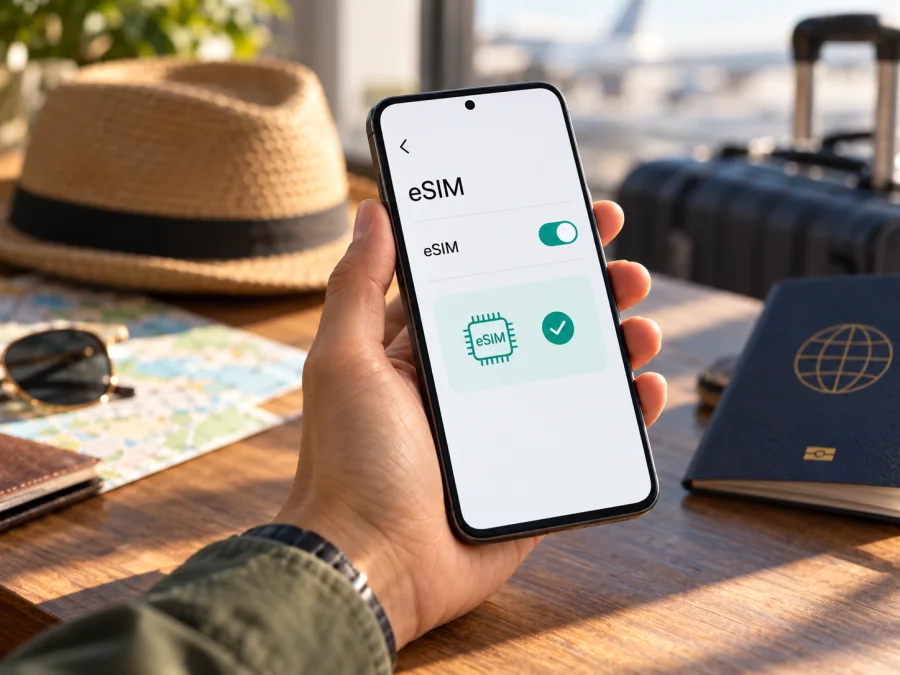
Honor 400 Lite 128GB eSIM: compatibility and travel setup
Quick answer: Honor 400 Lite 128GB supports eSIM only if it is the European Amber-N31C1 model. HONOR identifies that code as eSIM-capable, with SIM 2 configurable as nano-SIM or eSIM. “128GB” alone does not confirm compatibility; check the model code and eSIM settings on the handset before choosing a plan.
Does Honor 400 Lite 128GB support eSIM?
The supported answer is yes for the European Amber-N31C1; unconfirmed for other versions. HONOR says SIM 2 can be a nano-SIM or eSIM on that model only, and warns that availability can vary by country and carrier. Its global compatibility page likewise cautions that country of origin can affect support. The exact model code matters more than the family name.
The input “Honor 400 Lite 128GB” gives the product family and storage capacity, but not a region or model code. HONOR’s public specifications can show different storage configurations by market; therefore, storage capacity is not a reliable compatibility test. Do not assume that every 128GB retail listing is the European variant, or that every phone sold in Europe is necessarily the Amber-N31C1 version. Ask the seller for a photo of the model identifier on the box or in Settings, and confirm it on the phone you will actually use.
| Item | What can be confirmed |
|---|---|
| Device named in this guide | Honor 400 Lite 128GB |
| eSIM status from the name and storage alone | Unconfirmed |
| HONOR model code explicitly identified as eSIM-capable | European Amber-N31C1 |
| SIM arrangement on that model | SIM 1: nano-SIM; SIM 2: nano-SIM or eSIM |
| Other regional versions | Do not assume eSIM; verify the precise model code and handset settings |
| Network and plan availability | Depends on the destination, local network, plan, and device being unlocked |
If your phone is Amber-N31C1 and the Add eSIM option is present, it is reasonable to proceed to the plan’s compatibility and activation requirements. If the code differs, the menu is missing, or the phone reports that eSIM is unavailable, pause before buying. A carrier lock, firmware configuration, or market restriction can also prevent a profile from being added even when another version with the same retail name supports eSIM.
Regional versions, storage, and operator restrictions
HONOR publishes regional product pages, and the device details are not identical in every market. In the eSIM note, HONOR singles out the European Amber-N31C1 model. That is more specific than a general statement that the HONOR 400 Lite family supports eSIM. It means a shop title, a shared product photograph, or a broad compatibility list should not override the code on your own device.
Also check whether the phone is network-unlocked. An eSIM-capable device can still refuse an activation profile if it is locked to a carrier or if the carrier restricts profile installation. Ask the original seller or carrier whether the phone can accept an eSIM profile from another provider and whether any contract or unlock conditions remain. Do not confuse that operator restriction with the eSIM hardware itself: one is a device or account lock, the other is a compatibility feature.
Check the model code, EID, and Add eSIM menu
Use these checks before buying an eSIM plan. The most useful evidence is a matching European model code plus a working eSIM menu. An EID is a unique identifier associated with an eSIM-capable device; its presence is a strong practical check, but still confirm that your software exposes the add-profile function and that the phone is unlocked.
- Find the model code. Open Settings → About phone and look for the model or model number field. The labels can vary slightly with MagicOS version. Compare the full code with Amber-N31C1, including all letters and digits.
- Check the packaging. If the Settings screen does not show a clear code, inspect the product label on the original box or ask the seller for a photo. A retail listing that says only “Honor 400 Lite 128GB” is not sufficient evidence.
- Look for EID. Open Settings → About phone and search the information page for EID. HONOR also describes EID as available in About phone or on the phone’s box. Avoid posting the full EID publicly; share it only through a trusted provider’s secure setup flow when required.
- Open SIM management. Go to Settings → Mobile network → SIM management. Look for Add eSIM or an equivalent option. The exact wording can change with region and software version.
- Compare the checks. If the model is Amber-N31C1 and Add eSIM appears, continue with the plan’s installation steps. If the code is different, EID is absent, or Add eSIM is missing, do not purchase on the assumption that the feature will appear later.
- Confirm unlock status. Ask the seller or original mobile operator whether the phone is unlocked and can accept a travel eSIM profile.
Pre-purchase compatibility checklist
- [ ] The phone’s full model code is visible and matches the compatible regional variant, Amber-N31C1.
- [ ] Settings shows an EID or the packaging carries the EID.
- [ ] Add eSIM is available under Mobile network / SIM management.
- [ ] The device is unlocked and the original carrier permits other eSIM profiles.
- [ ] The eSIM plan supports your destination and its conditions fit your trip.
- [ ] You have Wi-Fi or another reliable connection available for setup.
- [ ] You know which SIM will provide mobile data and how to switch back to your home line.
If one of the first three checks fails, stop and verify with HONOR or the seller before paying. Do not rely on a plan provider to make a non-compatible regional version eSIM-capable.
Treat the device check as a decision point, not a formality. Keep the model code and the SIM-management screen available when you contact the seller, so they can confirm the actual regional version instead of answering only for the product family.
Before selecting a plan, check whether your device is compatible. Use the model code and settings on the handset, not just the title in a store listing. It is also sensible to confirm that the plan covers your destination, provides the data allowance and validity you need, and can be installed while you still have a reliable internet connection.
What an eSIM does for a trip
A travel data eSIM is not necessarily a replacement for your usual phone service. The Kaspersky eSIM Store travel plans described on the site are for mobile data; do not assume that a plan includes a regular telephone number, standard voice calls, or SMS unless those features are expressly listed in that plan’s terms. You can keep your usual SIM for calls and texts if you want, while choosing the eSIM for mobile data, subject to the phone’s dual-SIM settings and your home operator’s roaming terms.
Kaspersky eSIM Store is an app and website where you can select, arrange, and activate an eSIM with a suitable mobile-data plan for an overseas trip. The actual mobile service depends on the plan and the local network arrangements for its destination. Check the plan details and network availability for your own route. A travel eSIM can reduce the need to depend on public Wi-Fi for every task, but it does not guarantee signal in every place; buildings, terrain, local network conditions, and device bands still matter.
After confirming your phone, you can browse current travel eSIM plans and check the destination, data allowance, validity, activation timing, and any roaming setting required. This is the general store homepage, not a country-specific tariff page. Choose a destination-specific plan only after checking your itinerary and the displayed terms. If your regional handset does not support eSIM, alternatives include using your unlocked physical-SIM slot with a suitable local SIM, keeping your regular line and using trusted Wi-Fi where available, or using another verified eSIM-capable device.
How to install and activate an eSIM
Only begin after confirming that the handset is Amber-N31C1 or otherwise verified by HONOR as eSIM-compatible, is unlocked, and has an Add eSIM option. Keep the purchase confirmation, QR code, or activation details available. Connect to Wi-Fi before starting, because the phone may need an internet connection to download the profile. Many QR codes can be used only once or on one device; follow the plan’s own instructions and do not delete an installed profile unless the provider tells you how to restore it.
For the phone’s general operating-system steps, see the Android eSIM installation instructions. The iOS guide is intended for Apple devices, not this Android handset, but is available here for readers setting up a separate iPhone: iOS eSIM installation instructions.
Step-by-step on Honor 400 Lite 128GB
- Prepare the phone. Charge it, connect to stable Wi-Fi, and install available official MagicOS updates. Confirm that the model code and Add eSIM menu check out.
- Open SIM management. Go to Settings → Mobile network → SIM management and choose Add eSIM. If the option is absent, stop rather than trying to scan a QR code through another menu.
- Choose the provider’s method. Scan the QR code supplied for your plan, enter activation details manually if the provider supports that, or use the provider’s guided installation. Do not share the code with anyone else.
- Download the profile. Follow the on-screen prompts and wait for the profile to finish downloading. Keep the phone online and do not close Settings or remove the profile during the process.
- Name the line. Give the new profile a clear label such as “Travel data” so you can distinguish it from your home SIM. The label is only for your own reference.
- Choose mobile data. In SIM management, select the new eSIM as the mobile-data line when you are ready to use it. Keep the home SIM assigned for calls or SMS if that matches your needs and plan conditions.
- Set data roaming if required. Some travel eSIM plans need data roaming enabled on that eSIM. Check the plan’s installation instructions first. If needed, enable roaming for the travel profile specifically, not automatically for your home SIM; this setting does not replace checking your home operator’s roaming charges.
- Connect at the right time. Some profiles can be installed before departure but begin their validity only when they first connect to a supported network; others may start earlier. Follow the exact plan terms rather than assuming one activation rule applies to all plans.
- Test the connection. Once you reach the supported destination, enable the travel eSIM, select it for mobile data, and wait several minutes for network registration. Open a simple webpage or messaging app to confirm that data works.
Using the travel eSIM while away
When you arrive, enable the travel eSIM and select it for mobile data. Check network registration and whether the plan requires data roaming for that profile. Before crossing a border, confirm the next country is included; the plan terms define a region’s coverage.
Keep an eye on usage: maps, photo uploads, updates, streaming, and hotspot sharing can consume data quickly. Download maps and tickets over Wi-Fi, restrict background use, and check the remaining allowance in the plan’s app or account. Confirm tethering is allowed before relying on it, and review current plan terms before purchase.
A practical setup can look like this:
| Situation | Suggested check |
|---|---|
| Before leaving | Confirm Amber-N31C1, unlock status, destination coverage, validity start, and installation method. |
| At the airport or hotel | Connect to Wi-Fi, install the profile if not already installed, and label it clearly. |
| On arrival | Select the travel eSIM for mobile data and enable roaming for that profile only if required by its instructions. |
| During the trip | Monitor data use and validity; verify coverage again before crossing into another country. |
| Returning home | Switch mobile data back to the home SIM and disable or retain the travel profile according to its terms. |
Common problems and practical checks
There is no Add eSIM option. Recheck the full model code, then open About phone and SIM management again. HONOR identifies Amber-N31C1 as the eSIM-capable European version. If the code differs or the menu remains absent after an official update, contact the seller or HONOR support. Do not buy a plan expecting an update to add unsupported hardware.
The QR code will not scan. Increase screen brightness on the device showing the code, clean the camera lens, and make sure the full QR code is visible. If the code is on the same phone, use a manual-entry or in-app installation method only if the plan supports it. A screenshot or printed copy may be easier to scan. If the provider reports that the code has already been used, ask whether it can be reissued before deleting any existing profile.
The profile will not download. Check Wi-Fi, restart the phone, confirm that automatic date and time are enabled, and retry from SIM management. Make sure the code belongs to this purchase and has not expired or already been installed elsewhere. If an error persists, save the exact wording and contact the provider named in the plan instructions.
The profile is installed but there is no service. Confirm that the travel eSIM is switched on and selected for mobile data, that you are in a country included in the plan, and that the validity period has started. Toggle airplane mode on briefly and off, then wait a few minutes. Check the plan’s instructions for data roaming. If the phone still cannot register, try automatic network selection and contact support with your destination and the visible error.
Data does not work even though signal bars appear. Verify that mobile data is assigned to the travel eSIM, that the plan has remaining data and is active, and that roaming is enabled for the correct profile if required. Check whether a VPN, private DNS, or restrictive data-saving setting is interfering, then retry a basic webpage. Avoid changing APN values unless the provider supplies the exact settings for your plan.
The phone says the plan is incompatible or the device is locked. Recheck the model code and ask the original carrier whether the phone is unlocked. An eSIM profile cannot override a carrier lock or a regional limitation. If the device is not eligible, request a compatible physical SIM option or use another compatible unlocked device rather than repeatedly attempting installation.
Frequently asked questions
Does every Honor 400 Lite 128GB support eSIM?
No. The 128GB capacity and family name do not establish support. HONOR specifies eSIM only for the European Amber-N31C1 version. Confirm the full model code and check Settings for EID and Add eSIM.
Is Amber-N31C1 the only compatible version?
It is the only HONOR 400 Lite model code that HONOR’s current product specification explicitly identifies as eSIM-capable. If you have another code, do not infer support from another region’s listing; ask HONOR to verify that exact unit.
Can I tell from the SIM tray?
No. A SIM tray or dual-SIM label is not enough. The second slot on the confirmed eSIM model can be configured as nano-SIM or eSIM, but the tray alone does not tell you which regional hardware and software are inside.
Where can I find the EID?
HONOR says to check Settings → About phone → EID or the phone’s box. If no EID appears, also check the model code and Add eSIM menu. Do not publish the identifier in an open forum.
Can I install the plan before I travel?
Often you can install a profile in advance, but the start of plan validity differs. Read the instructions for the specific plan and install while you have reliable Wi-Fi. Do not remove a working profile unless support tells you to.
Will the eSIM replace my regular number?
Not necessarily. The travel plan discussed here is for mobile data unless the plan terms say otherwise. Your usual SIM can remain available for calls and SMS if your phone and carrier allow it, but check roaming charges and choose the right data line.
What if my phone is a different regional version?
Treat eSIM support as unconfirmed. Check the model code, EID, and Add eSIM menu, then contact HONOR or the seller. If it is not compatible, consider a physical SIM in an unlocked phone, Wi-Fi where appropriate, or another verified eSIM-capable device.
Final check before your trip
For Honor 400 Lite 128GB, the practical answer depends on the exact handset: eSIM is documented for European model Amber-N31C1, while the storage capacity alone cannot confirm that your phone is this version. Check the model code, EID, Add eSIM menu, and network-unlock status before selecting a plan. Then confirm that the plan supports your destination and review its data, validity, activation, and roaming instructions.
When the device and plan checks are complete, use the Kaspersky eSIM Store app or website to choose and arrange an eSIM with a travel data plan that fits your route. If the regional variant cannot be verified, ask HONOR or the seller before buying; if the handset is incompatible, use a suitable physical SIM or another confirmed device. A few checks at home can prevent an avoidable setup problem after you arrive.


