Travel connectivity guide
Honor 90 eSIM compatibility and setup
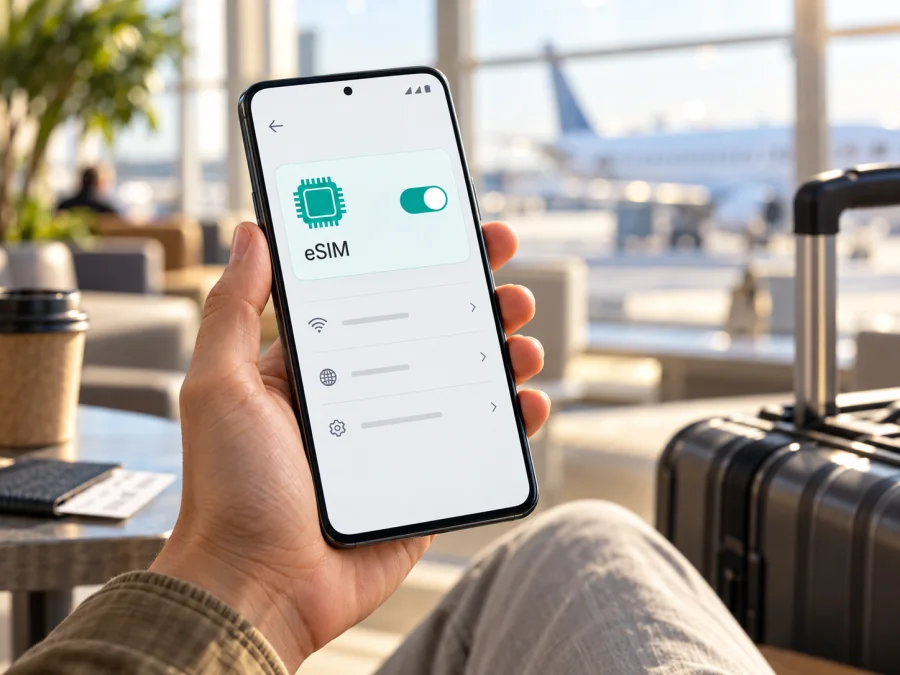
Honor 90 eSIM: compatibility, setup, and travel guide
The short answer is: some Honor 90 versions support eSIM, but you should not assume every phone sold as Honor 90 does. HONOR’s current global eSIM support information includes the HONOR 90, while its regional specifications state that eSIM is available only on the dual-SIM model. Country of origin, SIM configuration, carrier, and software can all affect what is available. Before arranging a travel data plan, check the EID and eSIM controls on your own handset. If there is no EID and no option to add an eSIM, treat that particular unit as incompatible.
An eSIM is a digital SIM profile stored in a compatible phone. It can provide mobile data while you travel without replacing the physical SIM in the phone. The Honor 90’s eSIM capability is therefore a property of the specific hardware and software configuration, not something that can be enabled just by downloading an app. This guide explains how to identify the supported dual-SIM version, verify the phone, install a profile, and use it for data abroad.
Honor 90 eSIM compatibility at a glance
| Item | What to know |
|---|---|
| Device covered | Honor 90, with the exact SIM and regional variant to be checked |
| eSIM status | Supported on eligible dual-SIM versions; not universal across all regional or carrier configurations |
| Physical SIM | The dual-SIM model can use SIM 2 as either eSIM or a nano-SIM, according to HONOR regional specifications |
| Best on-device check | Look for an EID and an Add eSIM control in Settings |
| Travel use | A compatible travel eSIM can be selected for mobile data while the primary line remains available, subject to phone and plan settings |
| Before purchase | Confirm the phone is unlocked, eSIM-capable, and supported for the destination and plan |
Practical conclusion: If your Honor 90 is the dual-SIM configuration, displays an EID, and includes an eSIM setup option, it is a candidate for eSIM use. If it is a single-SIM version, lacks those controls, or was made for a market where eSIM is unavailable, do not rely on the model name alone. A listing that says only “Honor 90” does not establish that the handset has an eSIM chipset enabled.
Why the answer depends on the variant
HONOR’s global eSIM information lists the Honor 90 and cautions that a listed model may still lack eSIM depending on its country of origin. HONOR regional specifications state that only the dual-SIM model supports eSIM; SIM 2 can be configured as eSIM or nano-SIM. Together, these details mean the phone family includes compatible versions, but not every retail unit is guaranteed to support the feature.
Regional releases can have different model codes, SIM trays, firmware, or carrier configurations. Some markets sell single-SIM versions, and operator-branded phones may have restrictions. Storage and memory labels do not prove eSIM support. If buying used or importing a phone, ask for the model code and a view of its EID screen. A compatible handset must also be unlocked and able to use a plan that supports eSIM in your destination. An app cannot add eSIM hardware to a device without it.
Check compatibility on your own phone {#kesim-device-compatibility}
Check the phone itself before purchasing a plan. Menu names can vary with MagicOS versions and regional software.
- Find the EID. Go to Settings → About phone and look for EID or Show EID. It may also appear under Status or SIM management. Keep this long identifier private.
- Find the eSIM control. Open Settings → Mobile network → SIM management and look for Add eSIM, Add mobile plan, or an eSIM option for SIM 2. HONOR’s help guidance uses these screens to check eSIM availability.
- Confirm the variant. Note the model code in About phone. A physical SIM tray does not rule out eSIM: on a supported dual-SIM model, SIM 2 may be set as nano-SIM or eSIM.
- Check unlocking and plan coverage. A visible EID does not prove the phone is unlocked. Confirm that the plan covers your destination and supports the phone’s activation method.
The model name on a box or online listing may describe several regional configurations. Before paying, compare the handset’s model code with the seller’s regional specification and ask whether that exact unit is dual-SIM with eSIM enabled. A SIM tray with two positions is not enough proof on its own, and a software screenshot that shows ordinary SIM controls does not establish an EID. If the phone is already in your hands, verify the identifier in Settings; if you are buying remotely, request a current Settings screen for the device being sold, not a stock product image. These checks distinguish a capable model family from the particular phone you will receive.
Use Check your device as a checklist before checkout. The strongest signs are an EID, an Add eSIM option, and confirmation that your exact dual-SIM model is unlocked. If the EID is missing, HONOR’s support guidance says the device does not support eSIM. If wording differs, search Settings for “EID” or “eSIM”; a menu label can move after an update, but an absent EID needs verification with HONOR or the seller.
What you need before setup
Prepare an unlocked compatible Honor 90, a reliable Wi-Fi connection, and the plan’s QR code or manual activation details. Keep the code private; it may let someone install the profile. Make sure the phone has enough battery and avoid resetting it during setup. Decide which line should handle mobile data, calls, and SMS. A travel data eSIM may not include a regular phone number or SMS unless the plan terms say so.
Check when the plan’s validity begins. Some plans start at installation; others start when the phone first connects to a supported network or meets another activation condition. Installing over Wi-Fi before departure is convenient, but wait if installation itself starts the plan. Turning a profile off does not necessarily pause validity.
Install and activate an eSIM
The usual Honor 90 route is Settings → Mobile network → SIM management → Add eSIM. Exact labels can differ by software, market, and plan. Follow the instructions supplied with your eSIM and do not scan a code issued for another person.
- Connect to reliable Wi-Fi and open Add eSIM or the equivalent SIM 2 option. If asked whether SIM 2 should use nano-SIM or eSIM, choose eSIM.
- Select QR-code setup and scan the code supplied with the plan. If the code is on this phone’s screen, display it elsewhere or use the provider’s supported manual method; a phone cannot scan its own display.
- If offered, enter manual activation details exactly as supplied. Do not guess values or repeatedly reuse a single-use QR code.
- Confirm the download and wait for the profile to appear in SIM management. Give it a clear label such as Travel data and keep it installed unless instructed otherwise.
- Choose which SIM handles mobile data. At the destination, enable the travel profile and turn on data roaming for that eSIM if the plan requires it. Keep home-line roaming settings separate.
- Wait for network registration and test a webpage with Wi-Fi off. If it does not work, use the troubleshooting checks below before deleting the profile.
See the Android installation instructions and iOS installation instructions. The Honor 90 uses Android, so follow the Android guide and the labels shown on your phone; the iOS link is provided as a general platform reference.
Installation downloads a profile; activation or first use follows the plan’s rules. The data line can be different from the default call and SMS lines. Check each setting independently. Avoid deleting a profile unless support advises it: some QR codes cannot be reused, and a replacement may need to be issued.
Using the Honor 90 for mobile data on a trip
A travel eSIM can provide data for maps, translation, ride-hailing, reservations, messaging, and work apps away from Wi-Fi. Before departure, check that the plan covers every country on your itinerary and review its data allowance, validity, activation conditions, hotspot rules, and speed limits. Coverage and performance depend on the plan and local network.
A common dual-SIM arrangement is to keep the home SIM available for important calls and use the travel eSIM for data. In SIM management, choose the travel eSIM as Mobile data, then review default lines for calls and SMS separately. Decide whether to allow automatic data switching: traffic may fall back to the home line, depending on the phone settings. To avoid unexpected charges, disable data roaming on the home SIM if it is not needed; enable roaming only on the travel profile when required by its instructions.
Install over dependable Wi-Fi before leaving if the plan’s validity rules allow it. At your destination, enable the travel profile, select it for data, and wait for it to register on an available partner network. Use manual network selection only if automatic registration fails or the provider recommends it. If you cross borders, plan which profile to use in each country and check whether installation or first connection starts validity. Travel data eSIMs may support internet calls and messaging but not conventional voice or SMS; keep access to your primary number if you need verification codes.
Kaspersky eSIM Store is an app and website where travelers can choose, arrange, and activate an eSIM with a mobile-data plan for an international trip. Review the destination and plan terms there, and confirm compatibility before completing a purchase. Signal, speed, and service depend on the local network and applicable plan.
Troubleshooting: when eSIM setup or data does not work
No EID or Add eSIM option: Search Settings for “EID” and “eSIM,” restart, and check for an available system update. Confirm the model code and whether the unit is dual-SIM. HONOR’s guidance says a missing EID means the phone does not support eSIM; ask HONOR or the seller to confirm if details conflict.
QR code is rejected: Check that the code belongs to this plan, has not already been used, and the phone is online. Improve screen brightness and camera focus. Use manual entry only if the provider supports it. Do not delete a profile or keep retrying a single-use code without checking its instructions.
Profile installed but no service: Ensure the profile is enabled and selected for mobile data. Toggle airplane mode, then check that you are in a covered destination and that the plan is active. Enable data roaming on the travel eSIM if required. Keep the home SIM’s roaming controls separate.
Signal appears but internet does not work: Turn Wi-Fi off to test, verify the travel eSIM is selected for mobile data, and review any APN details supplied by the plan provider. Check data limits or restrictions and restart after changing settings. Do not guess APN values.
Wrong line is used or activation is delayed: Review data, calls, and SMS defaults individually and disable automatic data switching if unwanted. Some plans activate only on a supported network; check the activation window and coverage, then contact plan support if it remains pending. Do not delete the profile unless advised.
Profile cannot be added: An EID confirms hardware, not that the phone is unlocked. Ask the original carrier or seller about a lock or regional restriction. When contacting support, provide the model code, MagicOS version, destination, error message, and order reference. Do not post passwords, verification codes, full QR codes, or EID publicly.
Frequently asked questions
Does every Honor 90 support eSIM?
No. HONOR lists the Honor 90 as eSIM-capable, but regional specifications say only the dual-SIM version supports it. Country of origin and carrier configuration can also matter. Check the EID and Add eSIM control on your unit.
Can a single-SIM Honor 90 be made compatible later?
Not if it has no EID. An app or plan cannot add eSIM hardware. Ask the seller or HONOR to verify the model code if the listing is unclear.
Does an EID guarantee that a travel plan will work?
No. The phone must also be unlocked, eSIM must be available in its regional configuration, and the plan must support the destination and activation method.
Before you travel: final device and plan check
- Confirm that the phone is the dual-SIM Honor 90 variant and note its regional model code.
- Verify that EID appears in Settings and that Add eSIM is available in SIM management.
- Confirm the phone is unlocked and that the eSIM feature is enabled for its market and software configuration.
- Check that the selected eSIM plan covers every destination and understand when its validity begins.
- Install it using a private QR code or supported manual details, then label the profile so you can identify it easily.
- Set the travel eSIM as the data line when appropriate; review data roaming, calls, SMS, and automatic switching separately.
- Keep the provider’s support details and plan instructions available without exposing the QR code or EID.
If the EID or eSIM menu is missing, verify the exact device variant with HONOR or the seller before you choose a plan. If the checks pass, compare the trip’s destination, data needs, validity, and activation timing, then use Kaspersky eSIM Store’s app or website to choose and arrange an eSIM plan for mobile data abroad. A few minutes of checking at home can prevent a setup surprise on arrival.


