Travel connectivity guide
Honor Magic 5 Pro 8GB RAM eSIM Compatibility
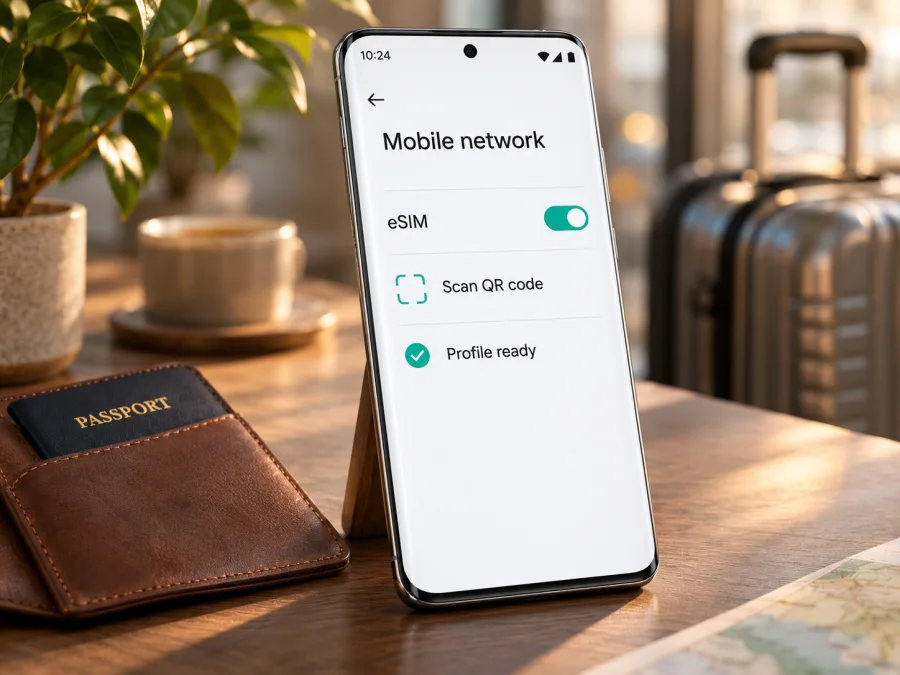
Honor Magic 5 Pro 8GB RAM eSIM: compatibility and setup guide
The Honor Magic 5 Pro 8GB RAM may support eSIM, but the memory specification alone cannot confirm it. HONOR lists the Magic5 Pro among its eSIM-capable phones and says support can depend on the country of origin. Its regional specifications also state that eSIM is available only on the dual-SIM model, with the second SIM slot configured as either a nano-SIM or eSIM. That makes the exact handset, sales market, and software build decisive.
The specific 8GB RAM variant is offered in more than one market. HONOR’s China product listing, for example, identifies an 8GB+256GB dual-SIM Magic5 Pro, while HONOR’s global eSIM information warns that a listed model may still lack eSIM when it comes from a market where the feature is not supported. Public product information does not confirm eSIM for every phone sold under the “Honor Magic 5 Pro 8GB RAM” wording. Treat this exact device as conditionally compatible: check the phone itself before choosing or paying for an eSIM plan.
In practical terms, the best evidence is an EID shown by the handset and an Add eSIM option in its SIM settings. If neither is present, do not assume that an update, a different carrier, or an eSIM QR code will enable the feature. Ask HONOR support or the seller to confirm the exact regional model number and its eSIM capability.
At a glance
| Item | What is verified for this device name | What you should confirm |
|---|---|---|
| Device variant | Honor Magic 5 Pro 8GB RAM; HONOR lists an 8GB+256GB regional configuration | Full model number, country of sale, and actual RAM/storage shown in Settings |
| eSIM status | The Magic5 Pro family is on HONOR’s current eSIM-capable list | This individual 8GB phone must have eSIM hardware and regional software support |
| SIM configuration | HONOR says eSIM is supported only by the dual-SIM model; SIM 2 can be eSIM or nano-SIM on supported versions | Whether the physical handset is the supported dual-SIM model and whether its firmware exposes the feature |
| EID | HONOR says it can appear under Settings > About phone > EID | Whether an EID is displayed on your handset |
| Add eSIM menu | HONOR’s documented route is Settings > Mobile network > SIM management > Add eSIM | Whether that route exists on this phone and can be opened |
| Travel data | A compatible, unlocked phone can use a data-only travel eSIM where its plan is supported | Plan destination, activation rules, roaming setting, APN, and local network availability |
Why regional versions change the answer
HONOR lists Magic5 Pro among its eSIM-capable devices but cautions that support depends on country of origin. Its UK specification describes eSIM on the dual-SIM model, where SIM 2 can be configured as eSIM or nano-SIM. Together, these statements mean the family may support eSIM while a particular regional version does not.
The 8GB RAM modifier does not identify the relevant hardware or software market. HONOR confirms an 8GB+256GB configuration in regional product material, but that listing does not confirm eSIM on every 8GB phone. “Dual SIM” may also mean two physical SIM cards. Look for eSIM in the specification, an EID on the device, and the Add eSIM menu.
A carrier-sold phone may be locked even if it has eSIM hardware, and a carrier may restrict provisioning. Confirm that the handset is unlocked and that your intended plan supports it. Menu names can vary by MagicOS version. An official update may change a menu or fix a software issue, but it cannot add eSIM hardware to a version that lacks it. Avoid unofficial firmware or region changes; they do not guarantee support.
How to check your Honor Magic 5 Pro 8GB RAM
Use these checks before purchase. A phone advertised as “eSIM ready” should still pass the checks on the actual device if you can inspect it.
- Find the EID. Open Settings > About phone and look for EID. If the menu is long, use Settings search for “EID.” HONOR also says the EID may be printed on the phone’s original packaging. If an EID appears, note it privately and do not post a screenshot publicly. Do not mistake IMEI for EID: they are different identifiers.
- Look for Add eSIM. Go to Settings > Mobile network > SIM management and check for Add eSIM. If the exact labels differ, search Settings for “eSIM” or “SIM management.” The option may only appear after setting up the phone, inserting a physical SIM, or updating its system software, so repeat the check after a normal official update if available.
- Inspect the model and market. In About phone, record the model number and MagicOS version. Compare those details with the product label, invoice, seller’s listing, and the HONOR support page for the country where it was originally sold. A marketing name alone is not enough to identify regional capability.
- Ask the seller a precise question. Ask whether this exact model number and regional version supports adding a third-party travel eSIM, and whether the phone is carrier-unlocked. Request a written answer or the regional specification page. “Dual SIM” by itself is not an answer.
- Check carrier and plan requirements. If you want to keep your regular number active alongside travel data, ask your home operator whether it permits the intended dual-SIM combination. Review the travel plan’s country coverage, activation deadline, data allowance, validity, and installation rules before checkout.
A visible EID and Add eSIM menu are strong practical signs, but still check that the phone is unlocked and the plan’s requirements match it. If you cannot find either, ask HONOR or the seller to confirm before making a purchase. You can also check whether your device is compatible before selecting a travel plan.
When a travel eSIM is useful
A travel eSIM is a downloadable SIM profile that can provide mobile data abroad without replacing the phone’s physical SIM. If your Honor Magic 5 Pro 8GB RAM passes the checks above, it may be useful for maps, translation, bookings, email, and messaging while travelling. Many travel plans are data-only; unless the plan says otherwise, do not expect a regular number, conventional voice calls, or SMS. Internet calls and messaging apps use data and must already be set up.
Kaspersky eSIM Store is an app and website where you can choose, arrange, and activate an eSIM with a mobile-data plan for an international trip. Once you have verified the phone, browse current travel eSIM options on the Kaspersky eSIM Store website and compare the destination, allowance, validity, price, and activation conditions shown. This is a general place to browse; it is not a country-specific offer.
Three practical setups:
- Install before departure: If allowed by the plan, install over reliable Wi-Fi and leave the profile off until the instructions say to activate it. Installation and the start of plan validity may be separate events.
- Install after landing: Use Wi-Fi if the plan allows it. Display the QR code on another screen or print it. Keep the profile installed if it takes a few minutes to connect.
- Keep your home SIM for calls: Select the travel profile for mobile data. Disable data switching if available and check roaming charges on your home line.
Coverage and speeds depend on the plan and local partner networks. A compatible device does not guarantee that every plan works everywhere, and 5G capability does not guarantee 5G service at your destination. Check destination and network conditions in the plan details.
Install and activate an eSIM
Before starting, confirm the EID and Add eSIM feature, connect to the internet, and have the activation QR code or manual details ready. Installation may not start the plan’s validity; follow the activation rules for the specific plan.
- Open Settings > Mobile network > SIM management and tap Add eSIM. If this option is missing, pause and verify compatibility.
- Select QR-code installation and scan the code from your purchase details. Use manual entry only if the provider supplied the details. Some plans support in-app installation.
- Allow the profile to download over a stable connection. Avoid closing the setup or removing the profile midway.
- Give the profile a clear label such as “Travel data” so you can distinguish it from your physical SIM.
- Enable the eSIM when ready and select it for mobile data. If keeping your home SIM active, check its roaming settings and disable data switching if available.
- Turn on data roaming for the travel eSIM only if the plan’s instructions require it. This may be necessary for partner network access; check the plan conditions. Avoid roaming on the home line unless you understand its charges.
- If there is no connection, check whether the provider specifies an APN. Enter its value exactly and select the saved APN; do not guess.
- Allow a few minutes after arriving in a supported destination. If offline, toggle airplane mode once, then check the troubleshooting steps below.
See the Android eSIM installation guide. Its screen labels are specific to Samsung, so Honor menus may differ. The iOS eSIM installation guide is for iPhone and does not describe Honor setup.
Do not delete an installed eSIM as an early troubleshooting step: its QR code may be single-use. Check with the provider before removing or transferring a profile. HONOR’s current transfer list does not include Magic5 Pro, so do not assume automatic transfer is available.
Troubleshooting checklist
No EID or Add eSIM option: Search Settings for “EID” and “eSIM,” check Settings > About phone > EID and the box, and confirm the model number and market. An IMEI is not an EID. If the EID or menu is absent, ask HONOR or the seller before buying a plan; do not expect a QR code to enable eSIM.
Profile will not install: Confirm internet access, that the code belongs to your plan and has not already been used, and that the activation window is open. Increase screen brightness when scanning. If setup fails after accepting the code, contact the provider before retrying repeatedly or deleting a partial profile.
Installed, but no data: Make sure the profile is enabled and selected for mobile data, the plan is active, and you are in a supported destination. Turn on roaming for that eSIM if directed, check the supplied APN, and make sure airplane mode is off. Plans may be installed before their activation date.
Home SIM has unexpected roaming: Check which SIM is selected for mobile data, disable data switching if available, and review your home carrier’s charges. A travel eSIM does not change the home line’s terms.
Connection is slow or intermittent: Check plan coverage and network selection, then try another location with a stronger signal. Device 5G capability does not guarantee 5G access or a specific speed on a travel plan.
When contacting support, provide the model number, purchase market, MagicOS version, and error text. Do not post QR codes, EID, full IMEI, or account credentials publicly.
Frequently asked questions
Does Honor Magic 5 Pro 8GB RAM support eSIM?
Possibly. HONOR lists the Magic5 Pro family but says country of origin matters and specifies the dual-SIM model. Check for an EID and Add eSIM on the actual phone before buying a plan.
Is the 8GB version the same as the global version?
Not necessarily. Regional listings confirm 8GB configurations exist but do not prove a particular SIM or software version. Check model number, purchase market, EID, and settings.
Can I use a physical SIM and eSIM together?
HONOR says SIM 2 can be configured as eSIM or nano-SIM on the supported dual-SIM version. Which lines work together for data and calls can depend on the phone and carrier; check SIM management and ask your operator.
Can I install a travel eSIM before the trip?
Often, if the plan permits it. Check whether installation and activation are separate and when validity starts.
Does a travel eSIM include calls and texts?
Many are data-only. Confirm the plan terms; messaging and internet calls may work through apps but do not give the profile a regular phone number.
Will eSIM work on a locked phone or transfer to another phone?
Do not assume so. Ask the carrier whether the device is unlocked. Transfer depends on the profile provider; HONOR’s current eSIM transfer list does not include Magic5 Pro, and activation codes may be single-use.
Final check before you travel
For Honor Magic 5 Pro 8GB RAM, use an on-device check rather than relying on the RAM label or a generic model list. Confirm an EID, find Settings > Mobile network > SIM management > Add eSIM, and verify the exact model number, sales market, carrier lock status, and software version. If these checks do not agree, have HONOR or the seller confirm the individual handset before you pay for an eSIM plan.
Once compatibility is clear, choose a destination and compare current plan details such as data allowance, validity, activation timing, and local requirements. Kaspersky eSIM Store is an app and website that helps you choose, arrange, and activate an eSIM with a mobile-data plan for an international trip. Review the conditions shown for your selected destination, install the profile using a reliable connection, and set the correct line for mobile data. A few checks before departure can prevent last-minute uncertainty and help you arrive with a practical way to get online.


