Travel connectivity guide
Honor Magic 6 Pro 12GB RAM eSIM: Compatibility
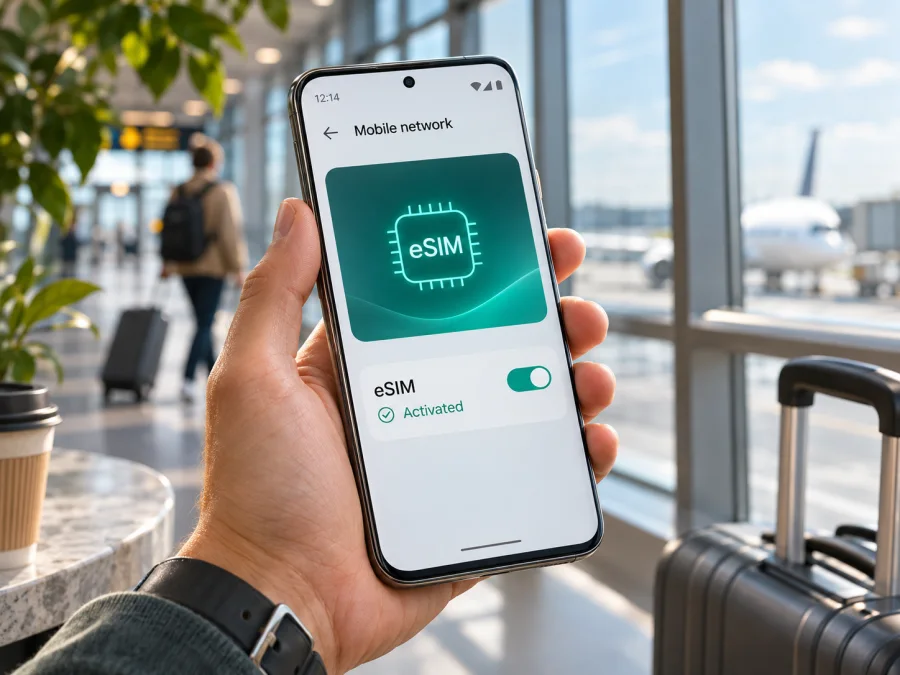
Honor Magic 6 Pro 12GB RAM eSIM: compatibility and travel setup
Quick answer
The HONOR Magic6 Pro family supports eSIM, but the name and 12GB RAM specification alone do not prove that every individual phone has eSIM enabled. HONOR’s current support material lists Magic6 Pro among its eSIM devices and gives setup steps for the model. HONOR also says eSIM availability can depend on country or region, carrier and device version. Its regional specifications describe SIM 2 as either a nano-SIM or eSIM on dual-SIM models, with a different SIM 2 configuration on single-SIM models. The precise wording “Honor Magic 6 Pro 12GB RAM” does not identify a sales region, hardware code, firmware build or carrier lock, so check the handset itself before buying a travel plan.
In practice, treat this as supported on eligible regional versions, subject to verification on the exact unit. The strongest on-device checks are a visible EID and an Add eSIM option in SIM management. If these are missing, ask the seller or HONOR support to verify the phone’s model code and market; do not infer eSIM capability from the 12GB RAM figure, 5G label, packaging photo or another Magic6 Pro listing.
At a glance
| Item | What to know |
|---|---|
| Requested device name | Honor Magic 6 Pro 12GB RAM |
| eSIM verdict | Supported by the Magic6 Pro family on eligible regional versions; confirm on your own handset |
| Manufacturer’s setup path | Settings → Mobile network → SIM management → Add eSIM; wording can vary by MagicOS version |
| EID check | Settings → About phone → EID; a displayed EID is a useful sign that the unit has eSIM hardware |
| SIM arrangement | HONOR regional specifications list nano-SIM for SIM 1 and nano-SIM/eSIM options for SIM 2 on dual-SIM versions; arrangements vary by version |
| Travel data use | Install a compatible travel data profile, then select it for mobile data at the destination |
| Before purchase | Confirm EID, Add eSIM, unlocked status, destination support, plan rules and activation timing |
What the eSIM verdict means for the 12GB RAM version
The 12GB RAM label identifies a memory configuration, not the full regional model code. HONOR lists Magic6 Pro as eSIM-capable and publishes setup steps, while its regional specifications qualify availability by country and carrier. Therefore, an eligible Honor Magic 6 Pro 12GB RAM can use eSIM, but confirm that your unit exposes the feature.
This matters for imported, refurbished or carrier-sold phones. Listings often omit the full model code; similarly named units can differ in firmware, SIM configuration or carrier restrictions. A carrier may limit activation, and a missing menu calls for a software or market check rather than an assumption based on the family name.
A carrier lock is separate from eSIM hardware. An unlocked phone may lack eSIM, and an EID-equipped phone may reject a profile if locked or unsupported. Check both the handset’s capability and permission to use the intended profile.
Regional and carrier versions: what to check
HONOR’s pages make the regional qualification explicit; they do not establish that every unit sold under the Magic6 Pro name has identical SIM support. The official setup article says feature availability may vary by carrier, country or region, and device. The regional specifications describe a SIM 2 choice between nano-SIM and eSIM for dual-SIM versions, while the single-SIM version’s SIM 2 is described as eSIM-only. Those statements describe configuration categories, not a guarantee for every retail SKU or operator build.
For an imported phone, compare the model code in Settings → About phone with the box or invoice. Ask HONOR in the country of sale or the original seller to confirm eSIM for that code and software region. If an operator supplied it, check unlock status and eSIM provisioning. The SIM tray cannot confirm eSIM because it only shows physical SIM configuration.
Support in one country does not prove support elsewhere, and a carrier’s eSIM service does not guarantee an imported phone can download its profile. Ask the seller to check your specific model code and region.
Check compatibility on your phone
Run these checks before purchasing a plan. Menu labels can move slightly between MagicOS releases, but HONOR’s support path is Settings → About phone → EID and Settings → Mobile network → SIM management.
- Look for the EID. Open Settings, choose About phone, and find EID. If a long EID number is displayed, the phone reports an embedded-SIM identity. Keep it private; share it only with a trusted provider when needed for activation or a support request.
- Look for Add eSIM. In Settings, open Mobile network and then SIM management. Check for an Add eSIM control, often associated with SIM 2. Do not disable or erase a working SIM just to test the menu.
- Check the model code and software. Note the full model identifier, MagicOS version and build number. Install official system updates over a reliable connection, restart, and look again if the menu is unexpectedly absent.
- Check the lock status. Confirm with the original carrier or seller that the phone is unlocked for another provider’s eSIM. A successful EID check does not remove a carrier lock.
- Confirm provider compatibility. Ask the company issuing the profile whether it supports this exact device and whether your destination is covered. For a travel data plan, verify that the plan is data-only or includes other services only if explicitly stated in its terms.
- Compare the evidence. An EID plus Add eSIM is reassuring. If they disagree, or both are absent, pause and have HONOR or the seller check the exact unit before paying for a plan.
For another quick compatibility check, check your device before choosing a travel eSIM. A generic list is a starting point; your own phone’s settings and the provider’s conditions are the decisive checks.
Install an eSIM on Honor Magic 6 Pro 12GB RAM
Before starting, connect to Wi-Fi, update the phone if possible, and have the QR code or activation details ready. Codes may be single-use; validity may begin on installation, first connection or a chosen date. Read the plan instructions and do not share the code or delete a profile unless reinstallation is allowed.
- Open Settings → Mobile network → SIM management.
- Tap Add eSIM or the add control beside SIM 2. If a physical SIM currently occupies a SIM 2 configuration that conflicts with eSIM, follow the on-screen guidance and check which line will be disabled before proceeding.
- Choose the available installation method: scan the provider’s QR code, enter an activation code manually, select a saved QR image if MagicOS offers that option, or install a pre-assigned plan if the provider supports it.
- Follow the prompts while the phone downloads the profile. Keep the network connection active and do not close the setup screen or repeatedly rescan if it appears to be processing.
- When prompted, name the line something easy to recognise, such as “Travel data”. This helps distinguish it from your home SIM in dual-SIM settings.
- Decide whether to enable the line now or leave it switched off until your trip. Choose the home SIM for calls and texts if you want to keep receiving them, subject to your home carrier’s roaming charges.
- For a travel data eSIM, set it as the mobile data SIM when you are ready to use it. Enable data roaming for that eSIM only if the plan’s instructions require it. The roaming toggle is a setting for the selected line; check the line name before changing it.
- At the destination, turn off Airplane mode, allow the phone to register, and test a page or app. If the provider specifies an APN, enter it exactly as supplied and restart mobile data.
For illustrated steps, see the Android eSIM installation instructions. The iOS instructions are also available for people setting up a different Apple device: iOS eSIM installation instructions.
Using a travel eSIM on a trip
A travel eSIM adds mobile data without removing the physical SIM. Before departure, check destination, duration, data allowance and activation rule, then install over Wi-Fi. Choose a delayed start if available. If validity begins on first connection, keep the line disabled until arrival if the provider permits it.
At the destination, set the travel line as mobile data. If your home SIM remains active for calls or messages, check its roaming terms and turn off automatic data switching if needed. Enable data roaming only on the travel line when the plan requires it.
Kaspersky eSIM Store is an app and website where you can choose, purchase and activate an eSIM with a mobile-data plan for an overseas trip. Browse current destinations and plan options and review the allowance, validity, activation conditions and price. Availability depends on the selected plan and its partner network.
Three common trip setups illustrate the choices:
- Keep your home number reachable: Leave the physical home SIM enabled for calls or messages, if desired, but select the travel eSIM as mobile data. Review roaming charges for the home line and disable its data roaming if you do not need it.
- Use only the travel data line: Disable the home SIM during the trip if you do not need calls or SMS on that number. This can reduce confusion about which line is using data, but make sure you have another way to receive any important verification codes.
- Cross a border during one journey: Check whether the plan covers every country on the route. A plan for a single country may stop connecting after a border crossing even if the phone and eSIM profile are working normally.
Travel data eSIMs are commonly intended for internet access. Do not assume a plan includes a conventional phone number, voice calls or SMS; check the plan terms. Internet messaging and voice apps can work over data, but require the relevant app account and connectivity.
Troubleshooting: start with the symptom
There is no Add eSIM option. Check Settings → About phone for an EID and confirm the full model code. Restart after applying official updates. If neither an EID nor an Add eSIM option appears, the unit may be a regional variant without eSIM, or its software or carrier configuration may restrict the feature. Ask HONOR or the original seller to verify the exact model code. Do not buy a profile on the assumption that a menu will appear later.
The QR code will not scan. Increase screen brightness on the device displaying it, clean the camera lens, and position the QR code so all corners fit inside the scanning frame. If offered, use the option to select the QR image from the gallery. A QR code already used on another phone may not be reusable; request the provider’s supported replacement or manual activation method rather than repeatedly scanning it.
The profile installs but has no service. Check that the eSIM line is enabled, the phone is outside Airplane mode, and the destination is included in the plan. Select the travel line for mobile data, then follow the plan’s instructions for data roaming and APN. Restart the phone or toggle the eSIM line off and on once. Give the phone a few minutes to register, especially after landing. If manual network selection is recommended by the provider, choose one of its listed partner networks.
The phone connects but apps have no internet. Confirm that mobile data is assigned to the travel line rather than the home SIM, that the plan has valid data remaining, and that the validity period has started. Check the APN exactly against provider instructions, disable any VPN temporarily for diagnosis if it changes routing, then reconnect. Do not reset network settings as a first step; it may remove saved Wi-Fi and Bluetooth connections.
The home SIM loses service or the wrong line is used. Open SIM management and review the default choices for calls, messages and mobile data. On some dual-SIM configurations, enabling eSIM may require changing how SIM 2 is assigned. The home operator may also have weak coverage or roaming restrictions. Re-select the intended data line and check whether automatic data switching is enabled.
Activation fails or the profile disappears. Verify that the phone is unlocked, the QR code and activation details were issued for this device, and the provider has not already consumed the code. Check the plan’s installation deadline and any identity or EID requirements. Contact the provider with the error message, device model code and relevant line status; do not send a full QR code or EID in a public forum.
Connection is slow or inconsistent. Signal, local network congestion, indoor location, the plan’s speed conditions and the partner network can all affect performance. Test outdoors, restart the phone, and check the selected network and plan details. A 5G label on the handset does not guarantee 5G service on every travel plan or in every location; the destination network and plan determine what is available.
Compatibility checklist before buying
Use this short checklist when you are ready to select a plan:
- [ ] The phone displays an EID in About phone.
- [ ] SIM management includes Add eSIM, and the setup flow opens.
- [ ] The model code and sales region have been checked with HONOR or the seller if either on-device check is missing or unclear.
- [ ] The phone is unlocked and can accept an eSIM profile from another provider.
- [ ] The plan supports the destination and the dates of the trip.
- [ ] You understand whether validity starts on purchase, installation, a selected date or first network connection.
- [ ] The data amount, duration, price, roaming requirement and any APN instructions are clear.
- [ ] Your home SIM’s roaming settings and charges are understood if you will keep it enabled.
FAQ
Does Honor Magic 6 Pro 12GB RAM support eSIM?
The Magic6 Pro family is listed by HONOR as supporting eSIM, and HONOR publishes model-specific setup instructions. But “12GB RAM” does not identify the phone’s region or exact model code. Eligible versions support eSIM; confirm the EID and Add eSIM option on your individual handset before buying a plan.
Does every country’s version support eSIM?
HONOR says the feature is available only in some countries and regions and can vary by device and carrier. Do not apply a regional specification to a unit purchased elsewhere without checking its model code and settings.
How many eSIM profiles can I store or use?
HONOR’s Magic6 Pro support information says you can install about seven or more profiles, with the maximum depending on the eSIM chipset, and only one eSIM can be used at a time. The precise capacity on your phone may vary. Storing profiles does not mean they are simultaneously active.
Can I keep a physical SIM and use eSIM?
HONOR documents SIM 1 as nano-SIM and describes SIM 2 as configurable as nano-SIM or eSIM on dual-SIM models. The combination available to you depends on the phone’s variant and current SIM configuration. Check SIM management before changing an active line.
Should I install the eSIM before travelling?
Usually, installing over Wi-Fi before departure is convenient, as long as you have checked when the plan’s validity begins. Leave the line disabled until arrival if the plan starts when it first connects and the provider permits this. Follow the plan instructions if it uses a scheduled activation date or another rule.
Is a travel eSIM a replacement for my regular phone service?
Not necessarily. A travel plan may provide mobile data only. Check whether voice calls or SMS are included before relying on it for a phone number, and keep or arrange another service for needs the plan does not cover.
Final check before your trip
For Honor Magic 6 Pro 12GB RAM, the practical answer is conditional: HONOR lists Magic6 Pro as eSIM-capable, but regional and carrier variation means the exact phone must be checked. Look for an EID and Add eSIM, verify the model code and unlocked status when anything is uncertain, then confirm the destination and activation rules for the plan you choose.
Once compatibility is confirmed, compare the trip’s countries, data needs, duration and activation date before selecting an eSIM. You can browse Kaspersky eSIM Store destinations and current plan options, then follow the provider’s setup instructions and choose the travel line for mobile data after arrival. A few minutes spent checking the handset, plan conditions and SIM defaults can prevent a frustrating connection problem on the road.


