Travel connectivity guide
Honor Magic 6 Pro 8GB RAM eSIM Compatibility
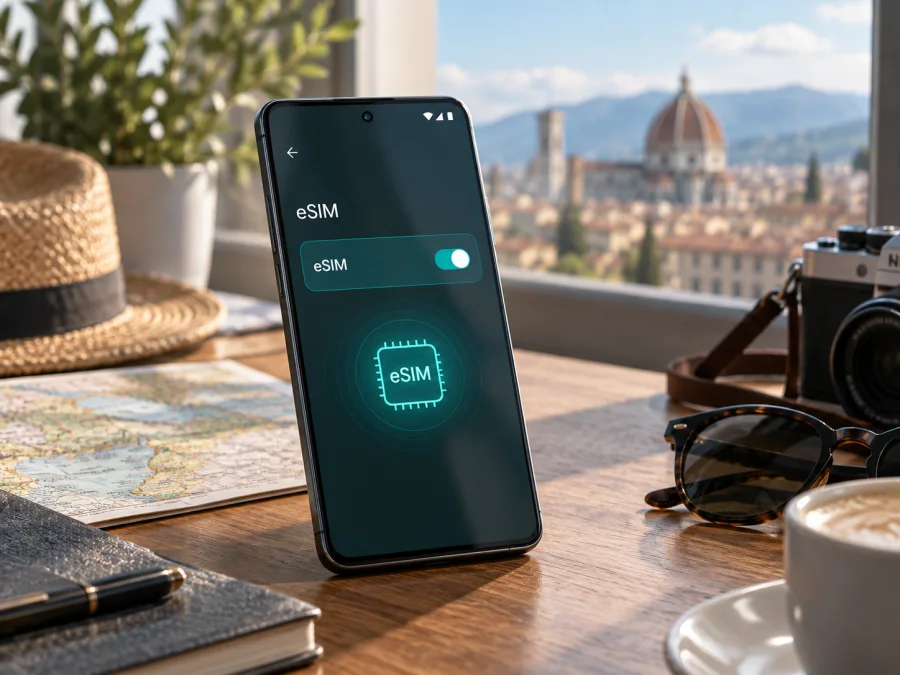
Honor Magic 6 Pro 8GB RAM eSIM compatibility and travel setup
The Honor Magic 6 Pro 8GB RAM can use eSIM on supported regional versions, but the name and memory capacity alone do not confirm that the handset in your hand has the required eSIM hardware and software. HONOR lists Magic6 Pro among its eSIM-capable phones and documents how to add a profile. At the same time, HONOR cautions that eSIM availability can vary by country of origin, carrier and device. Check the phone itself for an EID and an option to add eSIM before selecting a travel plan.
That distinction matters if you are shopping from a listing that says “8GB RAM.” Memory is not the eSIM identifier: two phones sold under a similar name can have different SIM configurations for different markets. This guide explains what the official information establishes, what still needs checking on your exact unit, and how to install and use a travel data eSIM safely.
Quick compatibility answer
| Item | What to know about Honor Magic 6 Pro 8GB RAM |
|---|---|
| eSIM support | Supported on compatible Magic6 Pro versions; not guaranteed by the 8GB RAM label alone. |
| Manufacturer guidance | HONOR’s eSIM support information includes Magic6 Pro and gives the EID and SIM-management checks. |
| Regional variation | HONOR says support can depend on country of origin, carrier and device. Confirm the local variant and firmware. |
| What proves the handset is ready | An EID shown in Settings and an eSIM add option in SIM management are strong practical checks. |
| Travel use | A compatible eSIM can provide mobile data abroad when the plan, destination network and settings are suitable. |
| Before purchase | Confirm device compatibility and carrier-unlock status, then review destination, data allowance, validity and activation conditions. |
The useful short answer is therefore “yes, if your specific regional version exposes eSIM support.” HONOR’s regional specifications describe SIM 2 as nano-SIM/eSIM on supported configurations, while the global support page lists Magic6 Pro as an eSIM device. The support page also warns that a phone from some countries of origin may not support eSIM even when its model family appears on the list. No responsible compatibility check can infer the feature from the marketing name or RAM amount alone.
Why the 8GB RAM label does not settle the question
Retail listings often combine a family name, memory, storage, colour and network details in one title. The exact phrase Honor Magic 6 Pro 8GB RAM is useful when searching for the handset, but RAM is not the part that stores an eSIM profile. The relevant capability comes from the phone’s embedded SIM hardware and the software configuration enabled for that device and market.
HONOR’s product pages show that SIM arrangements can differ. A supported dual-SIM configuration may allow SIM 2 to be configured as either a nano-SIM or eSIM; some single-SIM configurations may use SIM 2 for eSIM. HONOR’s general eSIM instructions note that eSIM may not be enabled on every country-of-origin variant. Those details are a reason to verify the actual handset rather than assume that one regional specification applies to every unit carrying the Magic6 Pro name.
A carrier can also affect practical use. The phone may support eSIM but still be locked to a network, or a particular carrier may not offer eSIM activation for that account or destination. A firmware update can change menus or improve support, but installing an update cannot add missing eSIM hardware to a variant that lacks it. If a seller cannot identify the market or model code, ask for that information before paying and check the EID directly as soon as the phone is available.
Check the exact phone before choosing a plan
Run both checks below. Menu names can differ slightly by MagicOS version and language, so use Settings search if the wording on your screen is different.
- Look for the EID. Open Settings → About phone → EID. HONOR’s support instructions identify this as the place to view the embedded-SIM ID. If the EID is displayed, note it only when a carrier or support flow asks for it; do not post it publicly. If no EID appears, do not treat the handset as eSIM-ready. Check the device documentation and ask HONOR support to confirm the regional variant.
- Look for eSIM management. Open Settings → Mobile network → SIM management. On supported software, the screen should show an option to add an eSIM or configure the SIM 2 slot as an eSIM. Depending on the installed physical SIMs, the exact controls can differ. Do not remove a physical SIM just to force a menu to appear; first confirm the supported configuration for your model code.
- Check the seller’s variant details. Match the model or SKU on the box, invoice or About phone screen with the seller’s regional listing. A generic “global version” description is not enough if the seller cannot state the country or market it was made for.
- Confirm the phone is unlocked. If you bought it through a carrier, ask whether it accepts another provider’s eSIM. An EID confirms an embedded eSIM identity, but it does not prove that the phone is free of a network lock.
- Check the plan’s device and destination requirements. A travel plan must support the destination and your handset’s eSIM profile. Review whether activation starts at installation, first connection or another event, and whether a valid Wi‑Fi connection is required for setup.
Use this device compatibility check as a final reminder before checkout. The presence of 5G or dual SIM does not by itself prove eSIM support, and an EID does not promise that every eSIM plan will work in every country. Compatibility has several parts: the phone must support eSIM, its software must expose the feature, it must be unlocked where required, and the plan must be valid for the trip.
Install and activate a travel eSIM
Set up the profile over a stable Wi‑Fi connection and keep the QR code or manual details available. A QR code may be single-use, so do not repeatedly scan it if installation pauses. Follow the plan provider’s instructions if a MagicOS menu differs.
- Check the plan. Confirm destination, data allowance, validity, supported networks and when activation begins. Many travel plans are data-only; check terms before expecting a phone number, voice calls or SMS.
- Prepare the phone. Connect to Wi‑Fi, turn Airplane mode off and keep the home SIM active if needed for calls or account verification. Ensure the battery is sufficient.
- Open SIM management. Go to Settings → Mobile network → SIM management and choose Add eSIM or the control beside the eSIM-capable SIM 2 entry.
- Install the profile. Scan the provider’s QR code, select a saved QR image if offered, or enter activation details manually when supported. Wait for confirmation and label the line “Travel data.”
- Choose activation timing. If allowed, install before departure and enable the line when needed. If validity begins on installation, follow the plan’s recommended timing. Do not delete a profile as a troubleshooting shortcut; some QR codes cannot be reused.
- Set data and roaming. Select the travel eSIM for mobile data when ready. Keep the home SIM for calls or texts if desired, and review its roaming setting. Enable roaming on the travel line only if its instructions require it.
- Test service. Turn Wi‑Fi off briefly and open a webpage. If you are outside the destination or before the activation window, wait until the plan’s service conditions are met before treating the setup as failed.
For platform-specific walkthroughs, see the Android eSIM installation instructions and iOS eSIM installation instructions. The iOS guide is a general reference for travellers using another device; Honor Magic 6 Pro 8GB RAM uses Android and MagicOS menus. Kaspersky eSIM Store is an app and website where travellers can choose, arrange and activate an eSIM with a mobile-data plan for an overseas trip. Plan availability and operation depend on its terms, the handset and destination network.
Using the eSIM while travelling
Before departure: Check that the plan covers every destination and transit country, then match its data allowance and validity to your itinerary. Download offline maps and travel documents over Wi‑Fi. Keep your home SIM for calls or verification if needed, and review its roaming settings and charges.
On arrival: Turn off Airplane mode, enable the travel eSIM, choose it for mobile data and wait for network registration. Follow the plan instructions for data roaming, APN or manual network selection. A data-only plan supports internet apps, but does not automatically include a phone number, cellular calls or SMS.
During the trip: Monitor data use in Settings. Video, photo backup, app updates and hotspot use can consume an allowance quickly. Check whether tethering is permitted before relying on it. For multi-country travel, confirm each country is listed and check whether the allowance is shared. Signal and speed depend on local network conditions and location.
When you return: Switch mobile data back to your home SIM. Disable the travel line or retain its profile only as the plan allows. Deleting a profile may be permanent; disabling a line may not stop its validity period, so check the plan terms first.
Troubleshooting
- No EID or Add eSIM option: Recheck Settings → About phone → EID and Settings → Mobile network → SIM management. Confirm the regional model code and official software updates. If the EID remains absent, ask HONOR to confirm the country-of-origin variant before purchasing a plan.
- QR code does not scan: Increase the brightness of the screen showing the code, steady the phone and use the gallery option if available. Use manual activation only when the plan provider offers it. Treat the QR code as private account information and avoid repeated scans if it may be single-use.
- Profile added but no service: Check that the plan is active for the current date and destination, the eSIM is enabled, Airplane mode is off and mobile data is assigned to the travel line. Follow the provider’s instructions for roaming, APN and network selection. A downloaded profile cannot connect outside its coverage area.
- Connected but apps have no data: Check the remaining allowance and validity, confirm the correct SIM handles mobile data, and compare APN settings with the plan instructions. Turn Wi‑Fi off briefly for a clean test. If you use private DNS, a VPN or data-saving controls, pause them briefly to identify whether they affect the connection, then restore your settings.
- Home SIM loses service or uses data: In SIM management, choose separate preferred lines for data, calls and messages. Check automatic data switching and home-SIM roaming. Dual-SIM behaviour depends on the device configuration and carrier.
- Profile limit or weak signal: HONOR says stored-profile limits depend on the eSIM chipset. Remove a profile only when you are certain it is no longer needed, and ask the plan provider whether its QR can be reused. For weak signal, restart, move near a window or outdoors, and allow the phone time to register. Local coverage cannot be guaranteed by device compatibility alone.
Compatibility checklist
<a id="kesim-device-compatibility"></a>
- [ ] You know the exact regional model code and country of purchase.
- [ ] An EID appears, and SIM management offers Add eSIM.
- [ ] The phone is unlocked for the intended provider.
- [ ] The plan includes your destination and the service you need.
- [ ] You understand its data allowance, validity start, roaming and hotspot rules.
- [ ] You know which SIM will handle mobile data, calls and messages.
FAQ
Does every Honor Magic 6 Pro 8GB RAM support eSIM?
No. HONOR lists Magic6 Pro among eSIM-capable devices but says availability can vary by country of origin, carrier and device. The 8GB RAM label does not identify the eSIM configuration. Check EID and SIM management on your own handset.
Can I keep my physical SIM installed?
Some regional configurations support dual-SIM use, with SIM 2 set up as nano-SIM or eSIM. Confirm the combination shown in your phone’s SIM-management screen; do not assume that every market version behaves the same way.
Is an EID enough to guarantee a travel plan will work?
No. It is an important capability check, but the eSIM menu must also be available, the handset must accept the profile, the plan must cover your destination, and the phone must be unlocked when required. Network conditions affect service after setup.
When should I install the eSIM?
Many plans can be installed over Wi‑Fi before travel, but validity may begin at installation, first connection or another event. Read the plan’s activation terms before scanning the code. Install close to the recommended time and do not delete the profile if setup appears delayed.
Final device check and travel eSIM choice
For Honor Magic 6 Pro 8GB RAM, confirm eSIM on your handset by checking its EID, Add eSIM menu, regional model and unlock status. HONOR establishes that Magic6 Pro can support eSIM, while warning that country-of-origin and carrier differences matter. After compatibility is confirmed, choose a plan for the destination and trip length, compare its data and validity, and follow its setup instructions. Kaspersky eSIM Store is an app and website that helps travellers choose, arrange and activate an eSIM with a mobile-data plan for an overseas trip. Check before checkout, install over a stable connection and select the intended data line on arrival to use maps, messaging and other online services.


