Travel connectivity guide
Honor Magic 7 Pro 8GB RAM eSIM Guide
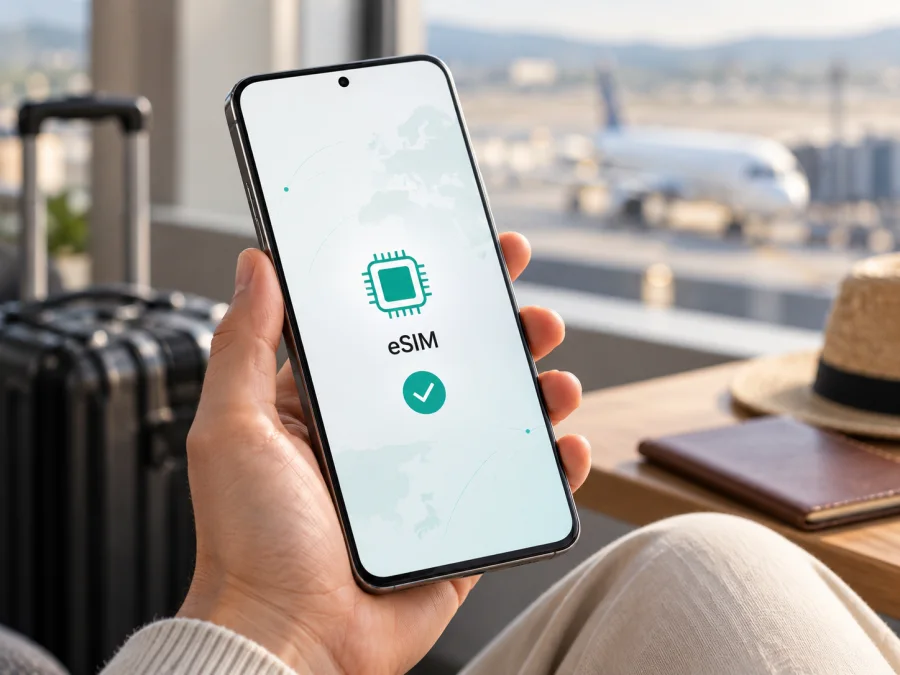
Honor Magic 7 Pro 8GB RAM eSIM: compatibility and setup guide
If you are considering eSIM for an Honor Magic 7 Pro 8GB RAM, the practical answer is conditional: HONOR lists the Magic7 Pro among its eSIM-capable models, but also says availability can depend on a device’s country of origin. HONOR’s regional specifications likewise note that eSIM availability may depend on country and operator. HONOR’s public guidance establishes support at the Magic7 Pro family level, but an “8GB RAM” label alone does not identify the exact regional hardware variant or prove that eSIM is enabled.
Treat this as a device-family indication, not a guarantee for every handset sold under a similar name. Before relying on it or purchasing a travel plan, check the phone itself for an EID and an Add eSIM option, then confirm that the device is unlocked and that the chosen plan supports your destination. If neither eSIM indicator appears, ask the seller or HONOR support to confirm the exact model code and region.
Quick answer
HONOR’s current global eSIM information includes HONOR Magic7 Pro in its supported-device list. However, the same guidance warns that eSIM may be unavailable depending on the country of origin. A regional HONOR specification page lists nano-SIM and eSIM configurations and says availability can vary by country and operator. Those details confirm support for the model family in some configurations, but the 8GB RAM label alone does not identify an eSIM-enabled regional SKU.
The safest verdict is therefore: the Magic7 Pro family supports eSIM in some markets; compatibility of the exact 8GB RAM handset is unconfirmed until its EID, settings menu, and regional model code have been checked. The RAM amount does not activate or guarantee eSIM. It is the device’s cellular hardware, firmware, sales region, and network status that matter.
| Item | What can be said |
|---|---|
| Device variant | Honor Magic 7 Pro 8GB RAM |
| Official family-level status | HONOR’s global eSIM page lists the Magic7 Pro |
| Exact 8GB RAM configuration | Its eSIM status cannot be established from the RAM label alone |
| Regional limitation | HONOR says eSIM may depend on country of origin, country, region, and carrier |
| Best check on the handset | Look for an EID and an Add eSIM control in Settings |
| Travel-plan readiness | Also requires an unlocked phone and a plan that covers the destination and supports the phone’s eSIM profile |
Why the exact version matters
A commercial name can cover phones intended for different markets. Manufacturers may adjust SIM configuration, supported cellular bands, software features, and carrier approval by sales region. A retailer can also describe memory differently from the manufacturer: the listing may refer to physical RAM, virtual memory expansion, or a bundle configuration. That is why “8GB RAM” alone is not a dependable identifier for an eSIM-capable SKU.
HONOR’s global eSIM page is useful for establishing that the Magic7 Pro exists in the family of devices that can use eSIM. Its caveat is just as important: country of origin can change whether eSIM is actually supported. HONOR’s regional specification page lists a nano-SIM / eSIM option and explains that availability may depend on country and operator; its wording describes supported configurations in that sales region, not every Magic7 Pro worldwide.
When comparing listings, look for the precise model or product code on the box, invoice, Settings > About phone screen, or device label. Give that code to HONOR support and ask whether this exact regional version supports eSIM. Ask the seller to confirm whether the stated 8GB is installed RAM or includes memory expansion, and whether the handset is new, refurbished, or imported. Do not assume a screenshot from another country’s review matches your phone.
The same distinction applies to operator locks. An eSIM menu can be present while a phone is restricted to a particular carrier. Conversely, an unlocked handset can lack the eSIM hardware or regional software support. These are separate checks: confirm eSIM capability on the device, and confirm that the phone can accept a profile from the provider whose plan you intend to use.
Check compatibility on your phone
Run these checks before paying for a plan. Menu wording can vary with MagicOS version and region; if labels differ, search Settings for “EID,” “SIM management,” or “eSIM.”
- Find the EID. Open Settings > About phone and look for EID. HONOR’s support guidance says the EID identifies the embedded-SIM capability; if it is not displayed, eSIM may not be supported on that handset. You may also find the EID on the original box. Keep it private and share it only when a trusted provider or HONOR support needs it.
- Look for SIM management. Open Settings > Mobile network > SIM management. On a compatible HONOR phone, the menu may show SIM 2 and an option such as Add eSIM. Some versions show this only after the phone is connected to Wi-Fi or after a software update.
- Check the device code and sales region. Compare the model code in About phone with the original box and purchase documents. Ask HONOR support to confirm eSIM support for that exact code and the country where the device was sold.
- Check whether the phone is unlocked. Ask the original carrier or seller, or test with a SIM from a different provider if available. A carrier restriction may prevent activation even when the EID is present.
- Check the specific plan and destination. Compatibility of the handset does not establish that a particular plan is offered in every location. Confirm coverage, data allowance, validity period, activation timing, supported installation method, and any roaming setting in the plan details.
Use this checklist before checkout:
- [ ] The phone shows an EID.
- [ ] Settings includes Add eSIM or an equivalent eSIM control.
- [ ] The exact regional model code has been confirmed where the menu or EID is unclear.
- [ ] The handset is not carrier-locked.
- [ ] The intended eSIM plan is valid for the destination and trip dates.
- [ ] You have a reliable Wi-Fi connection and access to the QR code or activation details.
Check your device before choosing a plan. If the EID or Add eSIM control is missing, pause and ask HONOR or the seller to verify the device; do not treat a generic Magic7 Pro compatibility result as proof for an unverified 8GB RAM unit.
Install and activate an eSIM
Set up the profile while you have stable Wi-Fi, enough battery, and your provider’s installation instructions. Most eSIM QR codes are intended for one installation, so keep the code available on another screen or a printed copy. Do not delete an installed profile to troubleshoot unless the provider confirms it can be reissued.
- Choose a compatible plan. Confirm destination, data allowance, validity, activation rules, and whether the provider uses a QR code, manual activation details, or in-app installation. For a travel data plan, check whether it is data-only and whether it needs data roaming enabled on that line.
- Open the eSIM controls. On the HONOR interface, go to Settings > Mobile network > SIM management. If the phone has two physical SIMs, follow the phone’s prompt if it asks you to disable one slot before using eSIM.
- Add the profile. Tap Add eSIM or the equivalent control. Scan the provider’s QR code, select a saved QR image if offered, or enter the activation details manually. Only use the method supplied for your plan.
- Wait for download and confirmation. Keep the phone online and do not close setup while it downloads the profile. The eSIM may appear in SIM management with a name such as Travel or the destination. Rename it if that makes it easier to distinguish from your home SIM.
- Set the line for mobile data. Select the new eSIM as the mobile-data line when appropriate. If keeping your home SIM active, decide whether it should still handle calls and texts, and review its roaming settings to avoid unwanted charges from your home carrier.
- Activate at the right time. Some plans start their validity at purchase, some at installation, and others when they first connect to a supported network. Follow the plan’s activation rule rather than assuming that installation and first use are the same event.
- Test the connection. When the plan should be active, turn Wi-Fi off briefly, confirm the travel eSIM is selected for data, and load a webpage. If it does not connect, restore Wi-Fi and follow the troubleshooting steps below before removing the profile.
For additional Android steps, see the Android eSIM installation instructions. The iOS guide is useful if you are preparing a different phone: the iOS eSIM installation instructions. Menus on the Honor handset are controlled by its own MagicOS software, so use the phone’s on-screen labels if they differ from a general Android guide.
Using a travel eSIM on a trip
Before departure, verify the plan’s destination list and its start condition. A country name in a plan title is not enough if your itinerary includes a territory, island, or border crossing with separate coverage. For a multi-country route, confirm that all stops are included, and check what happens to the plan’s validity and remaining data when you cross into another covered area.
If the plan permits installation before departure, you can download the profile at home on Wi-Fi and leave it turned off until its intended start time. If installation itself starts validity, wait until the provider’s recommended time. Save the activation instructions somewhere available offline, and keep access to your account email or app in case you need to review setup details.
After arrival, select the travel eSIM for mobile data. The plan may require data roaming to be enabled on that eSIM line for the local partner network to connect; check the provider’s instructions. This setting is distinct from roaming on your home SIM. If the home SIM remains active, set it so that mobile data does not unexpectedly use that line and check with your home carrier about calls, messages, and roaming charges.
A typical data-only travel eSIM supplies internet access rather than a new regular phone number. Messaging and internet calls can work through apps already linked to your usual account, while standard calls and SMS continue to depend on your home SIM or another voice service. Verify the precise plan terms before travel, particularly if you need two-factor authentication by text.
Kaspersky eSIM Store is an app and website where travelers can choose, arrange, and activate an eSIM with a mobile-data plan for an international trip. You can browse the Kaspersky eSIM Store to check current destinations and plan details; this general homepage is for browsing and is not a specific country tariff. Compare the destination, data amount, validity, activation rules, and device requirements shown for the plan you are considering.
For example, a short city break with maps and messaging may need less data than a work trip with video meetings or a family trip where several devices share a hotspot. Estimate usage from the apps you expect to use, download maps and entertainment over Wi-Fi, and check whether tethering is allowed and included. A data plan’s advertised capacity is not a promise of a particular speed: local network conditions, congestion, and coverage can affect the experience.
Troubleshooting common problems
There is no EID or Add eSIM menu. Restart the phone, check Settings again, and install any available official system update over Wi-Fi. Then confirm the model code and country of sale with HONOR support. A missing menu can indicate a regional variant without eSIM support; repeated factory resets are unlikely to add the missing feature.
The QR code will not scan. Increase screen brightness on the device displaying the code, clean the camera lens, and make sure the QR code belongs to the plan you are installing. If the provider permits it, use the phone’s saved-image scanning option or manual activation details. Ask the provider to reissue the code if it has already been used or has expired; do not post the QR code publicly.
The profile installs but shows no service. Check that the eSIM is enabled, selected for mobile data, and within its activation window. Confirm the plan covers your current location. If required, enable data roaming for the travel eSIM, then toggle airplane mode on and off or restart the phone. Allow a short time for network registration. If it still fails, contact the plan provider with the error message and activation status.
The phone connects but there is no internet. Verify the data line selection, remaining allowance, plan validity, and any access point name (APN) instructions from the provider. Turn Wi-Fi off during the test, then reconnect to a supported network. If you changed APN settings, restore the provider’s exact values rather than guessing.
The home SIM appears to be using data. Reopen SIM management and check which line is selected for mobile data. Disable automatic data switching if the phone offers it, and review roaming on the home SIM separately. Do not assume that choosing a travel eSIM automatically changes every call, message, and data preference.
The plan does not activate when expected. Review whether activation starts at purchase, installation, a scheduled time, or first connection in the destination. Confirm that automatic date and time are enabled and that the eSIM has reached an included network. The plan provider can verify the profile and its start status.
You need to change or remove an eSIM. First ask the provider whether the profile can be installed again. HONOR warns that a deleted profile may not be recoverable from the phone, and deleting a profile does not necessarily cancel the underlying service. Disable or delete it only when you understand the provider’s reinstallation and account rules.
FAQ
Does Honor Magic 7 Pro 8GB RAM support eSIM?
The HONOR Magic7 Pro family is listed by HONOR as supporting eSIM, but HONOR also warns that eSIM depends on country of origin, region, and carrier. HONOR’s public eSIM guidance does not establish compatibility for a handset identified only by an 8GB RAM label. Check the EID, Add eSIM menu, and model code on the exact phone before relying on eSIM.
Is RAM capacity related to eSIM support?
No dependable conclusion can be drawn from RAM capacity alone. The 8GB label does not identify whether a handset has the eSIM hardware and regional software configuration. Use the device identifiers and HONOR’s confirmation for the exact variant.
Can I use a physical SIM and an eSIM together?
HONOR’s regional specifications show SIM configurations that combine nano-SIM and eSIM, but the available combinations depend on device version and market. Follow the SIM management screen on your own phone and check which lines can remain enabled at the same time.
Can an eSIM be installed before I travel?
Often it can, but the right timing depends on the provider’s activation policy. Read whether validity starts at purchase, installation, a scheduled date, or first connection. Use Wi-Fi and do not delete the profile if you are unsure how to reinstall it.
Does a travel eSIM replace my usual number?
A travel data eSIM may provide mobile data only and may not include calls, SMS, or a regular phone number. Your usual number can remain associated with your home SIM if you keep that line active and your carrier allows it. Check both services’ terms and costs before departure.
What if I cannot find Add eSIM?
Check About phone for an EID and confirm the regional model code. If both are absent, contact HONOR or the seller before purchasing a plan. Do not rely on another person’s Magic7 Pro menu: sales-region variants can behave differently.
Before you choose a travel eSIM
For Honor Magic 7 Pro 8GB RAM, verify the exact handset rather than relying on the family name alone. Confirm its EID and Add eSIM menu, ask HONOR or the seller to validate the regional model code, and make sure the phone is unlocked. Then compare plans for the full itinerary, including data allowance, validity, activation timing, network availability, and roaming instructions.
If the phone passes those checks, install the profile over Wi-Fi at the time recommended by the plan provider, select the correct data line, and test the connection when the plan is due to work. If the EID or menu is missing, treat compatibility as unconfirmed and resolve that question before checkout. Once your device is confirmed, use the Kaspersky eSIM Store website or app to browse current destination options and choose a plan suited to your trip.


