Travel connectivity guide
Honor Magic 7 Pro eSIM: compatibility and setup
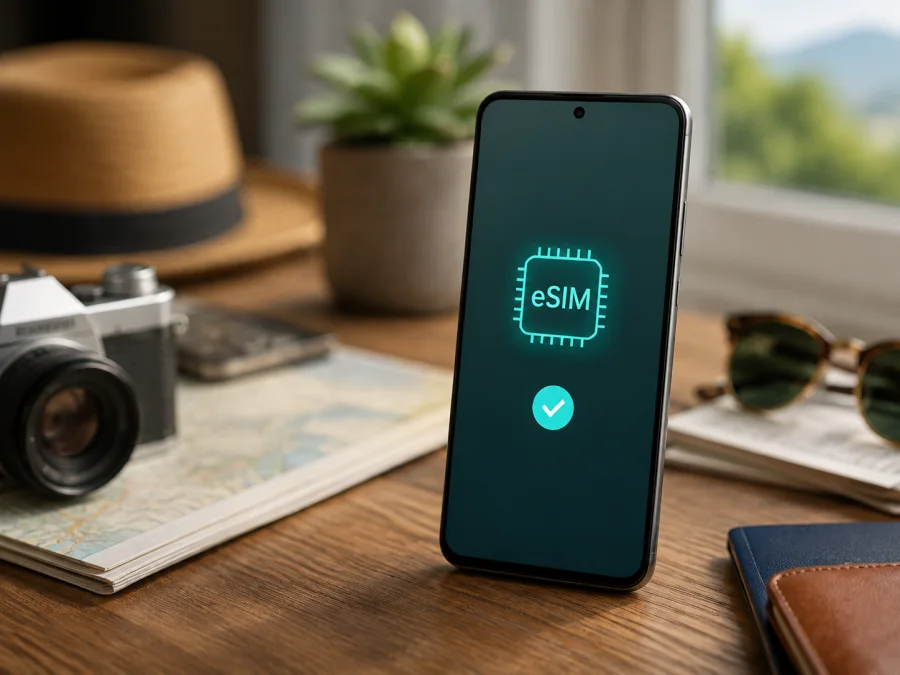
Honor Magic 7 Pro eSIM: compatibility and setup
If you are preparing a trip and want mobile data without replacing your physical SIM, the first question is whether the Honor Magic 7 Pro in your hands supports eSIM. HONOR’s current global eSIM guidance lists HONOR Magic7 Pro among supported devices. It also warns that eSIM availability can depend on the country of origin, regional version, carrier and software. The model name is therefore a useful starting point not a substitute for checking your own phone.
For an eligible international version, the Honor Magic 7 Pro can use a digital SIM profile for mobile data. The practical proof is an EID in the phone information and an option to add an eSIM in SIM management. If neither is present, do not buy a travel eSIM expecting it to work. An imported unit or carrier-customized version may have different capabilities.
Quick answer: does Honor Magic 7 Pro support eSIM?
In general, yes: HONOR’s current global eSIM information includes HONOR Magic7 Pro in its supported-device list. The same information says that a listed device may not support eSIM in every country of origin. The most accurate answer for your unit is therefore: the Honor Magic 7 Pro may support eSIM when its regional hardware and software include the feature, but you should confirm it on the phone before purchase.
The strongest self-check is the EID. It is the identifier associated with the embedded SIM component. HONOR’s support guidance says to open Settings > About phone > EID; if no EID information is displayed, the phone does not support eSIM according to that guidance. Also check Settings > Mobile network > SIM management for Add eSIM. Wording may vary slightly, but a supported phone should offer a clear way to add or manage an eSIM profile.
Compatibility snapshot
| Item | What it means for this page |
|---|---|
| Exact device | Honor Magic 7 Pro |
| Manufacturer information | HONOR currently lists the Magic7 Pro among eSIM-capable devices |
| Important condition | Support may vary by country of origin, regional version, carrier and software |
| Best phone-side proof | EID in About phone and Add eSIM in SIM management |
| Travel use | A compatible eSIM plan can provide mobile data where its coverage applies |
| Phone number | A travel data eSIM normally does not include your regular number, calls or SMS unless its terms say so |
What can differ between regional and carrier versions?
Regional variation is the main reason to keep the answer conditional. HONOR’s global page lists HONOR Magic7 Pro but separately notes that eSIM may not be supported in every country of origin. A phone sold for one market may show an eSIM menu while an imported or locally customized version does not. A carrier can also impose activation rules or lock the device to its own service.
Check the seller’s market information before relying on a listing. “Honor Magic 7 Pro” alone does not establish the SIM configuration. Ask whether the specific unit has an EID and is unlocked; if the seller cannot answer, inspect the phone before paying.
Install available official updates, restart the phone and repeat the EID and SIM-management checks. If both are still absent, contact the seller or HONOR support instead of forcing a QR installation. Hardware support and carrier support are separate: an EID does not override a plan restriction, expired code or network lock.
What to check before buying an eSIM tariff
Use this check before you choose a travel plan. It prevents the most avoidable problem: paying for a profile before discovering that the unit is a non-eSIM regional version.
- Find the EID. Open Settings > About phone. Copy it only when an activation process asks for it; do not publish it in a public message.
- Find the eSIM control. Open Settings > Mobile network > SIM management and look for Add eSIM or equivalent wording.
- Check the market. Compare the box, invoice and seller’s description. Imported units require extra care.
- Check the lock status. Confirm that the phone is unlocked and can accept a profile from the intended provider.
- Update the software. Install official updates, restart the device and repeat the EID and menu checks.
- Keep internet available. The phone needs Wi-Fi or another connection while it downloads the profile.
- Read the tariff terms. Confirm destination, supported networks, data allowance, validity period, activation timing and top-up rules.
- Plan the default line. Decide which SIM handles calls and SMS and which eSIM handles mobile data.
- Protect activation details. Keep the QR code or manual code available, but do not share it publicly.
For a focused compatibility route, use Check your device and finish the phone-side checks before opening the payment screen.
Choosing an eSIM for a trip
Once the device check is positive, choose the destination and review the plan conditions in the Kaspersky eSIM Store app or website. Kaspersky eSIM Store helps you choose, arrange and activate an eSIM with a suitable tariff for mobile internet during foreign travel. It is not the mobile operator, network owner or source of radio coverage. The connection depends on the partner or local operator networks named in the tariff conditions.
After the EID and Add eSIM checks pass, choose an eSIM plan for your trip. Keep your physical SIM active, but review its data-roaming setting.
How to install and activate an eSIM on Honor Magic 7 Pro
You need a supported, unlocked phone, a working connection and the QR code, activation code or assigned plan supplied in the purchase flow. Treat the QR code like an activation credential.
1. Open SIM management
Open Settings, choose Mobile network, then SIM management. On supported phones, the eSIM is commonly managed as the second SIM. If there is no Add eSIM option, stop and verify the regional version.
2. Start adding an eSIM
Tap Add eSIM and follow the prompts. Depending on the MagicOS version, you may be able to scan a QR code, select a saved QR-code image, enter an activation code manually or install a pre-assigned plan.
3. Scan or enter the activation details
Use the supplied method. Increase the brightness of a QR code on another screen and enter manual details exactly. A used, expired or misassigned code can fail even when the phone is compatible.
4. Wait for the profile to download
Keep the phone on Wi-Fi and allow several minutes for download and registration. If the phone asks you to disable a physical SIM in the second slot, read the prompt carefully.
5. Name and enable the profile
Use a clear name such as “Trip data” or the destination and enable the profile. Multiple profiles may be stored, but device limits and simultaneous-use rules vary.
6. Select the eSIM for mobile data
Set the travel eSIM as the line for Mobile data. Keep your everyday line for calls and messages if you need your regular number. Turn off automatic switching between data lines when you want predictable usage.
7. Enable roaming only for the travel profile when required
Some travel plans require Data roaming to connect through a partner network abroad. Enable it for the travel eSIM, not automatically for your primary line, and follow the plan’s instructions.
8. Test the connection
Turn off Wi-Fi briefly, keep mobile data on for the travel profile and open a simple webpage or map. If you are still at home, the profile may remain inactive until you reach a supported destination. Restore Wi-Fi after the test.
For platform-specific guidance, see the Android eSIM installation instructions and the iOS eSIM installation instructions. The iOS page is a general service reference; Honor Magic 7 Pro uses Android and MagicOS settings.
Using the eSIM during travel
Install the profile before departure over reliable Wi-Fi if the plan allows it. You can leave it disabled until arrival, but first check whether the plan starts on installation or first connection.
On arrival, enable the travel eSIM, select it for mobile data and enable data roaming for that profile if required. Keep your main line available for calls or SMS only if you understand its roaming conditions. A data-only eSIM normally does not include ordinary calls or SMS; internet messengers can work over its connection.
Watch the allowance. Turn off automatic updates, background video, cloud photo uploads and large downloads away from Wi-Fi. For a multi-country itinerary, confirm every destination and its listed partner networks.
When you return home, switch mobile data back to your regular SIM. Disable the travel profile if you may need it again and the plan permits reuse. Do not delete it just to remove it from the list: some profiles cannot be restored, and deleting an eSIM does not necessarily cancel the plan or stop charges.
Common problems and practical checks
There is no EID and no Add eSIM option
This suggests that the exact regional version may not support eSIM. Restart the phone, install official updates and check Settings > About phone again. If EID is still absent, confirm the country of origin with the seller or contact HONOR support. Use a physical SIM or a different confirmed-compatible device if the trip is near.
The QR code will not scan
Increase the display brightness, clean the camera lens and hold the phone steady. If the code is on the same phone, use the option to select a QR-code image from the gallery when available. Check that the code belongs to this purchase and has not already been used. Ask the provider to reissue a damaged or expired code; do not edit it.
The profile will not download
Connect to stable Wi-Fi, check that the phone is unlocked and confirm that the activation details are complete. A provider may need the EID for an assigned plan, so compare the requested identifier with the phone’s own EID. Contact support if they do not match.
The profile is installed but there is no service
Make sure the eSIM is enabled and selected for mobile data. Check the destination and network conditions, enable data roaming for the travel profile if required, toggle airplane mode once and restart the phone. If the plan lists manual network selection or APN settings, follow those instructions exactly.
The phone uses the wrong line for data
Return to SIM management and select the travel eSIM under mobile data. Turn off automatic data switching if you want the travel profile to remain the only data line. Confirm that the physical line is not selected for data roaming, then test with Wi-Fi off.
FAQ
Is Honor Magic 7 Pro eSIM compatible?
Usually, the model family is eSIM-capable: HONOR’s current global guidance lists HONOR Magic7 Pro among supported devices. The exact answer depends on country of origin, regional hardware, carrier conditions and software. Check for EID and Add eSIM on your own phone before purchase.
How do I find the EID on Honor Magic 7 Pro?
Open Settings > About phone > EID. If no EID is displayed, HONOR’s support guidance indicates that the phone does not support eSIM. If the menu is different, update the phone, check SIM management and confirm the regional version.
Can I keep my physical SIM while using an eSIM?
Often, yes, but the available combinations depend on the regional version and MagicOS configuration. HONOR notes that a physical SIM in the second slot may need to be disabled when an eSIM is added. Check the prompt and select the correct line for mobile data.
Does a travel eSIM give me a phone number?
Not normally. A travel data eSIM is intended for mobile internet, and ordinary calls or SMS are not included unless the plan explicitly says so. You can keep your usual line for calls and use messaging apps over the travel data connection.
Can Kaspersky eSIM Store guarantee that this phone will connect?
No. Kaspersky eSIM Store helps you choose, arrange and activate an eSIM tariff for mobile internet during a foreign trip, but it is not a carrier, network owner or provider of mobile coverage. Connection depends on the phone, plan, destination, partner networks and local conditions.
Key takeaways
The current official HONOR list is encouraging for the Honor Magic 7 Pro, but the model name alone is not enough. Confirm EID and Add eSIM on the exact unit, check that it is unlocked, and verify the plan’s destination and activation rules. Install over a reliable connection, select the eSIM for mobile data, enable roaming only where required and monitor the allowance during the trip.
Final device check and trip eSIM plan
Before leaving with your Honor Magic 7 Pro, complete this sequence:
- Open Settings > About phone and confirm that EID is present.
- Open Settings > Mobile network > SIM management and confirm that Add eSIM is available.
- Confirm the phone’s country of origin and carrier-lock status.
- Choose an eSIM tariff in Kaspersky eSIM Store for every country or region on your route.
- Check data volume, validity, activation timing, supported networks and top-up conditions.
- Install the profile over Wi-Fi, name it clearly and select it for mobile data.
- On arrival, enable the travel eSIM and data roaming for that profile if required.
- Keep your regular SIM’s data roaming off unless you deliberately need it and understand the charges.
If the EID or Add eSIM check fails, stop before purchase and confirm the regional version with the seller or HONOR support. If the checks pass, Kaspersky eSIM Store gives you a clear way to choose and activate a travel eSIM plan for mobile internet, while the phone-side verification keeps the decision tied to your exact Honor Magic 7 Pro.


