Travel connectivity guide
Honor Magic 8 Pro 128GB 5G eSIM: Compatibility
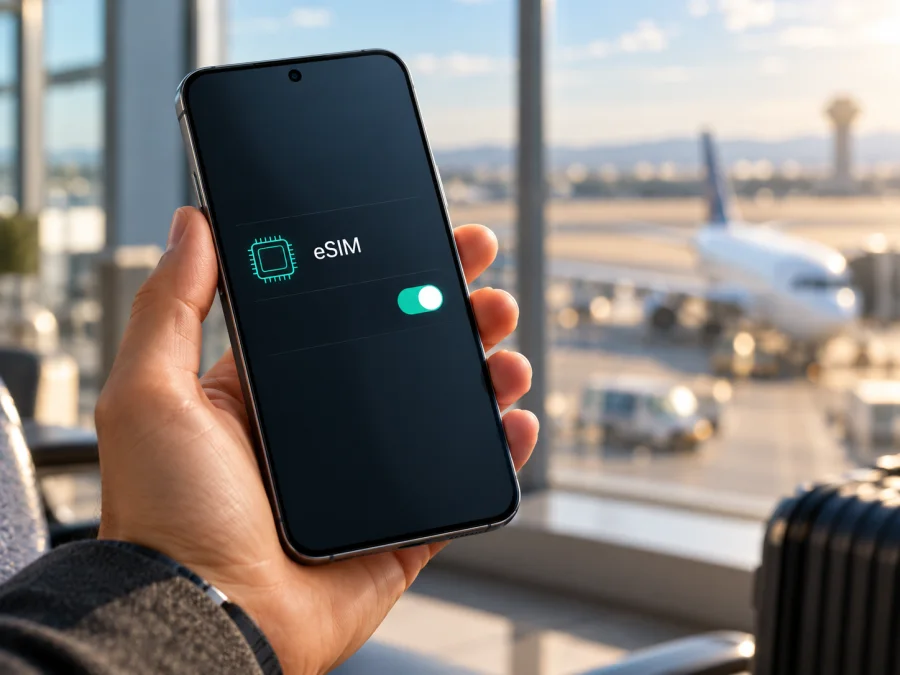
Honor Magic 8 Pro 128GB 5G eSIM: compatibility and setup
If you are considering the Honor Magic 8 Pro 128GB 5G for a trip, the short answer needs one qualification: HONOR lists the Magic8 Pro family as eSIM-capable, but I could not verify an official 128GB sales configuration for this exact name. That means the family-level feature is a useful starting point, not proof that a handset advertised as “128GB” has the eSIM hardware and software enabled in its market.
HONOR’s global eSIM guide, checked on November 1, 2026, includes HONOR Magic8 Pro among supported device families and warns that eSIM may not be available depending on the phone’s country of origin. HONOR’s regional Magic8 Pro specifications list SIM combinations that include a physical SIM with eSIM, and in some markets two eSIMs. Those statements support eSIM for listed Magic8 Pro versions; they do not certify every regional SKU, seller listing, or firmware. The official regional pages reviewed list configurations such as 12GB+512GB, while HONOR’s China support information shows a 12GB+256GB configuration. I found no official confirmation of a 128GB Magic8 Pro configuration. Check the model number, storage and eSIM menu on the actual phone before relying on the listing.
Does the Honor Magic 8 Pro 128GB 5G support eSIM?
The most accurate answer is: the Magic8 Pro family supports eSIM in documented markets, but eSIM support for a specific phone advertised as Honor Magic 8 Pro 128GB 5G is not confirmed until its regional version is checked. The 5G label alone does not establish eSIM support. A phone can have 5G radio capability and still differ in SIM hardware or enabled software by market.
HONOR’s current global eSIM guide explicitly names the Magic8 Pro. Its regional specifications describe SIM1+SIM2, SIM1+eSIM, and eSIM1+eSIM2 options for the Magic8 Pro in applicable versions. At the same time, HONOR says availability depends on country and carrier. This is why the specific device’s EID and Settings screen matter more than a generic model-family result.
| Item | What can be confirmed | What still needs checking |
|---|---|---|
| Device name in this guide | Honor Magic 8 Pro 128GB 5G | The exact name and capacity on your invoice and box |
| eSIM on the Magic8 Pro family | HONOR’s global eSIM guide includes Magic8 Pro; official regional specifications show eSIM SIM combinations | Whether the individual regional SKU and firmware enable eSIM |
| 128GB storage variant | Not confirmed on the official HONOR product pages reviewed | Ask the seller for the full model code and verify it on HONOR support for the selling market |
| 5G | HONOR specifications list 5G for the Magic8 Pro family | Actual network bands and service depend on the regional model and local operator |
| Cellular lock | Not established by the model name | Confirm the phone is unlocked and can accept another provider’s profile |
| Best pre-purchase proof | EID plus an “Add eSIM” option in SIM management | If either is missing, pause and get written confirmation from HONOR or the seller |
A listing may shorten the name, combine memory details incorrectly, or refer to an import. Do not treat “128GB” as a verified Magic8 Pro configuration based on the listing alone. Ask for the model code and storage shown on the box and in Settings → About phone, then compare them with HONOR support for the selling market. If the seller cannot provide a traceable code, the exact variant remains unresolved.
Regional versions and operator restrictions
The same family name can cover regional packages with different SIM arrangements, radio bands, menus, or enabled features. A European specification page cannot prove the same for an imported or China-market handset. The storage discrepancy makes the product code essential: “Honor Magic 8 Pro 128GB 5G” alone is not enough to identify the exact hardware.
The operator matters too. A phone with eSIM hardware may be carrier-locked or incompatible with a plan’s bands or provisioning rules. eSIM and 5G are separate capabilities: a travel plan may use LTE, depending on its terms and the local network. Confirm both device compatibility and destination coverage.
Do not assume a China-market import, another region’s model, and a locally sold unlocked model are interchangeable. HONOR’s family-level list does not promise support for every edition. Check the code on the box and in Settings, ask the seller which market it was made for, and test the handset before buying a travel plan. Ask the original carrier about any lock; an eSIM cannot override it.
Check the handset before buying a plan
A quick check takes only a few minutes and can prevent a failed installation after you have left home. Use the phone itself, not only a retailer’s compatibility table.
- Look for an EID. Open Settings and search for “EID,” or go to Settings → About phone. On supported MagicOS versions, HONOR also documents EID under Settings → About phone → EID. An EID is the identifier used by eSIM systems. Its presence is strong evidence that the phone has an eSIM component, though you should still confirm the add-profile option and carrier lock status.
- Open SIM management. Go to Settings → Mobile network → SIM management. Look for Add eSIM. Menu wording can vary with region, MagicOS version, and translation. If that label is absent, install current official system updates, restart once, and check again. Do not assume a missing option can be restored by scanning a QR code.
- Check the model code and market. Compare Settings → About phone with the box label and purchase documents. A mismatch can indicate a refurbished, imported, or incorrectly described unit. Ask HONOR support for that code’s regional eSIM status.
- Confirm the phone is unlocked. Ask the selling or original carrier whether the device is SIM-unlocked. If you already have a physical SIM from another provider, test whether the phone accepts it. A travel eSIM may fail on a locked handset even when the EID exists.
- Confirm the plan is suitable. Check that the destination is included, the data allowance and validity match your trip, and the plan supports your intended use. If you need calls or ordinary SMS, verify those separately: travel data eSIMs commonly provide data only.
If buying in person, check the phone before paying. Online, ask for a photo or video of the model code, EID and Add eSIM screen. Share your EID only with a provider or support channel that needs it. If the seller calls 128GB a typo or market-specific configuration, get the corrected details in writing.
For a guided pre-purchase check, check your device’s eSIM compatibility. A general compatibility tool is helpful, but the final decision should match the exact model and regional version in your hand.
What you need before installation
Prepare the phone while you have reliable Wi-Fi. Keep it charged, update MagicOS if an update is available, and have the activation details for the eSIM ready. Depending on the plan, setup may use an in-app installation flow, a QR code, or details entered manually. A QR code may be single-use, so display it on another screen or print it. If it is on the Honor handset itself, use manual or in-app installation.
Before you tap install, read the plan’s instructions for when its validity begins. Installing a profile and starting a data plan are different steps: some plans begin when first connected in the destination, while others may start at purchase or installation. Do not assume the start rule. If activation can be scheduled or delayed, select the option that fits your itinerary. Keep your main SIM active for calls and verification messages if needed, but disable data roaming on it when abroad if you want to avoid unexpected charges.
How to install and activate an eSIM on the Honor Magic 8 Pro
These steps use HONOR’s documented menu path. Labels can vary between MagicOS versions and regional builds. If a menu is named differently, search Settings for “eSIM” or “SIM management.” Kaspersky eSIM Store’s Android installation guide is a general reference; its current walkthrough is written for Samsung, so use HONOR’s own menu path on this phone. The iOS installation guide is for Apple devices and does not apply to the Honor handset.
- Connect to Wi-Fi. Leave the original SIM installed if you still need it. Make sure the phone has enough battery and that the plan’s destination and validity are correct.
- Open the eSIM menu. On the Honor phone, go to Settings → Mobile network → SIM management, then tap Add eSIM. If the option is missing, stop and verify the region and model code rather than continuing with a QR code that the handset cannot add.
- Choose the installation method. Scan the provider’s QR code, enter the supplied activation information manually, or select an available pre-assigned plan. Use only the method supplied for the plan. Do not photograph or share a QR code after use.
- Follow the on-screen prompts. Allow the phone to download the profile. Keep Wi-Fi connected until the installation finishes. Name the profile something recognizable, such as “Travel data,” so it is easy to distinguish from your home SIM.
- Choose the data line. In SIM management, enable the travel eSIM and set it as the mobile-data SIM when you are ready to use it. You can usually keep your home number selected for calls and messages, subject to your carrier’s terms and device configuration.
- Set roaming only for the travel profile if required. Some travel eSIM plans require data roaming to be switched on for that eSIM to connect. Follow the plan instructions. Check the selected line carefully; roaming on your home SIM can incur charges from your usual carrier.
- Connect at the destination. Turn on mobile data for the travel eSIM. If the plan requires it, enable roaming for that eSIM, wait several minutes, and allow it to register on a supported local network. Check the provider’s instructions for any required APN setting.
- Test the connection. Open a simple webpage or map while Wi-Fi is off. Confirm that the data indicator appears and that the travel eSIM, rather than the home SIM, is selected for mobile data. Review remaining data and validity in the plan’s account or app.
Do not delete a profile just because it fails to connect immediately. A QR code may be single-use, and the profile may not be recoverable by scanning it again. Check the settings below, then contact the plan’s support team with the error and order details.
Using the eSIM for travel data
An active eSIM can provide travel data without removing a physical SIM. Use it for maps, bookings, messaging, translation, email, and ride-hailing. Service depends on the plan, local network, signal and supported bands; the phone’s 5G label does not guarantee 5G on every plan or in every destination.
Choose a destination or regional plan that includes every country on your route. Match the allowance to your likely use; streaming, uploads and hotspot use consume more data than maps and messages. Review validity, activation timing, tethering terms and fair-use limits at checkout, as current options can change.
Kaspersky eSIM Store is an app and website where you can choose, arrange, and activate an eSIM with a plan for mobile data during an overseas trip. The plan’s service conditions identify the applicable network arrangements. The store is not the phone’s mobile operator and does not own or provide the radio network. Travel data plans are often data-only; do not expect an ordinary phone number, voice calls, or SMS unless the individual plan explicitly includes them. Internet calls and messages through apps can use the data connection.
For two lines, keep the home SIM for calls if needed and select the travel eSIM for data. Disable roaming on the home SIM; enable it on the travel eSIM only if the plan requires it. Recheck your selected data line after crossing a border.
Practical travel scenarios
- City break: Install over Wi-Fi before departure if the plan allows it. On arrival, select the travel eSIM for data and test a map or message.
- Multi-country itinerary: Confirm that a regional plan covers every country and stopover where you need data. A country plan may stop at a border.
- Home number needed: Keep the primary SIM for calls or verification if permitted, assign data to the travel eSIM, and review roaming charges.
Troubleshooting: no eSIM, no signal, or no data
There is no “Add eSIM” option. Check for an EID in Settings → About phone and update the phone through its official system updater. Confirm the exact model code and market with HONOR or the seller. If the EID and add option are both absent, treat the device as not ready for eSIM and do not buy a plan on the assumption that the family name is enough.
The QR code does not scan. Increase screen brightness on the device displaying it, clean the camera lens, and hold the code steady with the whole image in frame. Make sure you are using the phone’s Add eSIM scanner, not the regular Camera app. If the QR is on the Honor screen itself, use manual activation or another display. If the code has already been used, ask the plan provider whether it can issue a replacement; do not keep retrying a potentially single-use code.
The profile installs but shows no service. Confirm you have reached the plan’s destination and that its validity has started. Check that the profile is switched on, mobile data is assigned to it, airplane mode is off, and the selected network is available. Restart the handset, wait a few minutes, and check the plan instructions for roaming or an APN. If manual network selection is available, return to automatic selection unless support tells you otherwise.
The phone connects, but pages do not load. Verify which SIM is selected for data, confirm the plan has remaining data and has not expired, and check whether data roaming is required for that travel profile. Disable Wi-Fi temporarily to test cellular data. If an APN is specified, enter it exactly as supplied, save it, and select the saved APN. Avoid changing unrelated network settings.
The phone uses the home SIM for data. Reopen SIM management and select the travel eSIM under mobile data. Turn off automatic data switching if available, and review roaming settings for both profiles. A notification bar that shows two signal indicators does not by itself tell you which SIM is carrying data.
The eSIM works in one country but not another. Check the destination list and regional coverage terms for the plan. Confirm the plan has not expired and that the handset is not still manually locked to a network that is unavailable in the new location. A profile can remain installed even when its plan does not include the country you entered.
The phone is locked or the provider rejects the device. An EID does not remove a carrier lock or guarantee that a particular provider accepts a device. Ask the original carrier to confirm unlock status. Give the eSIM provider the phone’s exact regional model code, not only the retail name, and ask whether that code is accepted.
Check in order: device eligibility, profile installation, selected data line, network registration, and plan conditions. If the issue remains, contact the seller, HONOR, or plan support with the model code and failed step. Never post activation codes or account credentials publicly.
Frequently asked questions
Is eSIM definitely supported on every Honor Magic 8 Pro 128GB 5G?
No definitive claim is possible for that exact capacity-labelled variant from the official pages reviewed. HONOR lists the Magic8 Pro family as eSIM-capable and documents eSIM SIM combinations in regional specifications, but also says availability may vary by country and carrier. The official listings I found do not confirm 128GB storage for this phone. Verify the actual model code, EID and Add eSIM option on the handset.
Can I use a physical SIM and an eSIM at the same time?
HONOR’s regional Magic8 Pro specifications list SIM1+eSIM among possible configurations. The available combinations and number of active lines can vary by version and market. Check the SIM manager on your specific phone; do not assume every supported profile can be active simultaneously.
Can I keep my regular phone number?
A physical home SIM can often remain installed while the travel eSIM handles data, if the phone and carrier allow it. Calls and SMS abroad depend on your home carrier; many travel data plans do not include a phone number or messaging.
Can I install the eSIM before I fly?
Often yes, over Wi-Fi, but validity may begin at purchase, installation, or first network connection. Check the plan terms; installation and data use are separate events.
Final check before your trip
For the Honor Magic 8 Pro 128GB 5G, family-level eSIM support is documented by HONOR, but the exact 128GB configuration has not been confirmed in the official product information reviewed. Before paying for a plan, confirm the phone’s model code and market, find its EID, and make sure Add eSIM appears in SIM management. Also verify that the phone is unlocked and that the plan covers your destination, data needs, and travel dates.
After those checks, use Kaspersky eSIM Store’s app or website to review current destination options and choose an eSIM plan for mobile data on your overseas trip. You can browse current destination plans on the Kaspersky eSIM Store website; this is the general store homepage, not a country-specific tariff. Review the allowance, validity and activation terms before installing over a reliable connection.


