Travel connectivity guide
Honor Magic 8 Pro 256GB 5G eSIM
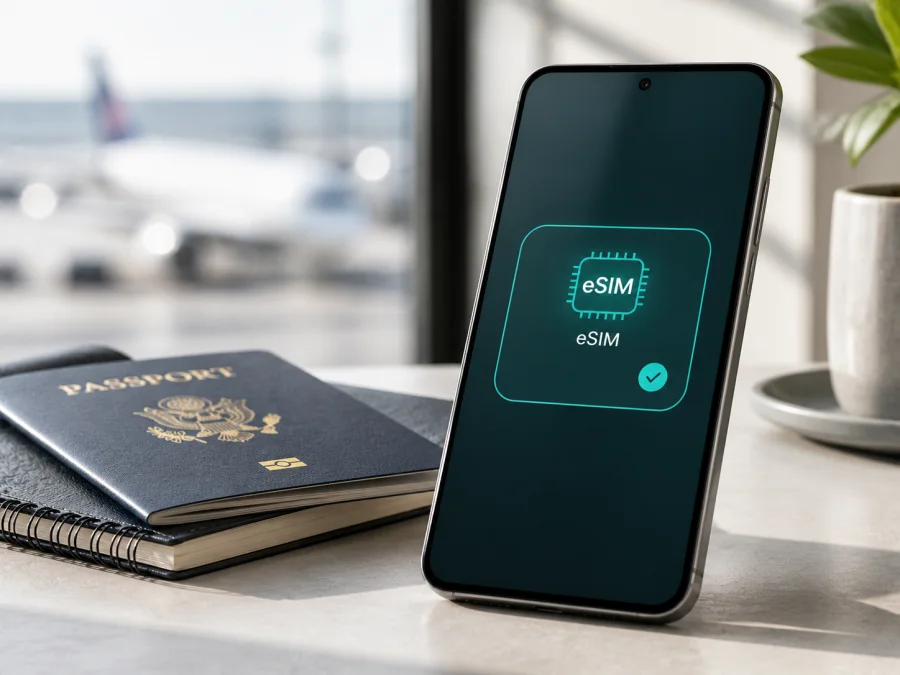
Honor Magic 8 Pro 256GB 5G eSIM compatibility guide
If you are preparing to travel with Honor Magic 8 Pro 256GB 5G, eSIM can add a digital SIM profile without removing your physical SIM. Support depends on the exact regional device, operator configuration and software installed on that unit.
Does Honor Magic 8 Pro 256GB 5G support eSIM?
Yes, the HONOR Magic8 Pro family is listed by HONOR as supporting eSIM, but support for your exact retail unit must be confirmed on the phone. HONOR’s current global eSIM guidance includes Magic8 Pro among compatible devices. Regional specifications also show SIM combinations such as SIM1 + SIM2, SIM1 + eSIM and eSIM1 + eSIM2. HONOR simultaneously warns that eSIM availability can vary by country and mobile operator.
The safe answer for Honor Magic 8 Pro 256GB 5G is therefore conditionally compatible. The 256GB and 5G labels identify this variant, but do not prove that every market version has the same eSIM function. An imported or operator-supplied phone may have different SIM hardware, firmware or a network lock. Before buying a travel plan, look for both an EID and an Add eSIM option in Settings. If either is missing, do not assume that a QR code will enable the feature.
eSIM is a digital SIM profile used to authenticate a mobile subscription. In the travel use case, it is normally intended for mobile data. It does not automatically provide a second phone number, ordinary voice calls or SMS; those services are included only when the selected plan says so. Messaging and calling apps can work through the eSIM’s internet connection.
Compatibility at a glance
| Item | What applies to this device page |
|---|---|
| Exact requested variant | Honor Magic 8 Pro 256GB 5G |
| Official product family | HONOR Magic8 Pro |
| Storage named in the variant | 256GB; this is not proof of eSIM support |
| Network label | 5G; bands, roaming and service availability depend on the market and network |
| eSIM status | Listed by HONOR for the Magic8 Pro family, subject to country, carrier and software availability |
| Possible SIM modes | Regional HONOR specifications show physical SIM and eSIM combinations; the actual menu on your unit is decisive |
| First checks | Settings > Mobile network > SIM management; Settings > About phone > EID |
| Intended use here | A travel eSIM for mobile internet on a compatible, unlocked phone |
Why regional and operator versions matter
HONOR’s device list identifies the product family, but it is not a substitute for checking a particular handset. HONOR’s global guidance says that a listed device may still lack eSIM support depending on its country of origin. Regional pages can publish different SIM configurations, and a carrier-supplied phone may have a network lock or a provisioning rule. A device sold in one market can therefore show a different SIM management screen from a similarly named unit sold elsewhere.
The software build can matter too, and an eSIM option may be hidden when the feature is not enabled for that market. Look for EID and Add eSIM controls.
Before relying on the phone for arrival-day connectivity, check:
- the country or region where it was originally sold;
- the model and software details in Settings > About phone;
- whether it is unlocked for another operator’s profile;
- whether a 32-digit EID is displayed;
- whether SIM management includes Add eSIM or an equivalent command;
- whether the travel plan covers the destination network and route.
How to verify eSIM compatibility yourself
Do this while you have Wi-Fi and before purchasing a plan. Do not delete an existing SIM profile during the check.
Check for an EID
- Open Settings.
- Open About phone.
- Look for EID, sometimes inside a status, device information or SIM status subsection.
- Confirm that the value is present and is a long numeric identifier, usually 32 digits.
- Keep the full EID private; provide it only through a trusted activation flow when requested.
HONOR’s eSIM guidance identifies Settings > About phone > EID as a place to find this identifier. It may also be printed on the original box. Search Settings for “EID” if the menu is not obvious.
Check for Add eSIM
- Return to Settings.
- Open Mobile network.
- Open SIM management.
- Look for Add eSIM, Add mobile plan or similar wording.
- Open it far enough to see whether QR scanning, manual entry or a pre-assigned plan is offered.
HONOR’s documented path is Settings > Mobile network > SIM management, followed by Add eSIM. Wording can vary by region and MagicOS release. A visible Add eSIM option is a strong practical sign, but the chosen plan and destination network must still be compatible.
Use the result as a decision rule
- EID present + Add eSIM present: the unit appears ready; continue by checking operator lock, coverage and activation conditions.
- EID present but no Add eSIM: update over a trusted connection, restart and search again. If the option remains absent, ask HONOR or the seller to confirm the regional configuration.
- Add eSIM present but no EID: do not assume the menu is enough. Record the model and software details and request a compatibility check.
- Neither is present: treat this unit as not ready for eSIM, even though the Magic8 Pro family appears on HONOR’s general list.
Check your device before you choose a plan. This matters especially when the phone was bought abroad, refurbished, bundled with an operator or updated with software from another region.
Choose a travel eSIM around the actual trip
Once the device check passes, open the Kaspersky eSIM Store app or website to choose and arrange an eSIM with a suitable plan for mobile internet during an international trip. Base the choice on destination, route, expected data use and validity.
Check the destination, included data, validity, network conditions and when validity begins. Some plans start on first connection; others have different rules. Kaspersky eSIM Store is an app and website that helps you choose, arrange and activate an eSIM with a travel plan for mobile internet abroad. It is not a mobile operator, network owner or mobile-internet provider. Coverage and availability come from the networks and conditions associated with the selected eSIM.
Install an eSIM on Honor Magic 8 Pro 256GB 5G
Install over Wi-Fi with enough battery. Keep the QR code or activation details on another screen, computer or printed page. If the code is on the same phone, use manual details or another Store method.
For a broader Android walkthrough, see the Android eSIM installation instructions. If you also travel with an Apple device, the iOS eSIM installation instructions cover the corresponding flow. The steps below use HONOR Android labels, which may vary slightly.
1. Prepare the profile
Open the confirmation or profile area in Kaspersky eSIM Store and locate the QR code, activation code or manual details. Check the destination and validity, and do not scan an untrusted code.
2. Open SIM management
Go to Settings > Mobile network > SIM management and tap Add eSIM. If the command is not available, stop and repeat the compatibility check instead of deleting a working SIM or resetting the phone.
3. Add the profile
Choose QR scanning or manual entry and enter every value exactly as shown. Use a pre-assigned plan only when the plan instructions support it.
4. Download and name the eSIM
Wait while the profile downloads; this can take a few minutes and requires internet access. Label it “Travel data”.
5. Select mobile data
In SIM management, choose the travel eSIM for Mobile data. Keep the primary line for calls or messages only if the handset and home operator support it. Disable its data roaming to avoid unintended charges.
6. Configure roaming only where required
Some travel eSIMs require Data roaming because they use a partner network. Enable it for the travel eSIM only when the plan says so, and check the selected data line first.
7. Activate at the right time
Follow the plan’s activation rule. If validity begins on first supported-network connection, install at home and leave the profile off until arrival. Then turn it on, select it for data and allow time for registration.
Practical travel scenarios
Installing before departure
On home Wi-Fi, arrange the plan, install the profile and review the data line. If validity starts on first connection, leave it disabled until arrival. Keep the activation details accessible and avoid repeated reinstallation.
Activating after arrival
If you prefer to wait, use reliable airport or hotel Wi-Fi. Turn on the profile, select it for data and check whether roaming is required. This avoids early validity but depends on a connection for the download.
Keeping your main number active
Use the physical SIM for calls and the travel eSIM for data only if the phone and home operator allow it. Confirm the data line and disable automatic switching. A data-only eSIM does not mirror your primary number.
Travelling through several countries
Choose a country, regional or multi-country plan that matches the route. Do not assume a single-country plan continues after a border crossing. Check validity and start with automatic network selection unless the plan says otherwise.
Using the phone as a hotspot
If tethering is allowed, use it only when needed because video, cloud backup and laptop updates can consume data quickly. Set a data warning; hotspot availability varies by plan.
Troubleshooting checklist
The Add eSIM option is missing
Check the model and country of sale, install official updates, restart and search Settings for “eSIM” or “EID”. If absent, the unit may be a regional or operator version without eSIM enabled. Contact HONOR or the seller before purchasing.
The QR code will not scan
Raise the brightness on the screen showing the code, clean the camera lens and hold all corners steady in frame. Confirm that the code belongs to this plan and has not already been used. Use manual details if supplied; do not alter a code to make it fit a field.
The profile will not download
Use reliable Wi-Fi, finish any captive-portal sign-in, check airplane mode, automatic date and time and free storage. The profile may already be installed, one-use or unavailable for this region; keep the error and contact support.
The eSIM is installed but there is no data
Verify that the eSIM is on and selected for data. Check destination, validity and roaming, then toggle airplane mode or restart. If signal is present but apps cannot connect, check the data limit, APN instructions and network settings.
The phone uses the wrong line
Set the travel eSIM as the default data line and turn off automatic switching. Disable roaming on the home line or disable that line. Make a simple test and confirm the indicator.
Calls or SMS do not work
That may be expected for a data-only eSIM. Check the plan, then use messaging apps over active data or keep the primary line if its roaming terms are acceptable.
Data stops while travelling
Check remaining data and validity, destination coverage and whether the eSIM is enabled. A 5G handset can fall back to 4G/LTE normally. Use automatic selection unless the plan requires a network, and do not delete the eSIM abroad until support confirms reinstallation.
FAQ
Is eSIM guaranteed on every Honor Magic 8 Pro 256GB 5G?
No. HONOR lists the Magic8 Pro family as eSIM-capable but states that support can depend on the country of origin. The exact Honor Magic 8 Pro 256GB 5G unit should show an EID and Add eSIM before you buy a travel plan.
Does 256GB storage change eSIM support?
Not by itself. Storage is part of the requested device variant, while eSIM availability is tied to regional hardware, software and carrier configuration. Keep the full variant name when checking with a seller or support team.
Can I keep a physical SIM and an eSIM together?
Possibly. HONOR regional specifications show combinations including SIM1 + eSIM, but active-line behavior depends on the market version and software. Check SIM management and operator conditions before travelling.
When should I install the eSIM?
Install before departure over stable Wi-Fi when the plan allows it. Activate before or after arrival according to the plan’s validity rules. If validity starts on first supported-network connection, leaving the profile off may preserve the trip period.
Is Kaspersky eSIM Store a mobile operator?
No. Kaspersky eSIM Store is an app and website that helps you choose, arrange and activate an eSIM with a plan for mobile internet during a foreign trip. It does not own a network, provide coverage or act as the operator.
Does the eSIM include a phone number?
Not unless the selected plan says so. Travel eSIMs in this context are for mobile internet. Ordinary calls and SMS normally remain with the primary line, while internet calling and messaging apps can use the active data connection.
Final device check before your trip
Before paying for a travel eSIM, confirm the complete variant name: Honor Magic 8 Pro 256GB 5G. Verify region of sale, unlocked status, EID and Add eSIM. Review destination, route, data, validity, activation timing, roaming and hotspot conditions. A family listing helps, but the controls on your unit are the final compatibility signal.
When those checks pass, use the Kaspersky eSIM Store app or website to choose and arrange an eSIM plan for mobile internet. Install over Wi-Fi, select the data line and activate at the right time. If EID or Add eSIM is missing, pause the purchase and confirm the region first.


