Travel connectivity guide
Honor Magic 8 Pro 512GB eSIM: compatibility
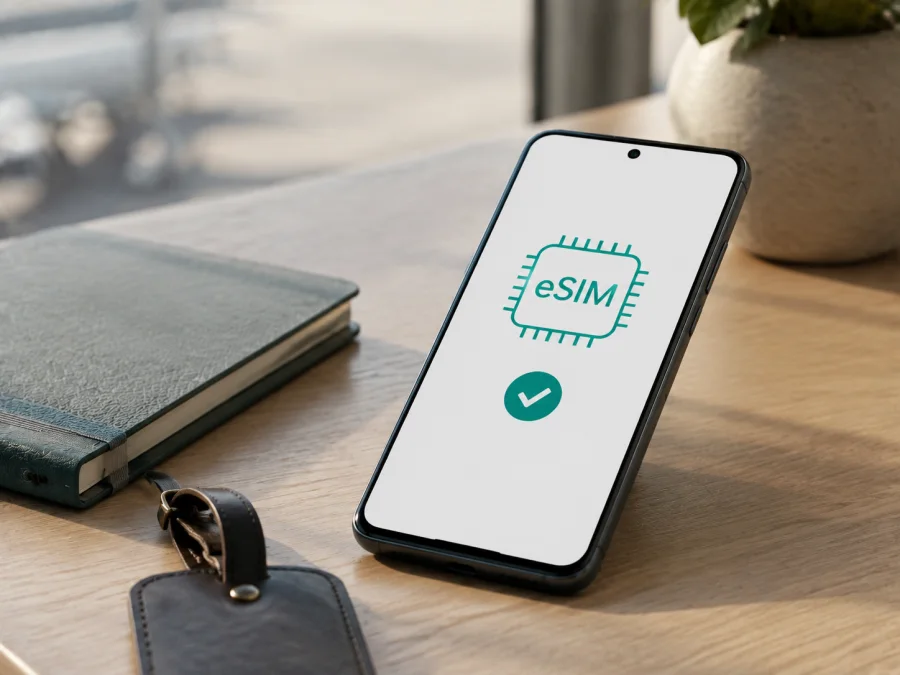
Honor Magic 8 Pro 512GB eSIM: compatibility and installation
If you are checking whether the exact Honor Magic 8 Pro 512GB can use an eSIM for travel, the short answer is: yes, when your regional version includes HONOR's eSIM feature. HONOR's current official eSIM information lists the Magic8 Pro family among supported devices, but also warns that eSIM may not be available on a listed phone according to its country of origin. Storage capacity alone does not decide this. The particular market version, firmware and carrier restrictions still matter.
Safest is checking the phone: look for an EID and Add eSIM in SIM management before purchase.
Does Honor Magic 8 Pro 512GB support eSIM?
The exact answer depends on the unit. HONOR's official global eSIM page includes HONOR Magic8 Pro in its supported-device list and documents Settings > Mobile network > SIM management > Add eSIM. It also warns that a listed phone may lack eSIM support in its country of origin.
For the Honor Magic 8 Pro 512GB, the practical conclusion is:
- Treat eSIM as supported if your phone shows an EID and an Add eSIM or equivalent option.
- Treat eSIM as unavailable on that unit if there is no EID and no eSIM entry after an official update and a full SIM-management check.
- If the menu is present but a profile fails to install, investigate the carrier lock, QR code, internet connection and plan rules before deciding that the hardware is incompatible.
The 512GB figure identifies storage; it does not guarantee a particular regional cellular configuration. If the seller's description and settings disagree, ask HONOR or the seller before buying.
Key characteristics to check
| Item | What applies to Honor Magic 8 Pro 512GB | Why it matters |
|---|---|---|
| Exact variant | Honor Magic 8 Pro 512GB | The name should match the phone, box and seller listing. |
| Official family listing | HONOR Magic8 Pro is listed for eSIM | The listing is subject to country-of-origin limits. |
| Storage | 512GB | Storage does not prove eSIM availability. |
| eSIM status | Regional; verify EID and Add eSIM on the actual unit | Imported versions may differ. |
| Travel use | Mobile data for a country, region or route | Coverage, data and validity belong to the plan. |
| Carrier lock | Must not block another mobile profile | A supported device can still be restricted. |
Check device compatibility {#kesim-device-compatibility}
Before choosing a tariff, complete this check while you have the phone in hand and confirm each item below.
1. Find the EID
Open Settings, then About phone, and look for EID. HONOR's official guidance also says that the EID may be printed on the box. An EID is a strong sign that the hardware and software expose eSIM functionality, although the plan and carrier must still be compatible. Use the full EID only when an activation flow asks for it; do not post it publicly.
If it is not obvious, search Settings for EID or eSIM. On some builds, the entry is under status information or SIM details. A missing result is not conclusive until you have checked SIM management and installed the latest official update offered for your region.
2. Look for Add eSIM
Go to Settings > Mobile network > SIM management and look for Add eSIM. Open the entry only far enough to confirm that QR scanning or another eSIM method is offered; you do not need to activate a plan yet.
If only physical SIM controls appear, check an overflow menu, search Settings and restart after an update. If both EID and Add eSIM are absent, do not buy a travel plan until HONOR or the seller confirms the regional configuration.
3. Check region and lock status
Ask where the phone was originally sold and compare that with the model or product code on the box. Also check whether it accepts another physical SIM or displays a carrier restriction. A carrier-locked device can show eSIM controls but still reject a profile from another provider.
4. Confirm the plan conditions
Check destination coverage, data amount, validity, hotspot rules and whether internet access is needed during installation. A compatible handset does not make every plan suitable. A travel eSIM may be data-only and may not include a normal phone number, voice calls or SMS.
Before you buy an eSIM tariff
- [ ] The phone is exactly Honor Magic 8 Pro 512GB, not another storage or regional variant.
- [ ] EID is visible in the phone information or on the original box.
- [ ] Add eSIM appears under SIM management.
- [ ] The phone is not carrier-locked, or the carrier has confirmed that another profile can be added.
- [ ] MagicOS and relevant carrier settings are up to date.
- [ ] Reliable Wi-Fi or another internet connection is available for download.
- [ ] Destination, route, data amount, validity and hotspot rules fit the trip.
- [ ] You know whether the profile is data-only and when its validity begins.
- [ ] The profile has not already been installed on another phone.
If any of the first four boxes is uncertain, pause before payment and resolve the question with the seller while the phone is unused. Check your device before selecting a tariff.
How to install an eSIM on Honor Magic 8 Pro 512GB
The sequence follows HONOR's documented path, while allowing for small MagicOS wording differences. Keep the physical SIM if you need its number, but decide which profile will provide mobile data.
1. Prepare the phone
Charge the phone, connect it to stable Wi-Fi and keep the activation email, in-app profile or QR image on another screen. Confirm EID and Add eSIM first. Do not scan a public or forwarded QR code.
2. Open SIM management
Open Settings. Tap Mobile network, then SIM management. Select Add eSIM or the equivalent entry for adding a mobile plan. Do not remove the physical SIM unless the phone explicitly asks you to.
3. Scan the QR code
Choose the QR-code option and scan the code supplied after you have selected and arranged the eSIM plan. Keep the phone online while it contacts the activation service. A QR code is often intended for one installation, so do not retry across several devices without checking the plan rules.
4. Enter details manually when offered
Use manual entry only when the eSIM provider supplies an activation address and code. Enter every value exactly. Do not substitute the EID for an activation code: the EID identifies the phone, while activation details identify the profile.
5. Download and label the profile
Review the profile name and destination, confirm the download and wait for installation to finish. Label it Travel data or with the destination so that you do not select your home line by mistake.
6. Choose the data line
In SIM management, select the travel eSIM for mobile data. Keep your usual line for calls or messages if needed. Review the automatic data-switching setting and disable it if you want to prevent the phone from moving data to your home line.
7. Enable roaming for the travel eSIM if required
Some travel eSIMs use partner networks and require Data roaming for that eSIM. Enable it only for the travel profile and when the plan instructions require it. Keep roaming off for your home line if you want to avoid accidental charges.
8. Test the connection
Wait a few minutes for registration. Turn Wi-Fi off briefly and open a simple webpage. Check that the travel profile is the data line and that the data counter changes. Installation, registration and the start of validity may be separate events.
For device-specific guidance, see the Android eSIM installation instructions. The iOS eSIM installation instructions are for iPhone users, but can help a travel companion; Honor Magic 8 Pro 512GB uses Android/MagicOS menus.
How to use the eSIM for mobile internet while travelling
Keep the travel eSIM enabled, choose it for mobile data, and allow automatic network selection. If the plan requires roaming, enable roaming for this profile only. Do not enable automatic data switching unless you understand which line the phone will use.
Scenario 1: install before departure
Installation at home gives you time to find the EID, scan over Wi-Fi and resolve a regional or carrier issue. Keep the travel profile off, or keep your home line as the data line, until the plan's rules tell you to use it. At the destination, select the travel eSIM and test a webpage.
Scenario 2: activate after arrival
If the plan starts when the profile first connects, install after landing using airport Wi-Fi or another trusted connection. Select the travel eSIM for data and test it. This gives more control over timing but depends on a reliable connection and access to the QR code or in-app profile.
Scenario 3: cross-border route
Check whether the plan covers the whole region or only one destination. The same eSIM can remain installed while service changes networks, but coverage and supported countries are plan-specific; do not assume a neighboring country is included.
Manage data and battery
Navigation, video calls, photo backup, updates and high-resolution video can consume data quickly. Download maps over Wi-Fi and restrict background data for unneeded apps. Use hotspot only if the plan permits it.
Kaspersky eSIM Store is an app and website where you can choose, arrange and activate an eSIM with a suitable mobile-data tariff for an overseas trip. It is not the operator, network owner or provider of the underlying mobile internet; service depends on the selected plan and local networks.
Troubleshooting common problems
The QR code will not scan
Increase the displaying screen's brightness, clean the camera and show the entire code. Use Add eSIM, not the ordinary camera app. Display the code elsewhere or use manual entry when supplied. Check the one-time installation policy before requesting a replacement.
Add eSIM is missing
Return to Settings > Mobile network > SIM management, search for EID or eSIM, install the available official update and restart. If EID is also missing, the phone may be a regional version without eSIM. Confirm the country of sale and product code; storage size is not proof.
The profile will not download
Check Wi-Fi, airplane mode, free system space and the QR code or activation details. Captive-portal Wi-Fi may block activation; try another connection. If the profile was already installed, transferred or deleted, its provider may need to reissue it.
The profile is installed but there is no service
Select the travel eSIM for data, enable roaming for that profile if required, allow automatic network selection and restart. Check destination coverage, validity and carrier lock.
Data uses the wrong SIM
Check the default mobile-data line in SIM management and disable automatic data switching. Test with Wi-Fi off; an active Wi-Fi connection can hide which mobile line is working.
Data stops unexpectedly
Confirm that the profile is enabled, the APN is correct, and the plan has remaining data and time. Some profiles need short registration. Check automatic date and time, then restart. Do not delete a profile because a one-time QR code may not be reusable.
The phone is carrier-locked
An operator lock can block another eSIM even when EID and Add eSIM are present. Ask the original carrier or seller for an official unlock. Kaspersky eSIM Store cannot remove a device lock or change regional firmware.
When to contact support
Record the exact variant, country of purchase, MagicOS version and error message. Do not send a full EID or QR code in a public chat.
Frequently asked questions
Is Honor Magic 8 Pro 512GB eSIM compatible?
It can be. HONOR's current official eSIM information lists the Magic8 Pro family as supported, but warns that eSIM may depend on country of origin. For the exact Honor Magic 8 Pro 512GB, confirm EID and Add eSIM on the actual phone before buying.
Can the travel eSIM make normal calls?
Not by default. A travel eSIM used through Kaspersky eSIM Store is generally for mobile internet and may not include a number, voice calls or SMS unless the specific tariff says so. Internet messengers can work over the data connection.
Is installation the same as activation?
Not necessarily. Downloading a profile, enabling it, registering on a network and starting validity can be separate events. Follow the selected plan's conditions.
Does Kaspersky eSIM Store provide the network?
No. It is the app and website used to choose, arrange and activate an eSIM with a travel mobile-data tariff. The underlying service depends on the selected plan and local operators; Kaspersky eSIM Store is not an operator or network owner.
Conclusion
The current official HONOR information supports a careful yes for the Magic8 Pro family, not an unconditional yes for every retail unit. Honor Magic 8 Pro 512GB is a good candidate when its regional software exposes an EID and Add eSIM, the phone is not carrier-locked, and the plan covers the destination. Verify those points before payment.
Final device check and eSIM for your trip
Before leaving, verify the exact name Honor Magic 8 Pro 512GB, find the EID, open Settings > Mobile network > SIM management and confirm Add eSIM. Check country of origin and unlock status, match the tariff to every destination, and note when validity begins. Then select the profile for data and test a webpage with Wi-Fi off.
When these checks are complete, use Kaspersky eSIM Store as the app or website for choosing and activating the eSIM tariff that fits the trip. Base the choice on destination, data needs, validity and verified compatibility—not on the 512GB label alone.


