Travel connectivity guide
Honor Magic V3 128GB eSIM: Compatibility & Setup
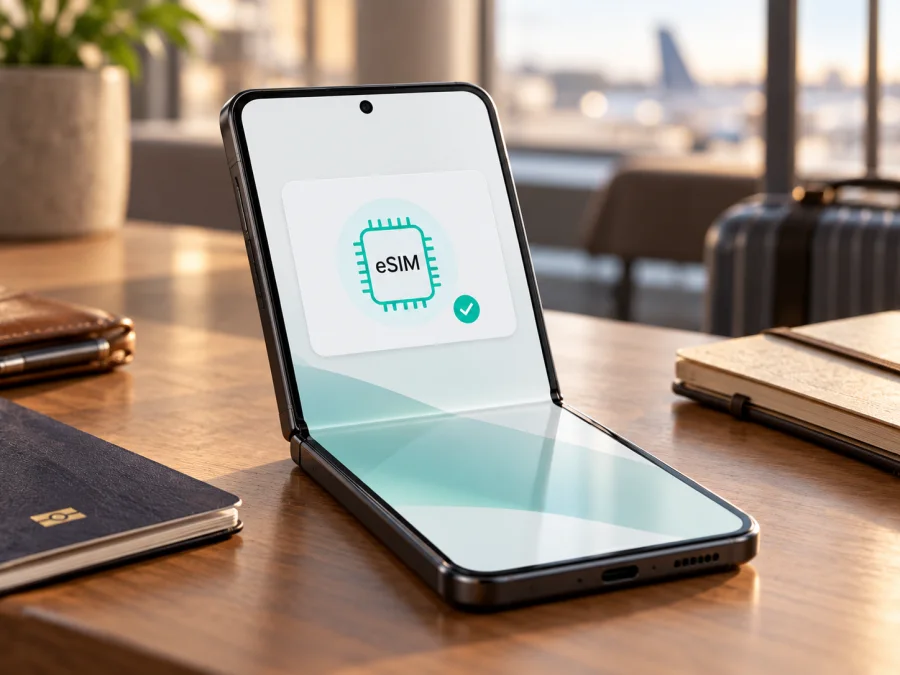
Honor Magic V3 128GB eSIM: compatibility and setup guide
Short answer: HONOR currently lists the HONOR Magic V3 among its eSIM-capable phone families. That confirms support for the model family in at least some markets, but it does not certify every regional or operator-supplied handset, and HONOR’s public list does not identify a separate Honor Magic V3 128GB configuration. Treat the storage label as part of the device you are checking: confirm eSIM on your own phone before choosing a travel plan. The practical checks are an EID in the phone’s settings and an Add eSIM option in SIM management. If neither is present, do not assume the phone can install a profile just because another Magic V3 can.
An eSIM is a digital SIM profile. It can be installed alongside a physical SIM where the hardware and software allow it, and you can select which line uses mobile data. For travel, this can let you keep your regular number available while using a separate data plan abroad. Whether that setup works on a particular Honor phone depends on its actual regional configuration, firmware, carrier lock status, and the plan’s own conditions.
Does Honor Magic V3 128GB support eSIM?
The best evidence available is the current HONOR Global eSIM support page, which names “HONOR Magic V3” in its supported-device list. The same page warns that eSIM may not be available depending on the country of origin, even when a model is listed. This supports a qualified answer: the Magic V3 family has eSIM support in eligible versions, but support is not confirmed for every device sold as Honor Magic V3 128GB. The public listing does not distinguish storage sizes or provide a 128GB-specific compatibility statement.
That distinction matters when buying an imported, refurbished, or carrier-branded phone. A seller may use the same retail model name for devices intended for different markets. Regional variants can have different SIM hardware or software menus, and a carrier may restrict which networks or profiles the device accepts. A software update can change menu wording or add features, but it cannot by itself prove that a specific unit has the required eSIM hardware provisioned.
| What you need to know | What is confirmed | What still needs checking |
|---|---|---|
| Device family | HONOR Global lists HONOR Magic V3 as an eSIM-capable family. | Whether your exact handset and market variant include the feature. |
| “128GB” variant | The requested name is Honor Magic V3 128GB. | HONOR’s public eSIM list does not identify a 128GB configuration or tie support to storage capacity. |
| Geographic status | Support can depend on the phone’s country of origin. | Where this unit was originally sold and whether local firmware exposes eSIM. |
| Carrier status | HONOR notes the new phone must be unlocked for eSIM transfer. | Whether your device is network-unlocked and whether the relevant provider accepts it. |
| Travel data | A travel eSIM can be used for mobile data if the phone accepts the profile and the plan covers the destination. | Plan coverage, activation timing, roaming setting, APN requirements, and any restrictions. |
The “128GB” text should not be treated as proof of a particular market version, nor should it be dropped when you ask a seller or support team for help. Ask for the full model code, original sales region, and written confirmation that eSIM is available on that unit. If the seller cannot confirm, use the settings checks below while you still have a return or exchange option.
Regional versions, carrier locks, and the storage label
A regional version is configured for a particular sales market. Phones with the same retail name can differ in supported features or software menus. HONOR’s country-of-origin warning means the name alone cannot settle compatibility for an individual phone.
Carrier status is a separate check: a phone may have eSIM hardware but still be locked or restricted from adding another provider’s profile. Ask the seller for the full product code, original market, and confirmation that the device is unlocked and shows Add eSIM in SIM management.
The “128GB” label is not an eSIM indicator. HONOR’s public eSIM list does not identify a 128GB Magic V3 configuration, and marketplace titles can be incomplete. Check the capacity and model code in Settings → About phone and compare them with the box or invoice. Keep “128GB” in support requests, but decide compatibility from the actual EID and SIM-management options. If possible, ask the seller to demonstrate both screens before purchase; do not post your EID publicly.
Check eSIM before buying a plan
Check the phone itself before choosing or paying for a travel eSIM. Use both the EID and menu checks; either may be inconclusive on an old or region-specific build.
On the phone
Use this quick compatibility checklist before choosing a plan:
- [ ] An EID appears in About phone.
- [ ] SIM management offers Add eSIM.
- [ ] The handset is unlocked for another provider’s profile.
- [ ] The plan covers your destination and its activation timing suits your trip.
- Connect to Wi-Fi, install any available official update, and restart.
- Open Settings → About phone and look for EID. HONOR’s published path is Settings → About phone → EID; wording can vary.
- Open Settings → Mobile network → SIM management and look for Add eSIM. Open the flow, but do not scan a paid profile just to test compatibility.
- If both EID and Add eSIM are absent, check once more after a restart/update. Treat eSIM as unavailable unless HONOR or the seller confirms the exact product code.
- If EID appears but Add eSIM does not, record the model code, country of origin, and software version and ask HONOR about that market variant.
An EID identifies eSIM hardware; it is not an installation QR code. A profile QR or manual activation details install a particular plan. Share identifiers only through an official support channel when requested. Check whether your device is compatible before choosing a plan.
Confirm the plan conditions
Check that the destination or region matches your route, and that the data allowance, validity period, and activation timing suit your trip. Installation and the start of data validity may be separate events. Confirm the phone is unlocked and has internet access during setup; if using a QR code, display it on a second screen or print it.
Kaspersky eSIM Store is an app and website where users can choose, arrange, and activate an eSIM with a mobile-data plan for an international trip. It does not establish that this phone is compatible. If you are still checking the handset, browse Kaspersky eSIM Store for current destinations; this is a general starting point, not a specific country plan.
How to add and activate an eSIM on Honor Magic V3 128GB
The menu path below follows HONOR’s published Magic V3 guidance. Labels can vary with the region, language, and MagicOS version. The travel plan’s own installation instructions take priority if they give a different activation method.
Before installation
- Confirm that EID and Add eSIM are present and that the device is unlocked.
- Connect the phone to reliable Wi-Fi or another working internet connection.
- Open the plan’s instructions and check whether its QR code is single-use.
- Keep the QR code on another screen or print it. Do not share it in a chat or screenshot.
- Decide whether the new eSIM will be used immediately or saved for your travel date. Follow the plan’s activation rules; adding a profile and starting its data validity may be separate events.
- Keep your regular SIM available until you have tested the travel line, unless the phone or provider instructs you otherwise.
Install by QR code
- Open Settings → Mobile network → SIM management.
- Tap Add eSIM and choose the QR-code option.
- Scan the QR code supplied for the plan. If the camera cannot read it, increase screen brightness on the device displaying the QR and make sure the full code is visible, or try the provider’s manual-entry option if one is offered.
- Follow the on-screen prompts to download the profile. Wait for the installation to finish; keep Wi-Fi connected and do not close Settings during the process.
- Give the profile a clear label such as Travel or the destination name, so you can distinguish it from your home SIM.
- If prompted to set a default line, retain your regular number for calls or messages if you still need it. Select the travel eSIM as the mobile-data line only when you are ready to use it.
- At the destination, open SIM management, enable the travel profile, and select it for mobile data. Turn on data roaming for that profile only if the plan’s instructions require it.
- Wait a few minutes for the phone to register on a supported local network. Turn Wi-Fi off briefly and load a simple webpage to confirm that mobile data works.
HONOR’s general eSIM instructions also allow manual entry or installation of a pre-assigned plan when the provider supports those methods. Do not invent or guess an SM-DP+ address, activation code, or APN. Copy only the information supplied for your plan, and contact the provider if a required field is missing.
For general platform steps, use the Android eSIM installation instructions or the iOS eSIM installation instructions. The iOS guide is not a Magic V3 guide; it is included for readers who are setting up a plan on a different Apple device. The Android guide notes that its illustrated menu names are Samsung-specific, so on the Honor use the HONOR path above and treat any provider instructions as the plan-specific authority.
Set up the line for travel data
Before leaving home, install the profile only if the plan allows pre-installation and your timing is clear. At the destination, check that the travel eSIM is switched on and selected for mobile data. If the plan requires data roaming, turn it on for the travel profile, not indiscriminately for every SIM. When your home SIM remains active, review its roaming and data settings to avoid using it unintentionally. The exact options depend on your domestic carrier and the phone software.
A data-only travel eSIM generally does not replace your usual phone number for cellular voice calls or SMS. Keep the home line as the preferred voice line if needed, and use internet messaging or calling apps over the travel connection. Confirm any separate calling or SMS inclusion directly in the conditions of the chosen plan rather than assuming it is included.
If you plan to use a hotspot, check that tethering is supported by the handset and allowed by the plan. Remember that video, cloud backups, app updates, navigation downloads, and automatic photo uploads can use data in the background. Set app updates and large backups to Wi-Fi, download maps before departure, and check the remaining allowance in the app or website associated with your plan.
Practical travel scenarios
Short trip: Check compatibility in advance, install over Wi-Fi if the plan allows it, then select the travel eSIM for data after arrival. Test a map or webpage with Wi-Fi off.
Several countries: Check every stop against the plan’s included destinations and exclusions. A regional label alone does not prove that all places on your itinerary are covered.
Keep your home number: Where the phone allows both lines, retain your regular SIM for calls or verification and select the travel eSIM for mobile data. Review automatic data switching and your carrier’s roaming charges.
Imported or second-hand phone: Verify product code, country of origin, EID, Add eSIM, and unlock status before departure. If any check fails, plan a backup such as another compatible handset, a physical SIM option, or Wi-Fi.
Higher data use: Account for navigation, video calls, hotspot use, and background backups. Actual speeds and availability depend on the local network, coverage, congestion, and device settings; an advertised allowance does not guarantee uninterrupted service.
Common problems and what to check
“Add eSIM” is missing
Check Settings → About phone for EID and Settings → Mobile network → SIM management after an update and restart. If the menu remains absent, ask HONOR or the seller about the product code and country of origin. A family-level listing cannot override a regional limitation.
The QR code will not scan
Display the full code on another device, increase brightness, and clean the camera lens. Do not crop or repeatedly scan a one-time code. Check whether the profile is already installed; if the code is invalid or used, ask the plan provider about a replacement.
Installation stops or reports an error
Keep Wi-Fi stable, restart, and retry only if the provider confirms the code remains usable. Check storage and automatic date/time. Do not delete a partially installed profile until you know whether it can be reissued; deletion may not reset a single-use code.
The eSIM is installed but there is no service
Confirm the profile is enabled, the phone is unlocked, and the plan covers your current country. Select the eSIM for mobile data, turn on its data roaming if required, and check airplane mode. Restart or briefly toggle the profile. Follow the provider’s advice before manually selecting a network.
Signal appears but data does not work
Check that the travel eSIM is the data line and that the plan is active for this date and location. Review the remaining allowance and enter an APN only when the plan instructions provide one. Turn Wi-Fi off for the test and note any error message for support.
Data uses the wrong SIM
Recheck the selected data line and disable automatic data switching if it can move data to your home SIM. Review roaming separately for each profile. To avoid home-carrier data charges, follow that carrier’s instructions for disabling roaming or the line.
The plan says it is already in use
Some profiles are device-bound or single-use. Check SIM management before scanning again and contact the provider with the order reference. EID is an identifier, not an activation code.
It does not connect immediately on arrival
Allow several minutes for registration, then check the plan’s start condition, data-line selection, roaming, coverage, and APN if specified. Do not reinstall the profile as the first troubleshooting step.
Frequently asked questions
Is the Honor Magic V3 128GB definitely eSIM-compatible?
Not from its storage label alone. HONOR lists Magic V3 as an eSIM-capable family but warns that support can depend on the phone’s country of origin. Its public page does not separately confirm a 128GB configuration. Check the actual EID and Add eSIM menu and confirm the product code with HONOR or the seller.
Does EID mean any travel eSIM will work?
No. EID suggests eSIM hardware, but regional restrictions, a carrier lock, or plan/network requirements can still prevent use. Check the Add eSIM menu, unlock status, destination, and plan conditions.
Can I keep a physical SIM active?
That depends on the phone’s supported active-line combination. Check SIM management, choose the travel eSIM for data if both lines are available, and review home-carrier roaming terms.
Do I need data roaming?
Some travel profiles require it. Follow the selected plan’s instructions and enable roaming for that profile only when needed. Check the home SIM separately.
Does installation start the plan, and can I move it later?
Timing and transfer rules are plan-specific. Check when validity begins and whether a profile can be moved or reissued before installation. Do not remove an activated profile without provider guidance.
Does a travel eSIM include a phone number?
Many travel plans are data-only. Unless the chosen plan says otherwise, expect to use internet messaging or calling apps rather than regular cellular calls and SMS.
Final check before your trip
For Honor Magic V3 128GB, the responsible answer is conditional: HONOR’s current global support information recognizes eSIM for the Magic V3 family, while warning that support varies with country of origin. It does not certify this exact 128GB-labelled unit. Look for an EID and Add eSIM on the phone, confirm the model code and unlock status, and ask HONOR or the seller when the region remains unclear.
Once the handset passes those checks, choose a travel plan for the places you will visit and compare its data allowance, validity, and activation timing with your itinerary. Install over a stable connection, select the travel profile for mobile data at the appropriate time, and enable roaming only as its instructions require. Kaspersky eSIM Store can help you choose, arrange, and activate a travel eSIM plan through its app and website. Check compatibility first, then browse current destinations in Kaspersky eSIM Store and review the conditions shown for your selected plan.


