Travel connectivity guide
Honor Magic V3 256GB eSIM: compatibility
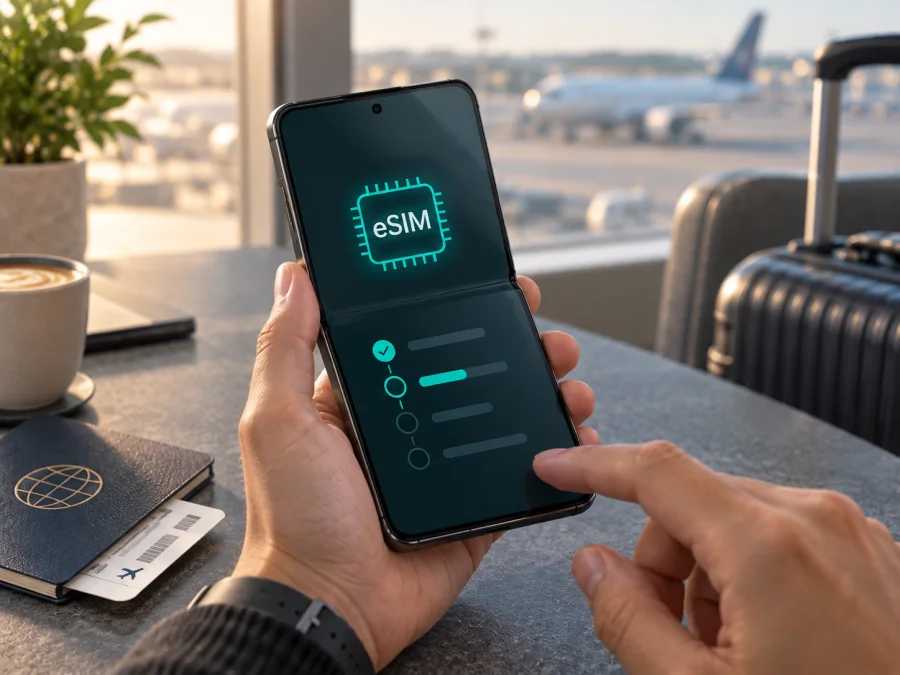
Honor Magic V3 256GB eSIM: compatibility and setup
Short answer: the HONOR Magic V3 family supports eSIM in certain regional versions. HONOR’s current global support information includes Magic V3, and its regional specification describes SIM 2 as either a Nano SIM or eSIM. However, HONOR explicitly cautions that eSIM availability can depend on the country of origin. The name “Honor Magic V3 256GB” does not by itself confirm that a particular handset has eSIM enabled. Check the phone’s settings and EID before buying a travel plan, and confirm the exact regional model with the seller if anything is unclear.
The 256GB figure describes storage, not the SIM configuration. The amount of storage does not tell you whether the phone is a regional eSIM-capable model, a market-specific variant, or an imported device with different firmware or carrier restrictions. Use the device in your hand as the final check.
Does Honor Magic V3 256GB support eSIM?
The manufacturer lists HONOR Magic V3 among its eSIM-compatible phones. A regional HONOR specification describes a physical Nano SIM in SIM 1 and a second slot that can be configured for either Nano SIM or eSIM. HONOR also says that eSIM availability may vary by country and carrier. Taken together, this means the model family supports eSIM, but it is not safe to assume every handset sold under the same product name has the feature.
| Item | What to know |
|---|---|
| Device variant | Honor Magic V3 256GB |
| eSIM for the model family | Listed by HONOR as supported |
| SIM arrangement in a compatible version | SIM 1: Nano SIM; SIM 2: Nano SIM or eSIM, depending on configuration |
| Is eSIM guaranteed by “256GB”? | No. Storage capacity does not establish regional SIM capability. |
| Main checks | EID, an “Add eSIM” setting, regional model, carrier unlock and plan requirements |
| Typical travel use | Keep your home SIM available for calls and messages while using the travel eSIM for mobile data, if supported by your setup |
For this specific Honor Magic V3 256GB, treat eSIM support as conditional on the regional handset. Check whether the device has an EID and an option to add an eSIM. If the menu is missing or the EID cannot be found, do not rely on a general product listing. Ask the seller to confirm the exact SKU and eSIM support in the market where the phone was originally sold. A carrier may also restrict SIM functions on a locked or managed phone.
An eSIM is a digital SIM profile stored in the phone. It can let you use a mobile data plan without inserting another plastic SIM card. It does not automatically provide a standard phone number, voice calls or SMS: those services depend on the particular plan. Travel eSIM plans are commonly intended for data, so check their terms and keep another line active for ordinary calls or texts if you need them.
Why regional versions matter
A phone model can be sold in several markets with different SIM arrangements, software builds or carrier restrictions. HONOR warns that a listed model may still lack eSIM in some countries of origin. The 256GB label, a product review or the phone’s appearance cannot confirm the configuration of your unit.
For a new or imported phone, ask for its complete model code, original sales region and eSIM confirmation. If you own it, inspect Settings directly. An EID and “Add eSIM” are useful signs, though plan and network requirements still apply. A carrier lock can still prevent use of another provider.
Check compatibility before buying a plan {#kesim-device-compatibility}
Use this checklist on the exact phone that will travel with you:
- [ ] Open the SIM settings and look for Add eSIM or a similar option.
- [ ] Find the phone’s EID, a long identifier for its embedded SIM hardware.
- [ ] Confirm that the handset is not locked to a carrier that blocks another provider’s eSIM.
- [ ] Check that the phone’s software is up to date and can connect to Wi-Fi during installation.
- [ ] Confirm that the travel plan covers your destination and supports the device’s network bands.
- [ ] Read when the plan’s validity begins: purchase, installation, activation or first network connection can each be the trigger.
- [ ] Save the installation details somewhere you can access while travelling; many QR codes can only be used once.
To check the EID, open Settings → About phone and look for EID. On some MagicOS versions, the same information may appear under Settings → About phone → Status or within SIM management. Menu names vary by software build and region. You can also try Settings → Mobile network → SIM management and check whether Add eSIM appears. HONOR’s setup instructions use the SIM management path, but the exact labels can differ after updates.
An EID identifies the embedded SIM component, but does not guarantee that a specific plan or network will work. If the EID or add-eSIM control is missing, check Settings again after an official update. If still absent, confirm the exact regional version with HONOR or the seller before purchase.
Check whether your device is compatible
Where to find eSIM settings and EID
HONOR’s current setup path is Settings → Mobile network → SIM management → Add eSIM. To find the EID, check Settings → About phone → EID; depending on firmware, it may be under Status or SIM status. Search Settings for “EID” or “eSIM” if labels differ. The EID may also appear on the box, but the on-device display confirms which handset you checked. Do not share the EID publicly; give it only to a provider that requests it for setup.
If the EID appears but Add eSIM does not, restart and install official updates. If the option appears but you cannot find an EID, ask HONOR or the seller to verify the model before proceeding. Regional firmware or carrier settings may affect activation.
How to install and activate an eSIM
Prepare before starting. Use a reliable Wi-Fi connection, keep the phone charged, and have the QR code or manual activation details from the plan provider available on another screen or printed page. Do not delete an existing eSIM profile as a troubleshooting shortcut: some profiles cannot be installed again after removal. Check the plan’s instructions first.
- Confirm the plan and destination. Check the supported country or region, data amount, validity period, activation rule and any device requirements. Make sure the phone is unlocked for the provider you intend to use.
- Choose when to install. Many plans can be installed before departure, while their validity starts later. Others start as soon as they connect to a supported network. Follow the plan’s stated timing so you do not use part of its validity too early.
- Open SIM management. On the Honor Magic V3 256GB, go to Settings → Mobile network → SIM management and choose Add eSIM. The wording can vary with MagicOS version.
- Add the profile. Scan the provider’s QR code, enter the activation details manually if offered, or choose a pre-assigned plan when that option is available. Use the method supplied with your specific plan.
- Wait for the download to finish. Keep Wi-Fi connected and do not close the setup screen while the profile is being added. When asked, give the new line a clear label such as “Travel”.
- Set the travel line for mobile data. In SIM management, select the travel eSIM as the mobile data line when you are ready to use it. Keep your home line enabled for calls or messages if you need it and your plan allows dual SIM use.
- Check data roaming for that line. Some travel eSIM plans require data roaming to be on. Enable it only for the travel profile when its instructions say to do so; check your home carrier’s roaming settings to avoid unwanted charges.
- Test the connection. At the destination, turn off Wi-Fi briefly, confirm that mobile data is assigned to the travel profile, and open a simple webpage. If it does not connect, follow the troubleshooting steps below before deleting or reinstalling anything.
For screenshots and platform-specific steps, see the Android eSIM installation instructions and the iOS eSIM installation instructions. The Android guide is relevant to this HONOR phone; the iOS guide is included as a reference for anyone managing another device in the same travel group. The settings path and available installation methods can differ between providers, Android builds and plan types.
Use the eSIM for mobile data on a trip
An installed profile can stay stored on the phone while switched off. When ready, enable it in SIM management and select it for mobile data. Keep your home line for calls or messages only if desired, and check its roaming charges. At the destination, allow time for network registration. Enable data roaming for the travel eSIM if its instructions require it; begin with automatic network selection.
For a multi-country trip, check that every stop is covered and whether the plan’s validity starts at purchase, installation, activation or first connection. Maps, calls over apps, video and hotspot use can consume data quickly. Download maps and travel documents over Wi-Fi when convenient. Network availability and speed depend on local coverage, plan networks, the phone’s regional model and conditions; 5G is not guaranteed.
A travel eSIM can provide data after landing for directions, messaging apps and booking details without looking for a physical SIM shop. It does not necessarily include a local number, conventional calls or SMS. Kaspersky eSIM Store is an app and website where you can choose, arrange and activate an eSIM with a mobile data plan for an international trip. Check the plan’s destination, allowance, validity and activation terms; service depends on supported networks and local availability.
Common issues and what to check
“Add eSIM” is missing
Search Settings for “eSIM” or “EID”, check Mobile network → SIM management, install official updates and restart. If neither appears, ask HONOR or the seller to confirm the exact model code and country of origin. Do not assume another Magic V3 configuration proves yours is compatible.
The QR code will not scan or the profile will not download
Make the QR code bright and fully visible, clean the camera lens, and hold the phone steady. If the code is displayed on the Honor, use another screen or manual entry if the provider allows it. Check that the code is unused and still valid; some QR codes work only once. Keep Wi-Fi connected during download and contact the plan provider if the code is rejected.
The profile installs but data does not work
Confirm that the profile is enabled and selected for mobile data, the destination is covered, and the plan has data and validity remaining. Turn Wi-Fi off briefly to test cellular data. Enable roaming for the travel profile only if the plan requires it. Restart or briefly toggle airplane mode, then check any APN instructions from the provider. Avoid guessing network settings.
The phone is locked, has no service, or might incur charges
Ask the home carrier whether the phone is unlocked for another provider’s eSIM. At the destination, allow time for network registration and start with automatic network selection. Check which SIM is set for data and disable roaming on your home line if you do not intend to use it. Incoming calls, texts and roaming charges on that line follow your home carrier’s terms. A visible EID does not override a carrier lock or unsupported destination network.
The eSIM was already installed
Do not delete it just to repeat setup. Some profiles cannot be reinstalled or moved to another phone. Read the provider’s redownload policy or contact support before removing the profile, resetting the device or changing handsets.
Frequently asked questions
Is Honor Magic V3 256GB definitely eSIM-compatible?
HONOR lists the Magic V3 family as supporting eSIM, but warns that availability depends on country of origin. Storage capacity does not identify the regional SIM configuration. Check the individual phone’s EID and Add eSIM setting before buying a plan.
Can I use a physical SIM and an eSIM together?
HONOR’s regional specifications describe SIM 1 as Nano SIM and SIM 2 as Nano SIM or eSIM on compatible versions. Active combinations depend on the exact handset and software; check its SIM management screen.
Does a travel eSIM replace my normal number, and can I transfer it?
Most travel eSIM plans are for data and do not automatically include a phone number, calls or SMS. Do not assume a profile can be transferred or reinstalled: check the plan rules before deleting it or changing phones.
When should I install the plan? Will it use 5G?
Both answers depend on the plan. Some plans begin validity at installation, others at activation or first network connection. 5G requires compatible bands, local service and plan support; otherwise the phone may use 4G or another available network.
Final check: your device and trip eSIM
Before choosing a plan for your Honor Magic V3 256GB, confirm that the exact handset shows an EID and an Add eSIM option, is not carrier-locked, and has current software. Then check that the plan covers your destination, provides the data allowance and validity you need, and explains when activation begins. Keep the QR code and support details accessible, install over a reliable connection, and select the travel eSIM for mobile data when you are ready to use it.
If any compatibility check is uncertain, ask the seller or HONOR to confirm the regional model before paying. Once verified, Kaspersky eSIM Store’s app and website can help you choose, arrange and activate an eSIM with a suitable mobile data plan for your international trip.


