Travel connectivity guide
Honor Magic V5 12GB RAM eSIM: compatibility
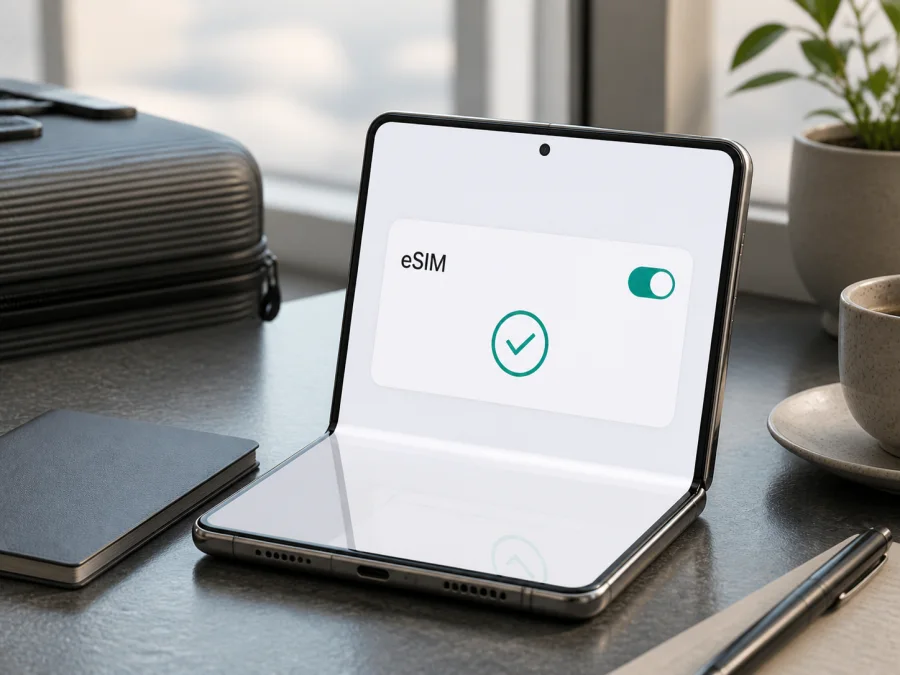
Honor Magic V5 12GB RAM eSIM: compatibility and setup
If you own an Honor Magic V5 12GB RAM and want mobile internet while travelling, the practical answer is: the HONOR Magic V5 model family is listed by HONOR as supporting eSIM, but the exact handset still needs to be checked. HONOR warns that eSIM availability can depend on the country of origin, so a regional or operator version with the same commercial name may behave differently.
RAM capacity itself does not prove eSIM availability. Before paying, confirm that this phone displays an EID or an option to add eSIM.
What eSIM means on Honor Magic V5 12GB RAM
An eSIM is a digital SIM profile stored in the phone. It can provide mobile data without another physical SIM, allowing you to keep your everyday line available if the regional phone and operator support dual-SIM use. For Kaspersky eSIM Store, the use case is a prepaid eSIM tariff for mobile internet during an international trip. The app and website help you choose, order, and activate it; they are not a mobile operator, network owner, or provider of mobile coverage.
Unless the tariff says otherwise, expect mobile data only: no second number, ordinary calls, or SMS. Use messaging apps over data or keep your regular SIM for calls where supported.
Direct compatibility answer
HONOR’s current official eSIM information lists HONOR Magic V5 as eSIM-capable and describes QR scanning, manual entry, or a pre-assigned plan. It also says a listed device may lack eSIM in a particular country of origin; that qualification applies to this exact Honor Magic V5 12GB RAM variant.
So the practical verdict is potentially compatible, subject to the exact regional unit. If your phone shows an EID and the Add eSIM control, you can normally proceed with a compatible travel plan. If neither appears, do not assume that a software update, a different QR code, or more RAM will solve it. The unit may have a regional hardware or firmware limitation, or it may be operator-locked.
Why identical names can behave differently
Manufacturers frequently sell a phone under one commercial name in several markets. SIM configuration, supported bands, firmware features, certification, and operator policies can differ. A device imported from another country can also receive a different software build from the one described on a local store page. Retail pages may combine specifications for several memory configurations, so the words “12GB RAM” do not by themselves prove that eSIM is present.
Keep these distinctions in mind:
| Check | What it tells you | Why it matters |
|---|---|---|
| EID in Settings | The phone has an eSIM identity exposed to the system | It is the strongest quick sign that an eSIM component is available |
| Add eSIM menu | The current firmware offers eSIM setup | It confirms that the feature is usable in the present software and region |
| Unlocked status | Whether another network profile can be used | A carrier lock can prevent activation even when eSIM hardware exists |
What to check before buying a travel eSIM
Do this check while you have Wi-Fi and the phone in front of you. Verify the actual handset rather than relying on the product family name.
- Confirm the name and memory label in
Settings > About phone. Make sure it is the exact Honor Magic V5 12GB RAM, not another RAM or storage listing. - Open
Settings > Mobile network > SIM management, or search Settings foreSIMorSIM. - Look for
Add eSIMor equivalent wording. Menu names can vary with language and MagicOS version. - Open
Settings > About phoneand look forEID; HONOR also says it may be printed on the box. - Check that the phone is unlocked, install pending official updates, and review the travel tariff’s destination, allowance, validity, activation, and refund conditions.
For an imported or second-hand handset, repeat this check with the seller’s regional details.
An EID is a device identifier for the embedded SIM, not a tariff or network connection. Seeing it means the phone exposes eSIM capability, but you still need an unlocked handset, a suitable profile, and destination coverage. The Add eSIM menu confirms that the current MagicOS build makes setup available. If the two checks disagree, ask the seller or operator to confirm the regional version before ordering.
Compatibility checklist
Your Honor Magic V5 12GB RAM is ready for the next step when these checks pass:
- [ ] An EID is visible in the phone information or on the original box.
- [ ]
Add eSIMis visible under mobile-network or SIM-management settings. - [ ] The phone is unlocked, or the current operator confirms that another eSIM can be used.
- [ ] The phone can connect to Wi-Fi for the download and installation.
- [ ] MagicOS is current enough for the activation flow shown on the device.
- [ ] The chosen plan covers every country or region in your itinerary.
- [ ] You understand whether activation starts on installation, on first network connection, or under another condition shown in the plan details.
- [ ] You know whether data roaming must be enabled for the travel eSIM.
- [ ] You have kept the QR code or manual activation details private.
If the EID and Add eSIM controls are both missing, pause before purchase. Contact the seller or operator with the exact model and country of sale. Do not install a profile just to test it if the purchase terms make an installed profile non-refundable.
Use this Check your device checklist again immediately before ordering.
How to install an eSIM on Honor Magic V5 12GB RAM
The following is a practical Android/MagicOS flow. Labels can move after an update, so follow the closest wording on your phone. Use the Android installation instructions for a general walkthrough. The iOS installation instructions may help with a second device, but do not replace the Android steps here.
1. Prepare the phone
Connect the Honor Magic V5 12GB RAM to Wi-Fi. Keep the QR code on another screen or on paper; if it is displayed on this phone, use manual entry or another screen.
2. Open SIM management
Open Settings, tap Mobile network, then SIM management. Search Settings for eSIM if the labels differ. Confirm that Add eSIM is present.
3. Start the profile download
Tap Add eSIM. Choose QR scanning, keep all corners visible, and wait for the activation details. If scanning is unavailable, choose manual entry and copy the supplied information exactly. A pre-assigned plan may use the EID, but it is not available for every tariff.
4. Review the plan
Read the destination and plan name. Confirm that you are adding the intended travel profile, not replacing the primary line. A successful download does not necessarily mean that data validity has started; follow the plan’s activation rule.
5. Name the eSIM
Give the line a clear label such as Travel data. Avoid deleting it while troubleshooting: many profiles cannot be installed again without a new activation code.
6. Select the data line
When MagicOS asks which SIM should handle data, select the travel eSIM when appropriate. Keep the home line for calls and SMS if needed. Turn off automatic data switching to avoid accidental home-line roaming.
7. Finish activation
Turn the eSIM on if needed. Registration can take a few minutes. If the plan is for use after arrival, install it over Wi-Fi before departure, then keep the home line as data until you reach the destination. Follow the purchase conditions for when validity begins.
How to use the eSIM during a trip
Installation and travel use are separate decisions. A careful setup keeps your main number available while controlling which profile uses data.
Before departure
Choose a plan for every country you will visit, including transit stops where data is needed. Match the allowance to your use of maps, translation, email, photos, video, and hotspot. Check validity and expiry. Review the conditions in Kaspersky eSIM Store before ordering; the app and website show the purchase workflow and profile afterward.
Install over Wi-Fi if early installation is allowed. Keep the activation details secure, download offline maps as a backup, and disable data roaming on the home line if you want to avoid accidental use.
After arrival
Open SIM management and turn on the travel eSIM. Set it as the data line. If the plan requires it, enable data roaming for that profile; do not enable it blindly on the home line. Check the status bar, open a simple webpage, and confirm that the intended data counter changes.
Practical scenarios
A short city break. Install at home, keep the home SIM for calls, and select the travel eSIM for maps and messages after landing. A smaller allowance may be enough when hotel Wi-Fi covers heavier use.
A multi-country route. Choose a regional plan only when its coverage includes every stop. A phone may show service in one country and none in the next if the next country is outside the plan.
A work trip. Confirm that tethering is permitted and estimate laptop traffic separately. Disable automatic updates and cloud backup on mobile data when necessary.
Common problems and checks
The Add eSIM option is missing
Recheck Settings > Mobile network > SIM management, search Settings for eSIM, and verify the EID under About phone. If both are absent, compare the country of sale and software region with the seller. This is a compatibility issue, not a QR-code issue; do not buy another plan until the regional version is confirmed.
The QR code will not scan
Increase the brightness of the screen showing the code, clean the camera lens, and keep all corners visible. Try manual entry if supplied. Avoid repeated attempts on several phones unless the tariff allows it.
The profile will not download
Check Wi-Fi, free storage, and automatic date and time. Retry from SIM management. If the code is invalid or already used, contact support with order details, without sharing the QR code publicly.
There is no signal after installation
Restart the phone, confirm that the profile is on and selected for data, and enable data roaming on that profile if required. Check the destination and network conditions. Coverage can vary indoors, underground, in rural areas, or during congestion.
Data uses the wrong SIM
Open SIM management, select the travel eSIM for mobile data, and disable automatic data switching. Turn off roaming on the home line. Check the phone’s per-SIM counter and the plan’s allowance and validity; activation may follow the conditions shown at purchase.
Calls, SMS, or transfer do not work
That can be expected: a travel eSIM is generally for mobile internet, not a replacement number. Use the home line or internet calling where supported. If the phone was sold by an operator, ask whether it is unlocked and allows another eSIM; an EID alone does not remove a carrier restriction.
FAQ
Does Honor Magic V5 12GB RAM support eSIM?
The HONOR Magic V5 model family is listed by HONOR as supporting eSIM. For the exact Honor Magic V5 12GB RAM, confirm EID and Add eSIM on the handset because HONOR states that support can vary by country of origin. Treat the phone’s own settings as the final pre-purchase check.
Does 12GB RAM guarantee eSIM?
No. RAM describes memory capacity, not eSIM hardware or regional enablement. Check the EID and Add eSIM control instead.
Can I keep my physical SIM active?
Usually, the phone can keep a physical line available while the eSIM handles data, but dual-SIM behavior depends on the regional model and network. Select the travel eSIM for data and review roaming on the home line.
Should I install the eSIM before flying?
Often, if the plan permits it. Use Wi-Fi and confirm when validity begins; wait if early installation starts the plan immediately.
Can I remove the eSIM after the trip and install it again later?
Do not assume that you can. Many profiles have limited installation rules, so check the tariff before deleting anything.
Is an eSIM always cheaper than roaming?
No universal comparison is safe. Value depends on destination, allowance, validity, operator pricing, and your usage, so compare the conditions.
Where do I get help if activation fails?
Verify compatibility, Wi-Fi, the data line, roaming, destination coverage, and validity. Then contact Kaspersky eSIM Store support through the app or website with order information; do not send the full QR code publicly.
Final check before choosing an eSIM for your trip
Before purchasing a travel plan for Honor Magic V5 12GB RAM, complete this final sequence:
- Check
Settings > About phoneand confirm the exact device label and the 12GB RAM variant. - Find the EID and confirm that
Settings > Mobile network > SIM managementcontainsAdd eSIM. - Confirm that the handset is not operator-locked and that its regional version is eligible for eSIM.
- Select a destination tariff whose coverage, data allowance, validity, activation rule, and conditions match your itinerary.
- Install over Wi-Fi, name the profile clearly, and keep the activation details private.
- On arrival, select the travel eSIM for mobile data and enable its data roaming only when required by the plan.
- Test a small amount of data before relying on the connection for navigation or work.
If the EID or Add eSIM option is missing, verify the regional version with the seller or operator before buying. If both checks pass, Kaspersky eSIM Store can help you choose, order, and activate an eSIM tariff for mobile internet on your overseas trip: verify the Honor Magic V5 12GB RAM, choose the route plan, install it, and select the correct data line.


