Travel connectivity guide
Honor Magic V6 12GB RAM eSIM: Compatibility & Setup
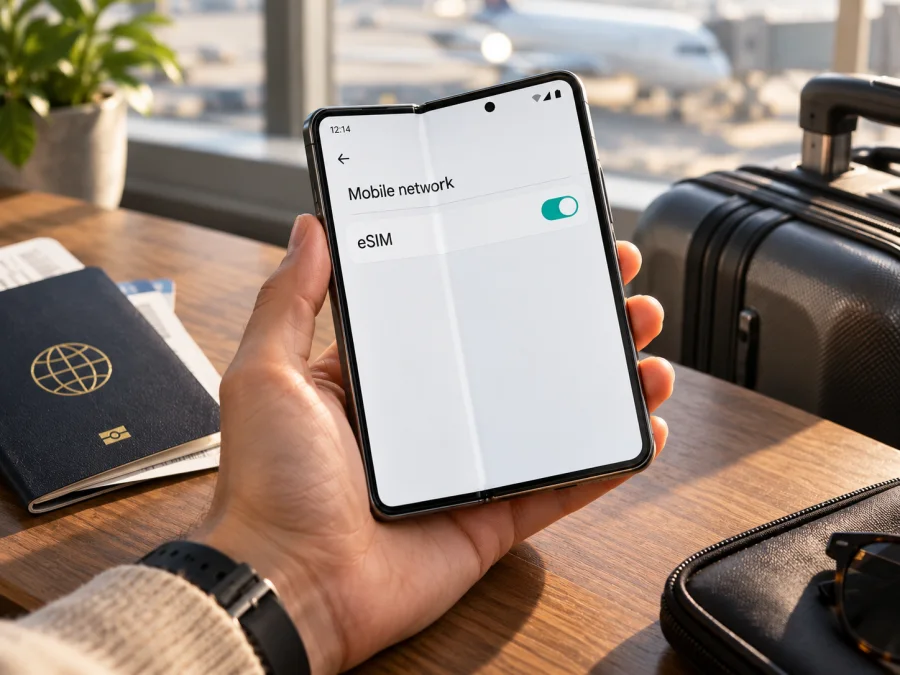
Honor Magic V6 12GB RAM eSIM: compatibility and setup
Short answer: HONOR’s official Magic V6 specifications list eSIM as a supported SIM configuration, including combinations such as physical SIM plus eSIM and two eSIM profiles. That is good evidence that the Magic V6 family can use eSIM, but it does not prove that every retail unit described as Honor Magic V6 12GB RAM has the feature enabled. HONOR notes that eSIM availability can vary by country and carrier, and the exact 12GB RAM configuration could not be matched to a distinct official regional product listing during verification. Before buying a travel plan, check the individual phone for an EID and an Add eSIM option, and confirm that it is unlocked and supported in the country where it was purchased.
This distinction matters because a product title can combine a model name and memory detail without identifying its precise hardware or software region. The steps below help you establish what your own handset can do before you rely on it abroad.
Does Honor Magic V6 12GB RAM support eSIM?
The answer for the HONOR Magic V6 family is yes, with regional and carrier conditions. HONOR’s published specification for the Magic V6 lists SIM1 + SIM2, SIM1 + eSIM, and eSIM1 + eSIM2 as possible configurations. HONOR’s regional buying guide likewise says eSIM is supported while advising users to check local availability. These are official family-level statements, not a guarantee about every phone sold under a reseller listing.
For Honor Magic V6 12GB RAM specifically, treat support as likely for a compatible regional model, but unconfirmed until the device itself is checked. The official regional support pages we could verify identify some Magic V6 configurations with 16GB RAM and particular model identifiers, while HONOR’s China shop specification lists two Nano-SIM slots for its listed configuration. Neither fact proves what a 12GB listing means or which market that particular handset is for. RAM capacity alone does not identify the eSIM hardware, firmware, or carrier eligibility.
| Item | What can be stated safely |
|---|---|
| Device named in the listing | Honor Magic V6 12GB RAM; keep this exact variant wording when checking or ordering |
| eSIM on the Magic V6 family | Listed by HONOR for supported regional configurations |
| Exact 12GB RAM SKU | Not independently matched to an official regional specification in the information checked |
| SIM combinations | HONOR lists physical SIM and eSIM combinations on a regional specification page |
| Country and carrier conditions | HONOR says availability can vary; local operator and handset market matter |
| Best confirmation before purchase | EID shown on the phone, Add eSIM menu present, and seller/carrier confirmation for the exact model code |
Why the region and seller listing matter
Phone manufacturers sometimes offer different SIM trays, firmware features, or network configurations in different markets. A regional specification page may describe a version sold in one country, while a reseller may import the same model name from another market. Operator restrictions can also prevent adding a profile even when the hardware is capable. Software updates may change the visible menus, but an update cannot reliably add eSIM hardware to a version that was sold without it.
The phrase “12GB RAM” is not enough to settle these questions. It describes a memory configuration as presented by a seller; it may omit storage capacity, sales region, model identifier, or whether extra virtual memory is included in the advertised total. Ask the seller for the full model code, country of origin, and written confirmation that the handset has an EID and supports eSIM activation. If the phone has already arrived, rely on the handset checks below rather than the title alone.
Check compatibility before choosing a plan
Use more than one check when possible. An EID is the identifier associated with the embedded SIM hardware. Its presence is a strong sign that the phone has eSIM capability, but it does not guarantee that a particular carrier or travel plan will accept the device. The settings menu is another useful check; labels can differ slightly between MagicOS versions and regions.
Quick compatibility checklist
- [ ] Open Settings and search for “EID” or “eSIM”.
- [ ] Check whether the phone shows an EID, usually in About phone, Status, or a SIM information screen.
- [ ] Open Mobile network or SIM management and look for Add eSIM, Add mobile plan, or a similar option.
- [ ] Confirm the exact model code and market with the seller or HONOR support if the EID or menu is missing.
- [ ] Ask the carrier or travel eSIM provider whether this exact regional model is accepted.
- [ ] Confirm that the handset is not carrier-locked and has current software.
- [ ] Check whether the destination plan requires data roaming, a specific network selection, or an activation in the destination.
To check the EID, try Settings → About phone → Status or use the settings search field and enter EID. On some software builds, SIM information appears under Settings → Mobile network → SIM management. If the device supports eSIM, the EID may be shown as a long numeric identifier. You can also check the retail box or device information screen, but the settings screen is preferable because it verifies the phone you actually received.
Then check the add-profile menu. Go to Settings → Mobile network → SIM management and look for Add eSIM or an equivalent command. Menu wording can vary by country and software version. If you see the option but cannot proceed, that is not proof of full compatibility: the device could be locked, the market may restrict activation, or a profile service may be unavailable. Conversely, a missing menu can result from regional firmware, an outdated system, or a model that lacks eSIM support. Restart after installing system updates, then check again.
Check your device before you choose a travel tariff. If your model code, EID, or menu does not match the seller’s claims, resolve that discrepancy first. Do not purchase a plan on the assumption that the “Magic V6” name alone guarantees compatibility.
Prepare before installation
Install the eSIM while you have reliable Wi-Fi or another internet connection. Keep the QR code or activation details accessible on a second screen or printed page, because the phone cannot scan a code displayed on its own screen. Read the plan’s instructions before starting: some profiles can be installed ahead of travel and activated later, while others begin their validity period as soon as they connect or are installed.
Before proceeding:
- Update MagicOS if an update is available, then restart the phone.
- Confirm that the device shows an EID and an Add eSIM option.
- Make sure the phone has a stable internet connection and enough battery.
- Keep the plan’s QR code, activation code, or provider app ready.
- Check the plan’s destination, data allowance, validity period, supported network, and activation trigger.
- Avoid deleting an installed profile unless the provider confirms that it can be reinstalled.
How to install and activate an eSIM
On a compatible Honor Magic V6, the menu names may differ slightly by region or MagicOS release. Use the phone’s settings search if a label is not where expected. For general steps, see the Android eSIM installation guide and the iOS eSIM installation guide. The iOS guide is included for travelers setting up a profile on a different Apple device; the Honor phone uses Android steps.
1. Open SIM management
Open Settings, tap Mobile network, and choose SIM management or the closest equivalent. Select Add eSIM or Add mobile plan. If no such choice appears, pause and repeat the compatibility checks. Do not try to force activation through a QR code when the phone has no eSIM option.
2. Scan or enter the activation details
Choose the QR-code option and scan the code supplied with your plan. If the camera cannot read it, increase screen brightness on the second device, clean the camera lens, and position the QR code so the whole image is visible. If the provider supplied manual activation details, use the manual entry option and copy each field exactly. Do not share the code with other people; it can be tied to a single installation.
3. Confirm the profile installation
Review the plan information shown by the phone, then approve downloading the profile. Keep the device connected to Wi-Fi until setup completes. Installation can take a few minutes. A confirmation screen may show the new line under a name such as “Travel” or the destination; rename it to something clear if the phone offers that option.
4. Set your preferred lines
In SIM management, choose which line handles mobile data. If you want to keep your home number active for calls or messages, leave that line selected for its intended use and select the travel eSIM for mobile data only. Avoid enabling data switching between lines unless you understand how your home operator bills roaming. The travel profile’s mobile data allowance is separate from your home SIM’s service.
5. Activate at the right time
Some plans start when installed, some when they first connect to a supported network, and others on a date or after a confirmation in an app. Follow the plan’s activation terms. If the validity starts on first connection, you can often install before departure and turn the line on after arrival, but verify this with the provider. Do not assume that every plan follows the same rule.
6. Enable roaming if the plan requires it
Many travel data profiles require Data roaming to be enabled for that eSIM. Open the eSIM’s line settings and check the provider instructions. If roaming is needed, enable it for the travel line specifically; keep it disabled for your home SIM unless you intend to use your home carrier abroad and accept its charges. The word “roaming” in the phone settings describes how a profile connects outside its home network and does not by itself indicate an extra fee from the travel plan.
7. Check connection
After landing, turn on the eSIM line, keep mobile data assigned to it, and wait a few minutes for network registration. If the plan requires manual network selection, choose one of the networks listed in the provider’s instructions. Open a simple webpage with Wi-Fi turned off to confirm that mobile data works. Keep the plan confirmation and support details available in case you need help.
Use the eSIM for mobile data while travelling
Think through how you use data. Maps, ride-hailing, messaging, email, and translation tools all need connectivity, but video and cloud photo backups can consume much more data. Download maps and tickets over Wi-Fi before departure, turn off automatic app updates on mobile data, and check the phone’s data usage during the trip. The allowance and validity shown in the selected plan are the limits to use for planning; do not infer them from example screenshots or from another country’s offer.
If the travel plan is data-only, calls and SMS through a regular cellular number may continue to use your home line, subject to that operator’s roaming terms. Internet calling and messaging apps can work over the travel data connection. Confirm what the selected plan includes before relying on it for voice calls, short codes, or bank verification messages.
Kaspersky eSIM Store is an app and website where travellers can choose, arrange, and activate an eSIM with a mobile-data plan for an international trip. Compare the destination, allowance, validity, and activation terms for your route before selecting a plan. You can browse current travel eSIM options and verify the current terms for your destination.
Common problems and what to check
The Add eSIM option is missing
Search settings for “eSIM” and “EID”, check for a system update, and restart the phone. If there is still no EID or add-profile menu, ask HONOR or the seller to verify the exact model code and regional firmware. The device may be a regional version without eSIM enabled. A marketing description or a compatible-looking SIM tray does not establish that eSIM is present.
The QR code will not scan
Make sure the QR code is for this plan and has not already been used. Display it on a separate screen, enlarge it without cutting off its edges, increase brightness, and try the phone camera in the eSIM setup flow. If scanning continues to fail, use manual details only if the provider supplied them. Never guess an activation address or confirmation code.
The profile downloads but does not connect
Check that the eSIM line is switched on and selected for mobile data. Confirm the destination is included in the plan and that the validity period has started. Enable data roaming for the travel profile if its instructions require it. Restart the phone, wait several minutes, and try automatic network selection. If the provider lists partner networks, select one manually and test again.
The phone shows signal but apps have no internet
Turn Wi-Fi off to ensure the test is using mobile data. Check that mobile data is assigned to the travel eSIM rather than the home line. Confirm that the plan has remaining data and has not expired. If the provider specifies an access point name (APN), compare it with the phone’s APN settings and enter it only as instructed. Check whether a data limit or app-level restriction is enabled.
The eSIM was installed but activation is pending
An installed profile may wait until it reaches a supported network or activation date. Check the plan’s rules before deleting or reinstalling it; many QR codes can only be used once. Keep the profile on the phone, connect to Wi-Fi, and contact the plan provider with the order reference and device model code if the expected activation window has passed.
The home SIM loses data or incurs roaming use
Review the selected data line and disable automatic data switching if you want to prevent the phone from changing lines. Check roaming settings separately for each SIM. The presence of two active profiles does not mean the phone will always choose the intended one for mobile data, so verify the selection after changing SIM settings or restarting.
A profile cannot be added because the phone is locked
A carrier lock can limit use of another provider’s profile. Ask the original carrier to confirm the lock status and unlocking process before travel. An eSIM-compatible handset can still reject a plan if it is locked or if its software or sales region prevents activation.
Frequently asked questions
Is eSIM guaranteed on every Honor Magic V6 12GB RAM listing?
No. HONOR documents eSIM for supported Magic V6 configurations, but eSIM varies by market and carrier, and the exact 12GB RAM listing was not verified as a distinct official SKU. Check the EID, Add eSIM menu, and model code on the phone you will use.
Can I use a physical SIM and an eSIM at the same time?
HONOR lists SIM1 + eSIM among the Magic V6 family’s regional SIM combinations. Whether your particular unit supports that arrangement and which line can handle calls or data depend on the device’s region and software. Confirm the combination in SIM management before travel.
Does finding an EID mean every travel eSIM will work?
No. An EID indicates eSIM capability, but the phone must also be unlocked, accepted by the plan, and able to connect to a supported network in the destination. Check the device and plan conditions before payment.
Do I need mobile data or Wi-Fi to install the eSIM?
The phone generally needs an internet connection to download the profile. Use reliable Wi-Fi or another working connection during installation. Keep the QR code available on a second device or in a format that can be entered manually if the provider supports that method.
Should I turn on data roaming?
Only when the instructions for the travel profile require it. Enable roaming for the travel eSIM, not automatically for every line. Check your home operator’s roaming settings separately to avoid unintended use.
Can a data-only eSIM receive ordinary calls and SMS?
Not unless the specific plan says it includes a phone number and voice or SMS service. Many travel eSIM plans are intended for mobile data. Messaging and voice apps can use that data connection, while ordinary calls and text messages remain subject to the home line’s service and charges.
Before you leave
For Honor Magic V6 12GB RAM, the best-supported conclusion is that eSIM exists in the Magic V6 family, but the exact 12GB RAM regional unit must be verified individually. Confirm an EID and Add eSIM menu, check the model code and carrier lock status, then match the destination and activation rules of your chosen plan. Install only after reading those terms, select the correct line for mobile data, and test the connection with Wi-Fi switched off. Once those checks are complete, the phone can be prepared for a more predictable mobile-data setup on an international trip.


