Travel connectivity guide
Houston eSIM: Mobile Internet for Your City Trip
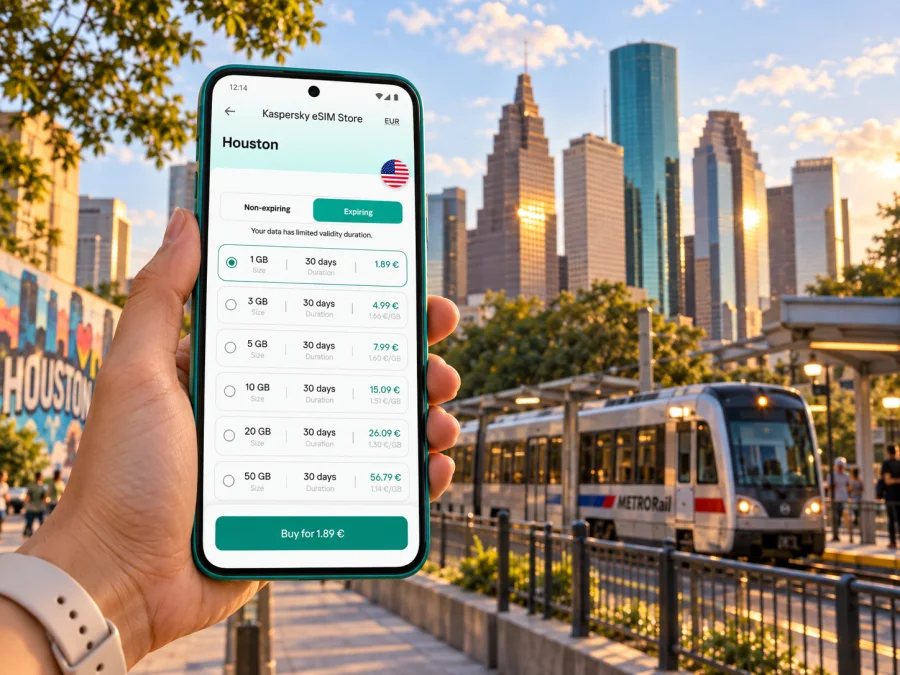
Houston eSIM: mobile connection and internet for a city trip
Houston is a city where a phone is useful well beyond finding a restaurant. You may land at one airport, stay in a different part of the metro area, cross town for a meeting, and finish the day far from the hotel. A working mobile data connection helps you check directions, coordinate rides, confirm opening hours, and keep travel details available while plans change.
A travel eSIM can make that preparation simpler: it is a digital SIM profile for mobile data that you can set up on a compatible, unlocked device. Kaspersky eSIM Store is an app and website where you can choose, arrange, and activate an eSIM with a suitable plan for an international trip. Before choosing, check that the plan covers the United States and that its data allowance and validity match your itinerary.
Start with the airport you are actually using
Houston has two major passenger airports, and they sit in different parts of the city. George Bush Intercontinental Airport (IAH) is north of central Houston; William P. Hobby Airport (HOU) is southeast of downtown. Your arrival airport affects the first route, pickup point, and likely time in transit, so save its three-letter code with your hotel address before departure.
At IAH, follow airport signs to Ground Transportation after collecting your bags. METRO’s 500 Downtown Direct links the airport with downtown, including the George R. Brown Convention Center area. The current airport information lists the stop at Terminal E, Level 2, Door E201, service every 30 minutes from 5:30 a.m. to 8 p.m., and a one-way fare of $4.50. The 102 Bush IAH Express also serves the airport from Terminal C and makes more local stops; the airport lists a longer downtown journey of roughly 50–90 minutes. Check the live schedule and pickup details for your travel date, since service arrangements can change.
At HOU, look for ground-transportation signs outside baggage claim. Since February 2026, METRO’s 500 Downtown Direct has also served Hobby, providing a direct airport link to downtown and IAH. The airport authority lists the route’s one-way fare as $4.50. If you choose a local bus, rideshare, taxi, hotel shuttle, or rental car instead, follow the designated curb and pickup signs rather than relying on an old screenshot or a pin saved from a previous trip.
| Arrival point | Useful first check | Why mobile data helps |
|---|---|---|
| IAH | Terminal and pickup point; compare 500 and 102 service | Find the right ground-transport area and confirm the current departure |
| HOU | Ground-transport curb and whether 500 fits your timing | Match the pickup point to your chosen ride and share your arrival status |
| Airport transfer | Which airport the next flight uses and how much time remains | Keep the route, terminal details, and backup plan together |
If you are changing airports, treat the transfer as a cross-city journey rather than a short walk between terminals. IAH and HOU are separate airports; the time required depends on traffic, service frequency, and the route you choose. Check the current connection and leave a buffer for baggage, terminal access, and possible delays. A map app is useful, but it cannot make a tight transfer safe by itself.
Plan for Houston’s distances, not just the map pins
Houston trips often combine several separate destinations: the hotel, a convention venue, a medical appointment, a museum, or a restaurant. A map may show each as a neat pin, but the practical journey depends on the exact address, time of day, parking or transit access, and whether the last part is walkable. Enter the full destination name and street address before you set out. For a large venue or complex, save its entrance or building as well as its general location.
Downtown can work well as a base when your plans cluster around offices, events, and central attractions. Other visitors may stay closer to the Texas Medical Center, the Museum District, Uptown, or a family member’s neighborhood. Those names cover distinct areas; do not assume that a hotel described as “central” is close to every stop on your itinerary. Check actual door-to-door routes for the times you expect to travel.
Group nearby stops, then check how you will move between them. Save exact addresses for restaurants, venues, and meeting points; a business name alone may bring up another branch. For transit, confirm the route and direction. For a car or rideshare, compare the pickup entrance with the visitor entrance, especially at campuses and large hotels. For walking, follow actual sidewalks and crossings rather than a straight line on the map.
Mobile internet for the moments between stops
The most useful data tasks are often small and frequent: opening a route, checking a bus update, messaging a driver, retrieving a reservation, or translating a short message. Think about those tasks when estimating how much data you need. Video calls, cloud photo uploads, high-resolution streaming, and using your phone as a hotspot can consume substantially more data than maps and text messages.
Before choosing an eSIM plan for a Houston trip, consider:
- Length of stay: Match validity to the complete itinerary, including arrival and departure days. Check when the plan’s validity begins; it may be tied to activation or first connection under the plan’s terms.
- Expected use: Navigation, messaging, and email usually call for a different allowance than frequent video meetings or tethering a laptop.
- Coverage area: Confirm that the selected plan is intended for the United States, including any nearby destinations you expect to visit.
- Data limits: Read whether data is capped, whether speeds or service change after an allowance is used, and what options exist if you need more.
- Calls and texts: A data eSIM does not automatically include a regular U.S. phone number, voice minutes, or SMS. Check the specific plan terms; internet-based calling and messaging apps may work over data.
Kaspersky eSIM Store helps you review available options and select an eSIM plan for your trip. You can explore eSIM plan options for the United States and compare the listed data amount, validity, and destination against the way you expect to use your phone in Houston.
Keep the phone useful without draining the plan
A small amount of preparation reduces unnecessary data use and makes maps easier to reach when you need them. Before leaving your hotel, download offline map areas if your preferred map app supports them, save confirmation emails or tickets for offline access, and keep addresses in a notes app. Offline maps are a backup for navigation, not a replacement for current traffic, route changes, or live transit information.
Pause large photo uploads and app updates until you have reliable Wi‑Fi. If you use a laptop through your phone’s hotspot, monitor the connection and set a data warning where your device allows it; a video meeting or cloud sync can consume more data than several days of text-based directions.
On arrival, select the travel eSIM as the line for mobile data if that is how you intend to use it. Keep your home line enabled only if you need it and understand its roaming terms; having two lines active can still lead to charges from your home provider. Turn off data roaming on the home line if you want to avoid accidental data use, and follow the selected eSIM’s instructions for its own settings. The exact menu names differ by phone and operating-system version.
Check your device and its U.S. variant
Device support depends on the exact model and sometimes the market where it was sold. A phone that looks like a supported model may have a different SIM configuration in another country. Apple’s current guidance, for example, says all iPhone 14 and later models sold in the United States are eSIM-only, while models sold elsewhere can have different SIM arrangements. This describes a regional device variant; it does not mean every iPhone in a traveler’s hand has the same hardware or is automatically ready for a travel plan.
Before purchase, confirm that your exact phone model supports eSIM and is not carrier-locked. For iPhone, check Settings → General → About and look for the Carrier Lock status; Apple says an unlocked device displays “No SIM Restrictions.” For Android, consult the manufacturer’s specifications and your current carrier if the eSIM option is unclear. Also check that the device can use the relevant cellular bands and that the selected plan supports your handset.
Check whether your device is compatible with eSIM before choosing a plan. If you recently bought the phone through a carrier installment deal, do not assume it is unlocked just because it has an eSIM setting. Unlocking conditions belong to the original carrier, and a travel eSIM cannot remove a device restriction.
Install before you need directions
If possible, install the profile while you have a stable internet connection and time to read the instructions. Keep the order confirmation or QR code accessible on a second screen or printed copy if you may need to scan it with the same phone. Some devices allow manual entry; use the method shown for your purchase and device. Avoid deleting an installed profile unless the plan instructions or support team tell you to, because a profile may not be reusable after removal.
A simple preparation sequence:
- Confirm that your phone supports eSIM and is unlocked.
- Choose a plan for the United States and read its coverage, data, validity, and activation terms.
- Install the eSIM using the supplied setup method while connected to Wi‑Fi or another working internet connection.
- Label the new line clearly, such as “Travel data,” so you can distinguish it from your home SIM.
- Set the intended line for mobile data and check the roaming setting required by the plan.
- On arrival, verify the selected line and wait for registration before troubleshooting apps or maps.
Follow the step-by-step Android eSIM installation instructions or iPhone eSIM installation instructions for your device. Installation and activation are separate actions on some plans: check the plan terms so you know whether the validity clock starts during setup or only after connecting in the destination.
Houston travel scenarios
A first-time visitor arriving at IAH. Before landing, save the hotel address and decide whether Route 500’s hours fit the arrival time. After baggage claim, follow the signs to the listed Terminal E pickup, or check the airport’s current instructions if you need another terminal or a later departure. Once downtown, use the exact hotel entrance in your map rather than navigating only to the block.
A convention attendee staying downtown. Save the venue entrance, registration details, and hotel pin together. If a meeting moves, update the destination before leaving the building; keep an offline address as a fallback.
An appointment in the Texas Medical Center. Confirm the exact building and entrance, not only the campus. Save check-in instructions and agree on a clear pickup landmark if someone is driving you.
A family trip across neighborhoods. Group each day’s stops geographically and check the return route as well as the outbound journey. Carry a spare battery or charging cable if you will rely on navigation throughout the day.
A short connection between IAH and HOU. Confirm that the next flight departs from the other airport and review the route on the day of travel. The 500 service provides a link between both major airports and downtown under its current configuration, while local bus options may involve transfers. Compare the available departure times with your arrival, baggage, and check-in deadlines; if the schedule leaves little margin, choose transport with timing that better fits the connection.
A compact Houston arrival checklist
Before departure, work through this list:
- Save your arrival airport code: IAH or HOU.
- Keep the full hotel or first-stop address available offline.
- Confirm eSIM compatibility and carrier-unlocked status for the exact device variant.
- Choose a United States plan whose data allowance and validity fit the trip.
- Read when activation and validity begin, and whether the plan is data-only.
- Install the profile before travel if the instructions allow it.
- Save airport pickup details and a backup route.
- Set the travel eSIM as the mobile-data line only when you are ready to use it.
- Keep your home line’s roaming settings and charges in mind.
- Recheck live transit information, road conditions, and airport instructions on travel day.
Common questions about eSIM in Houston
Will a travel eSIM give me a U.S. phone number?
Not necessarily. Many travel eSIMs are for data only. Calls and SMS are included only when the specific plan says so. You can usually use messaging or internet-calling apps over mobile data, but make sure you can receive important verification codes through another method if needed.
Can I install the eSIM after landing?
Often you can, provided you have a working internet connection and the plan’s installation method is available. Installing before departure can make the first airport steps easier. If your plan requires a QR code, make sure it is visible on a separate device or available in another format while you scan it.
Does eSIM support depend on the city?
The phone’s eSIM capability does not depend on Houston, but service depends on the plan’s destination, partner network, device support, and local conditions. Select a plan that explicitly includes the United States and read its terms. A city name in a travel itinerary does not determine the plan’s coverage.
Why does a U.S.-purchased phone matter?
Some manufacturers sell different hardware configurations by region. In the United States, Apple says iPhone 14 and later models sold there are eSIM-only; other regional variants may retain a physical SIM tray or differ in eSIM support. Check the model number and manufacturer guidance for your own device rather than applying a U.S. specification to every version.
Can I use a travel eSIM and keep my regular SIM active?
Many supported phones let you keep more than one line available, but settings and capabilities vary. You may use one line for data and another for calls or texts, depending on the device and plan. Your home carrier may still charge roaming fees if its line is active, so check its terms before travel.
What should I do if the eSIM does not connect?
Check that the profile is installed and turned on, that it is selected for mobile data, and that the plan is valid in the United States and within its activation period. Review the plan’s network-selection and roaming instructions, then restart the phone if appropriate. If the issue continues, contact the eSIM service’s support with your device model and the error shown; do not delete the profile as a first troubleshooting step.
Prepare your Houston connection
In Houston, airport choice, exact addresses, and cross-town timing shape the day. Save key locations, check your route, and choose an eSIM plan around your stay and expected data use. Review the plan terms, device compatibility, and activation instructions before you travel.
Use Kaspersky eSIM Store on the website or app to choose, arrange, and activate a suitable travel eSIM. Explore eSIM options for your trip to the United States, check the plan details, and install the profile on your compatible device before you set off for Houston.


