Travel connectivity guide
Huawei Mate 40 Pro 128GB eSIM Compatibility & Setup
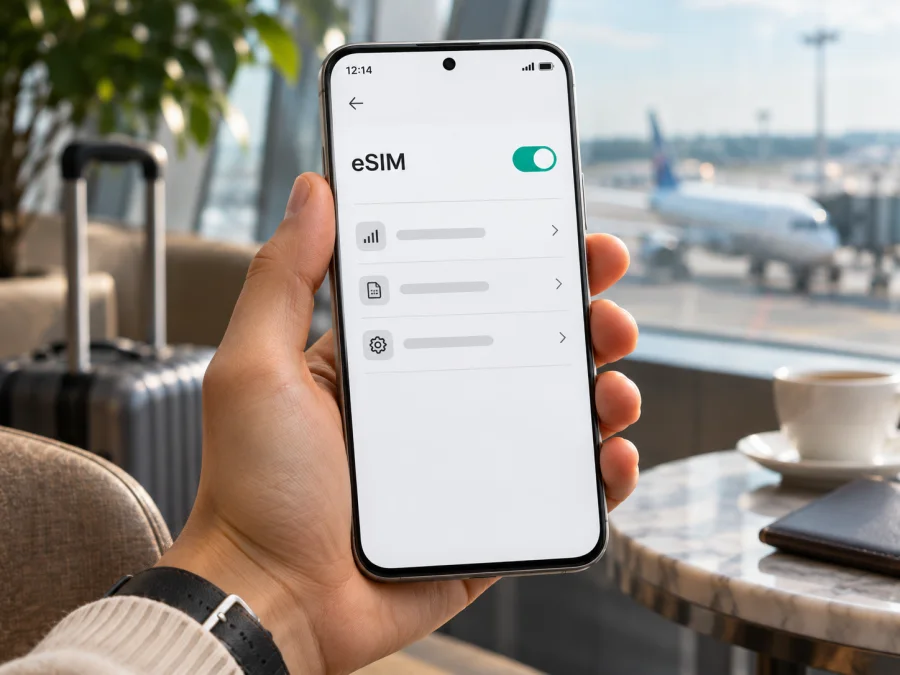
Huawei Mate 40 Pro 128GB eSIM: compatibility and setup
If you are checking whether a Huawei Mate 40 Pro 128GB can use an eSIM for mobile data abroad, the safest answer is conditional: Huawei documents eSIM support for some Mate 40 Pro configurations, but its current support information names 8 GB RAM and 256 GB storage variants. It does not confirm the exact 128GB version in this request. Check the phone itself for an EID and an eSIM option before choosing a plan. Storage capacity alone is not proof that the phone contains an eSIM chip.
That distinction matters because eSIM support can depend on the precise hardware configuration, sales market, carrier and software. The name on the box may identify the Mate 40 Pro family without telling you whether the particular unit has an enabled eSIM profile. This guide explains what is confirmed, what remains uncertain for the 128GB variant, and how to make a reliable check before a trip.
Does Huawei Mate 40 Pro 128GB support eSIM?
The exact Huawei Mate 40 Pro 128GB configuration is not confirmed by the official Huawei material reviewed for this guide. Huawei’s eSIM support instructions list HUAWEI Mate 40 Pro single-SIM and dual-SIM versions with 8 GB RAM and 256 GB storage. Huawei also notes that the feature may vary by device, carrier and country or region. Those statements establish that eSIM exists on certain Mate 40 Pro versions; they do not establish support on a 128GB model.
Treat this version as unverified until the phone shows an EID and an eSIM management option. If there is no EID, or no eSIM controls in SIM management, do not assume that an update, a travel eSIM QR code or a different data plan can add missing eSIM hardware. Ask the seller or Huawei support to check the exact model number and sales region if the information is inconsistent.
| Item | What can be said about Huawei Mate 40 Pro 128GB |
|---|---|
| Exact variant in this guide | Huawei Mate 40 Pro 128GB |
| eSIM verdict for this exact storage variant | Not verified by the official configuration list reviewed here; confirm on the handset |
| Mate 40 Pro eSIM evidence | Huawei support lists certain single-SIM and dual-SIM models with 8 GB RAM and 256 GB storage |
| On-device check | Look for an EID in About phone and an eSIM option under SIM management |
| Market and carrier | Huawei says availability varies by device, operator and country or region |
| Kaspersky eSIM Store use | Choose a destination and review current travel data-plan details only after confirming device compatibility |
The “128GB” wording is kept because it identifies the phone you are checking. It should not be silently treated as equivalent to Huawei’s documented 8 GB + 256 GB versions. The official support pages are useful evidence for the Mate 40 Pro family, but they do not provide a blanket approval for every capacity, product code or market.
Why regional and carrier versions matter
Phone manufacturers can sell different SIM configurations in different markets. Devices with the same family name may differ in hardware, firmware and SIM menus. A carrier may also restrict activation or require a device to be eligible on its network.
Huawei says eSIM availability varies by device, carrier and country or region. These are separate checks: the phone needs eSIM hardware, its software and regional configuration must expose the feature, and the destination operator must accept the device and profile. That is not a promise of global operation.
Huawei’s support list reviewed here names Mate 40 Pro single- and dual-SIM versions with 8 GB RAM and 256 GB storage. It does not list the 128GB variant. This does not prove that no 128GB version exists; it means support for this exact input is not established. Do not infer compatibility from a generic Mate 40 Pro listing or another owner’s device with a different storage or SIM configuration.
If your phone came from an operator, ask whether it is carrier-locked and whether it can use a third-party travel data eSIM. Give the seller or carrier the model number shown in Settings > About phone, not only the family name.
Compatibility checklist: check the handset before purchase
Use the phone’s own menus as the first practical test. A displayed EID is a strong indication that an eSIM chipset is present; the available eSIM controls provide a second check. Huawei’s instructions say to open Settings > About phone > Show EID. If the EID is absent, Huawei says that eSIM is not supported on that device. Menu wording can vary slightly by software version, so use the Settings search field for “EID” if needed.
- [ ] Open Settings > About phone and look for Show EID or an EID value.
- [ ] Open Settings > Mobile network > SIM management and check whether SIM 2 offers eSIM controls or an add-eSIM action.
- [ ] Confirm the model number and software version shown on the phone, and compare them with the seller’s or Huawei’s documentation for the unit’s sales market.
- [ ] Ask the original carrier or seller whether the phone is unlocked for a third-party eSIM profile.
- [ ] Confirm that your destination operator and the specific travel plan accept this phone and its configuration.
- [ ] Keep Wi-Fi or another working internet connection available during profile download and installation.
If an EID appears but no add-eSIM control is visible, restart the phone, install available official updates and search Settings again. Then ask Huawei support to check the model code and ask the carrier about activation policy. An update may change a menu, but it is not proof that missing eSIM hardware has been added.
If no EID appears, compare the model number with the seller’s written specification and ask Huawei or the seller to confirm the configuration. If eSIM is essential, choose another verified-compatible device rather than relying on a generic family-level claim.
After these checks, you can review current destinations and travel plan details on the Kaspersky eSIM Store website. This is the general English-language store homepage for browsing current options, not a country-specific tariff page. Kaspersky eSIM Store is an app and website where you can select, arrange and activate an eSIM with a mobile data plan for an international trip; the mobile service itself is provided through the relevant service partners and networks.
For a general pre-purchase review, check your device compatibility.
What EID and eSIM menus tell you
EID means Embedded Identity Document. It identifies eSIM hardware in a device; it is not a QR activation code, phone number, IMEI or plan reference. Share it only through an official support channel, not in a public screenshot.
A visible EID is an important compatibility signal, but does not guarantee that every provider or destination accepts the phone. Regional software, carrier lock and plan eligibility still matter. Huawei’s instructions say that if no EID is displayed in the Show EID screen, eSIM is not supported on that device.
For documented Mate 40 Pro configurations, Huawei manages eSIM as SIM 2. Its instructions note that a dual-SIM phone with a physical card in SIM 2 may need that slot disabled while an eSIM is added. Follow the prompts on your own handset.
How to install an eSIM on a compatible Huawei phone
Proceed only after you have verified an EID, an eSIM management option and the provider’s compatibility requirements. Have your QR code or activation details ready, keep the phone online, and do not delete a profile to troubleshoot unless the provider tells you to: an activation code may be single-use.
- Check the plan and device. Confirm the destinations, phone unlock status and provider compatibility for your precise Huawei configuration.
- Connect to Wi-Fi. Keep the phone online while it downloads the profile, and keep the activation instructions available.
- Open SIM management. On supported Huawei versions, go to Settings > Mobile network > SIM management. The eSIM is commonly managed as SIM 2; wording can vary.
- Choose the eSIM action. Follow the on-screen option to add or configure an eSIM. Read any notice about switching SIM 2 from a physical card before confirming.
- Add the profile. Scan the provider’s QR code, select a saved image if offered, or enter activation details manually. Do not share the code or scan it repeatedly while a request is pending.
- Wait for installation. Keep the phone online while it downloads and registers the profile. Do not delete it just because activation takes a few minutes.
- Enable and label the line. Give it a clear name, then enable it when you are ready to use it. Follow the provider’s timing instructions.
- Set mobile data. Select the travel eSIM for mobile data. Some profiles require data roaming on that eSIM; enable it only if instructed, and avoid selecting the home SIM for data if you want to avoid its roaming charges.
- Test at the right time. If data starts on first connection in the destination, test after arrival. Follow any scheduled activation time shown by the provider.
For broader device-specific steps, use the Android eSIM installation instructions or the iOS eSIM installation instructions. Huawei Mate 40 Pro uses Android-based EMUI, so the Android guide is the relevant general reference; the iOS guide is included for readers comparing setup on another device. Always follow the exact instructions supplied with your selected profile if they differ from a general guide.
Using the eSIM for mobile data on a trip
Choose a plan only after compatibility is clear. Check that its country or regional coverage matches your itinerary, then compare data allowance, validity period, start conditions and tethering rules. A regional plan may suit several stops, while a country plan may suit a single destination. Read the listed destinations; do not assume a broad region includes every border or remote area.
You may be able to install the profile before departure and leave it unused until the provider’s instructions say to enable it. You can also install after arrival if you have reliable Wi-Fi and still have access to the activation details. Keep setup instructions available offline. Plan validity and the moment data use begins can differ, so check the terms for the option you select.
On arrival, enable the travel eSIM, select it for mobile data and turn on data roaming for that profile if required. Keep a home SIM active for calls or messages only if you want it, and check its roaming settings and charges. Many travel eSIM plans are data-only and do not include a regular phone number, voice or SMS; messaging and calling apps can use data if already set up.
Kaspersky eSIM Store is an app and website where users can select, arrange and activate an eSIM with a mobile data plan for a trip abroad. It is not the mobile operator or owner of the destination network. Review the conditions shown for the particular plan, and resolve any uncertainty about the phone before arranging one.
Practical travel scenarios
- Short city break: Estimate map, booking and messaging use; check that the validity window covers the full stay. Navigation, uploads and video can use data quickly.
- Longer stay or work: Estimate email, calls, cloud sync and tethering. Check hotspot rules and allowance, and pause large downloads if the phone is your only connection.
- Several countries: Match every stop, including transit destinations, against the plan’s coverage details. A single-country plan may stop working after a border crossing.
- Keep a home number: If you leave the physical SIM enabled, select the travel eSIM for data and disable automatic data switching if available. Check home-line roaming charges with that carrier.
Common problems and what to check
There is no EID or eSIM menu
Search Settings for “EID,” open About phone, and check SIM management. Confirm the model code and region with the seller or Huawei support. Because the official configuration information reviewed here does not list the 128GB variant, do not use compatibility claims for a 256GB Mate 40 Pro as evidence for this phone. If no EID is displayed after checking the exact settings path, treat the phone as unsupported unless Huawei confirms otherwise for that model code.
The QR code will not scan
Increase the screen brightness, clean the camera lens and hold steady. If allowed, scan a saved image or enter the details manually. Confirm the code has not already been used, and keep it private.
The profile will not download
Check Wi-Fi, restart, confirm date and time are automatic, and ask the provider whether the code is valid. Do not delete existing profiles without checking whether deletion is permanent. Give support the error text and purchase reference, never your password or full QR code.
The eSIM is installed but there is no service
Confirm it is enabled and the country is covered. Select it for data and enable roaming for that eSIM only if required. Toggle airplane mode or restart, then check whether the plan has started. Persistent “no service” may indicate a lock, regional restriction, local network limitation or provisioning issue.
Connected, but data does not load
Check the selected line, remaining data, validity and signal. Follow the provider’s APN instructions exactly. Turn off Wi-Fi briefly to test mobile data and review app data permissions if only some apps fail.
The home SIM seems to use data
Check SIM management and disable automatic data switching if available. Turn off roaming on the home SIM unless intended, and check its account for charges.
The provider says the phone is incompatible
Recheck the model number, EID and lock status. Ask whether the provider’s check covers Huawei Mate 40 Pro 128GB; a family-level listing may omit a regional SKU. Do not repeatedly scan the code while waiting.
Frequently asked questions
Is Huawei Mate 40 Pro 128GB confirmed to support eSIM?
No definitive confirmation was found for this exact variant. Huawei lists selected 8 GB + 256 GB Mate 40 Pro configurations. Check this phone’s EID and eSIM controls, then confirm its model number with Huawei or the seller.
Does every Mate 40 Pro have eSIM?
That is not established. Huawei lists particular configurations and says availability varies by device, carrier and country or region.
Where can I find the EID?
Open Settings > About phone > Show EID, or search Settings for “EID.” Huawei says no displayed EID means eSIM is not supported on that phone.
Can an update add eSIM to the 128GB version?
Do not assume so. An update may change menus, but check for the EID and ask Huawei about the model code.
Can I use eSIM and a physical SIM together?
It depends on the configuration. Huawei says some dual-SIM models may need a physical SIM 2 disabled to add an eSIM. Follow the handset prompts.
Does a travel eSIM include calls and texts?
Many plans are data-only. Check the terms; messaging and voice apps can use mobile data.
Should I enable data roaming?
Some travel profiles require it. Follow the provider’s instructions and select the travel eSIM for mobile data.
Can I install before travelling?
Often, but validity and activation timing vary. Check when the plan starts and keep the instructions accessible.
What if I delete the eSIM?
Ask the provider whether it can issue a replacement; do not assume the profile or QR code can be reused.
Final check before you choose a travel plan
For Huawei Mate 40 Pro 128GB, the responsible conclusion is that eSIM support has not been verified for this exact configuration by the official Huawei information reviewed here. Huawei documents the feature for certain 256GB Mate 40 Pro variants, while also noting that device, carrier and geographic availability differ. That evidence is useful context, not a substitute for checking your specific phone.
Before arranging a travel data plan, confirm that Show EID displays an identifier, that SIM management offers an eSIM action, that the phone is not locked, and that the plan accepts the handset for the countries on your itinerary. If any point is uncertain, ask Huawei, the seller or the plan provider to check the exact model number. When the device is confirmed, browse current destinations and plan information on Kaspersky eSIM Store and compare the listed data allowance, validity and activation conditions with your trip. The store is an app and website for selecting, arranging and activating an eSIM plan for mobile data abroad; availability and terms belong to the specific option and its service partners.


